
User Share Track Link
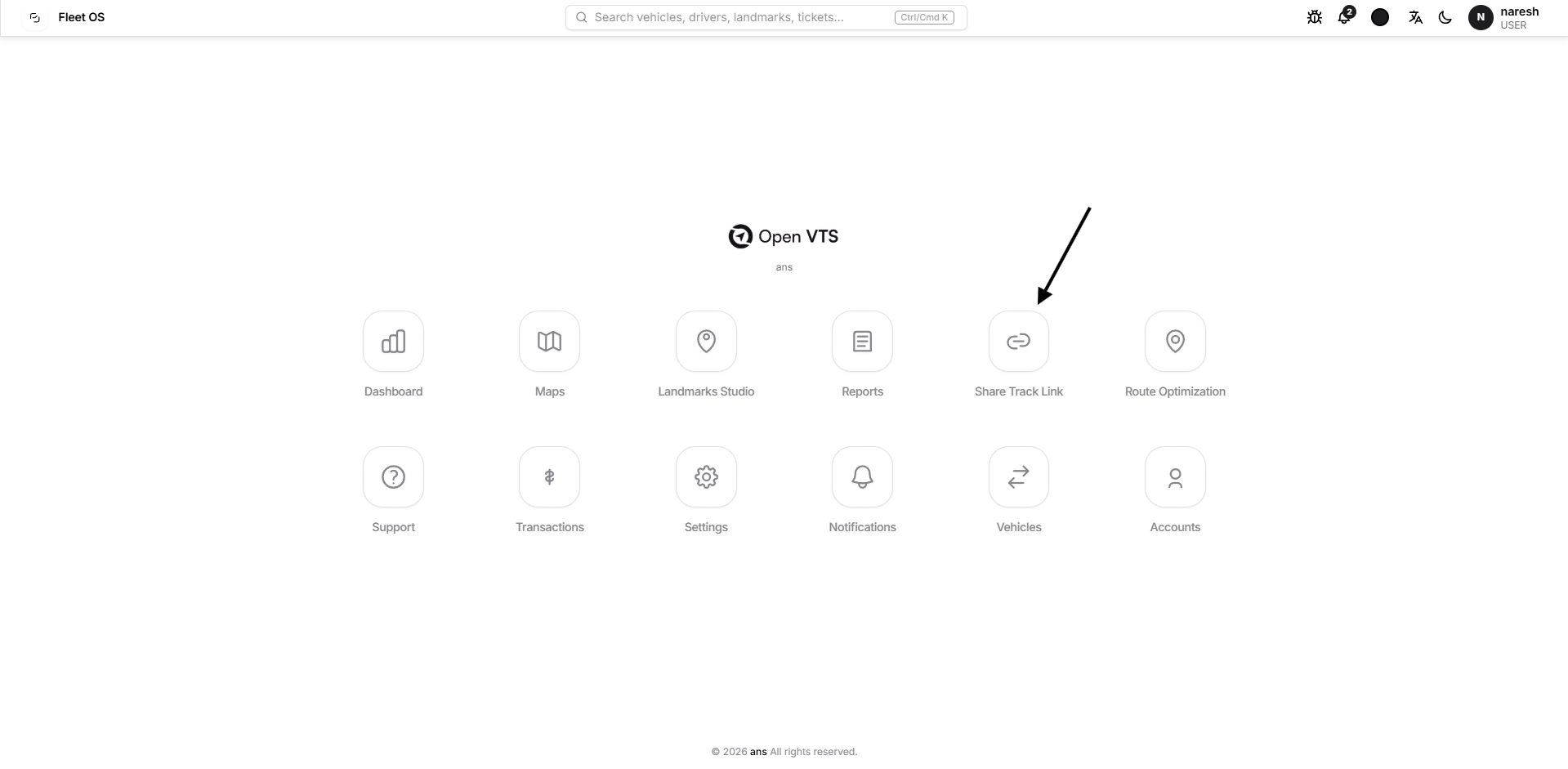
Share Track Link lets a User create controlled public tracking links for selected vehicles. Each link can have its own expiry date and time, vehicle selection, geofence access, history access, and active status.
Last updated August 19, 2026
Share Track Link
Share Track Link lets you create a public tracking URL for one or more vehicles available to your User account.
Instead of giving another person access to the Open VTS User Panel, you can create a dedicated link for selected vehicles and decide how long the link remains valid and whether additional features such as geofences and history are available through it.
Each link has its own unique code and can later be copied, converted into a QR code, edited, disabled, or permanently deleted.
What You Can Do on This Page
From Share Track Link, you can:
- Create a tracking link for one or more permitted vehicles
- Set an expiry date and time
- Allow or restrict geofence information
- Allow or restrict vehicle history
- Search existing links by their unique code
- Copy a public tracking URL
- Generate and download a QR code
- Edit an existing link
- Activate or deactivate a link
- Delete a link permanently
- Refresh the list to retrieve the latest link information
Understanding the Page
The page contains a header area and a list of your existing share links.
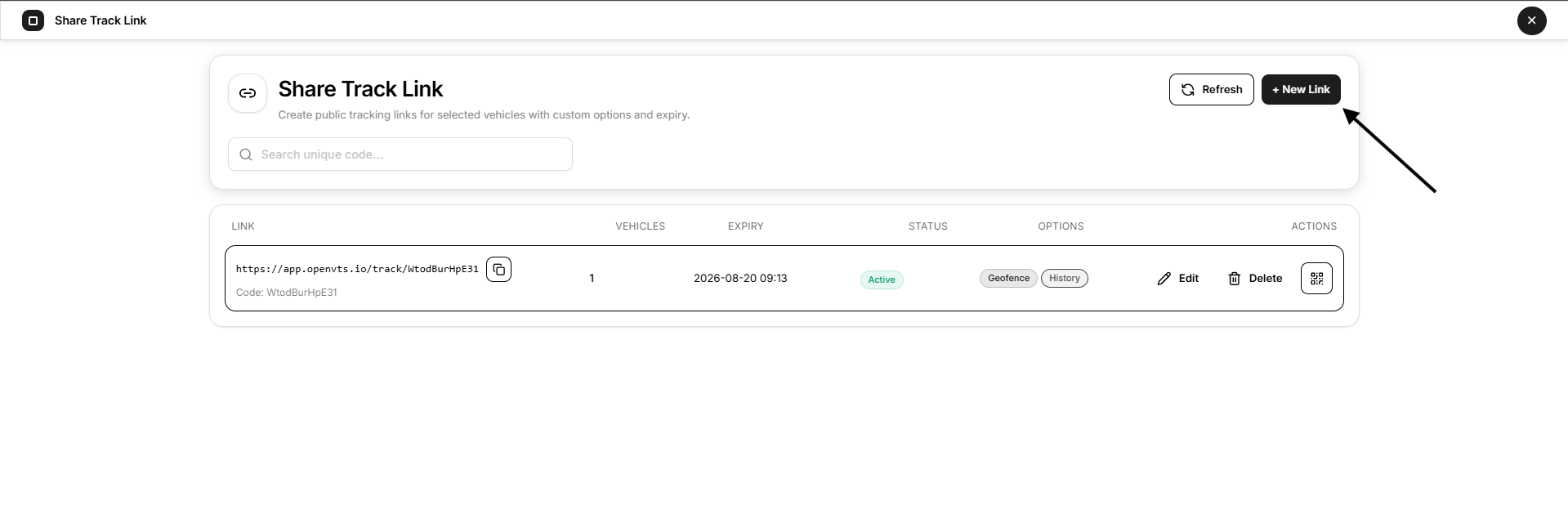
Header
The header contains:
- Search unique code...
- Refresh
- + New Link
If no link has been created yet, the page displays No share links yet and provides a Create Link button.
Both + New Link and Create Link open the same link-creation workflow.
Share Link List
After a link is created, it appears in the list with information grouped into the following columns:
- Link
- Vehicles
- Expiry
- Status
- Options
- Actions
How to Create a Share Track Link
Select + New Link or Create Link.
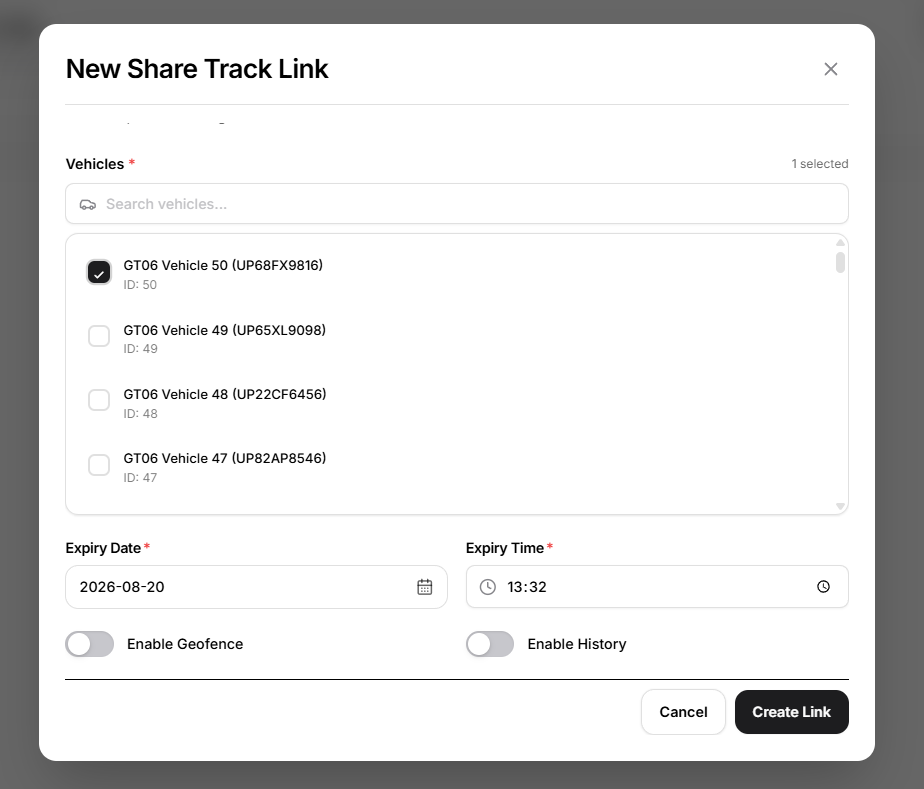
The New Share Track Link window opens.
1. Select Vehicles
The Vehicles section lists the vehicles available to your User account.
At least one vehicle must be selected before a link can be created.
Use Search vehicles... to find a vehicle by its name or plate number.
A selected counter at the top of the section shows how many vehicles are currently included.
You can select more than one permitted vehicle for the same tracking link.
Vehicles that are not available to your User account cannot be added. A vehicle that is blocked by its software licence is not available for new selection.
2. Set Expiry Date and Time
Every share link requires:
- Expiry Date
- Expiry Time
Together, these determine when the public link stops being valid.
The selected expiry must be in the future. Open VTS does not allow a link to be created or updated with an expiry time that has already passed.
This gives you a defined access period rather than leaving the link valid indefinitely.
3. Enable Geofence
Turn on Enable Geofence when the public tracking view should be able to display the geofence information supported by the shared tracking interface.
If this option is turned off, geofence access is not made available through that share link.
4. Enable History
Turn on Enable History when the recipient should be able to access vehicle history and replay functionality through the shared tracking view.
If Enable History is turned off, history and multi-day replay are not available through that link.
These permissions belong to the individual share link, so different links can be created with different access levels.
5. Create the Link
After configuring the vehicles, expiry, and optional permissions, select Create Link.
Open VTS generates a unique tracking code and public URL for the link.
Select Cancel or the X if you want to close the window without creating the link.
Understanding a Created Link
A created link appears as a row on the main page.
Link
The Link column shows the public tracking URL.
A unique Code is displayed below the URL.
Select the copy icon beside the URL to copy the tracking link.
Vehicles
The Vehicles column shows how many vehicles are included in that share link.
The public tracking interface is restricted to the vehicles attached to the link.
Expiry
The Expiry column shows the date and time at which the link stops being valid.
After that time, the public link is treated as expired.
Status
The Status column indicates whether the link is currently Active or Inactive.
A link must be active and unexpired before it can be used.
Options
The Options column identifies optional capabilities enabled for the link.
For example:
- Geofence
- History
Only the options enabled while creating or editing the link are available through that public tracking session.
Search Existing Links
Use Search unique code... to locate a share link using its unique code.
This search is intended for the generated link code rather than vehicle names.
Clear the search field to return to the full list.
Refresh the List
Select Refresh to reload your Share Track Link records.
Use this when you want to retrieve the latest saved state after creating, editing, or managing links.
Edit a Share Track Link
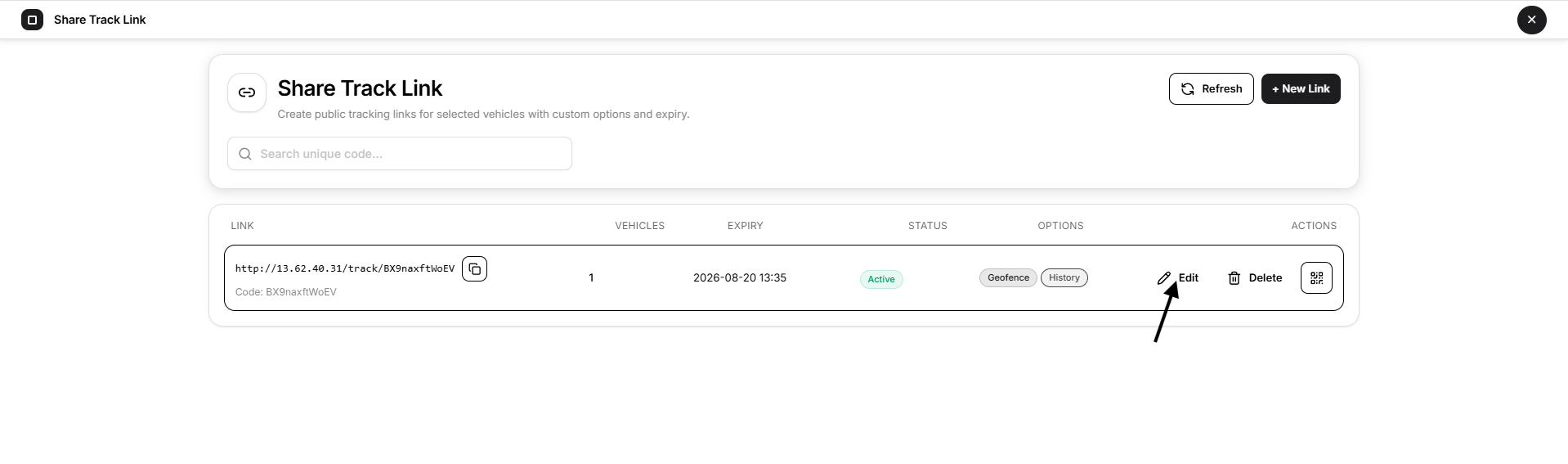
Select Edit beside an existing link to open Edit Share Track Link.
The edit window lets you update:
- selected vehicles
- Expiry Date
- Expiry Time
- Enable Geofence
- Enable History
- Active Status
Active Status
Active Status is available when editing an existing link.
Turn it off when you want to stop the public link from working without deleting the link itself.
A disabled link remains in your Share Track Link list and can be enabled again later.
Turn Active Status on to make the link available again, provided its expiry time is still valid.
Select Save Changes to apply the updates.
Select Cancel to close the window without saving the changes.
Share Using a QR Code
Select the QR action for a link to open Share Track Link QR.
The window displays:
- the generated QR code
- Public URL
- Copy Link
- Download QR
Copy Link
Select Copy Link to copy the public URL so it can be pasted into a message, email, or another communication channel.
Download QR
Select Download QR to save the QR code as an image.
The QR code points to the same public tracking URL shown below it.
This can be useful when the tracking link needs to be shared in a printable or scannable format.
Delete a Share Track Link
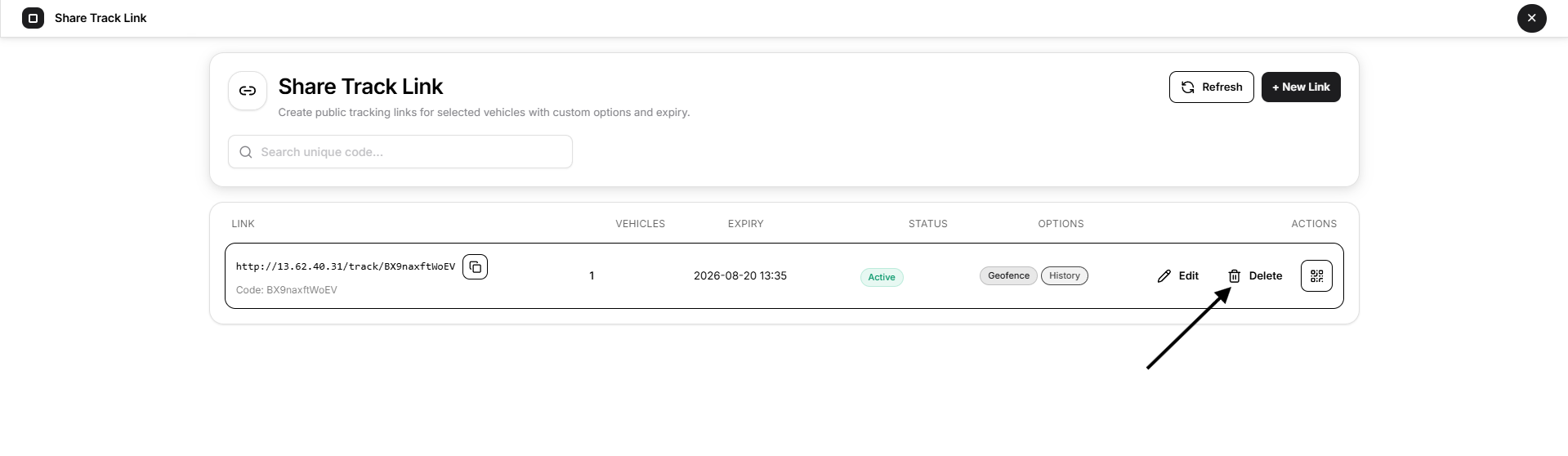
Select Delete beside the link you want to remove.
Open VTS displays a confirmation dialog before deleting it.
The dialog warns that deleting the link permanently removes it and that its public URL will stop working.
Select Delete to confirm.
Select Cancel if you want to keep the link.
Deletion is permanent. If you only want to temporarily prevent access, use Active Status in the edit window instead.
Main Workflow
To create and share vehicle access:
- Open Share Track Link.
- Select + New Link.
- Select one or more vehicles.
- Set the Expiry Date and Expiry Time.
- Enable Geofence if required.
- Enable History if required.
- Select Create Link.
- Copy the generated URL or open its QR code.
- Share the URL or QR code with the intended recipient.
- Edit, deactivate, or delete the link later when needed.
Public Tracking Access
A Share Track Link creates a restricted public tracking view rather than exposing the full Open VTS User Panel.
The public view is limited to the vehicles attached to that specific link.
The current implementation also restricts the public tracking experience compared with the signed-in User Map. Features such as alerts, sensors, events, street view, and vehicle commands are not exposed through the public share-link interface.
If History is enabled, the public view can provide history and replay functionality.
If Geofence is enabled, the public view can display permitted geofence information.
Important Notes
A User can only create a Share Track Link for vehicles assigned and available to that User account.
At least one vehicle is required.
The expiry date and time are mandatory and must be in the future.
New links are created as active links. Their active state can later be changed from Edit Share Track Link.
Inactive links cannot be used until they are enabled again.
Expired links cannot be used even if their Active Status remains enabled.
The public view excludes vehicles that later become inactive, licence-blocked, deleted, or otherwise unavailable.
Enable Geofence and Enable History control capabilities available through the public tracking link; they do not change the User's normal permissions inside Open VTS.
Deleting a link permanently removes it. Use Active Status when you only want to temporarily suspend access.
The URLs, vehicle names, unique codes, dates, and times visible in documentation screenshots are examples from the captured environment and are not fixed Open VTS values.