
Superadmin Home Page
Understand the complete Open VTS Superadmin workspace, including the home screen, licensing, platform modules, navigation controls, and platform-wide management responsibilities.
Last updated August 18, 2026
Superadmin Home Screen Overview
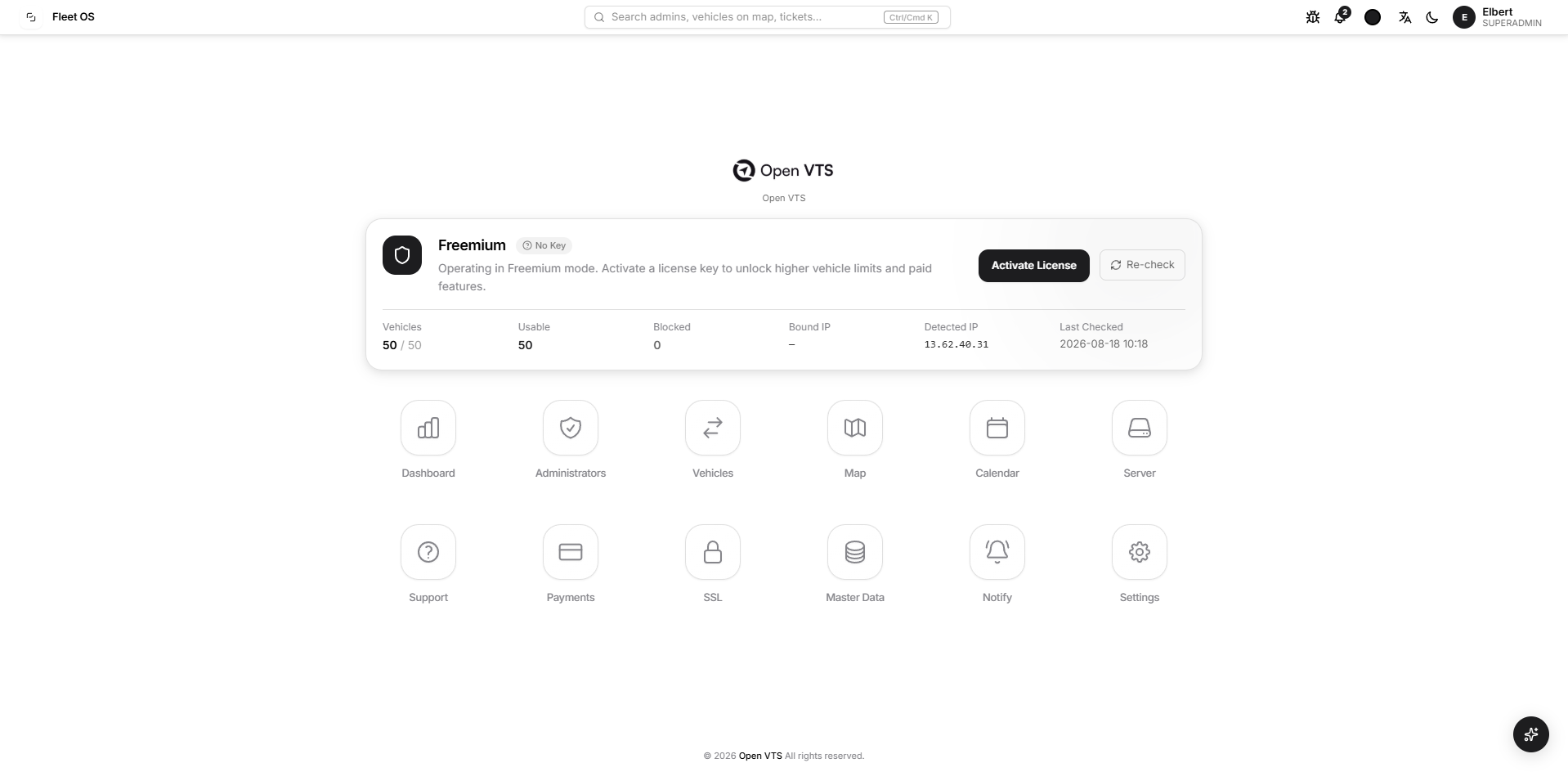
The Superadmin home screen is the main platform-control workspace. It provides quick access to licensing information, platform modules, global search, notifications, language settings, theme controls, and the Superadmin profile.
Top Navigation Bar
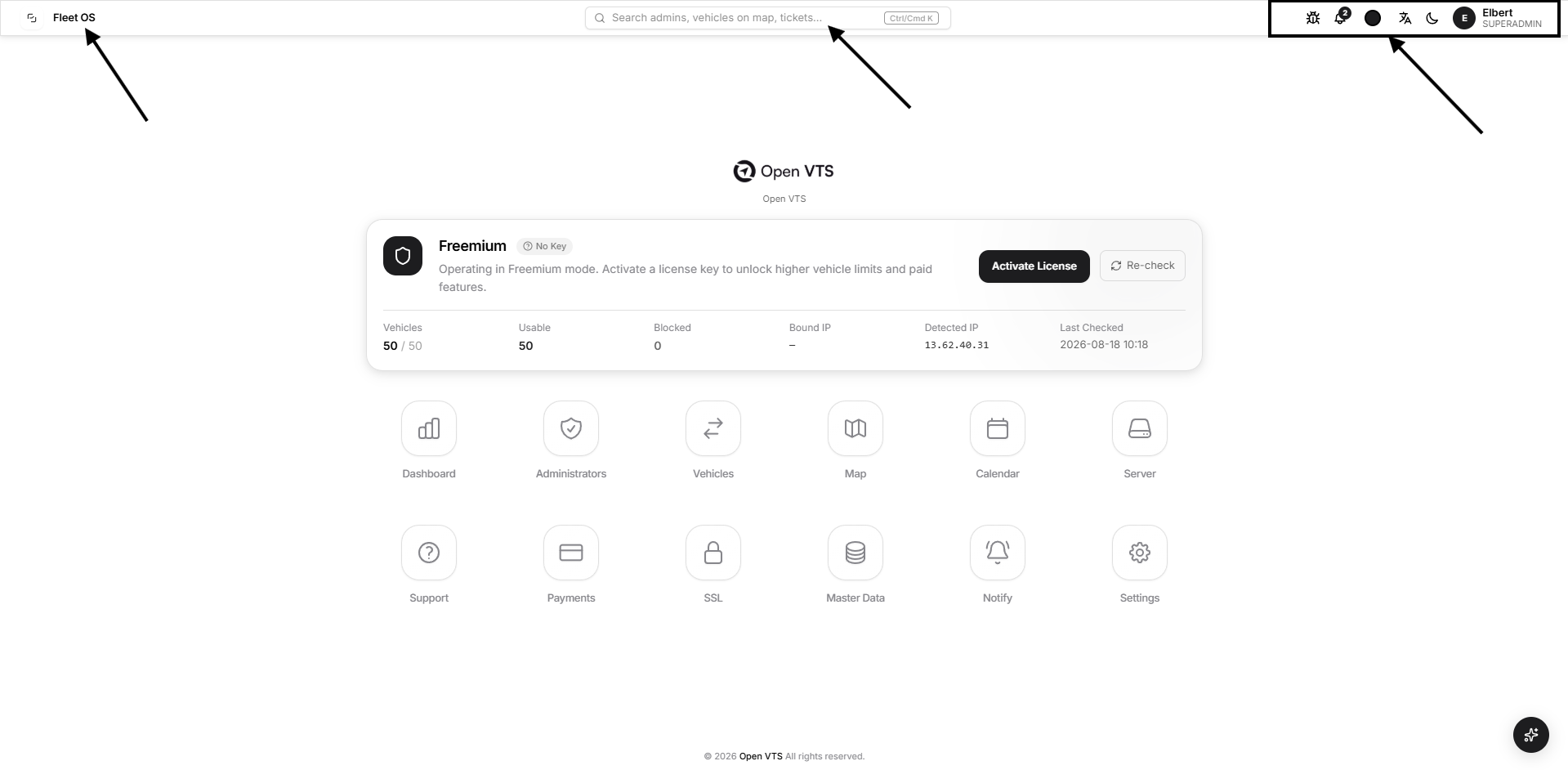
- Fleet OS: Opens the main platform workspace.
- Global Search: Searches administrators, vehicles, map records, tickets, and other platform information.
- Utility Icons: Provide access to system tools,report a bug, notifications, appearance, language, and theme controls.
- Superadmin Profile: Shows the signed-in Superadmin name, profile image, and role.
Open VTS Identity
The Open VTS logo and platform name appear above the main controls to identify the active tracking platform.
License Status
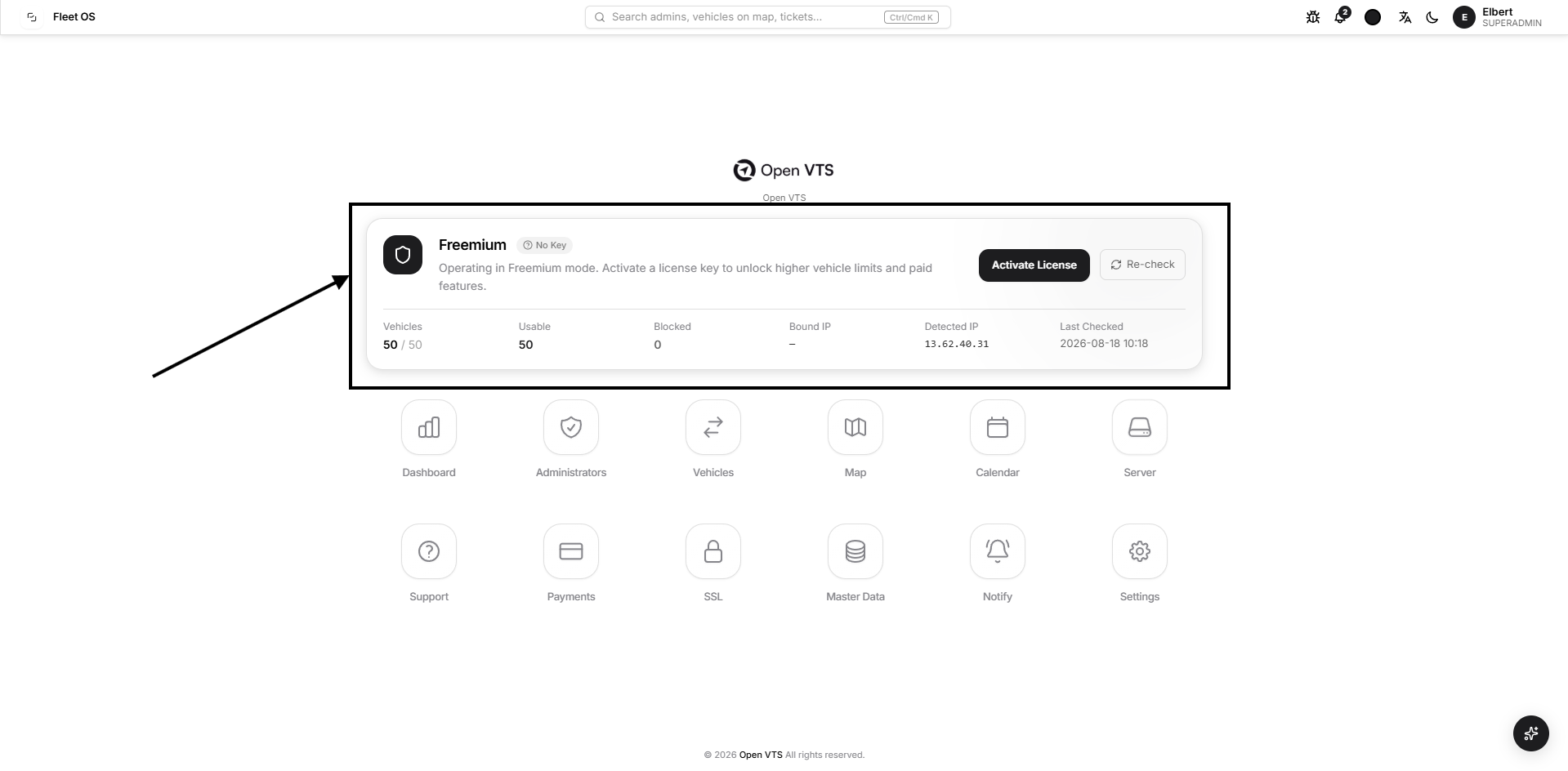
The license panel shows the current Open VTS licensing state.
- Freemium: The platform is currently operating under the free plan.
- No Key: No paid license key is activated.
- Vehicles: Shows the number of registered vehicles against the available limit.
- Usable: Shows how many vehicles can currently use the platform.
- Blocked: Shows vehicles restricted by licensing.
- Bound IP: Shows the IP address connected to an activated license, when applicable.
- Detected IP: Shows the public IP detected for the server.
- Last Checked: Shows when the license status was last verified.
- Activate License: Opens the license-activation process.
- Re-check: Verifies the current license and server IP again.
Superadmin Modules
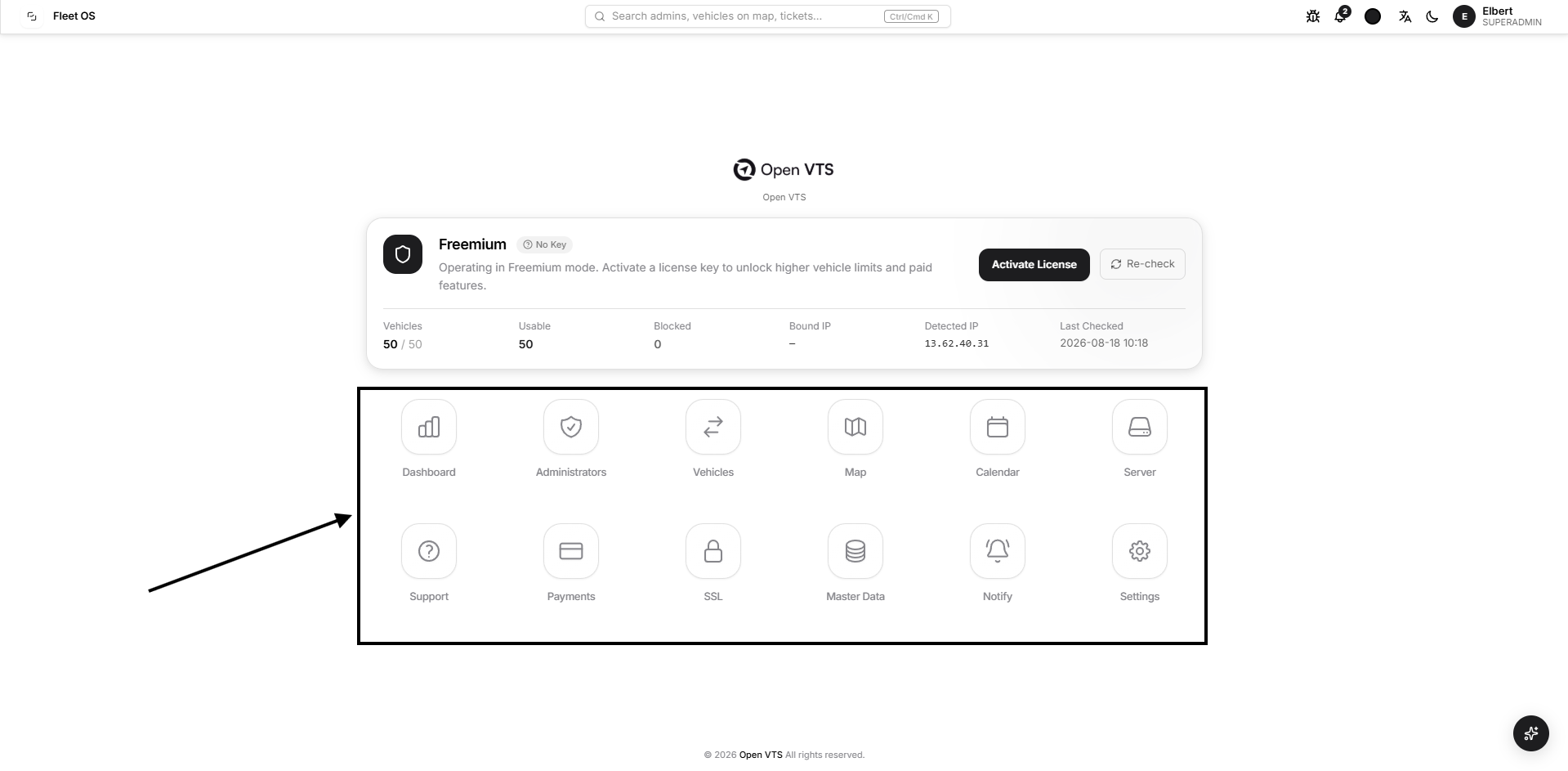
- Dashboard: Displays the overall platform summary and important activity.
- Administrators: Creates and manages Admin accounts operating under the platform.
- Vehicles: Provides platform-wide access to vehicle records.
- Map: Displays vehicles and tracking information across the platform.
- Calendar: Shows scheduled activities, reminders, renewals, and date-based records.
- Server: Provides information about the server and Open VTS services.
- Support: Manages platform-level support tickets and requests.
- Payments: Records and reviews payments associated with Administrators.
- SSL: Configures secure HTTPS access for the Open VTS domain.
- Master Data: Manages reusable platform values such as vehicle types, device types, commands, documents, and SIM providers.
- Notify: Sends platform announcements and messages to selected accounts.
- Settings: Configures branding, integrations, localization, application behaviour, and other platform-wide options.
Other Visible Elements
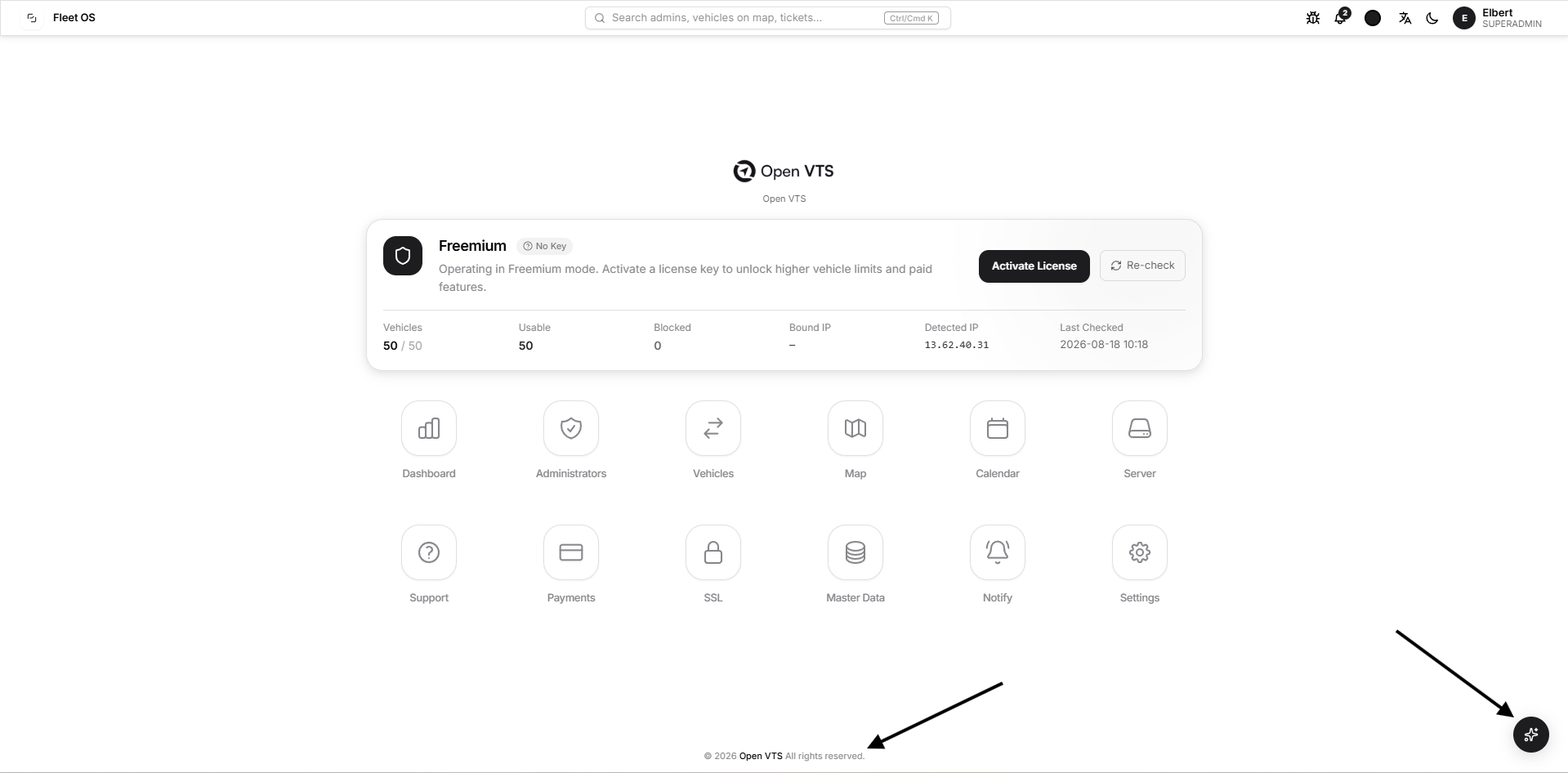
- Footer: Displays the Open VTS copyright notice.
- Quick Assistant Button: Request for new features or Protocol Implimentation.
Global Search
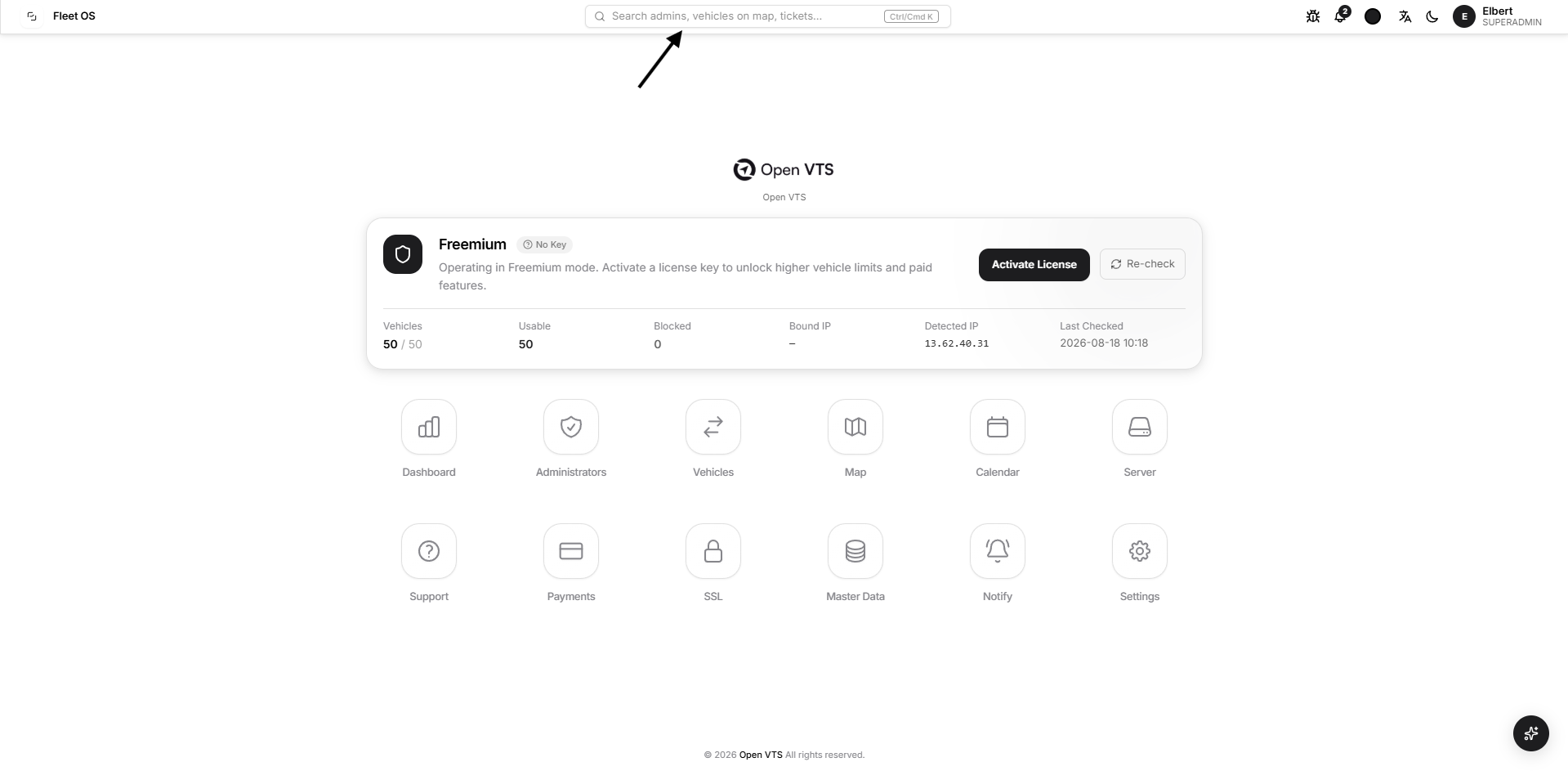
The Global Search provides quick access to important records without opening each Superadmin module separately.
It is available from the top navigation bar. Select the search field or press Ctrl + K on Windows and Command + K on macOS to open it.
The search remains limited to the current Superadmin scope. It searches only these areas:
- Admins
- Vehicles on Map
- Tickets
Search Administrators
Administrators can be found using:
- Name
- Username
- Email address
- Mobile number
Each result can display the Administrator’s name, username, contact information, account type, and current Active or Inactive status.
Select Open to go directly to that Administrator’s detail page.
Search Vehicles on the Map
Vehicles can be searched using identifiers such as:
- Vehicle name
- Plate number
- VIN
- IMEI
- SIM number
- ICCID
- IMSI
Vehicle results are provided as Vehicle on Map actions. Selecting a result opens the Map and focuses on the matching vehicle.
A vehicle must have a usable IMEI before it can be opened through the map search.
Search Support Tickets
Superadmin search includes support tickets sent by Administrators to the Superadmin.
Tickets can be found using:
- Ticket number
- Ticket title
- Status
- Priority
- Category
Selecting a ticket result opens the corresponding ticket in the Support module.
Using the Search Window
- Enter at least 2 characters to begin searching.
- A search query can contain up to 80 characters.
- Results are grouped by type, making Admins, map results, and tickets easy to distinguish.
- The most relevant matches are shown first.
- Use the Up and Down Arrow keys to move between results.
- Press Enter to open the selected result.
- Press Esc, select the X, or click outside the search window to close it.
Status labels such as Active, Inactive, License Required, Open, and Closed help identify the current state of each result before it is opened.
Report a Bug
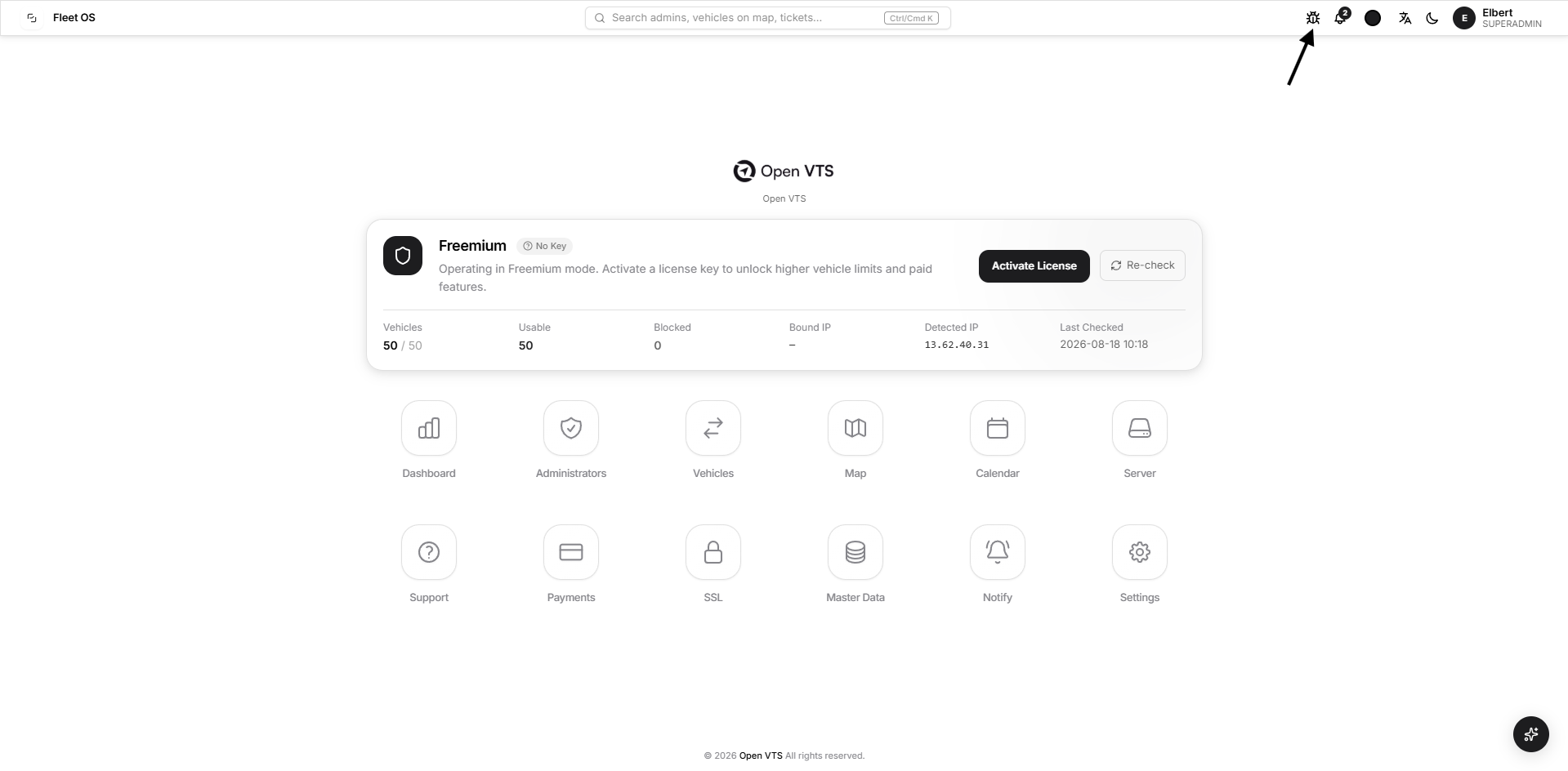
The Report a Bug tool allows the Superadmin to send a software issue directly with the technical details needed for investigation.
Select the bug icon in the top navigation bar to open the report form.
Describe the Problem
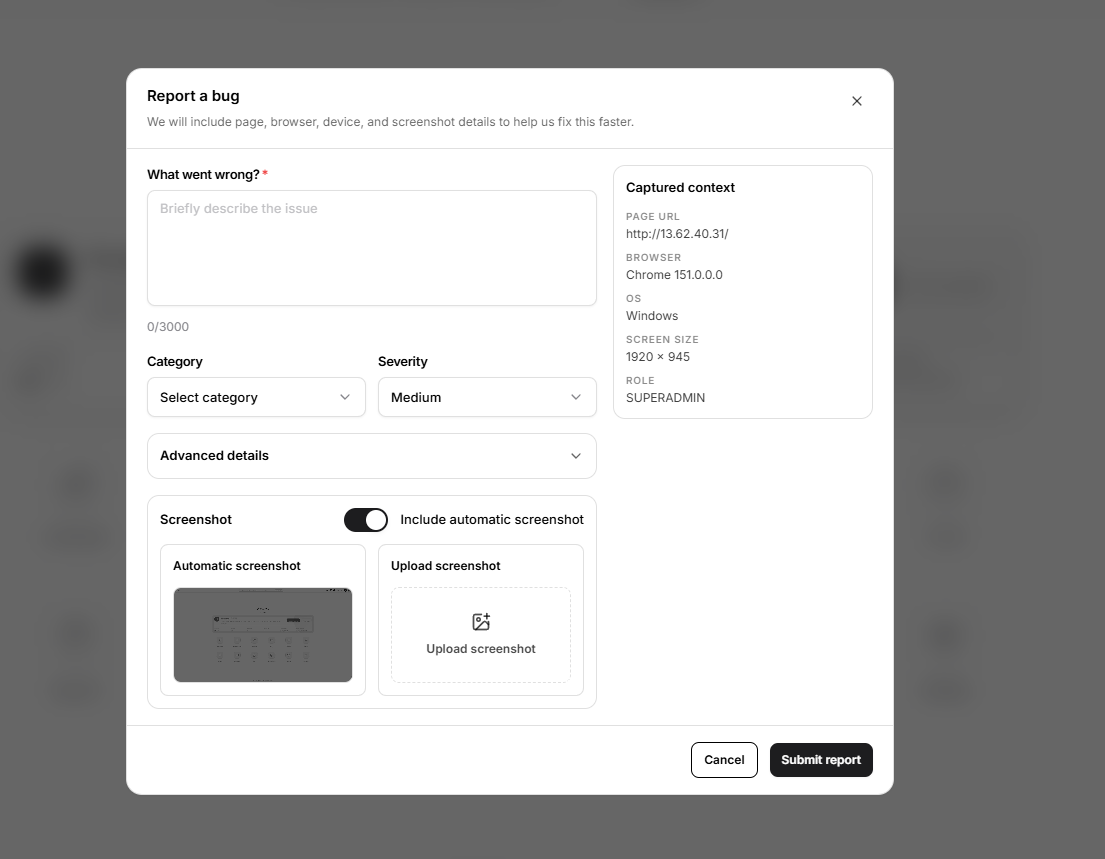
In What went wrong?, briefly explain the issue you experienced.
A useful description should mention:
- What you were trying to do
- Which page or module you were using
- What happened
- Any error message that appeared
The description is required and must contain between 5 and 3,000 characters.
Select a Category
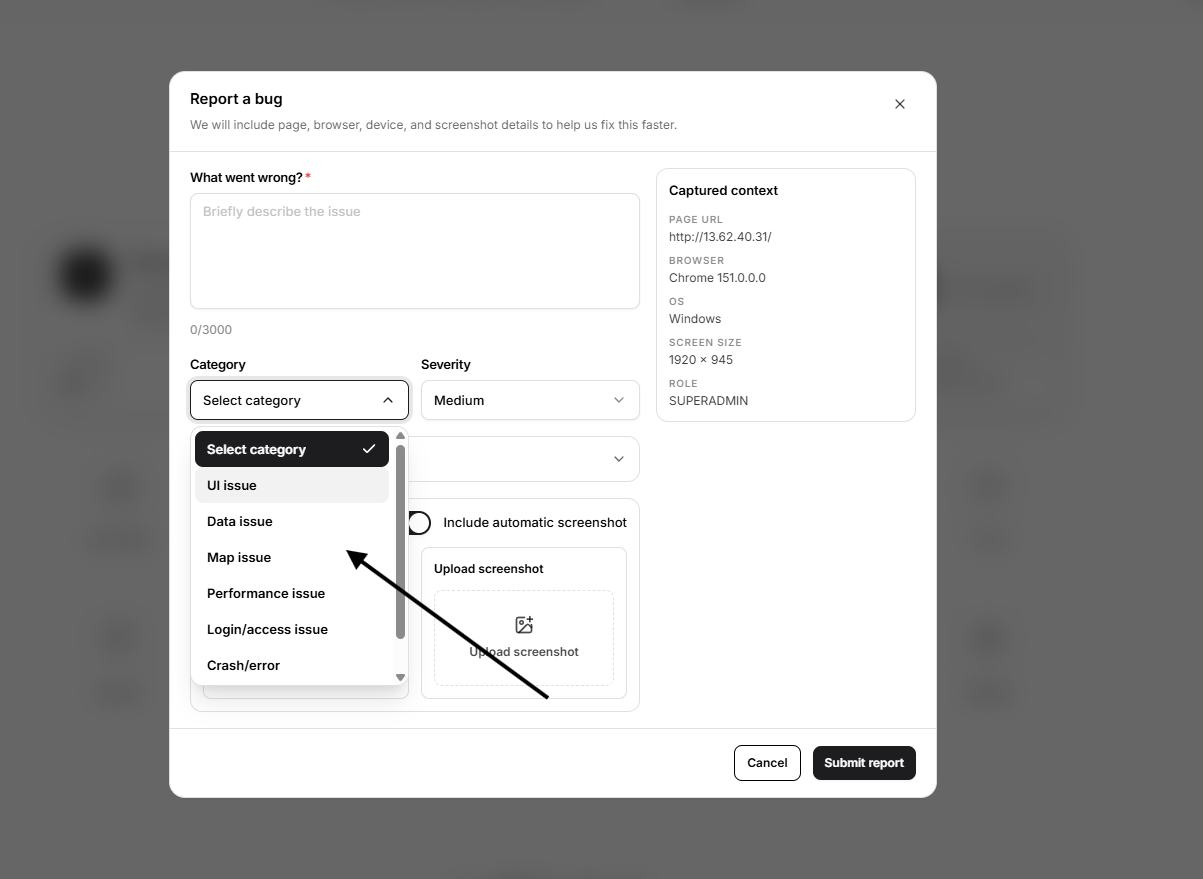
The category helps classify the issue. Available categories are:
- UI issue
- Data issue
- Map issue
- Performance issue
- Login/access issue
- Crash/error
- Other
Category selection is optional, but choosing the most relevant option can help route the report correctly.
Select the Severity
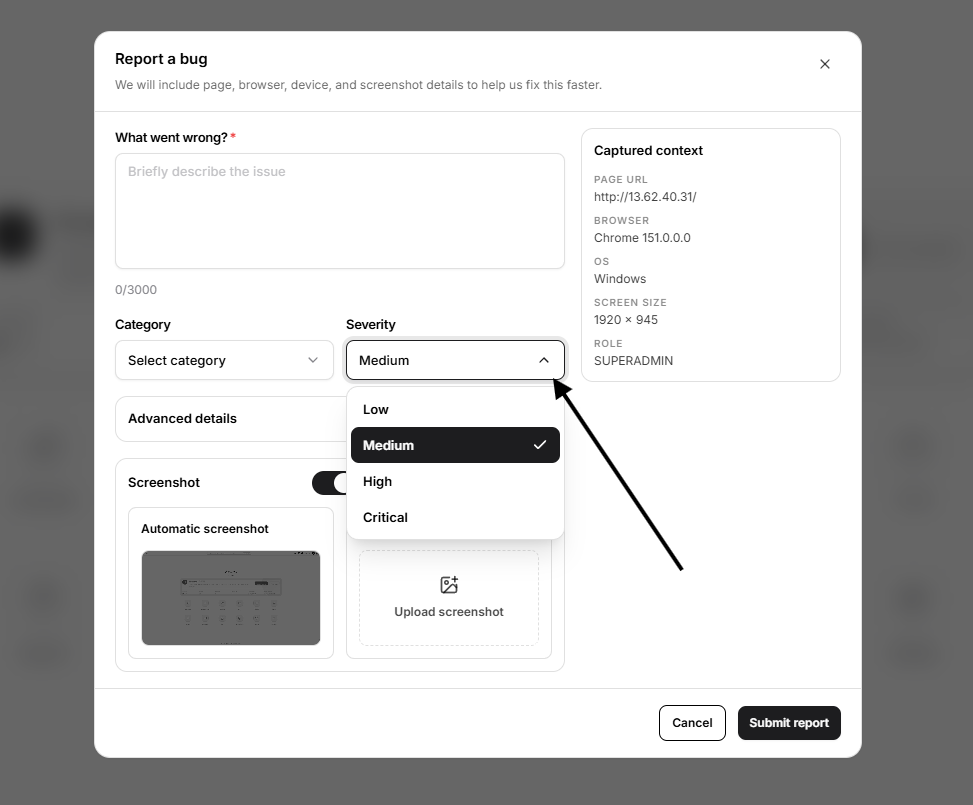
Severity indicates how seriously the issue affects your work.
Available levels are:
- Low: Minor issue with little operational impact
- Medium: Noticeable issue, but work can continue
- High: Important functionality is affected
- Critical: The platform or a core operation cannot be used
The default severity is Medium.
Add Advanced Details
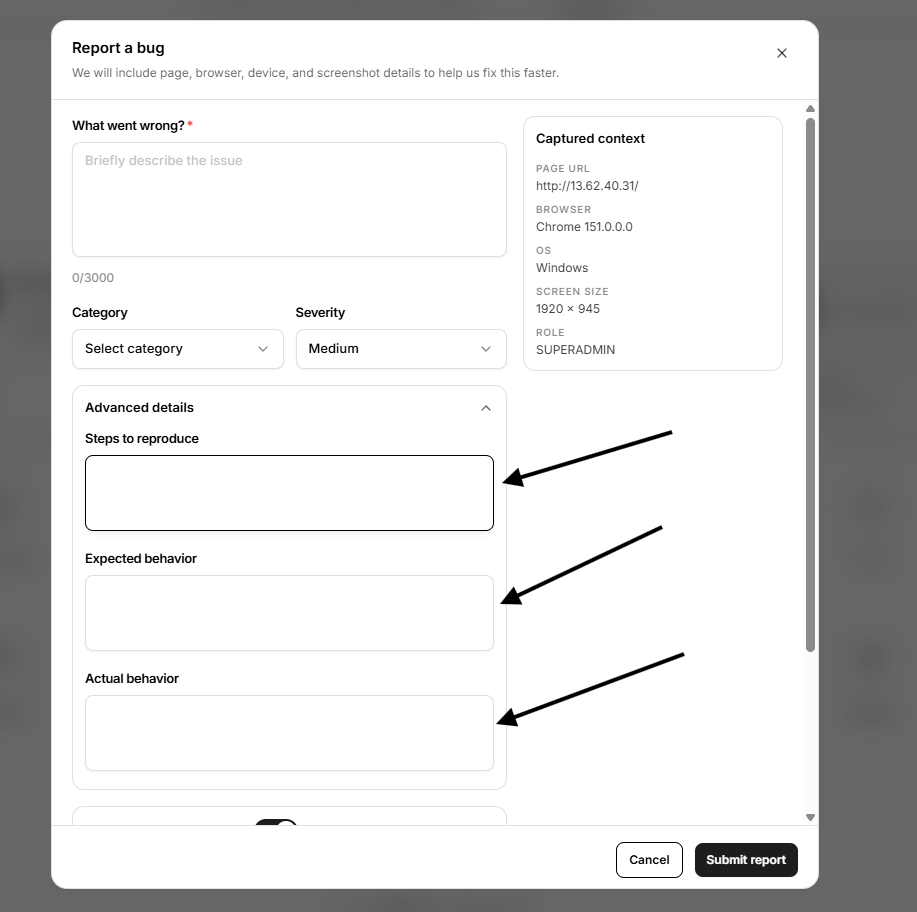
Expand Advanced details when the issue needs more explanation.
The available fields are:
- Steps to Reproduce: The exact actions that cause the issue
- Expected Behavior: What you expected Open VTS to do
- Actual Behavior: What happened instead
These fields are optional, but they are especially useful for issues that do not happen every time or require a specific sequence of actions.
Include an Automatic Screenshot
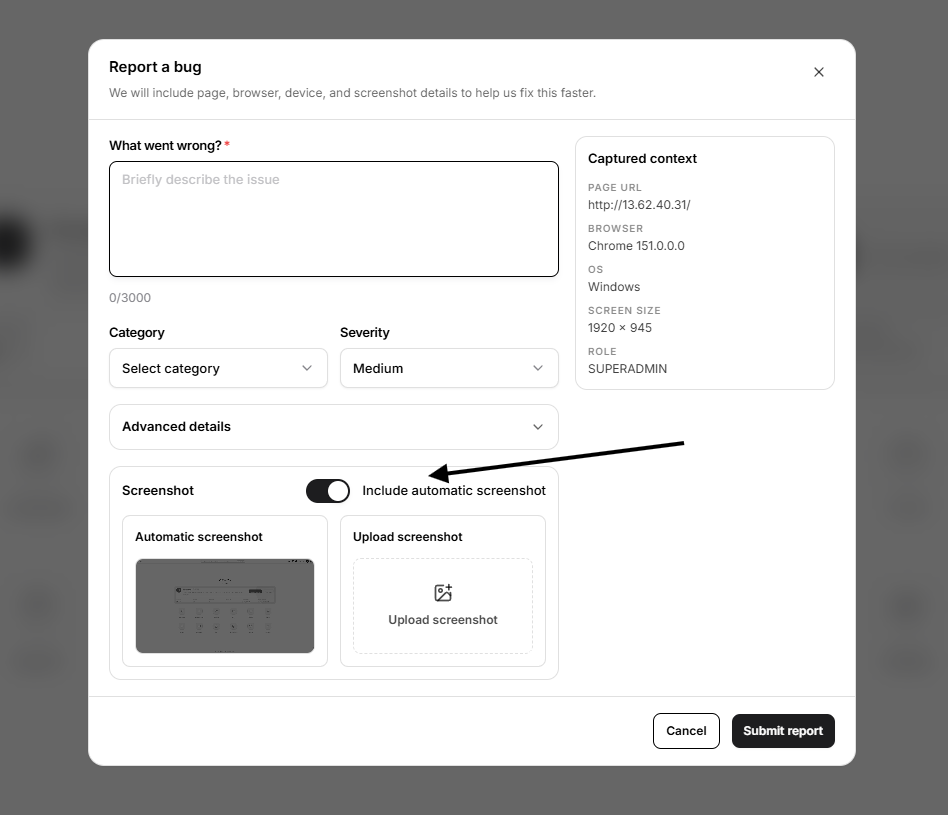
The Include automatic screenshot option is enabled by default.
When enabled, Open VTS captures the page that was open when the bug-report form was launched. The report window itself and password fields are excluded from the automatic capture.
You can turn this option off before submitting the report.
Review the screenshot preview carefully. Other information visible on the page may still be included, such as vehicle details, names, locations, or account information.
Upload an Additional Screenshot
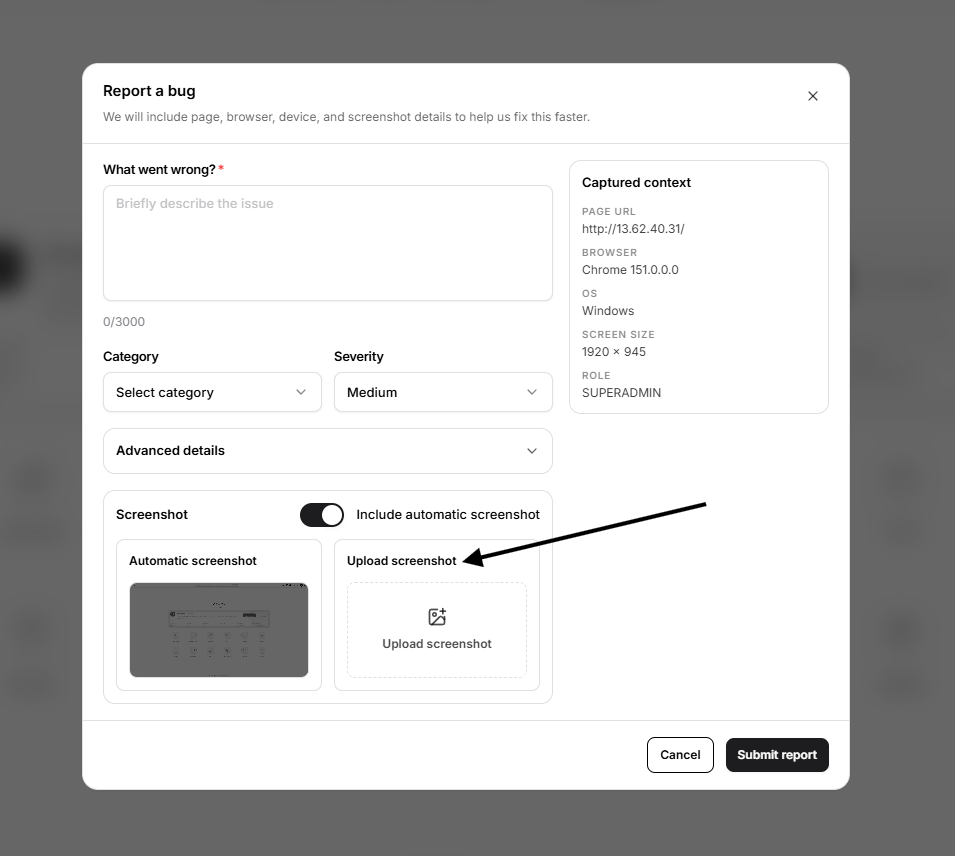
Use Upload screenshot to attach your own image.
Supported formats are:
- PNG
- JPEG
- WebP
The screenshot must be 5 MB or smaller. Open VTS may compress large images before submission.
The uploaded screenshot is separate from the automatic screenshot, so both can be included in the same report.
Captured Context
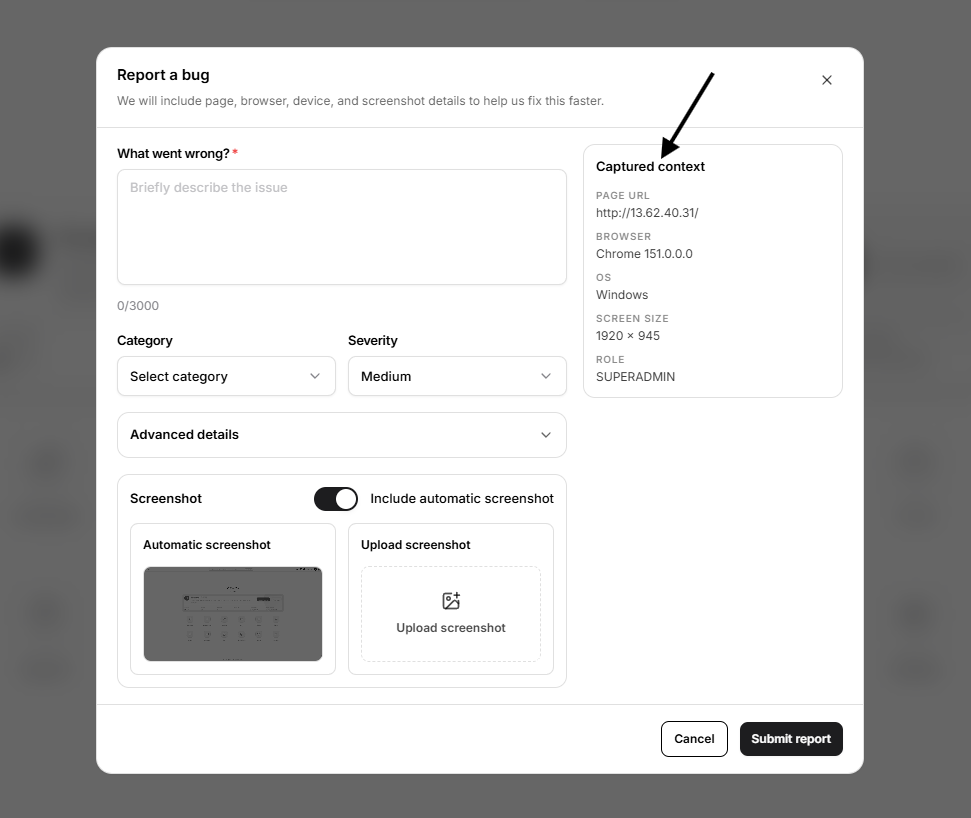
Open VTS automatically shows the main technical context that will accompany the report:
- Page URL
- Browser and version
- Operating system
- Screen size
- Signed-in role
The submitted report can also include available application, device, network, page, and recent client-error details. Sensitive URL parameters such as passwords, authentication tokens, keys, and session values are redacted automatically.
This context helps identify browser-specific, page-specific, device-specific, and environment-specific problems without requiring the user to collect those details manually.
Submit the Report
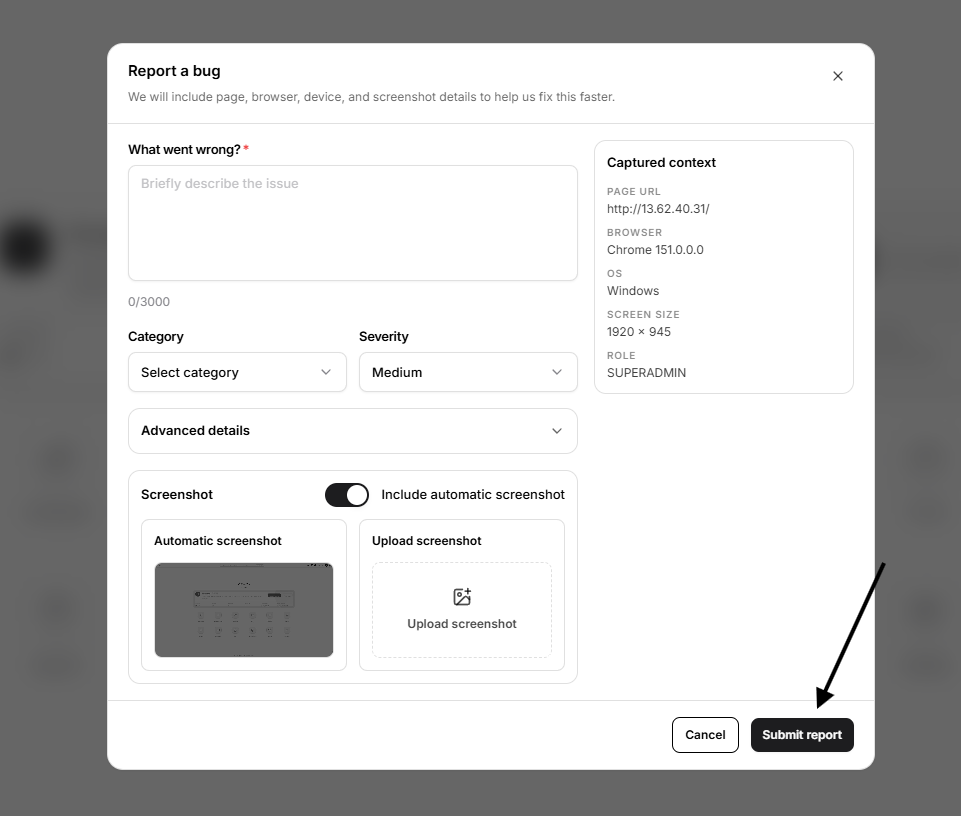
Select Submit report after reviewing the description, severity, attachments, and captured context.
While the report is being prepared and sent, the form displays its current progress. After successful submission, Open VTS confirms that the report was sent with the available debugging information.
Select Cancel, the X, or press Esc to close the form without submitting. The form cannot be closed while a report is actively being sent.
Before Submitting
Make sure that:
- The issue description is clear
- The selected severity reflects the actual impact
- Reproduction steps are included when possible
- Screenshots do not expose passwords or confidential business information
- The same issue has not been submitted repeatedly
- The internet connection is active
A clear report with exact steps and relevant screenshots helps the Open VTS team investigate the issue more effectively.
Request a Feature or Protocol
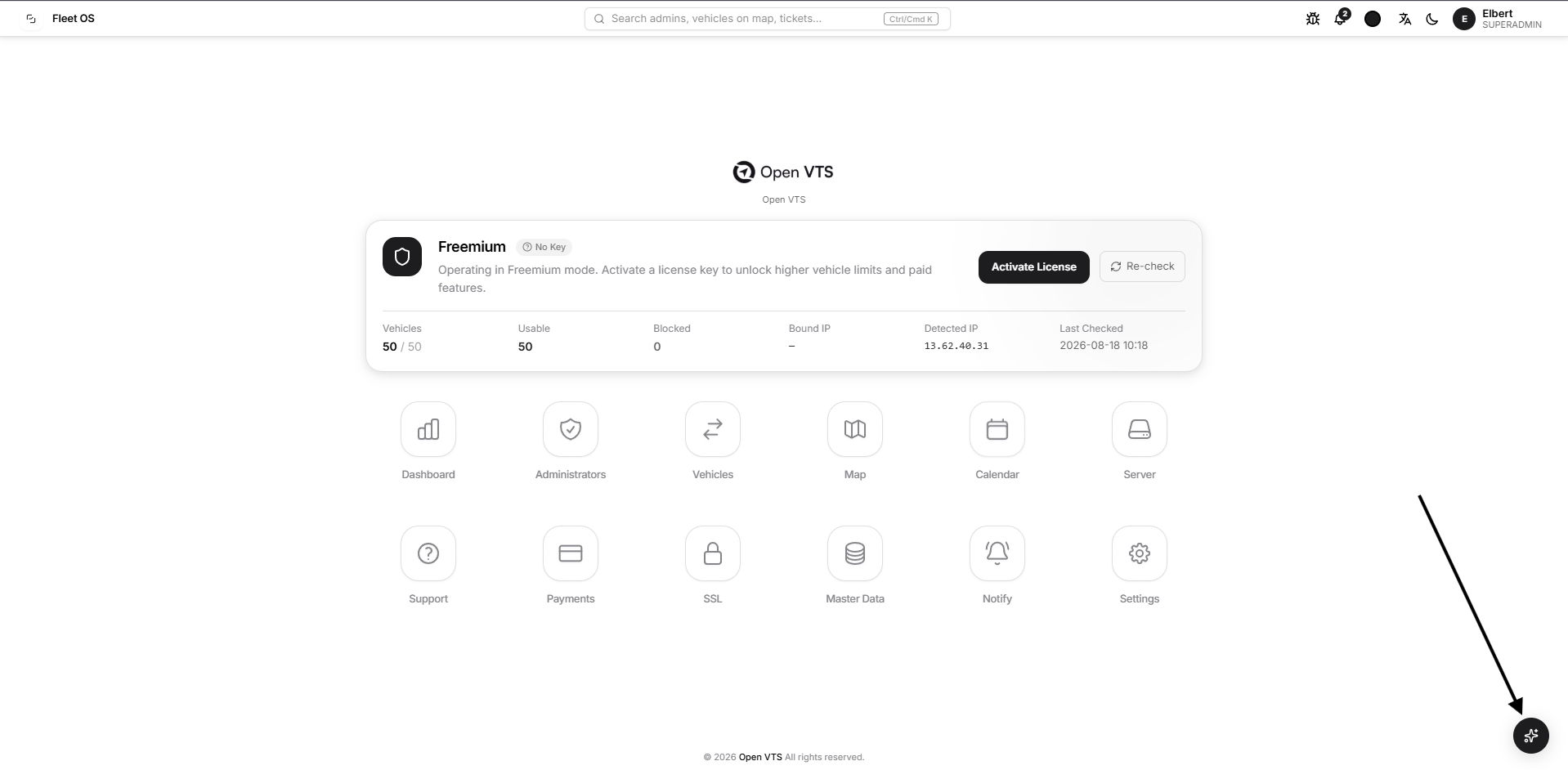
The Request Feature or Protocol button appears in the bottom-right corner of the Superadmin home screen. It is available only to the Superadmin and opens the Submit a request form.
Use this tool to request:
- A new capability in Open VTS
- An improvement to an existing module
- Support for a new GPS device protocol
Use Report a Bug instead when an existing feature is not working correctly.
Choose the Request Type
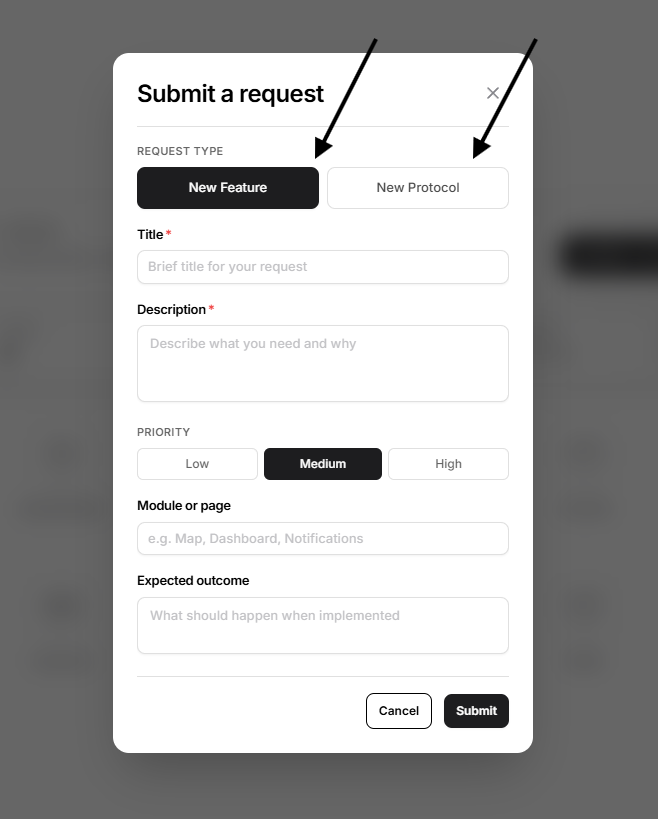
Select one of the following:
- New Feature: Request a new function or improvement in Open VTS.
- New Protocol: Request support for a GPS device or protocol that is not currently available.
The fields in the form change according to the selected request type.
Submit a New Feature Request
Select New Feature when you need a new capability or an improvement to an existing part of Open VTS.
Complete the following fields:
- Title: Enter a clear summary of the request. The title must contain between 5 and 160 characters.
- Description: Explain what you need and why it is important. The description must contain between 10 and 3,000 characters.
- Priority: Select Low, Medium, or High according to the business importance of the request.
- Module or page: Identify the area of Open VTS related to the request, such as Map, Dashboard, or Notifications.
- Expected outcome: Explain what should happen after the feature is implemented.
The title and description are required. The module and expected outcome fields are optional, but including them makes the request easier to understand.
A useful feature request should explain:
- The current limitation
- Who is affected
- What capability is required
- What result the new feature should provide
Submit a New Protocol Request
Select New Protocol when you need Open VTS to support a new GPS tracker, device model, or communication protocol.
Complete the following fields:
- Title: Enter a clear request title, such as Add Teltonika FMB920 support.
- Description: Explain the device, protocol requirement, intended use, and why support is needed.
- Priority: Select Low, Medium, or High.
- Protocol name: Enter the manufacturer or protocol family, such as Teltonika.
- Device model: Enter the exact tracker model, such as FMB920.
- Protocol document: Upload the official device or protocol documentation when available.
A protocol request must include at least one of the following:
- Protocol name
- Device model
- Protocol document
Providing all available technical information helps the Open VTS team assess the request accurately.
Supported Protocol Documents
You can upload one file in any of these formats:
- DOC
- DOCX
- TXT
- PNG
- JPG
The maximum file size is 10 MB.
Do not upload documents containing passwords, private server credentials, customer data, or unrelated confidential information.
Priority Levels
Use priority to communicate the operational importance of the request:
- Low: Useful improvement with no immediate operational impact
- Medium: Important requirement that would improve regular operations
- High: Significant requirement affecting an important business workflow or device deployment
Priority communicates importance but does not guarantee a delivery date.
Automatically Included Context
When the request is submitted, Open VTS automatically includes available technical context, such as:
- Current page and route
- Browser and version
- Operating system
- Device type
- Screen dimensions
- Application environment
- Signed-in Superadmin details
This information helps identify where the request originated and provides useful environment details without requiring them to be entered manually.
Unlike the Report a Bug form, this request form does not capture an automatic screenshot.
Submit the Request
Review the entered information, then select Submit.
Only a signed-in Superadmin can submit a feature or protocol request.
While the request is being sent:
- The form cannot be closed
- The Submit button shows the submission progress
- Repeated submissions are temporarily limited
After a successful submission, Open VTS displays a confirmation that the request was received and will be reviewed.
Select Cancel, the X, or press Esc to close the form before submission.