
Supported Devices, Protocols & Ports
Find the protocol and connection port supported by Open VTS for your GPS device, then use these details to configure the tracker to communicate with your Open VTS server.
Last updated August 20, 2026
Supported Devices, Protocols & Ports
Open VTS supports a large range of GPS trackers and related tracking hardware through different communication protocols.
Before a GPS device can send location data to Open VTS, it must know where to send the data and which Open VTS listener should receive it.
For most installations, you need two important values:
- Server IP or Domain — the address of the server where Open VTS is installed.
- Port — the Open VTS connection port assigned to the protocol used by your device.
The official Open VTS Supported Devices directory currently contains 1,639+ devices, 260+ protocols, and 269+ brands.
Screenshot Reference: Add the screenshot of the Supported Devices page showing the search field, protocol/port filters, and device table.
1. Open the Supported Devices Directory
Open the official Open VTS Supported Devices page:
Open VTS Supported Devices Directory
The directory displays:
ColumnWhat it meansDeviceGPS tracker brand or modelProtocolCommunication protocol understood by Open VTSPortOpen VTS server port that receives data for that protocolNotesAdditional information when available
2. Find Your GPS Device
Use the Search Devices field and enter your device model, manufacturer, or protocol.
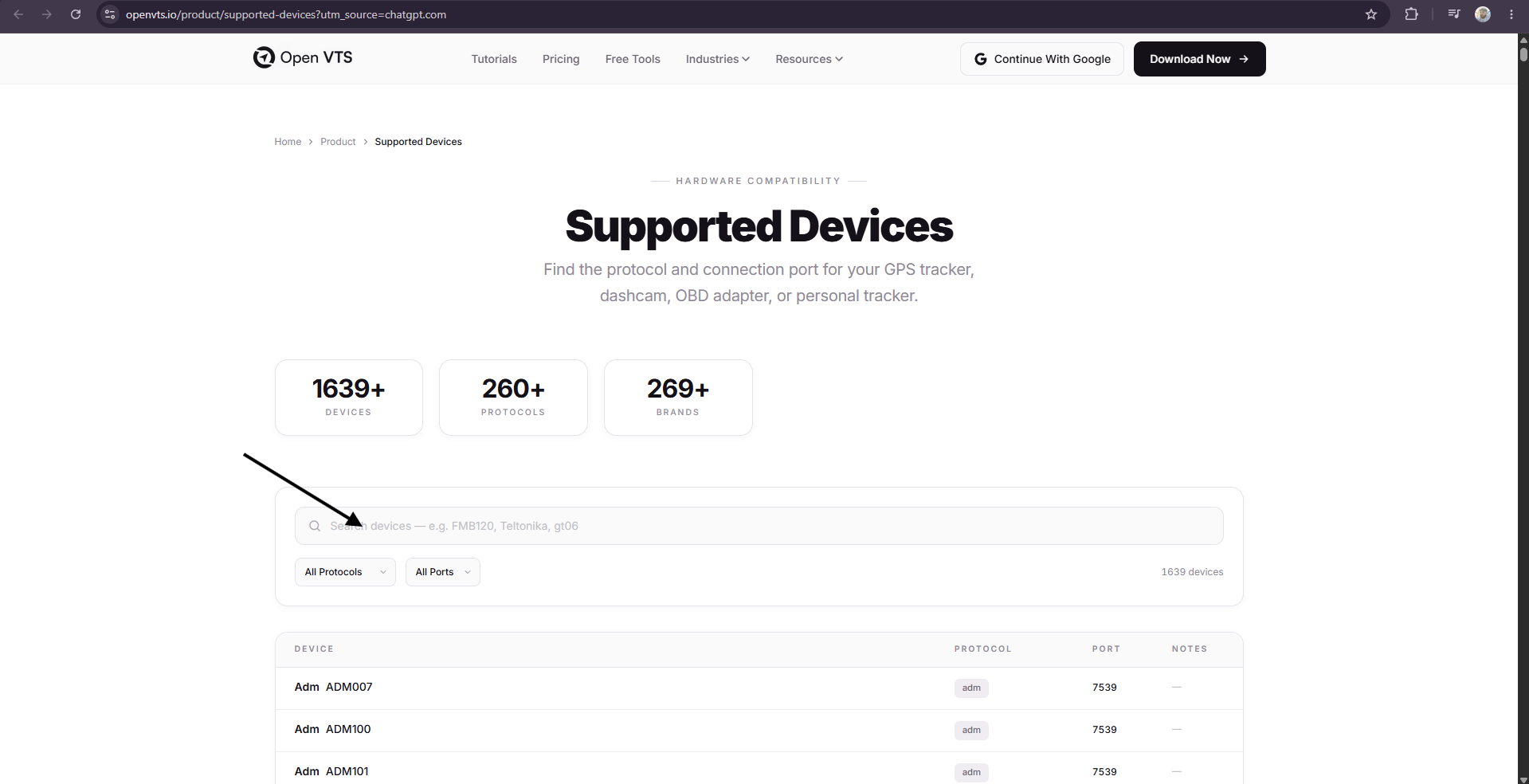
For example, you can search for:
FMB120
Teltonika
GT06
You can also use the Protocol and Port filters to narrow the results.
Screenshot Reference: Add a screenshot showing a device/model entered in the Search Devices field.
Example
The directory shows GT06-compatible devices such as Vjoycar G28, WeTrack 2, and ZX612 using:
Protocol: gt06 Port: 7510
This means a compatible device using the GT06 protocol should send its tracking data to the Open VTS server using the GT06 listener port shown in the directory.
3. Understand Protocol and Port
Protocol
A protocol defines how a GPS device structures and communicates its tracking data.
Different GPS manufacturers may use different protocols, while several different device models may use the same protocol.
For example:
Device → GT06-compatible tracker Protocol → gt06
The protocol must be supported by Open VTS for the platform to correctly interpret the incoming device data.
Port
A port tells the GPS device which Open VTS listener should receive its data.
For example:
7510
A complete connection generally looks like:
YOUR_SERVER_IP : 7510
For example:
203.0.113.10 : 7510
The IP address above is only an example. Always use the public/static IP or configured hostname of the server where your own Open VTS installation is running.
4. Configure the GPS Device
After identifying the correct protocol and port, configure the GPS tracker using the device manufacturer's configuration method.
Depending on the tracker, configuration may be performed through:
- SMS commands
- Manufacturer configuration software
- Mobile application
- USB configuration tool
- Bluetooth
- Device web portal
- Remote configuration commands
You will normally need to configure at least:
Server / Host: Your Open VTS server IP or hostname Port: Port shown in the Supported Devices directory
Example
Suppose your Open VTS server IP is:
203.0.113.10
and your device uses:
Protocol: gt06 Port: 7510
The device should be configured to communicate with:
203.0.113.10:7510
Screenshot Reference: If available, add a screenshot from a GPS device configuration tool showing the Server/IP and Port fields.
5. Do Not Choose a Port Randomly
The connection port must match the protocol used by the device.
For example, the Open VTS directory shows different protocol families using different ports, including:
ProtocolExample Portgt067510its7512gl2007513jt8087514h027516calamp7519
These values come from the current Open VTS Supported Devices directory.
Always check the directory for your exact device or protocol rather than assuming that similar-looking trackers use the same port.
6. Make Sure the Port Is Reachable
The GPS device communicates with Open VTS over the network.
Therefore, the required listener port must be reachable on the server where Open VTS is installed.
If the correct device configuration is entered but no data reaches Open VTS, check:
- The device has mobile/network connectivity.
- The server IP or hostname is correct.
- The selected port matches the device protocol.
- The required port is accessible through the server/network firewall.
- The Open VTS listener service is running.
- The SIM card has an active data connection and correct APN configuration.
Important: Follow the communication mode required by your particular device/protocol. Do not change TCP/UDP settings simply by guessing; refer to the device manufacturer's protocol or configuration documentation.
7. Device Configuration Flow
The complete connection can be understood as:
GPS Device ↓ Device Protocol ↓ Open VTS Protocol Port ↓ Open VTS Server ↓ Device data decoded ↓ Vehicle appears and updates inside Open VTS
Example
GT06 Tracker ↓ gt06 ↓ 7510 ↓ YOUR_OPENVTS_SERVER_IP:7510 ↓ Open VTS
Graphic Reference: Add a simple Open VTS-style diagram showing: GPS Device → Protocol → Port → Open VTS Server → Live Vehicle Tracking
8. What if My Device Is Not Listed?
If you cannot find your exact device model:
First search using the manufacturer name, then search using the protocol name mentioned in the device documentation.
Some devices from different manufacturers use the same underlying protocol and may therefore connect through an existing Open VTS protocol.
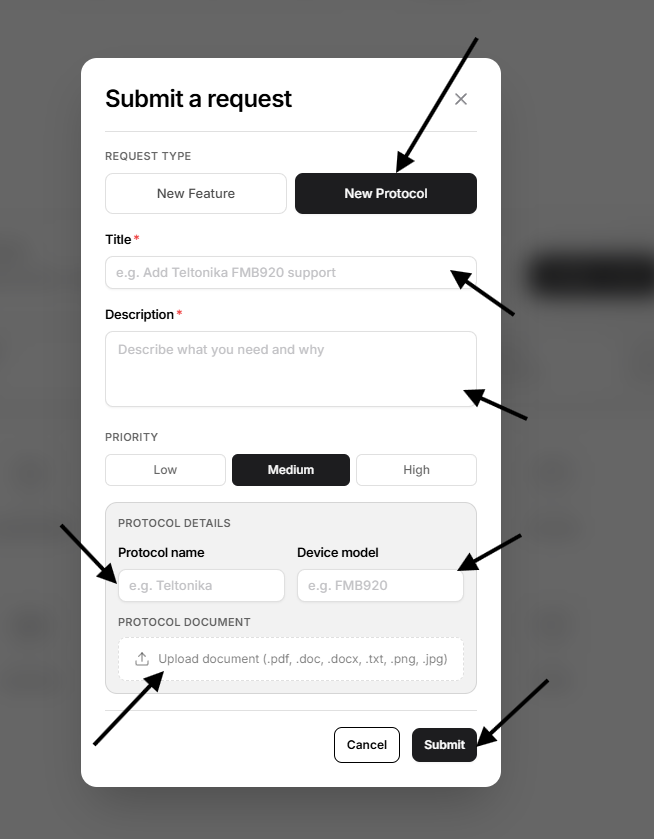
If the device uses a protocol that is not currently supported, a new protocol support request can be submitted with the device model and protocol documentation.
optiona 1: subbmit your protocols here : info@openvts.io
OR
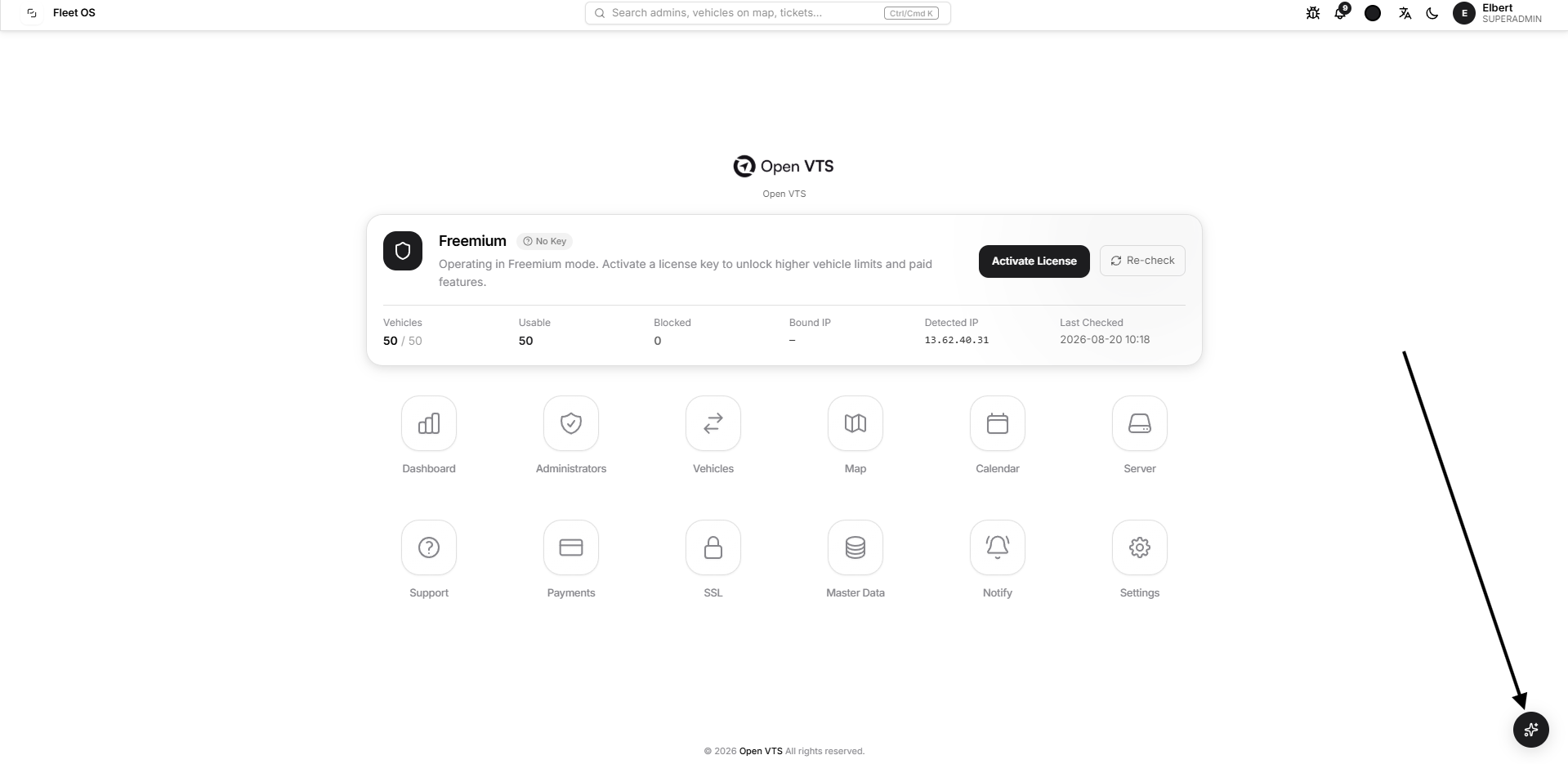
option 2: go to the superadmin and fill the form here:
Do not select another protocol only because its port or device name looks similar.
Quick Setup Checklist
Before expecting a device to appear in Open VTS, confirm:
- Device model or protocol has been identified.
- Correct protocol is supported by Open VTS.
- Correct Open VTS port has been found.
- Device is configured with your Open VTS server IP/domain.
- Device is configured with the correct protocol port.
- Device SIM/APN and mobile data are working.
- Required server port is reachable.
- Open VTS listener service is running.
- Device IMEI/identifier is correctly registered in Open VTS.
Once these requirements are satisfied and the device begins transmitting valid packets, Open VTS can receive and process its tracking data.