
Open VTS Platform Overview
Understand the major areas of the Open VTS platform, how the Superadmin, Admin, and User workspaces are organized, and how maps, vehicles, accounts, devices, alerts, and operational modules fit together.
Last updated July 27, 2026
Open VTS Platform Overview
Open VTS is more than a vehicle map. It is a structured platform that combines business administration, fleet operations, GPS device management, customer access, live tracking, notifications, reporting, and support into one system.
This page gives you a practical overview of the current Open VTS interface and explains how its main workspaces fit together.
In the current Open VTS interface, each primary role lands on a clean launcher-style home screen. Instead of relying only on a large menu tree, the platform presents the most important modules as direct entry points. This makes the structure easier to understand at a glance and helps each role focus on the tools relevant to its responsibilities.
How the Open VTS Platform Is Organized
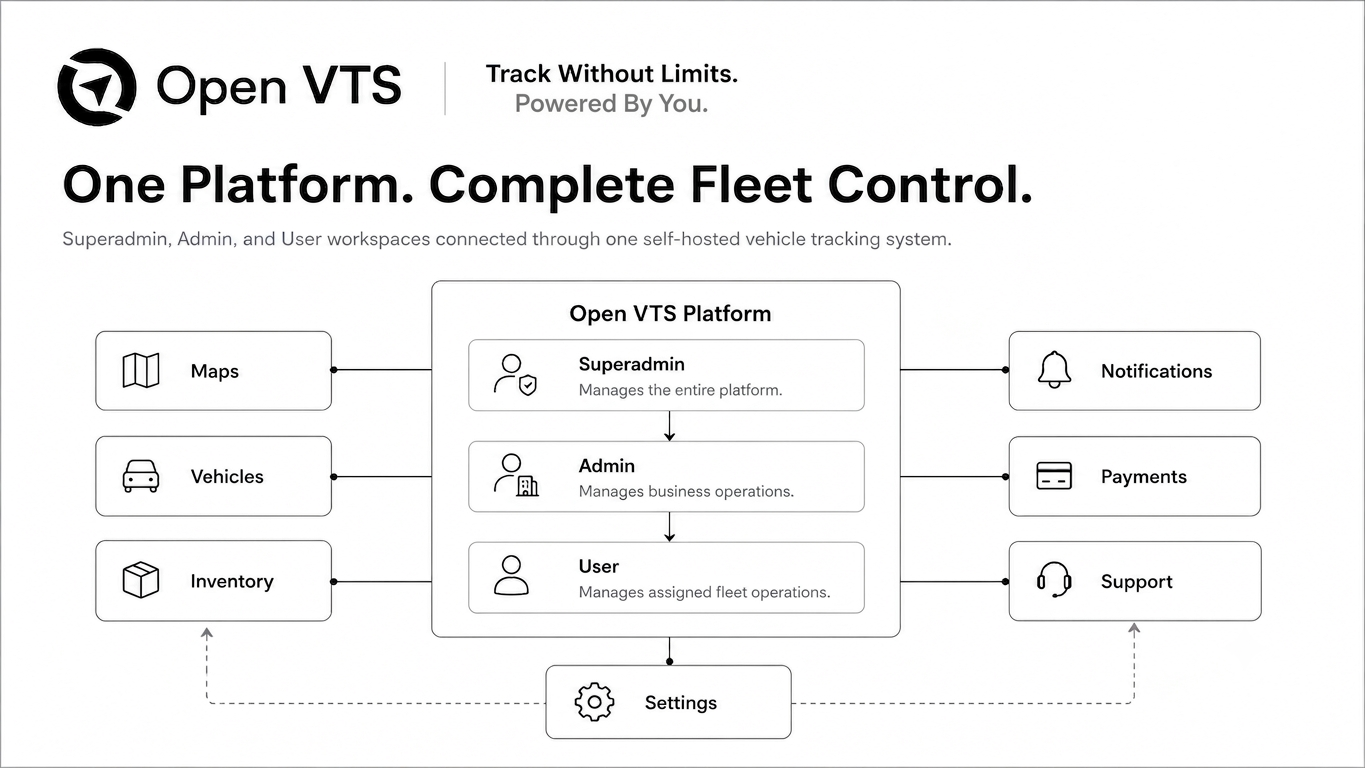
Open VTS is organized around three primary operational roles:
- Superadmin
- Admin
- User
Each role sees a different workspace and a different set of modules.
At a high level:
- The Superadmin controls the platform itself
- The Admin operates the business under the platform
- The User tracks and manages assigned vehicles
Alongside these role-based workspaces, Open VTS includes operational areas such as:
- Maps
- Vehicles
- Drivers
- Inventory
- Notifications
- Transactions
- Payments
- Support
- Logs
- Settings
- Licensing and platform configuration
[Graphic Reference: Add a custom Open VTS platform overview graphic here. The graphic should show Superadmin, Admin, User, Maps, Vehicles, Inventory, Notifications, Payments, Support, and Settings as connected parts of one platform. Use premium monochrome Open VTS styling with a white or soft grey background, Inter font, thin lines, rounded boxes, calm spacing, and no clutter.]
The Current Navigation Model
The current interface uses a top utility bar combined with a role-based launcher dashboard.
Across the uploaded screenshots, the top bar includes:
- Brand area
- Global search
- Utility icons such as theme and language controls
- Notifications or activity icons
- User-profile area
The search experience changes depending on the role. For example:
- Superadmin search supports items such as admins, vehicles on the map, and tickets
- Admin search supports users, vehicles, IMEI, drivers, and tickets
- User search supports vehicles, drivers, landmarks, and tickets
This role-aware search helps the platform feel operational rather than generic.
Superadmin Workspace Overview
The Superadmin workspace is the platform-control layer. It is designed for the person or business that operates Open VTS at the highest level.
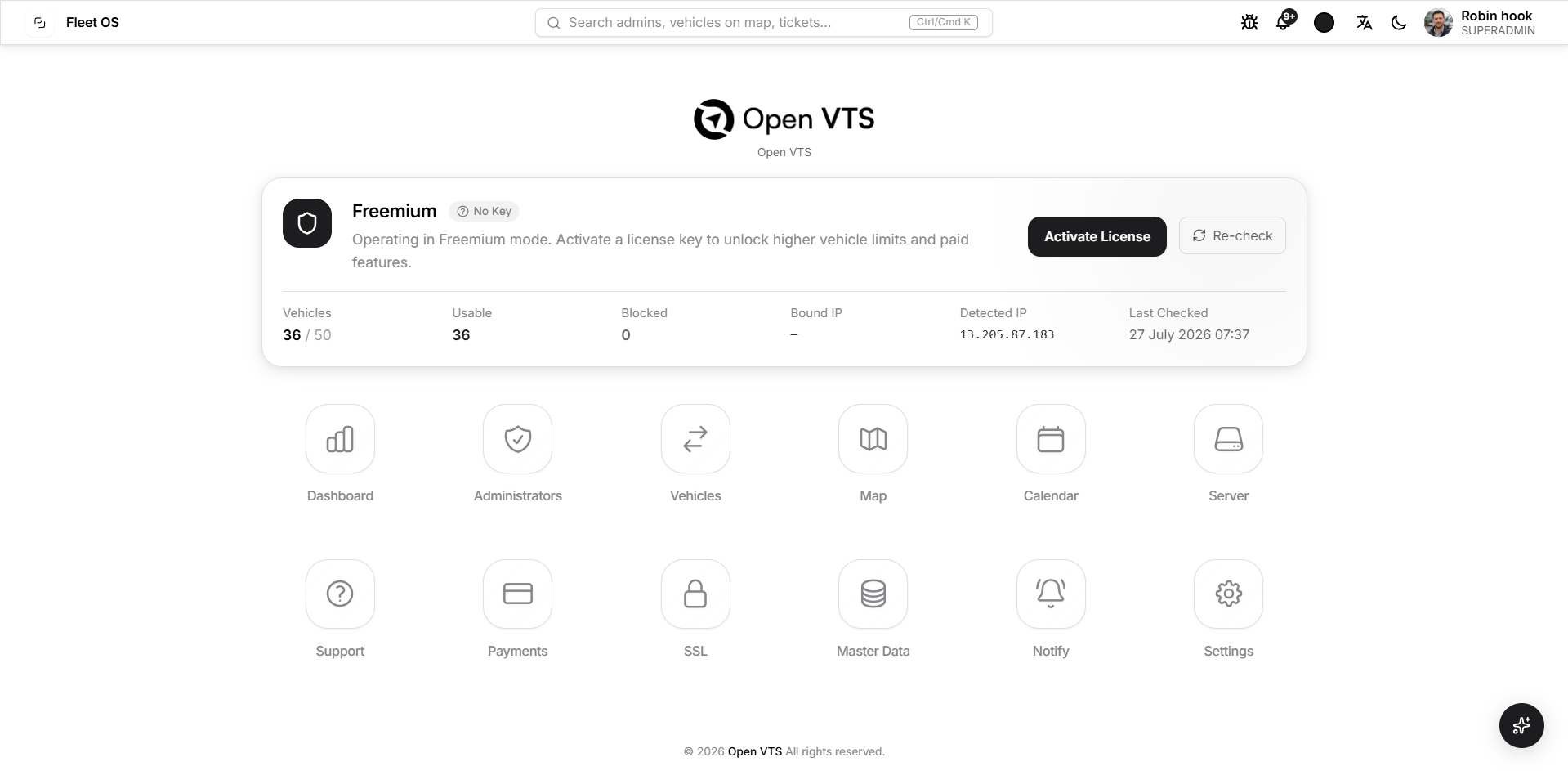
In the current Superadmin home screen, the following modules are visible:
- Dashboard
- Administrators
- Vehicles
- Map
- Calendar
- Server
- Support
- Payments
- SSL
- Master Data
- Notify
- Settings
The current screen also shows a license-status panel with details such as:
- License mode
- Vehicle allowance
- Usable vehicles
- Blocked vehicles
- Bound IP
- Detected IP
- Last checked status
This makes the Superadmin home screen both a navigation hub and a platform-status checkpoint.
What the Superadmin area manages
The Superadmin workspace is responsible for platform-wide control, including:
Platform control
- License management
- SSL and domain-related configuration
- Server visibility
- Global settings
- Master data
Business control
- Administrator management
- Platform-wide vehicles
- Payments
- Notifications
- Support oversight
Why this matters
The Superadmin role exists so one person or team can control the entire Open VTS deployment without mixing platform governance with day-to-day customer operations.
Admin Workspace Overview
The Admin workspace is the business-operations layer. It is intended for the person or team that manages customers, vehicles, drivers, inventory, billing, and operational activities under the platform.
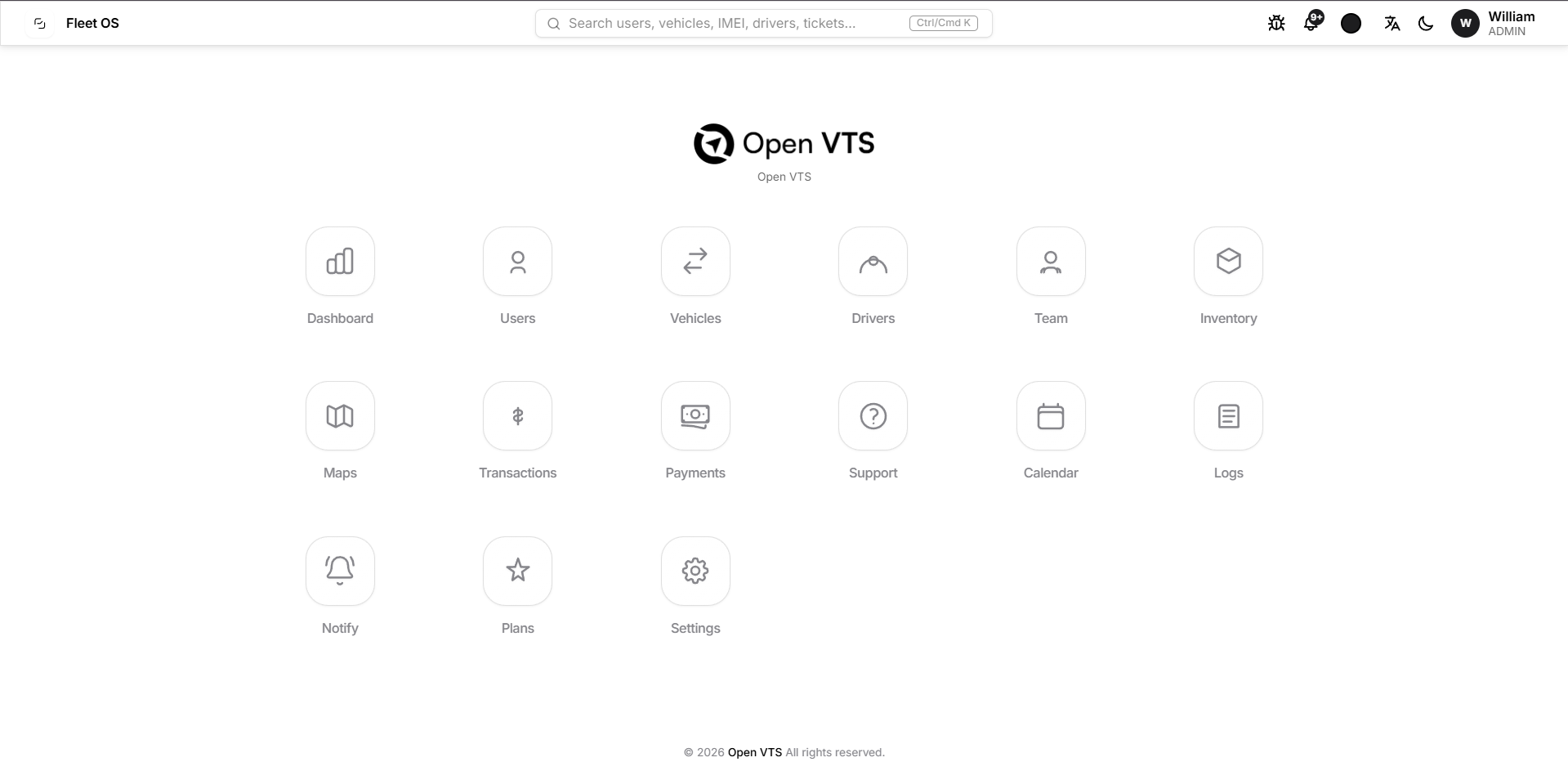
In the current Admin home screen, the following modules are visible:
- Dashboard
- Users
- Vehicles
- Drivers
- Team
- Inventory
- Maps
- Transactions
- Payments
- Support
- Calendar
- Logs
- Notify
- Plans
- Settings
What the Admin area manages
The Admin workspace is responsible for running the operational business, including:
Customer and account management
- Creating and managing users
- Assigning access
- Managing account structure
Fleet management
- Creating vehicles
- Managing drivers
- Organizing teams
- Tracking customer assets
Inventory and assignment
- Managing GPS devices
- Managing SIM cards
- Assigning inventory to vehicles
Commercial operations
- Transactions
- Payments
- Plans
- Renewals
Operational control
- Maps
- Notifications
- Logs
- Support
- Calendar
Why this matters
The Admin role is the operational engine of the platform. It is where a tracking business or operational team manages daily workflows.
User Workspace Overview
The User workspace is the customer-use layer. It is designed for the fleet customer or account holder who needs access to assigned vehicles and related tools.
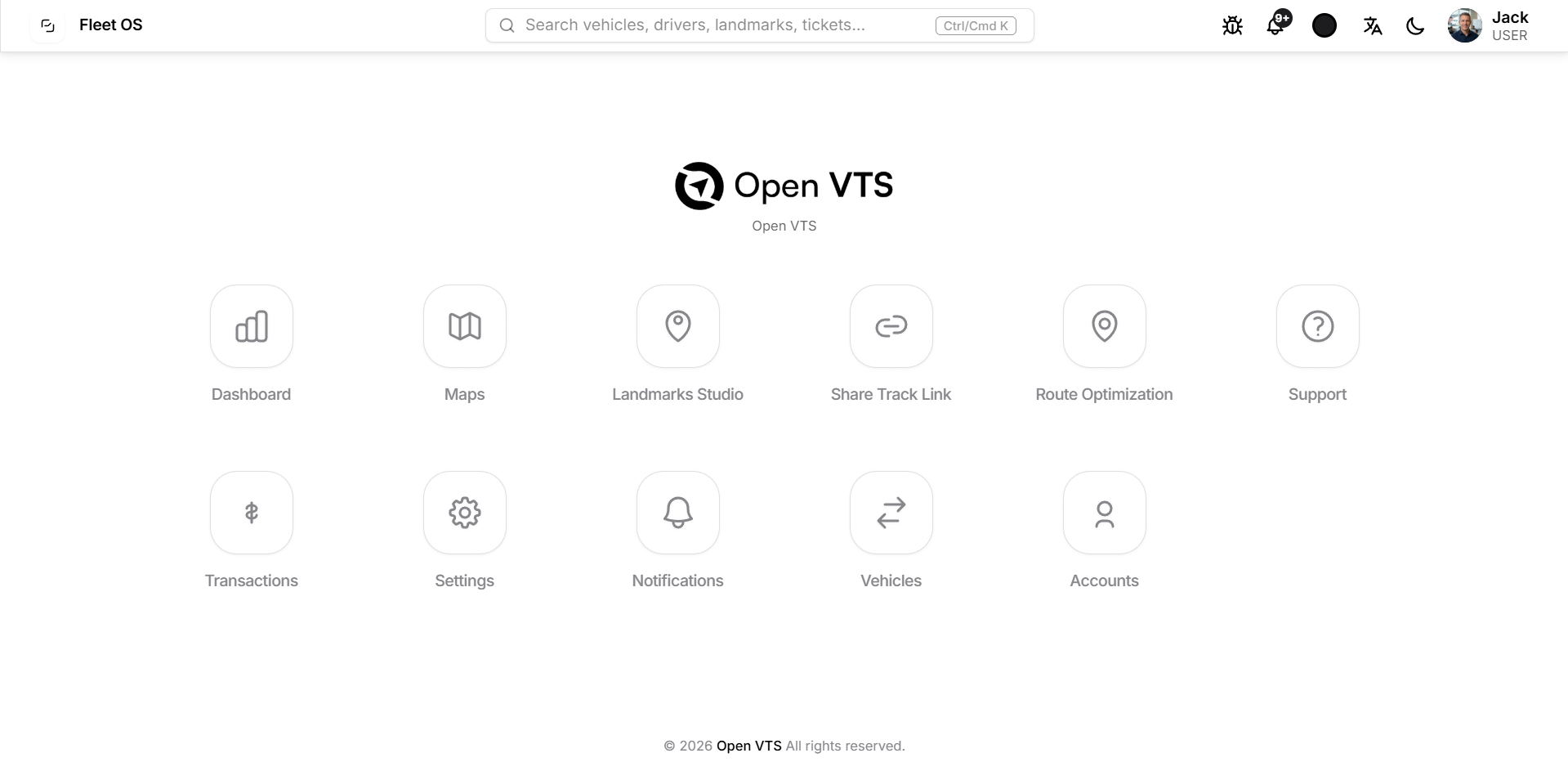
In the current User home screen, the following modules are visible:
- Dashboard
- Maps
- Landmarks Studio
- Share Track Link
- Route Optimization
- Support
- Transactions
- Settings
- Notifications
- Vehicles
- Accounts
What the User area manages
The User workspace focuses on operational usage rather than platform administration.
Tracking and visibility
- Maps
- Live vehicle tracking
- Vehicle access
- Vehicle status visibility
Operational tools
- Landmarks Studio
- Share Track Link
- Route Optimization
- Notifications
Account tools
- Transactions
- Settings
- Accounts
- Support
Why this matters
The User role is intentionally simpler. It gives the fleet customer the tools needed to use the system effectively without exposing unnecessary platform-management functions.
Maps Workspace Overview
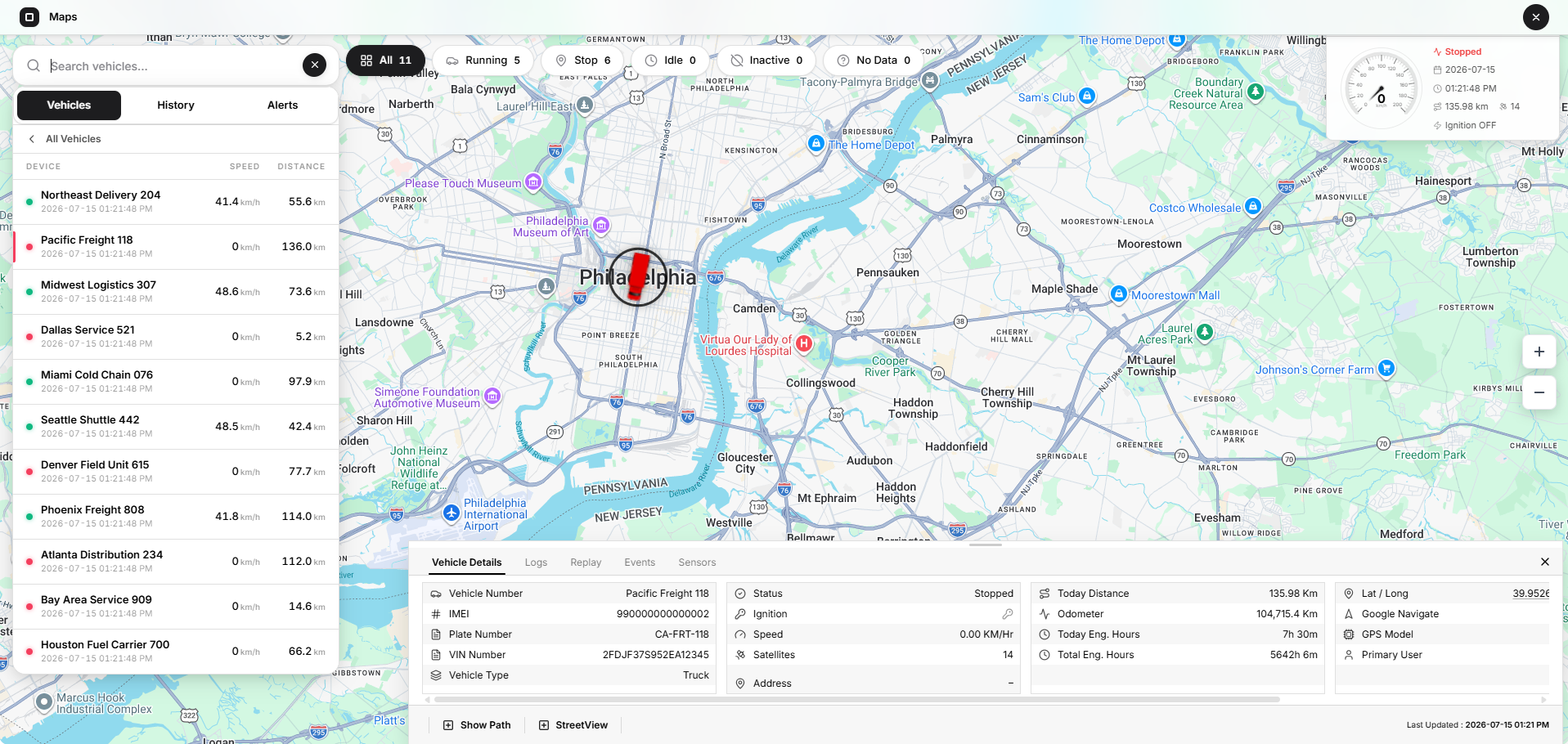
The Maps page is one of the most important areas in Open VTS because it brings vehicles, status, history, telemetry, and map-based actions together in one operational screen.
In the uploaded Maps screenshot, the page includes:
Left workspace panel
- Vehicle search
- Tabs for Vehicles, History, and Alerts
- Vehicle list with status color indicators
- Speed column
- Distance column
Top status filters
- All
- Running
- Stop
- Idle
- Inactive
- No Data
Main map area
- Vehicle markers
- Real-world map canvas
- Zoom controls
- Selected vehicle focus
Quick selected-vehicle summary
The top-right summary area shows the currently selected vehicle snapshot, including items such as:
- Movement status
- Date
- Time
- Distance or mileage summary
- Ignition status
Bottom detail panel
The bottom sheet includes tab-based operational details:
- Vehicle Details
- Logs
- Replay
- Events
- Sensors
The detail grid also shows important telemetry and record fields such as:
- Vehicle number
- IMEI
- Plate number
- VIN number
- Vehicle type
- Status
- Ignition
- Speed
- Satellites
- Address
- Today distance
- Odometer
- Today engine hours
- Total engine hours
- Latitude and longitude
- GPS model
- Primary user
There are also direct actions such as:
- Show Path
- StreetView
Why the Maps module matters
The Maps workspace is where live tracking becomes operationally useful. It combines location, movement, historical context, and related vehicle details in one place so users can quickly understand what a vehicle is doing.
Shared Platform Areas Across Roles
Although each role has its own workspace, some platform concepts appear across multiple levels.
Maps
Available across operational roles, but the visible vehicles and actions depend on the account’s permissions.
Vehicles
Used to access assigned or managed fleet assets.
Notifications
Used to monitor important events and exceptions.
Support
Used to manage help requests or tickets.
Transactions and payments
Used where account, renewal, or financial actions are relevant.
Settings
Available in different forms for different roles.
The meaning of a module depends on the role using it. For example:
- Map under Superadmin can represent platform-wide visibility
- Maps under Admin reflects managed business data
- Maps under User focuses on assigned vehicles only
This role-based narrowing is a core part of the Open VTS structure.
How the Main Modules Fit Together
Open VTS works best when its modules are understood as one connected system rather than separate screens.
A common flow looks like this:
- The Superadmin prepares the platform and controls core settings.
- The Admin creates users, vehicles, drivers, and inventory records.
- GPS devices and SIM cards are assigned to vehicles.
- Compatible devices send data to the Open VTS server.
- The User tracks assigned vehicles through Maps and related modules.
- Notifications, reports, support, transactions, and logs support the wider operation.
This means the platform is not only a tracking interface. It is also a business and operations system around vehicle tracking.
Key Functional Areas of the Platform
To understand Open VTS clearly, think of the platform in these major functional groups.
1. Platform and configuration
- Licensing
- SSL
- Global settings
- Master data
- Server visibility
2. Business administration
- Administrators
- Users
- Teams
- Plans
- Payments
- Transactions
3. Fleet operations
- Vehicles
- Drivers
- Maps
- Alerts
- History
- Replay
- Sensors
4. Inventory and devices
- GPS devices
- SIM cards
- IMEI-based asset linking
- Device assignment
5. Customer and operational tools
- Notifications
- Landmarks
- Route optimization
- Share tracking links
- Support
- Logs
- Calendar
This grouping helps readers understand the platform quickly before going deeper into role-specific documentation.
What This Overview Helps You Understand
After reviewing this page, you should understand:
- Open VTS has separate workspaces for Superadmin, Admin, and User
- The current UI uses a launcher-style dashboard for each role
- Maps is a central operational module
- The platform covers both tracking and business operations
- Different roles see different module sets
- Vehicles, users, devices, notifications, and payments are part of one connected system
Frequently Asked Questions
Does every role see the same dashboard?
No. The visible modules differ based on role. Superadmin, Admin, and User each have their own workspace and responsibilities.
Is Maps only for live tracking?
No. The Maps workspace also supports history, alerts, selected-vehicle details, replay, events, sensors, and quick operational actions.
Why does the Admin see more business modules than the User?
Because the Admin manages business operations such as users, vehicles, drivers, inventory, plans, and billing, while the User focuses on assigned fleet usage.
Why does the Superadmin have platform modules like SSL and Server?
Because the Superadmin controls the Open VTS deployment itself, not only customer-level operations.