
Admin Home and Workspace Tour
Learn how to use the Open VTS Admin Home page, global search, notifications, account
Last updated August 19, 2026
Admin Home and Workspace Tour
The Admin Home page is the main starting point for business and fleet administration in Open VTS.
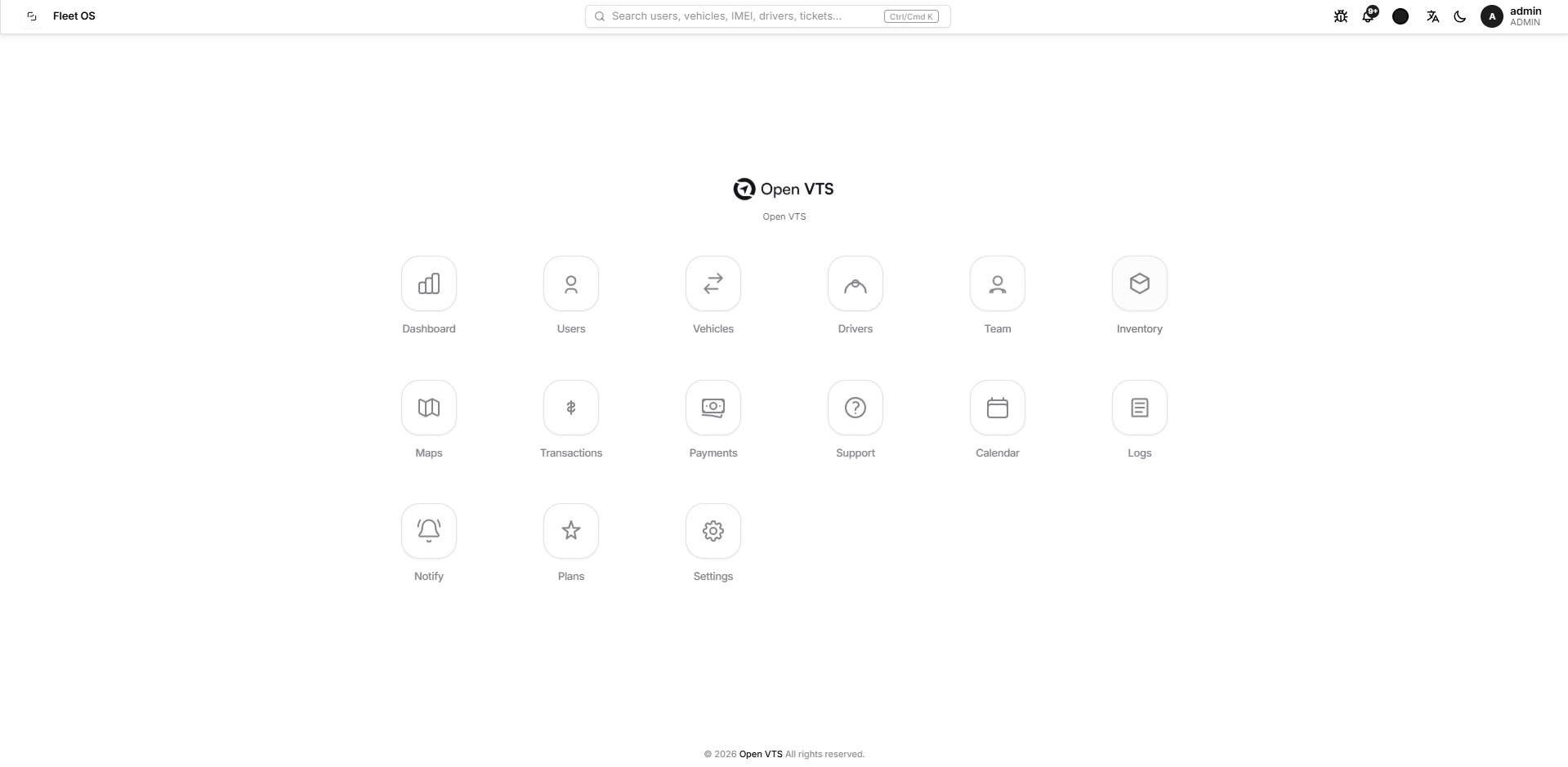
It provides quick access to users, vehicles, drivers, inventory, maps, payments, notifications, settings, and other operational areas available to the signed-in Admin.
The Home page is a workspace launcher. It does not display or edit operational records directly. Selecting a shortcut opens the corresponding section in a full-screen application window.
Purpose of the Admin Home Page
Use the Admin Home page to:
- Open any Admin workspace.
- Search for users, vehicles, drivers, IMEIs, and support tickets.
- review recent notifications.
- report a software issue.
- change language, colour, or display mode.
- access profile, password, policy, settings, and logout controls.
Required Role
You must be signed in with an Admin account.
The records and actions available inside each section remain limited to the signed-in Admin’s scope.
How to Open the Admin Home Page
- Sign in to Open VTS using an Admin account.
- Open VTS displays the Admin Home page after successful authentication.
- When another Admin section is open, select the X button in the upper-right corner of its application window to return to Home.
Page Overview
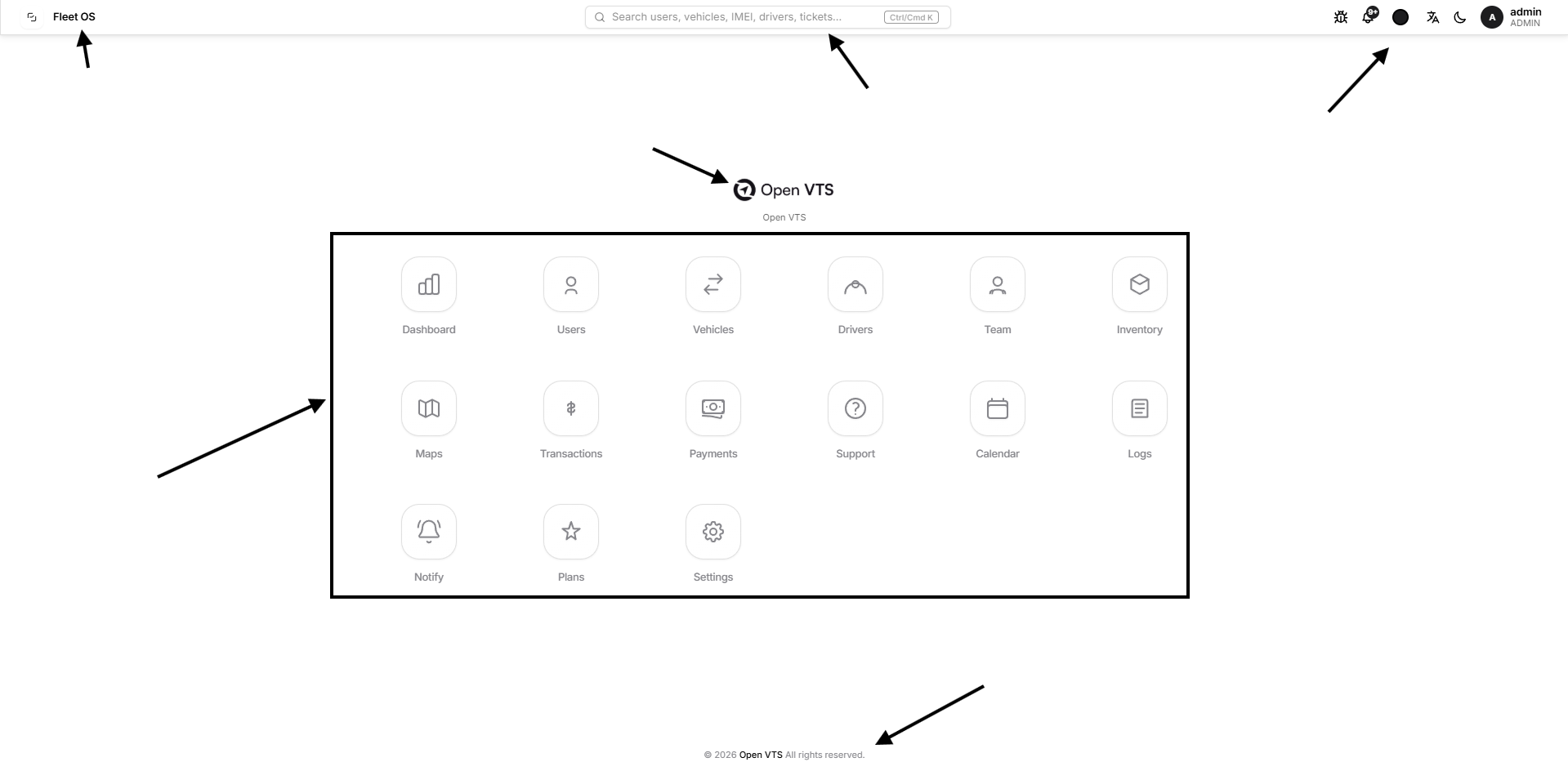
The Admin Home page contains four principal areas:
- Top bar for search, notifications, appearance, language, and account controls.
- Tenant branding showing the configured company logo and company name.
- Workspace shortcuts for opening the available Admin sections.
- Footer showing the current year and configured company name.
The Fleet OS label in the upper-left identifies the application workspace. The logo and company name in the centre are loaded from the configured tenant branding.
Top Bar
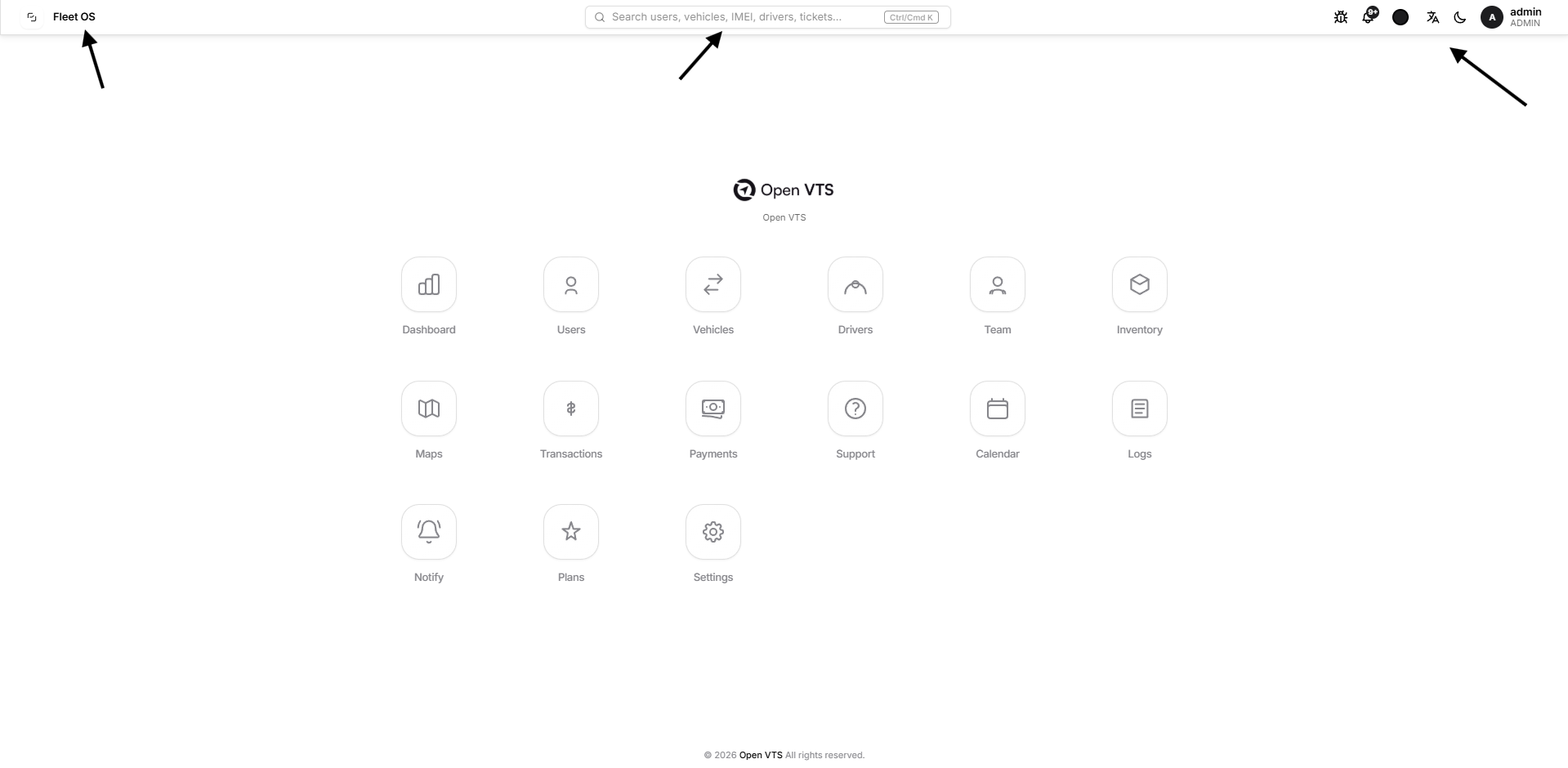
Fleet OS Workspace Label
The upper-left area displays Fleet OS.
This identifies the main Open VTS application shell and remains visible while the Admin Home page is open.
Global Search
The search control displays:
Search users, vehicles, IMEI, drivers, tickets…
Select the search field or use Ctrl/Cmd K to open the search overlay.
The Admin search scope includes:
- Users
- Vehicles
- Vehicle on Map
- Drivers
- Tickets
Enter at least two characters. The current search field supports up to 80 characters.
Search results are grouped by record type. Each result displays its available action.
For example:
- Open opens the corresponding vehicle, user, driver, or ticket workspace.
- Open on map opens Maps and focuses the selected vehicle.
A vehicle may appear in both VEHICLES and VEHICLE ON MAP. These are separate actions: one opens the vehicle record, while the other opens its map location.
You can also use the arrow keys to move through results, Enter to open the selected result, and Esc to close search.
Search States
The search overlay can display:
- An initial prompt before any text is entered.
- A minimum-length message when fewer than two characters are entered.
- A loading state while results are retrieved.
- No results found when there is no match.
- Search unavailable when the request cannot be completed.
Report a Bug
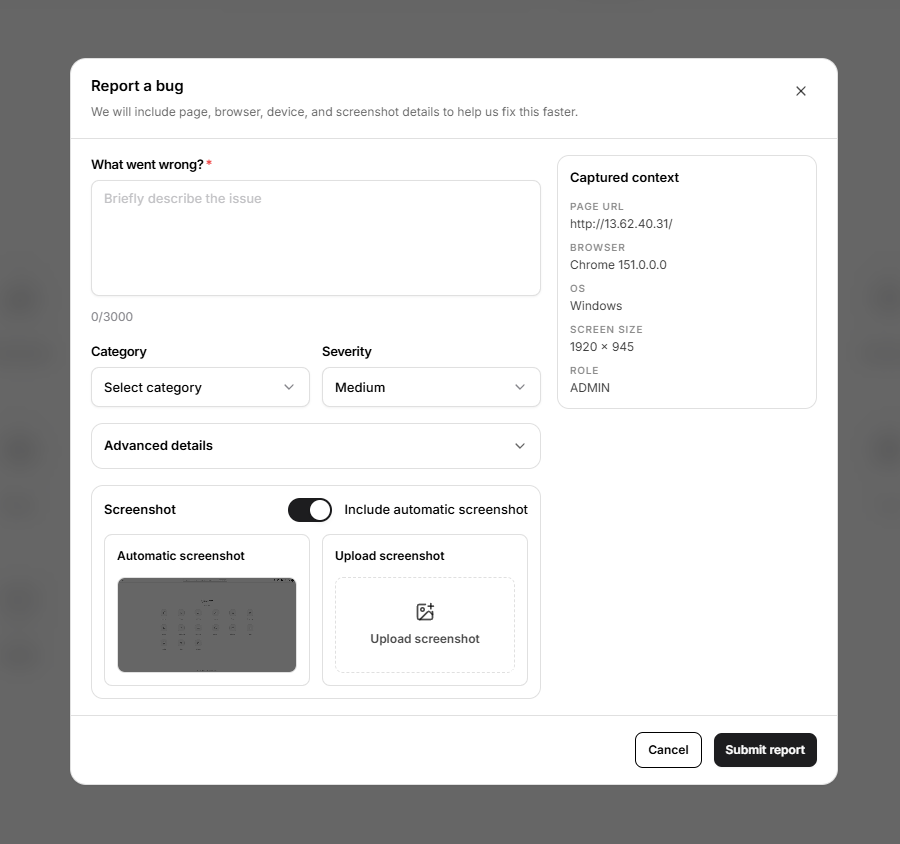
Select the bug icon in the top bar to open Report a bug.
Use this form to send a software issue to the Open VTS support or development team.
The form contains:
- What went wrong? — required issue description.
- Category — optional issue classification.
- Severity — Low, Medium, High, or Critical. The default is Medium.
- Advanced details — optional steps to reproduce, expected behaviour, and actual behaviour.
- Include automatic screenshot — enabled by default.
- Upload screenshot — adds a separate supporting image.
- Captured context — page URL, browser, operating system, screen size, and current role.
The issue description must contain at least 5 characters and cannot exceed 3,000 characters.
Selecting Submit report sends the report. Selecting Cancel or the close icon exits without submitting.
An unavailable automatic screenshot does not prevent the report from being submitted.
Privacy guidance: Review automatic and uploaded screenshots before submission. Do not include credentials, personal data, customer identifiers, or other confidential information unless it is necessary and authorised.
Notifications
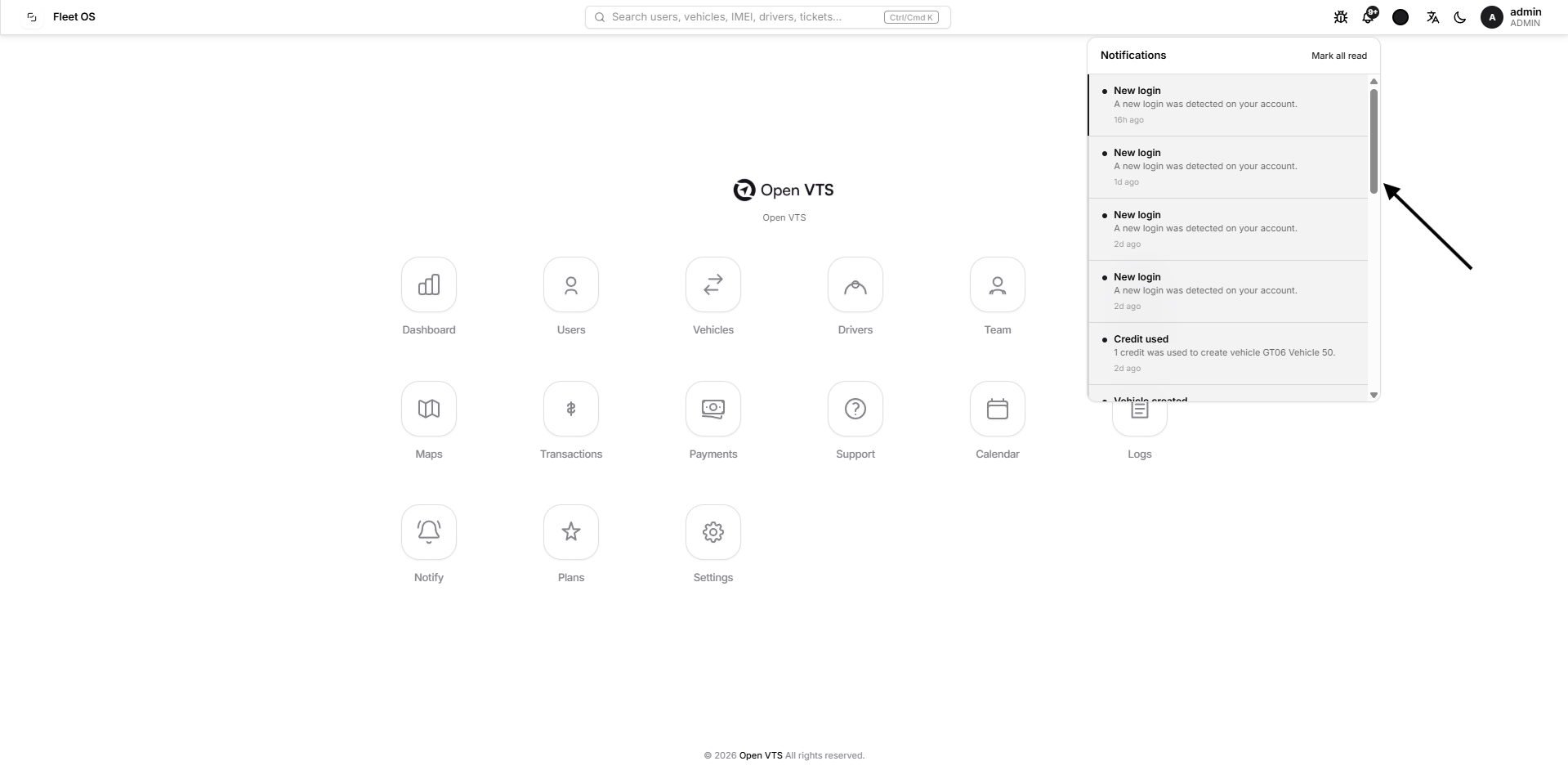
Select the bell icon to open Notifications.
The notification badge shows the number of unread items. Counts above nine are displayed as 9+.
Each notification may show:
- Title
- Short message
- Relative time
- Unread indicator
- Severity indicator
Selecting an unread notification marks it as read. Where the notification supports navigation, Open VTS also opens the related section, such as Support, Vehicles, Transactions, Payments, or Settings.
Select Mark all read to mark all currently unread notifications as read. The action is unavailable when there are no unread notifications.
Older notifications load as the list is scrolled.
Notification States
The panel can display:
- Loading placeholders while notifications are retrieved.
- An unread indicator beside new items.
- An empty state when no notifications are available.
- You’re all caught up after all available items have been loaded.
Theme Colour
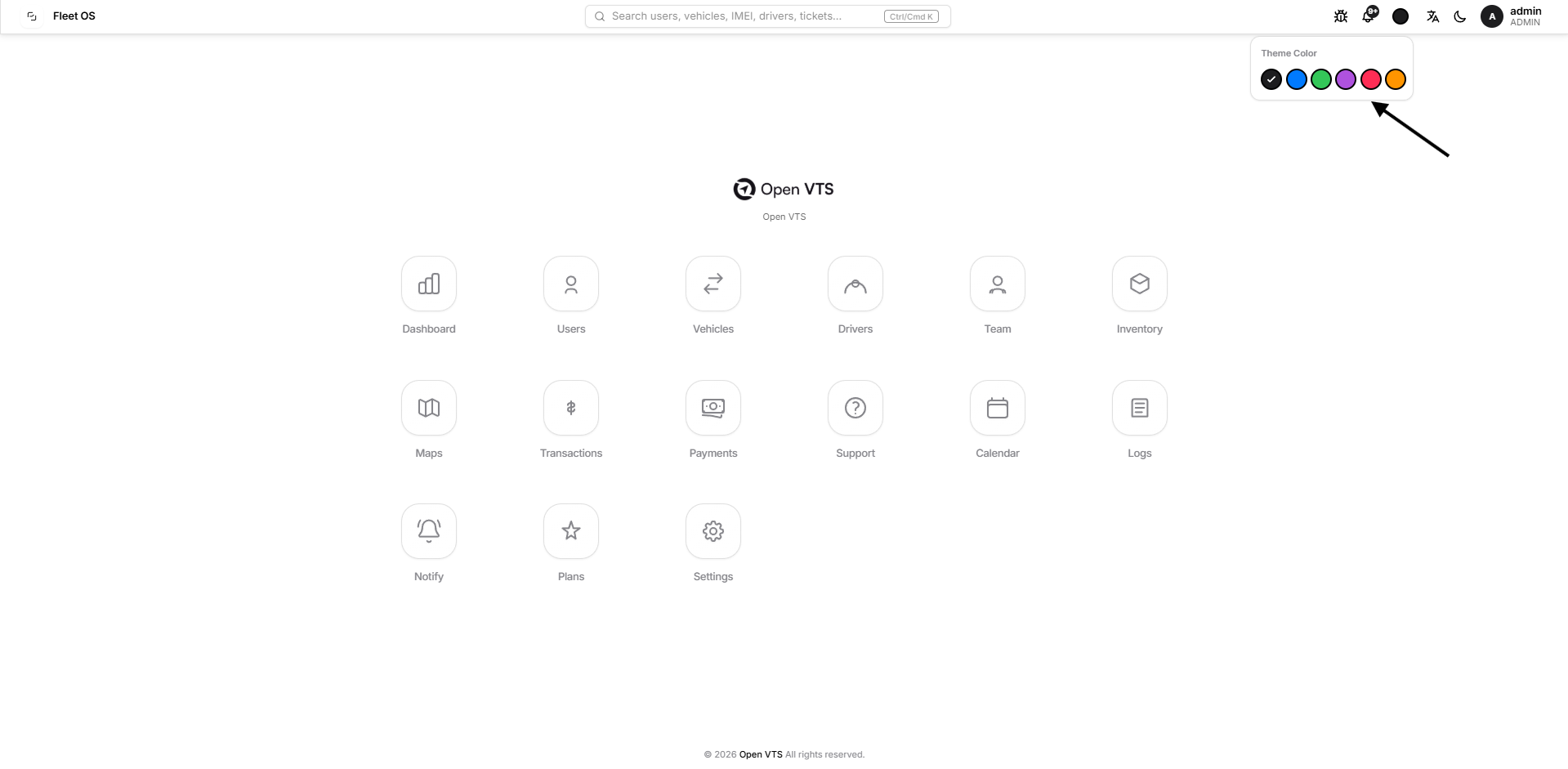
Select the circular colour control to open the theme colour selector.
Choosing a colour changes the interface accent used for selected controls and other emphasis elements. It does not change operational data or tenant branding.
Language
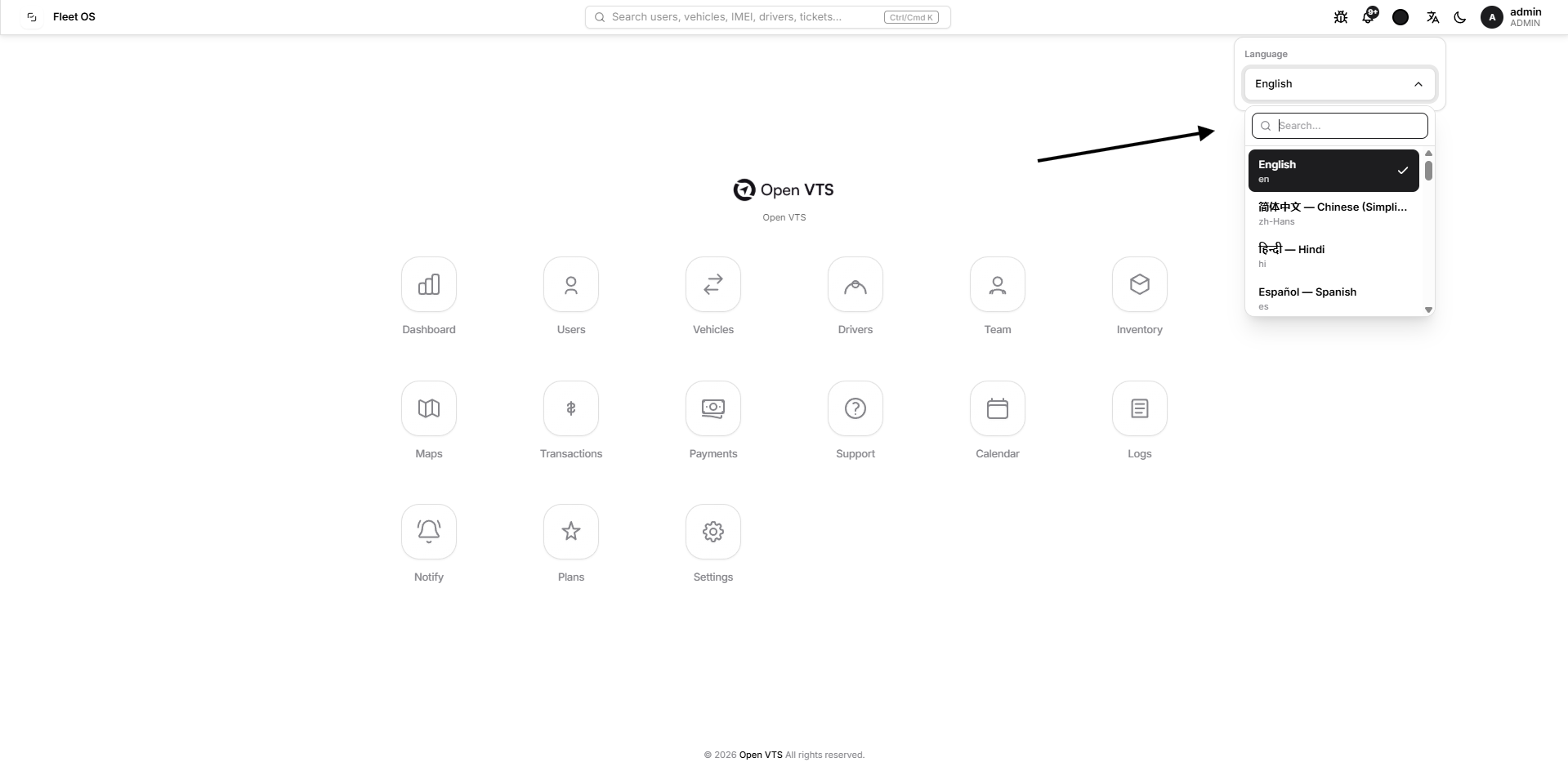
Select the language icon to choose an available interface language.
Changing the interface language changes supported labels and interface text. It does not translate user-entered names, descriptions, tickets, or operational records.
Light and Dark Mode
Select the moon or sun control to switch between light and dark display modes.
This changes the visual appearance of the interface only. It does not affect application data or permissions.
Account Menu
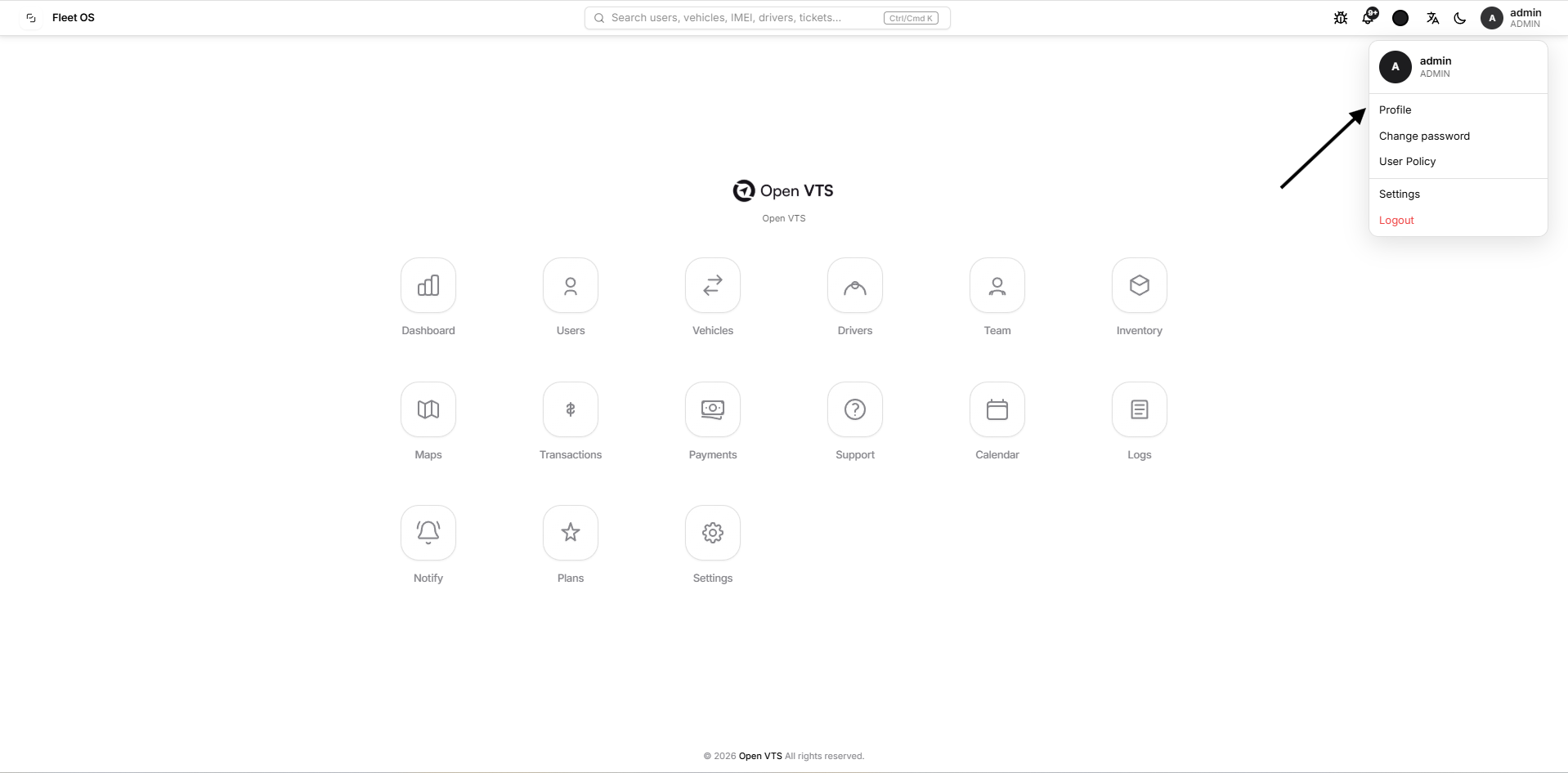
Move the pointer over the account area in the upper-right corner to open the account menu.
The menu displays the signed-in account name and role.
Available actions are:
ActionCurrent behaviourProfileOpens the Settings workspace on its default Profile section.Change passwordOpens the password-change form.User PolicyOpens the current user policy page.SettingsOpens the Settings workspace.LogoutEnds the active Admin session and returns to the application entry screen.
In the current version, Profile and Settings both open the Settings workspace. Profile is not a separate standalone application window.
Admin Workspace Shortcuts
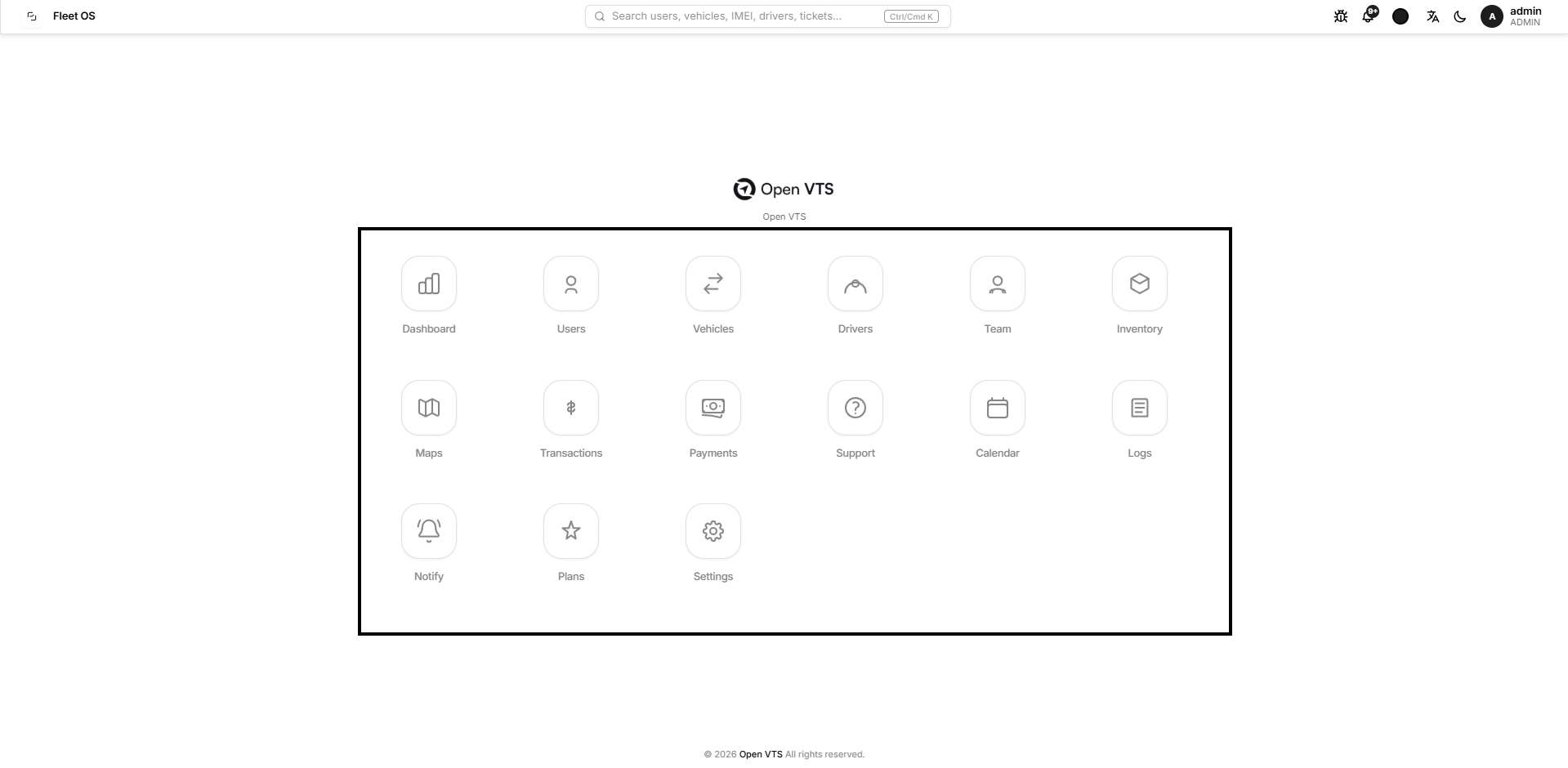
The centre of the Home page displays shortcuts to the principal Admin workspaces.
Dashboard
Provides a high-level operational and financial overview, including user and vehicle counts, live vehicle status, revenue, payments, vehicle expiry, and growth information.
Use Dashboard for a quick review before opening detailed operational sections.
Users
Create and manage users operating under the Admin account.
The Users workspace supports user creation, bulk upload, account status management, record details, and other user-level operations.
Vehicles
Create and manage vehicles within the Admin scope.
Use this workspace to add or bulk-import vehicles, review vehicle records, open details, and assign selected vehicles to users.
Drivers
Create and manage driver records.
The Drivers workspace supports driver creation, bulk upload, user assignment, account status management, and driver details.
Team
Manage internal team-member accounts under the Admin.
Use Team to create team members, review their profiles, manage account status, and open available activity information.
Inventory
Manage GPS devices and SIM cards.
The Inventory workspace separates Devices and SIM Cards and supports inventory creation, bulk upload, status management, and device-to-SIM association.
Maps
Open the Admin tracking map.
Use Maps to monitor vehicles and access the live-tracking and map functions available within the Admin’s operational scope.
Transactions
Review the Admin’s credit and debit transaction ledger.
This workspace includes transaction amount, status, payment mode, payment type, reference, provider, counterparty, and recorded-by information. It also provides the available credit-purchase workflow.
Payments
Manage payment activity and vehicle subscription renewals.
Payments includes transaction analytics, revenue trends, payment modes, transaction status, payment records, and the Renew Vehicle workflow.
Transactions and Payments are different: Transactions focuses on the financial ledger and credit movement. Payments focuses on payment analytics, payment records, and vehicle renewals.
Support
Manage support communication.
The workspace separates:
- Tickets created by users under the Admin.
- Tickets created by the Admin for higher-level support.
Calendar
Review dated operational activity.
The current Calendar includes:
- Users created
- Vehicles created
- Vehicle expiry
Select a date to review the matching records and open available details.
Logs
Review system records available to the Admin.
The Logs workspace contains:
- Activity
- Events
- Telemetry
Each log type has a different purpose and will be documented separately on the Admin Logs page.
Notify
Compose and send notification campaigns to users within the Admin’s scope.
Use Notify to select participants, choose available delivery channels, prepare campaign content, review eligible delivery totals, send the campaign, and open campaign history.
Plans
Create and manage pricing plans.
Plans contain the plan name, duration, and price and can be used by the relevant vehicle and renewal workflows.
Settings
Manage Admin-level configuration.
The current Settings workspace contains:
- Profile
- White Label
- SMTP
- Localization
- General Settings
- Payment Gateway
Each settings area should be changed only by an authorised person who understands its effect.
Opening and Closing a Workspace
Select any shortcut to open its application window.
The application window displays:
- The workspace title in the upper-left.
- A close button in the upper-right.
- The complete page content below the window header.
Select the X button to close the current workspace and return to Admin Home.
Closing the application window does not sign the Admin out.
Recommended Admin Workflow
- Review the notification badge for new operational or support updates.
- Open Dashboard for a quick operational summary.
- Use Global Search when the required user, vehicle, driver, or ticket is already known.
- Open the relevant workspace for detailed management.
- Close the workspace window to return Home.
- Use Report a bug when an application issue cannot be resolved through normal operations.
Important Notes
- The Home page is a navigation page and does not replace the Dashboard.
- Search results remain limited to the current Admin scope.
- Opening a vehicle record does not automatically open it on the map.
- Opening a vehicle on the map does not automatically open its full vehicle-management record.
- Changing the theme, language, or display mode does not modify operational data.
- Closing a workspace does not log the Admin out.
- Logging out ends the active Admin session.
Next Step
Continue to Admin Dashboard to understand the operational overview, vehicle status, revenue, payment, growth, and expiry information available to an Admin.