
Configure OpenRouter
Connect Open VTS to OpenRouter using an API key and configure backup AI models for improved availability.
Last updated August 19, 2026
Configure OpenRouter
OpenRouter allows Open VTS to access supported AI models through a single API connection. After configuration, Open VTS can send AI requests through OpenRouter without requiring each model provider to be configured separately.
OpenRouter provides access to free and paid models. Free models are useful for initial testing, while paid models are generally more suitable for production workloads that require consistent availability and higher usage limits.
OpenRouter is an external cloud service. Information submitted to an AI-powered Open VTS feature may be sent to OpenRouter and the selected model provider. Review the provider’s privacy and data-retention policies before sending sensitive business, customer, vehicle, or tracking information.
Before You Begin
You need:
- Superadmin access to Open VTS
- An OpenRouter account
- An OpenRouter API key
- OpenRouter credits when using paid models
- Internet access from the Open VTS server
Open the OpenRouter Configuration
From the Open VTS homepage, go to:
Settings → API Config → OpenRouter
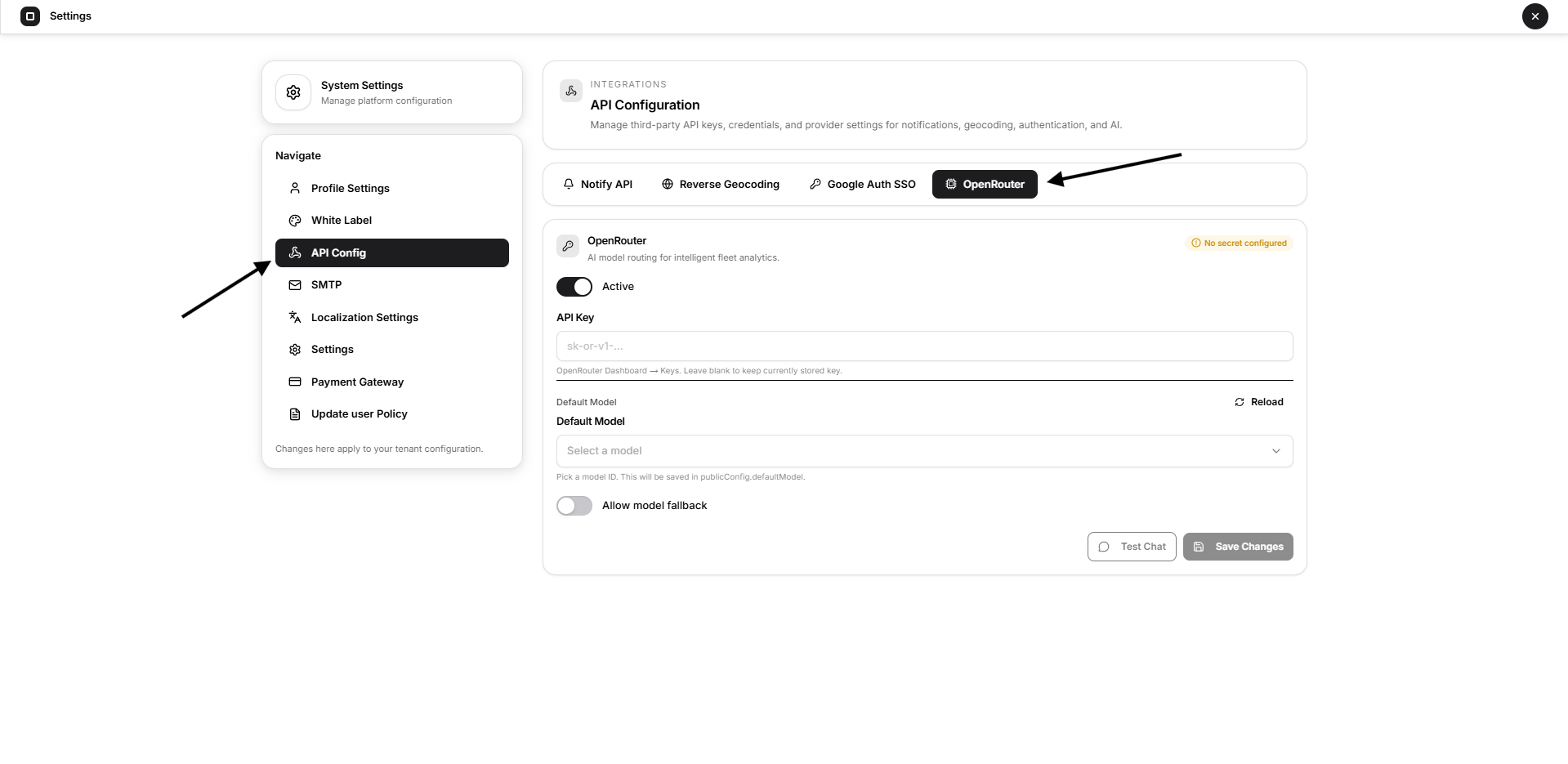
The OpenRouter configuration includes:
- OpenRouter API Key
- Active
- Allow Model Fallback
- Fallback Models
- Save Changes
Step 1: Create an OpenRouter Account
Open the OpenRouter website in a new browser tab.
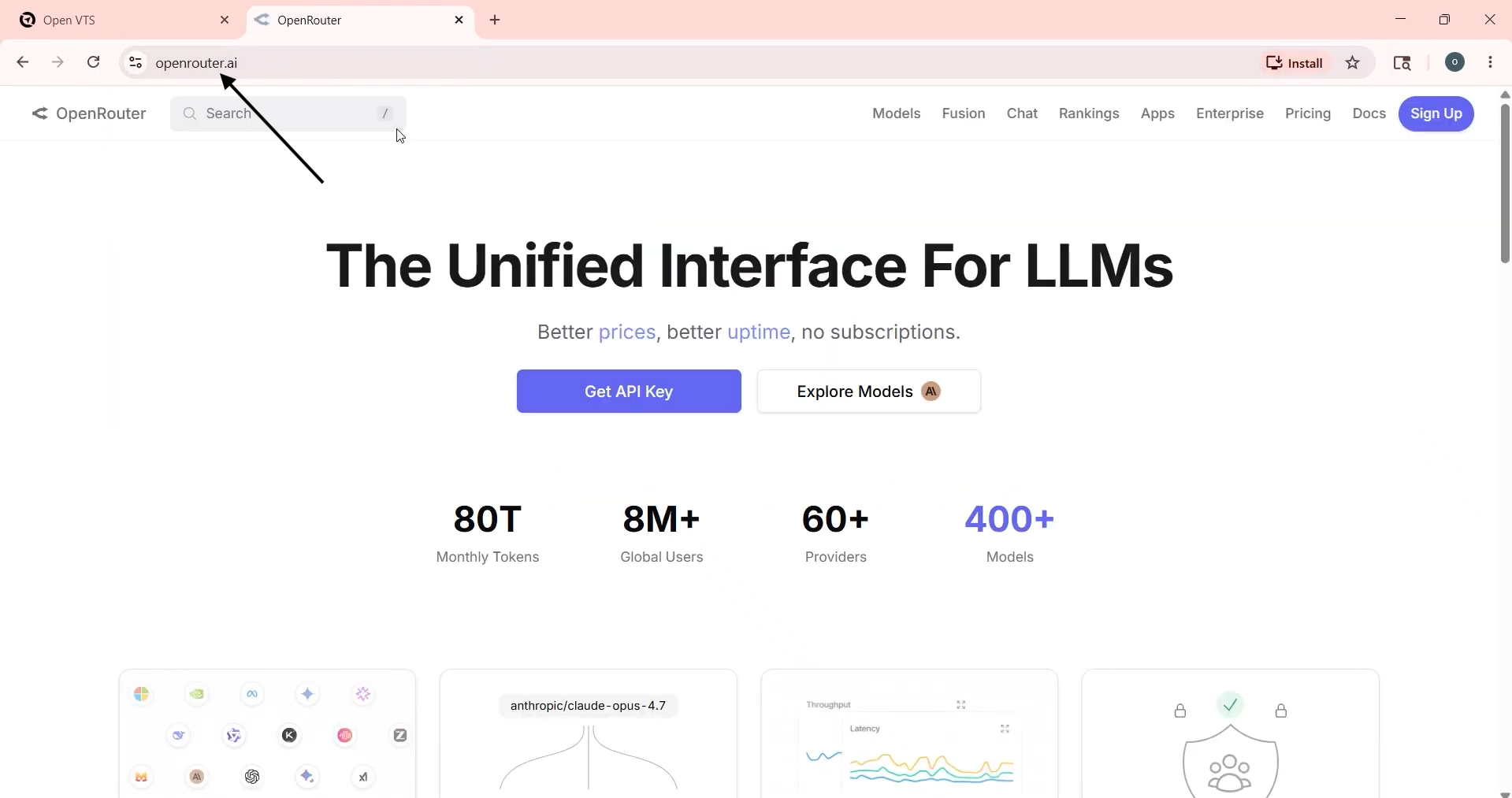
Select Sign Up.
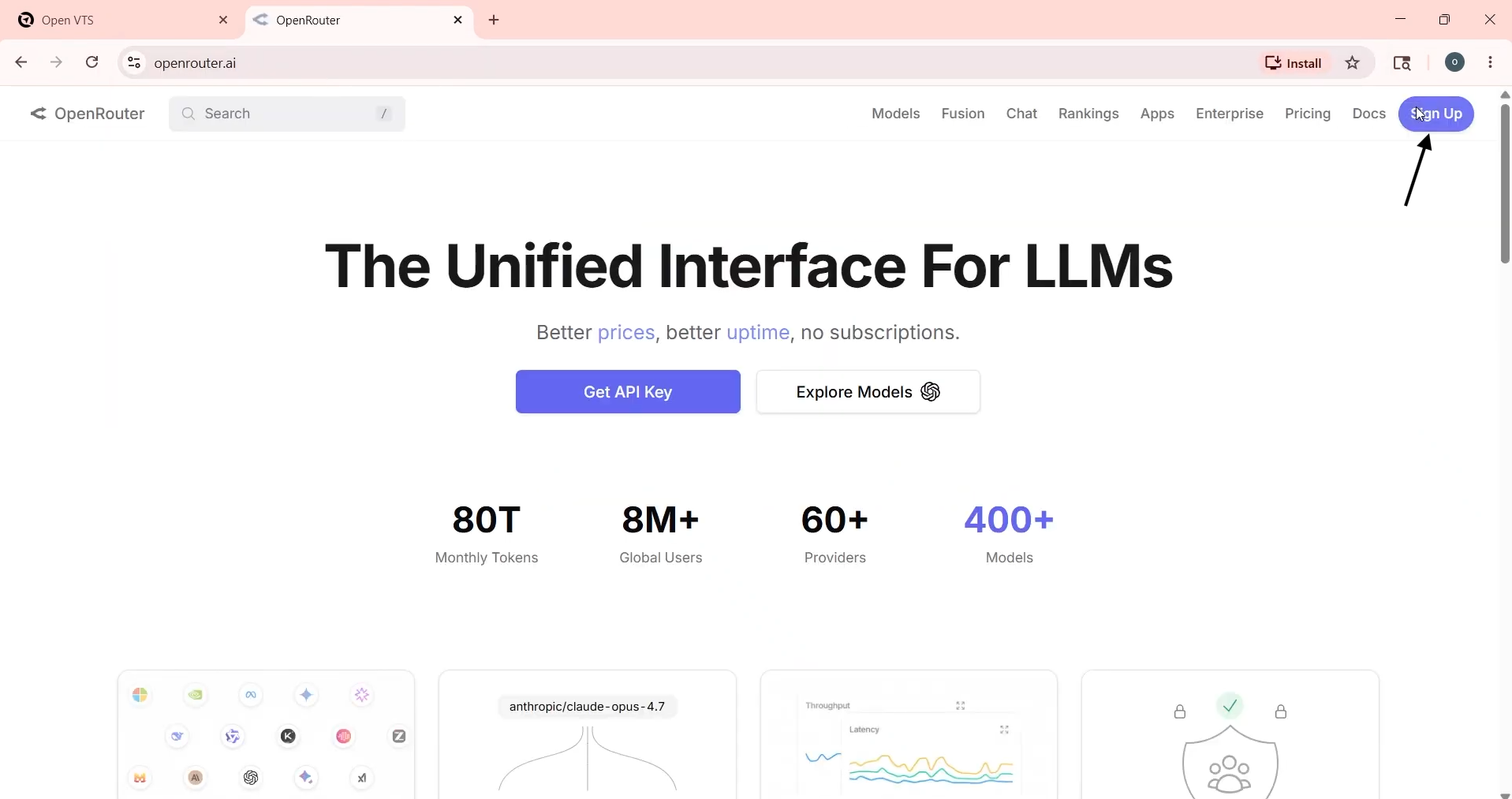
Choose Continue with Google.
Select your Google account.
Review and accept the required legal consent.
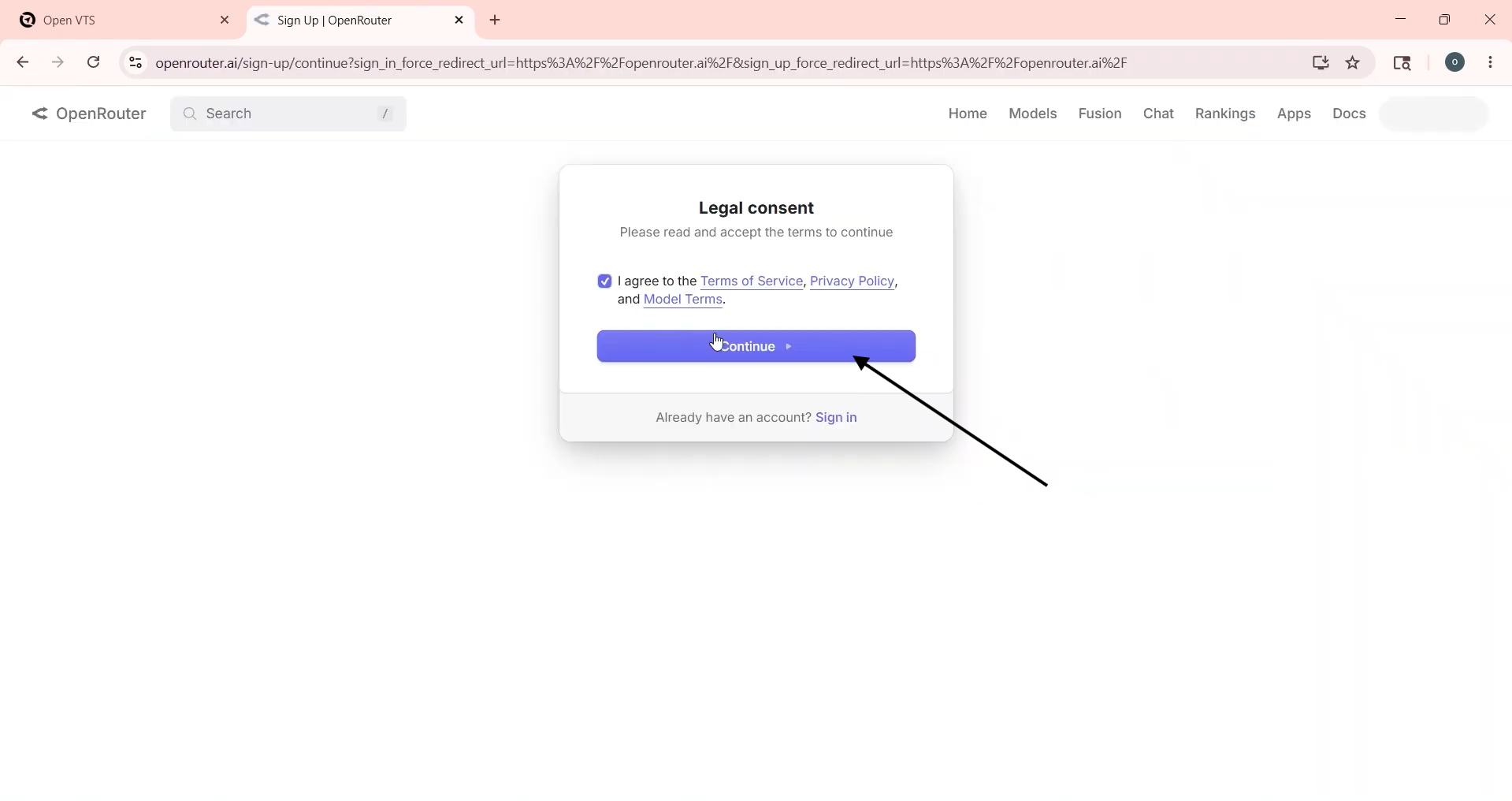
Complete any onboarding questions shown by OpenRouter.
After completing registration, the OpenRouter dashboard will open.
Step 2: Add Credits When Required
OpenRouter provides access to both free and paid AI models.
For initial testing, you can use an available free model. Free-model availability and limits may change, and free models may have lower rate limits or temporary availability restrictions.
For production use:
Open the billing or credits section in OpenRouter.
Add the required account balance.
Review the pricing of the models you intend to use.
Consider applying spending limits to prevent unexpected usage.
OpenRouter API keys can support spending controls, depending on how the key is created and managed.
Step 3: Create an API Key
From the OpenRouter dashboard:
Open the API Keys section.
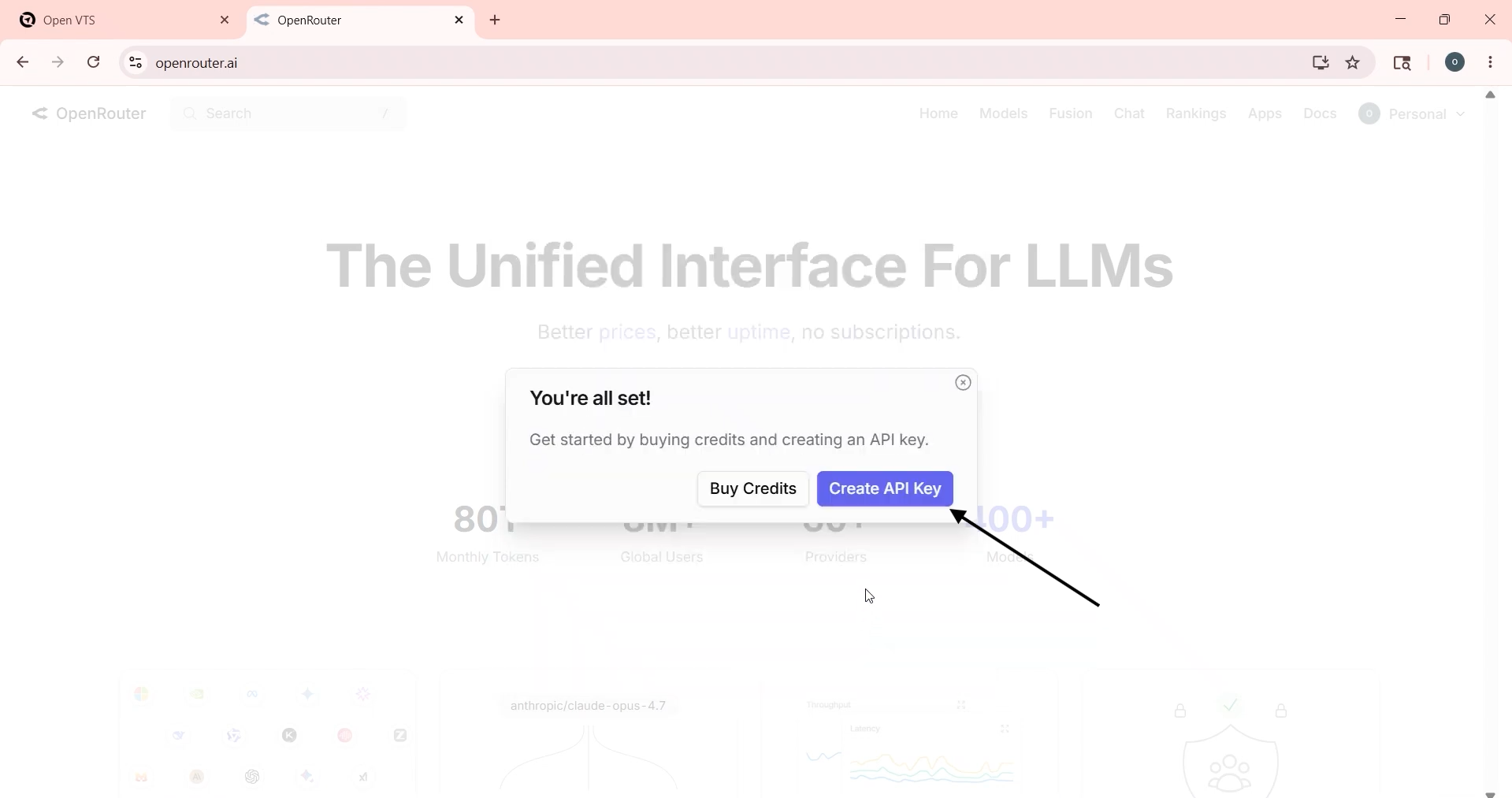
Select Create API Key or New Key.
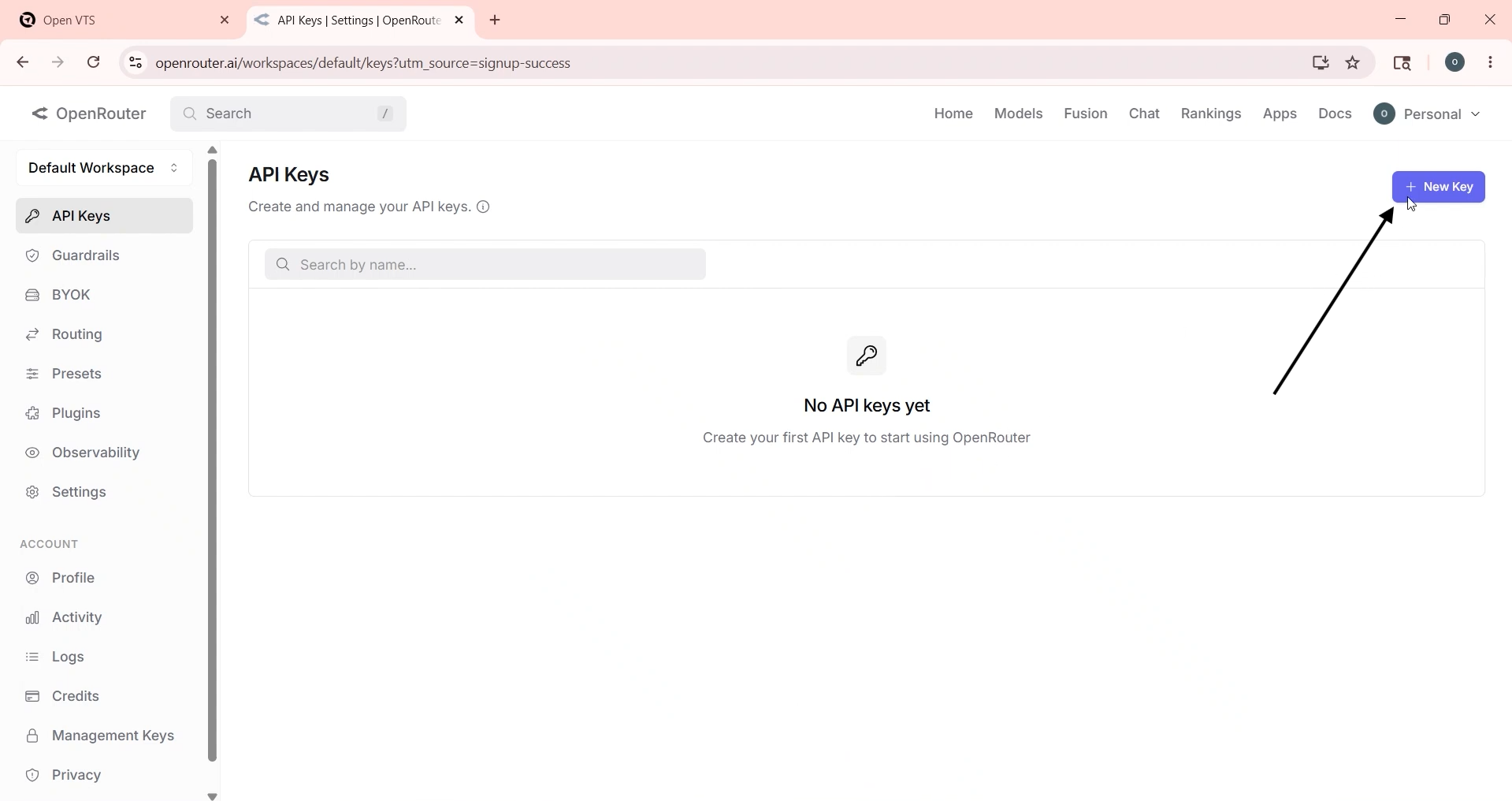
Enter a recognizable key name.
For example:
Open VTS API Key
Add a spending limit or expiration date when available and required.
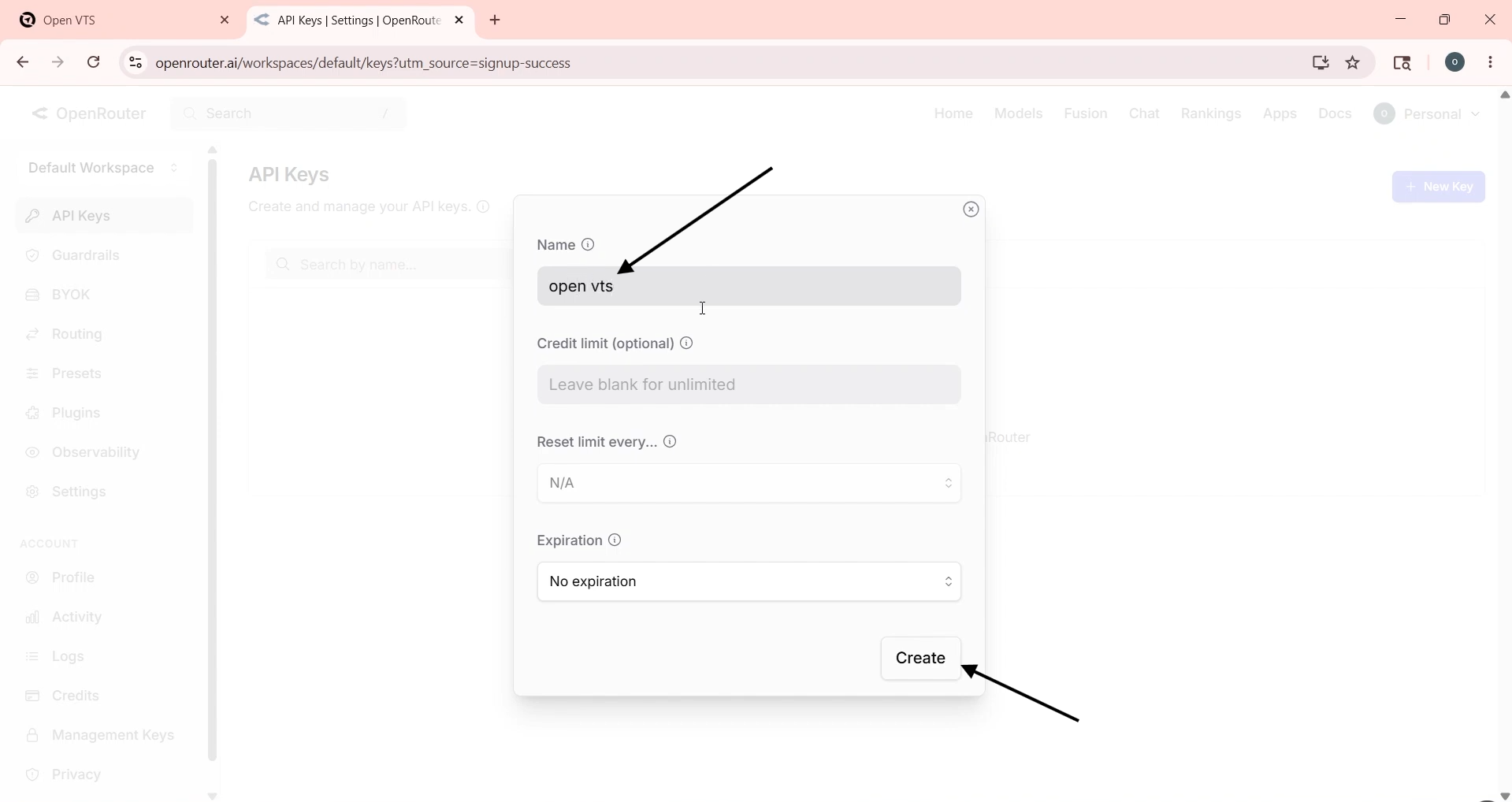
Select Create.
OpenRouter will generate the API key.
Step 4: Copy and Protect the API Key
Copy the generated key immediately.
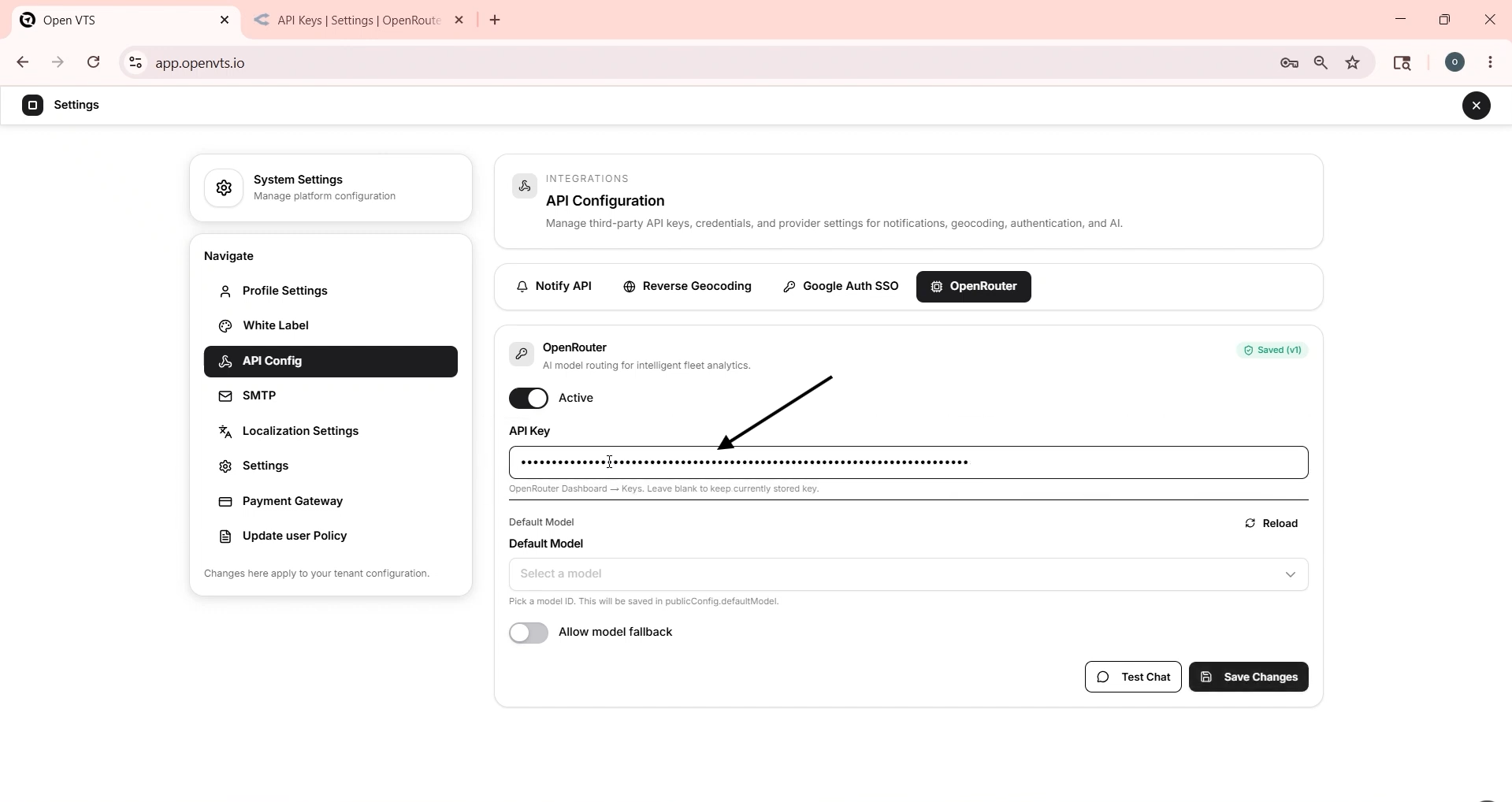
An OpenRouter API key normally begins with a format similar to:
sk-or-v1-...
The complete secret key may only be displayed when it is created. Treat it as a sensitive credential.
Do not:
- Publish the key in documentation
- Add it to screenshots
- Share it through email or public messages
- Store it in source code
- Commit it to GitHub or another repository
If the key is exposed, revoke it in OpenRouter and create a replacement key.
Step 5: Enter the API Key in Open VTS
Return to:
Open VTS → Settings → API Config → OpenRouter
Paste the copied key into the OpenRouter API Key field.
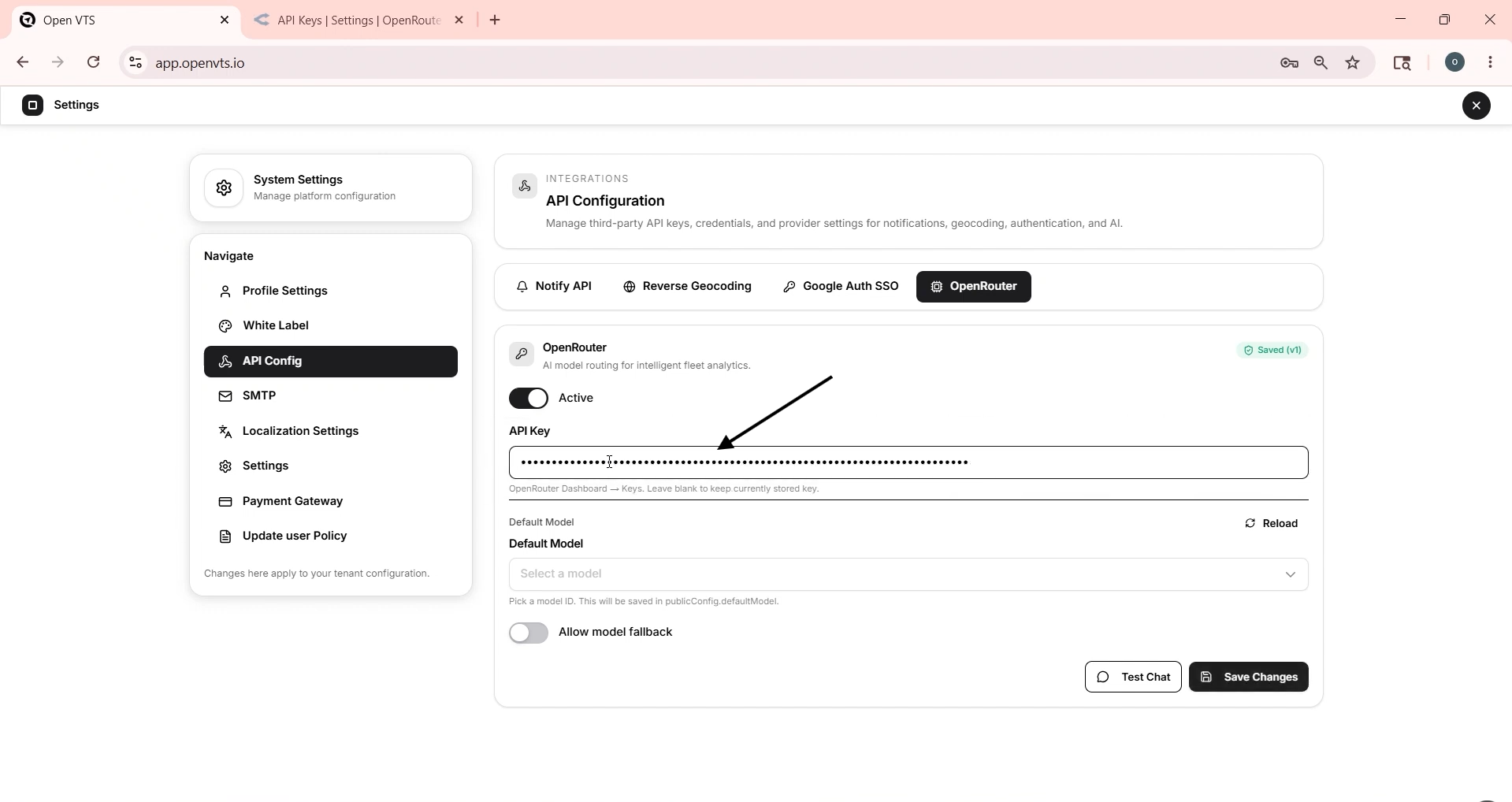
Ensure that:
- No spaces were added before or after the key
- The complete key was copied
- The key is still active in OpenRouter
- The key has sufficient access or credits for the selected model
Step 6: Enable OpenRouter
Turn on the Active toggle.
When Active is enabled, Open VTS can use the saved OpenRouter configuration for supported AI features.
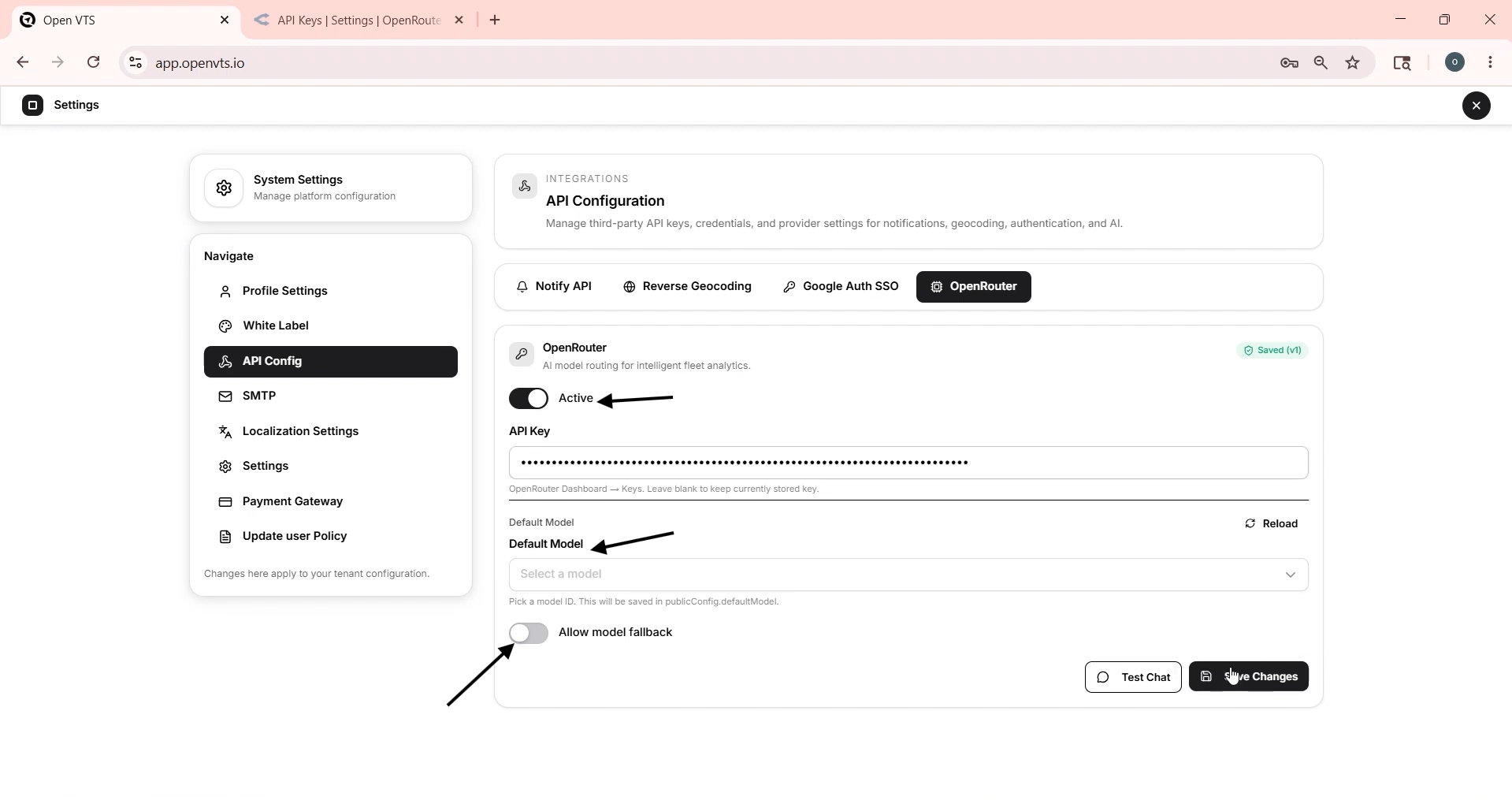
Turn it off when you need to temporarily disable the OpenRouter integration without deleting the saved configuration.
Step 7: Configure Model Fallback
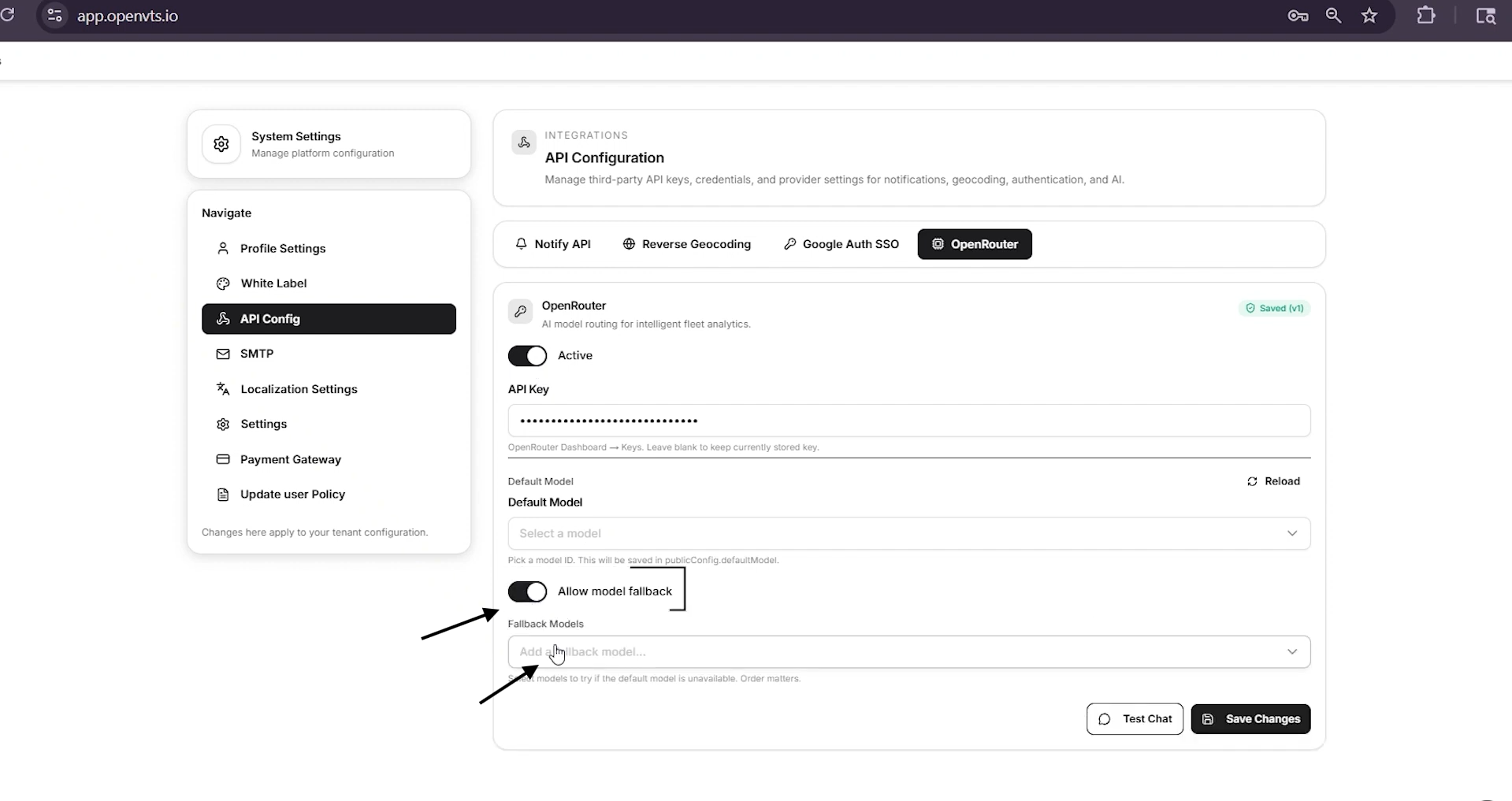
Enable Allow Model Fallback when Open VTS should try another model if the primary model cannot complete a request.
A fallback may be needed when the primary model:
- Is temporarily unavailable
- Reaches a rate limit
- Returns an error
- Rejects the request
- Is removed or no longer accessible
- Cannot support a required capability
OpenRouter supports ordered model fallbacks for errors such as provider downtime, rate limits, and moderation-related failures.
Select Fallback Models
Use the Fallback Models field to select one or more backup models.
Open VTS attempts the selected fallback models in their configured order when the primary model fails.
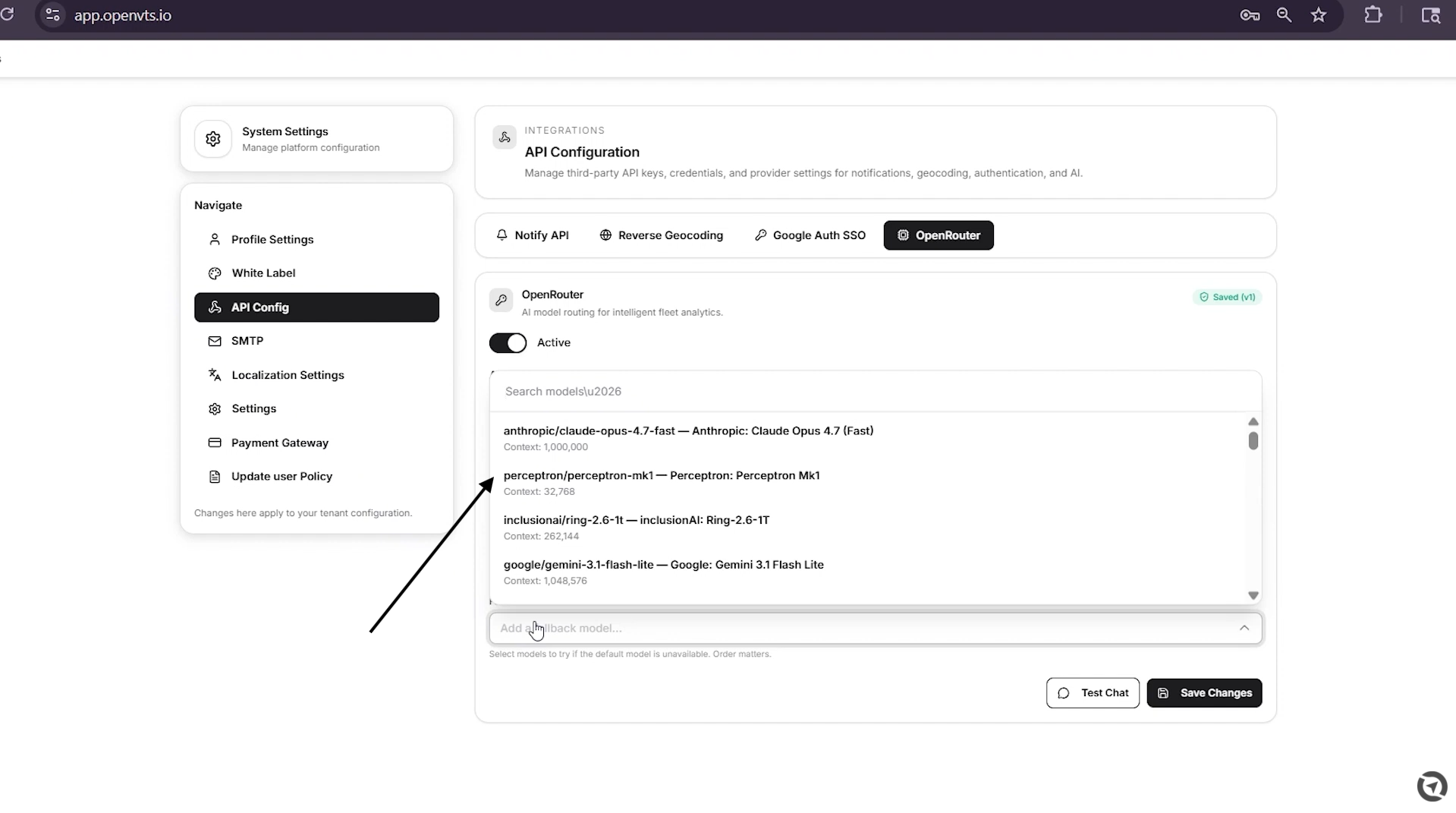
A practical order is:
- A reliable model with capabilities similar to the primary model
- A lower-cost general-purpose model
- A free model for non-critical final fallback
Only select models suitable for the Open VTS AI feature being used. Models may differ in reasoning ability, context limits, language support, tool support, speed, and pricing.
Open VTS Fallback vs OpenRouter Provider Fallback
These are related but different:
Open VTS model fallback tries another selected AI model when the main model fails.
OpenRouter provider fallback may route the same model request through another available provider or endpoint.
OpenRouter can automatically move between available providers, while the Open VTS fallback setting provides an additional model-level recovery option.
Step 8: Save the Configuration
After completing the configuration:
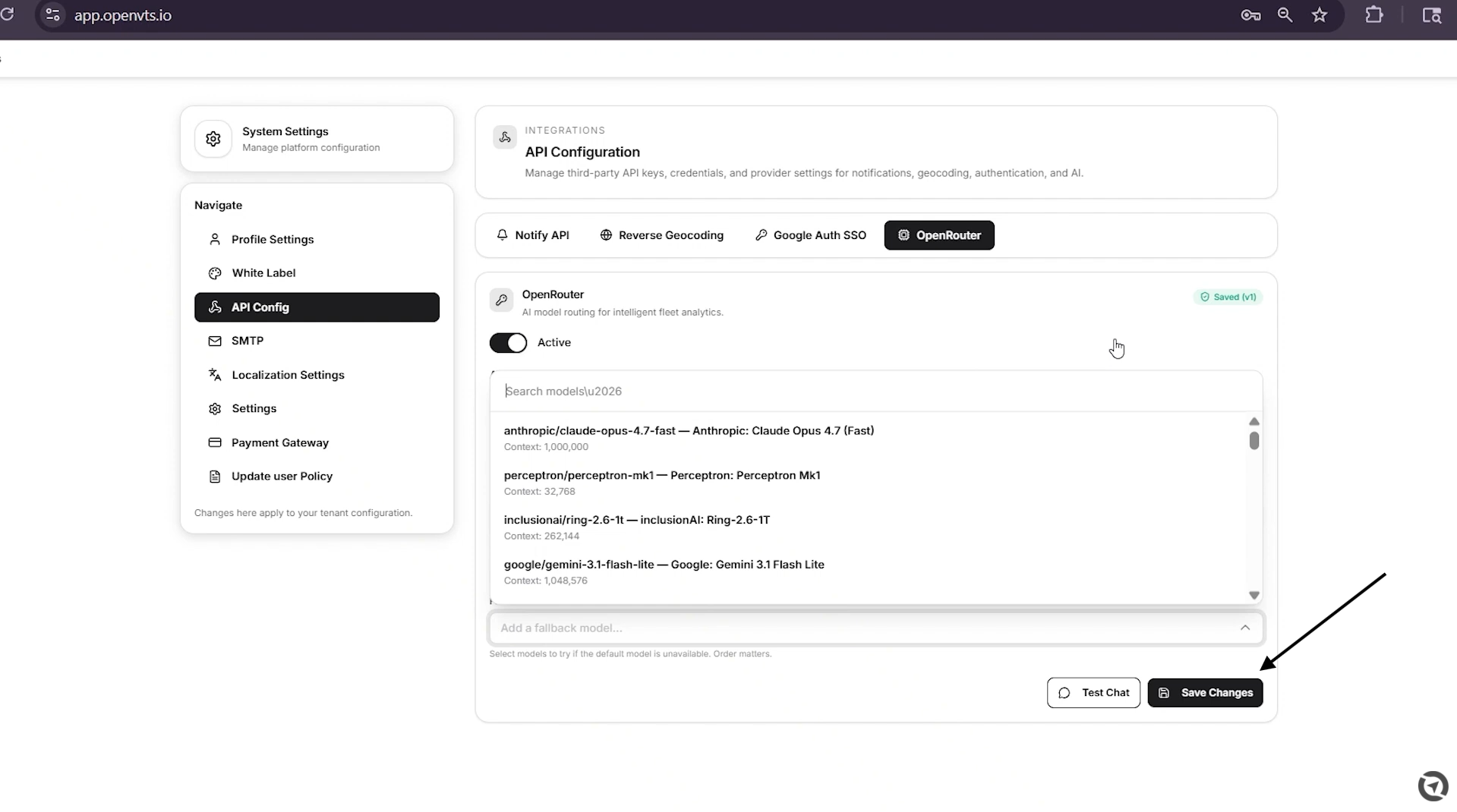
- Confirm that the API key is entered.
- Enable Active.
- Enable Allow Model Fallback when required.
- Select the fallback models.
- Select Save Changes.
Open VTS will store the OpenRouter configuration.
Step 9: Test the Integration
After saving, open an Open VTS feature that uses OpenRouter and submit a simple test request.
A successful AI response confirms that:
- The OpenRouter API key is valid
- Open VTS can reach OpenRouter
- The selected model is available
- The account has sufficient access or credits
Avoid using sensitive operational or customer information during the initial test.
Using Free Models
OpenRouter provides free model options for testing and low-volume usage. Depending on the Open VTS model selector, you may see models marked as free.
OpenRouter also provides the following free routing option:
openrouter/free
This router automatically chooses from currently available free models. A specific model may also have a :free variant. Free-model availability, latency, and rate limits can change, so they should not be treated as guaranteed production capacity.
Recommended Production Configuration
For a production Open VTS deployment:
- Use a dedicated API key created only for Open VTS
- Add a reasonable spending limit
- Use a reliable paid model as the primary model
- Configure at least one compatible fallback model
- Monitor OpenRouter usage and account balance
- Rotate the API key periodically
- Revoke the key immediately if it is exposed
- Review the data policies of selected providers
- Avoid sending unnecessary GPS, customer, or personal data to AI models
OpenRouter provides privacy controls, including restrictions based on provider training and data-retention policies. Zero Data Retention routing can also be enforced where supported.
Troubleshooting
OpenRouter integration does not work
Confirm that:
- The Active toggle is enabled
- The API key was copied completely
- The key is active in OpenRouter
- The Open VTS server has internet access
- The selected model is still available
- The account has sufficient credits
- The selected model supports the required request
Invalid API key
Create a new OpenRouter API key and replace the existing key in Open VTS.
Do not add spaces, quotation marks, or additional text around the key.
Insufficient credits
Add credits to the OpenRouter account or select an available free model for testing.
Primary model is unavailable
Enable Allow Model Fallback and select one or more compatible backup models.
A free model responds slowly or fails
Free models can have lower rate limits, higher latency, or temporary availability restrictions. Try another available free model or move to a paid model for more reliable production use.
Requests fail after previously working
Check:
- OpenRouter account balance
- API key status
- Key spending limit
- Model availability
- OpenRouter usage logs
- Fallback model configuration
Security and Privacy Notice
The API key provides access to your OpenRouter account and may generate billable usage. Never expose it publicly.
Because OpenRouter is a third-party AI gateway, prompts and responses may pass through OpenRouter and the selected model provider. Before enabling AI features for production data, review:
- OpenRouter privacy settings
- Provider data-retention policy
- Whether prompts may be used for training
- Zero Data Retention availability
- Applicable customer agreements and privacy obligations
This configuration does not convert OpenRouter into a self-hosted AI service. The Open VTS platform remains self-hosted, but AI requests made through OpenRouter are processed externally.
Configuration Checklist
Confirm that:
- An OpenRouter account has been created
- Credits have been added when paid models are used
- A dedicated API key has been generated
- The API key is securely stored in Open VTS
- Active is enabled
- Model fallback is configured when required
- Fallback models are arranged in the preferred order
- Save Changes has been selected
- A test request completes successfully
- API usage and spending limits are monitored
- Provider privacy policies have been reviewed