
Superadmin Profile Settings
Review and update the Superadmin profile, company information, password, contact verification, push notification registration, and email notification subscription.
Last updated August 19, 2026
Superadmin Profile Settings
The Profile Settings page contains the Superadmin’s personal information, company details, verification status, and notification diagnostics.
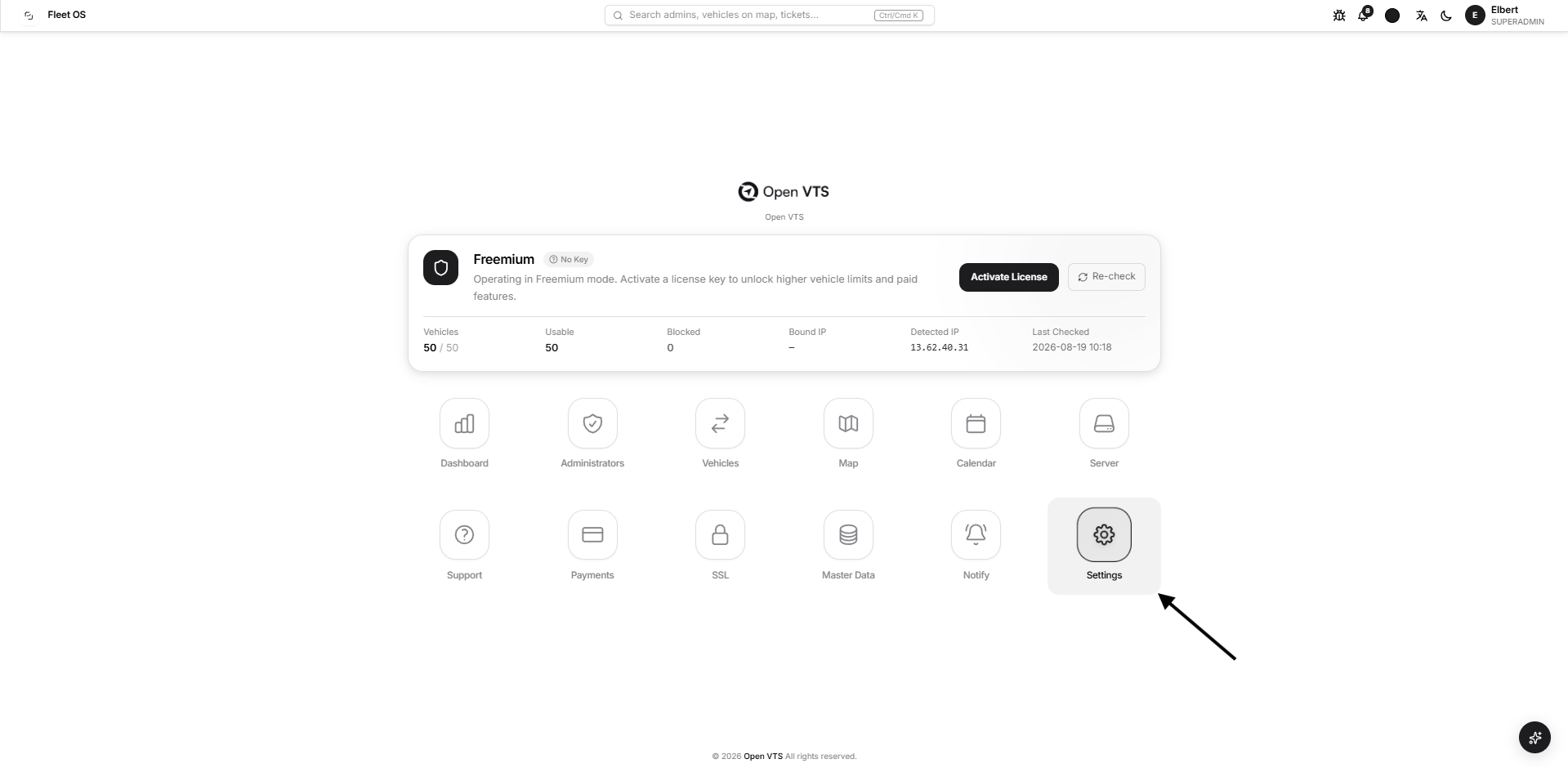
Open Profile Settings
From the Superadmin home page, go to:
Settings → Profile Settings
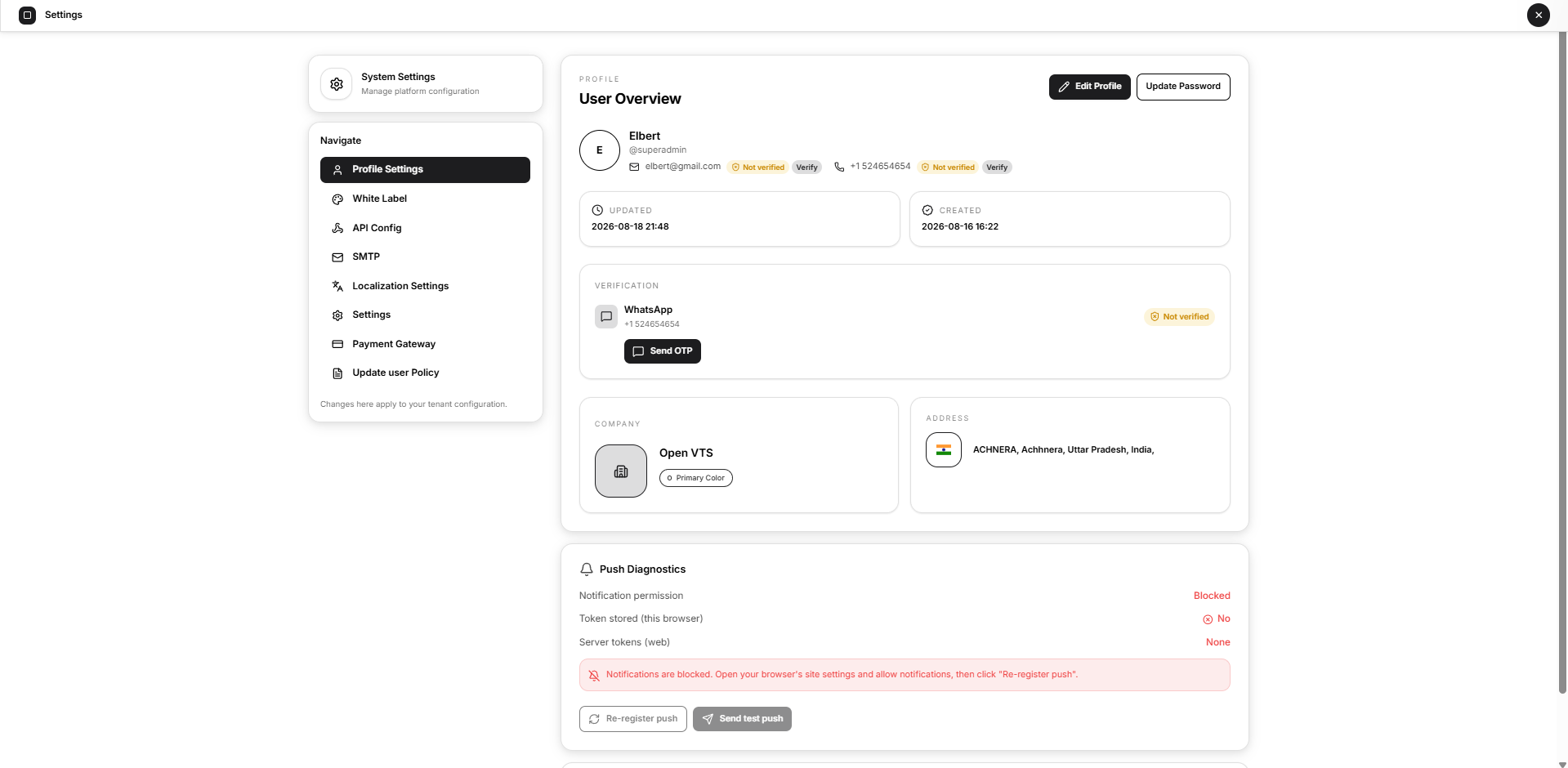
Profile Overview
The User Overview section displays:
- Profile photo, full name, and username
- Email address and verification status
- Mobile number and verification status
- Profile creation and last-update details
- Company information
- Registered address
Select the profile photo to upload or replace it with a supported image.
Edit Profile
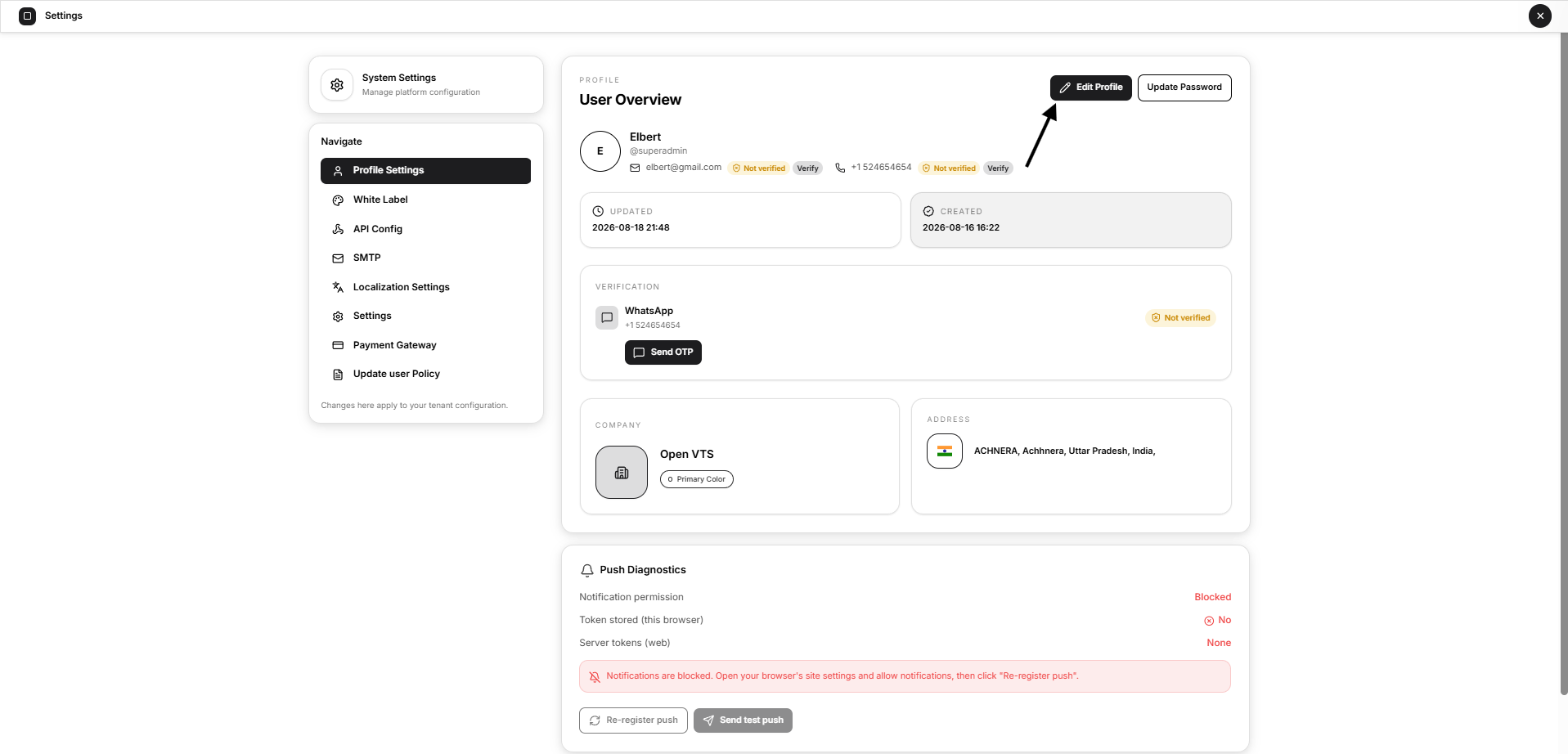
Select Edit Profile to update:
- Full name
- Mobile number and country code
- Address
- Country
- State
- City
- Pincode
Select Save to apply the changes.
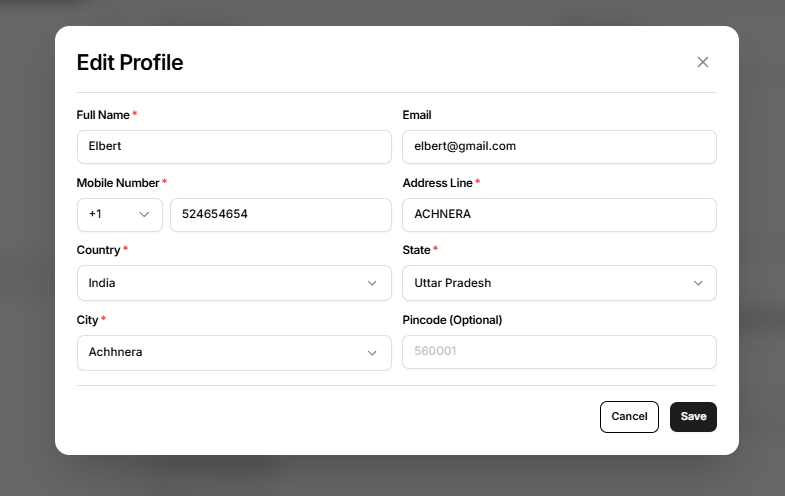
The email address is displayed in the form but cannot be changed from this window.
Update Password
Select Update Password to change the Superadmin account password.
Enter:
- Current password
- New password
- Confirm new password
Select Save after confirming that both new-password fields match.
Screenshot reference: Add the Update Password window screenshot here.
Verify Contact Information
The profile shows whether the registered email address and mobile number are verified.
Select Verify beside an unverified contact method to request a verification code and complete the verification process.
WhatsApp Verification
The Verification section displays the WhatsApp number and its current status. Select Send OTP to request a WhatsApp verification code.
WhatsApp verification and WhatsApp-based notifications require the Meta WhatsApp API to be configured first.
Edit Company Information
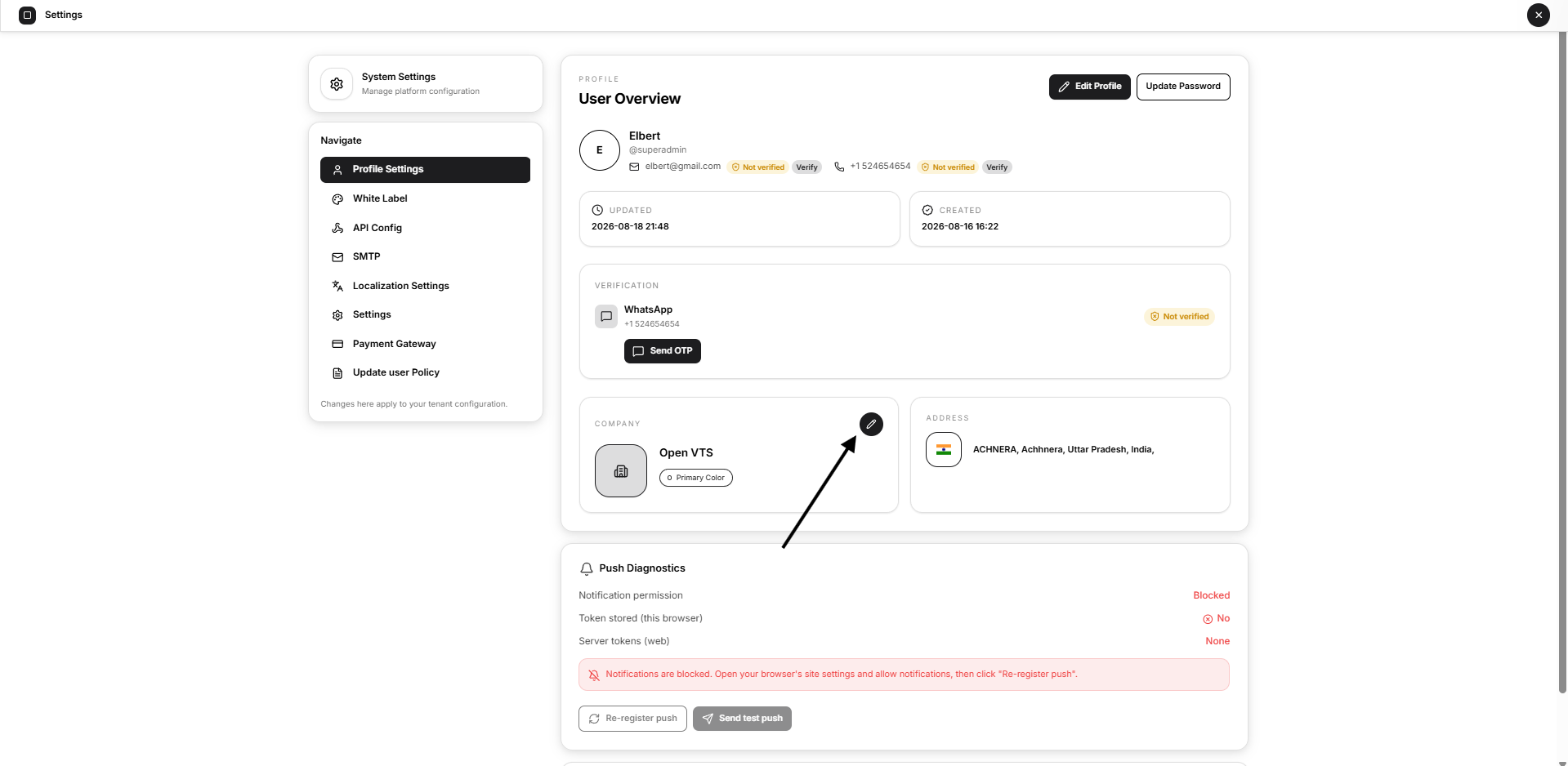
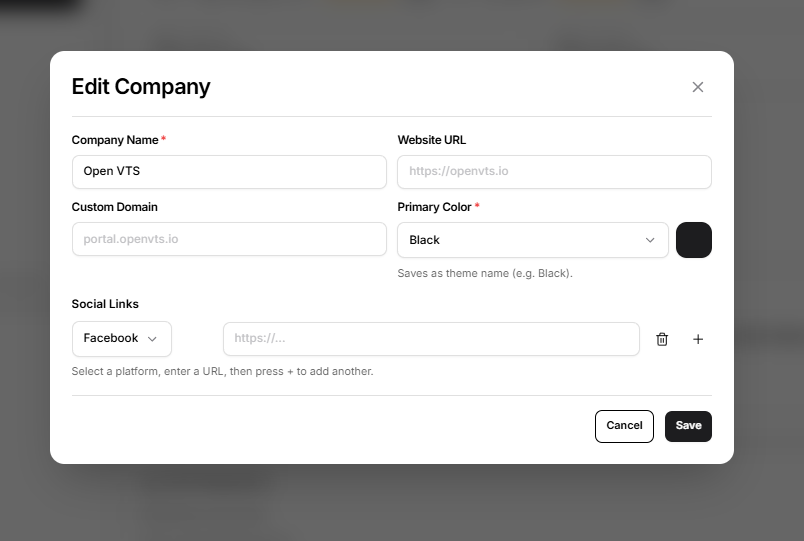
Select the edit icon inside the Company card to open Edit Company.
The following information can be updated:
- Company name
- Website URL
- Custom domain
- Primary colour or theme
- Social media links
Use the + button to add another social link and the delete icon to remove an existing one. Select Save to apply the changes.
Push Diagnostics
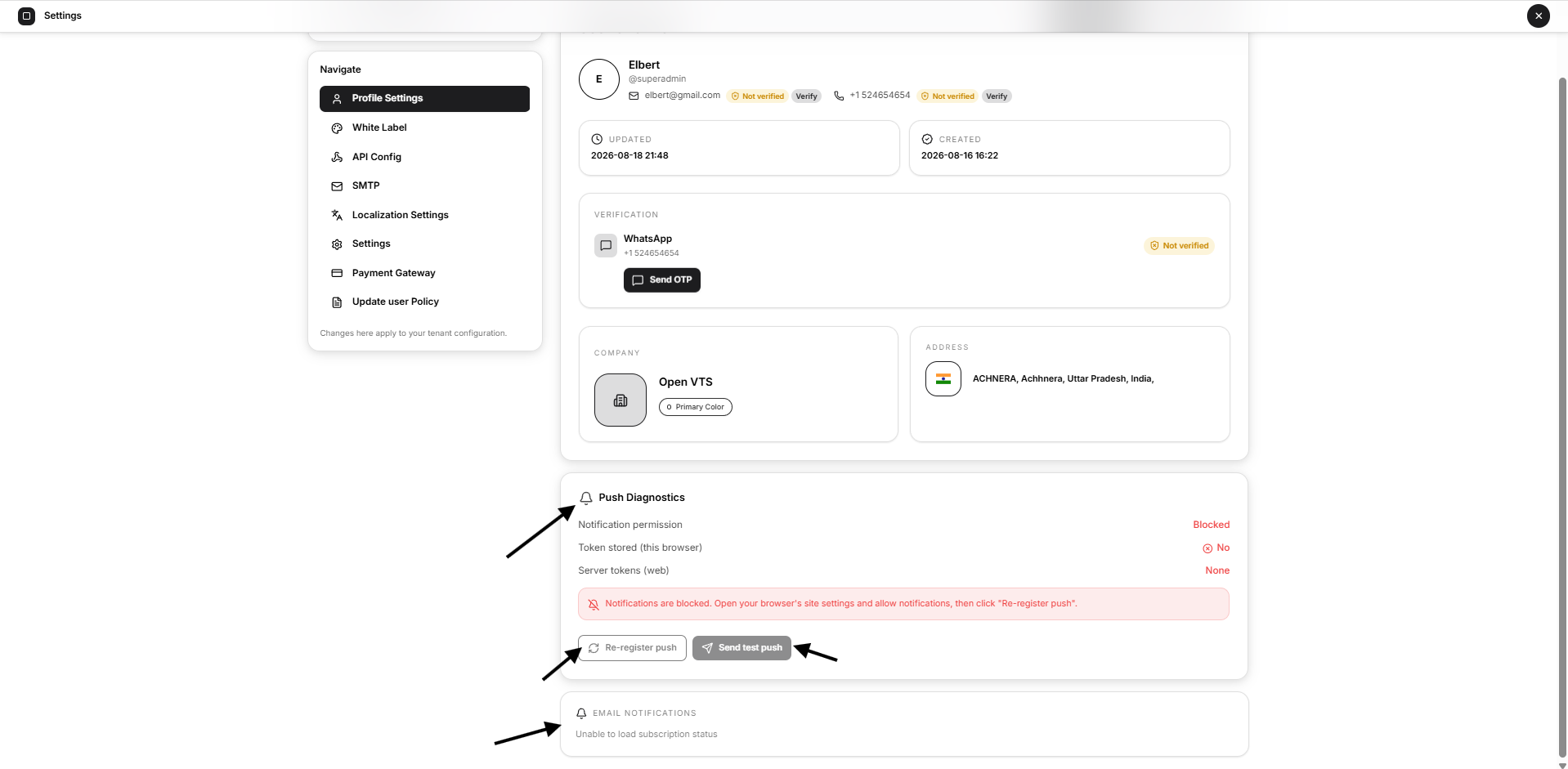
The Push Diagnostics section helps verify whether browser push notifications are correctly registered for the current device.
It displays:
- Notification permission: Whether the browser allows notifications
- Token stored: Whether this browser has a push token
- Server tokens: Number of active tokens registered for the account
- Latest token: Token tail, device identifier, and last-seen time
Re-register Push
Select Re-register push when notification permission is allowed but the browser has no stored token. Open VTS will attempt to obtain and register a fresh token.
Send Test Push
Select Send test push to send a test notification to the registered device. This button is available when an active server token exists.
Email Notifications
The Email Notifications section displays the account’s current subscription status:
- Subscribed: The account is eligible to receive configured email notifications.
- Unsubscribed: Email notifications are not currently subscribed.
When unsubscribed, select Subscribe again to restore the email-notification subscription.