
User Home Pgae
The User Home page is the main starting point of the Open VTS User Panel. It provides quick access to the applications available to the signed-in User, along with global search, notifications, display preferences, bug reporting, and account controls.
Last updated August 19, 2026
User Home
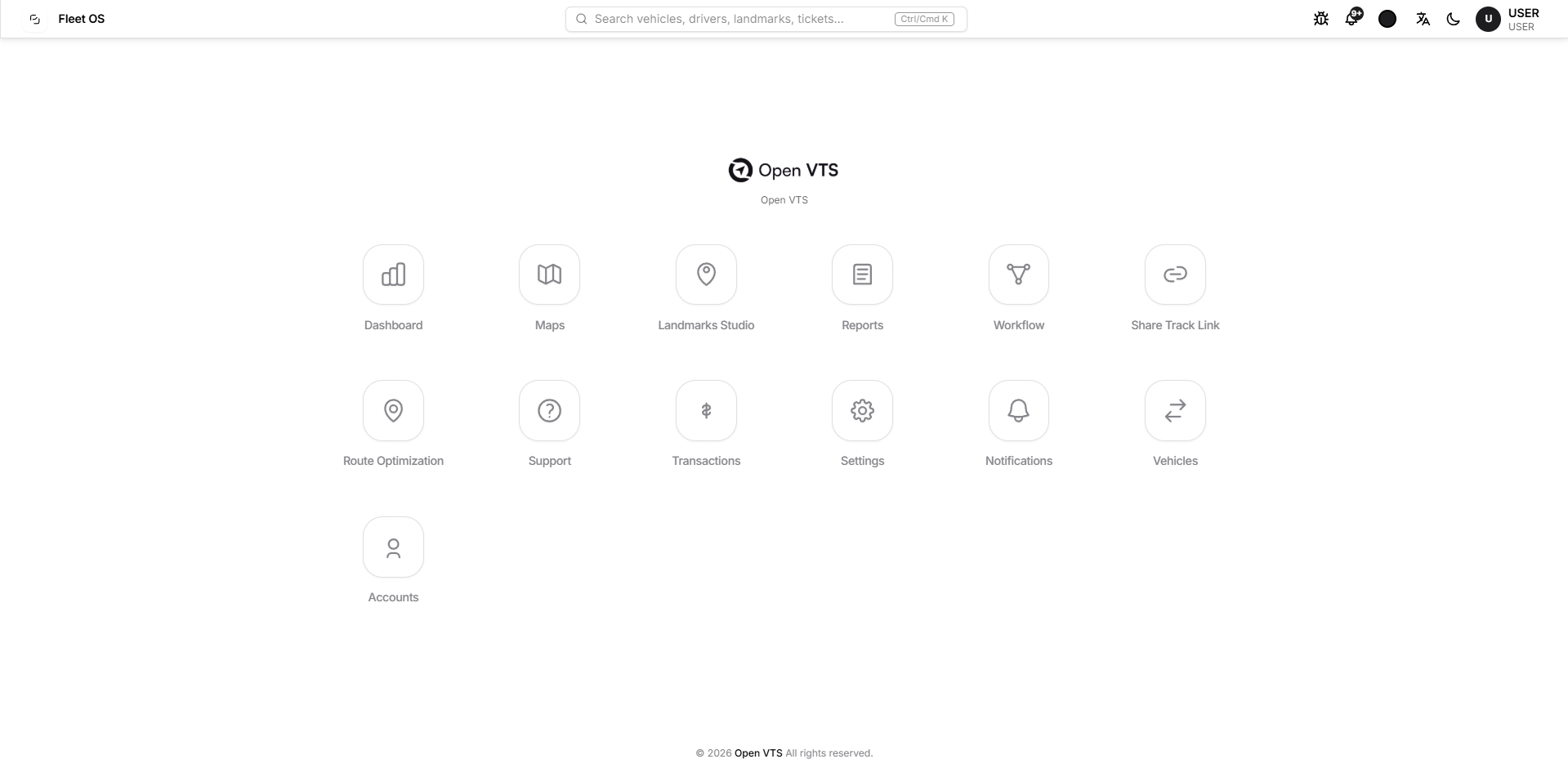
The User Home page is the main starting point after you sign in to the Open VTS User Panel.
From here, you can open the applications available to your account, search across accessible information, check notifications, report a software issue, change interface preferences, and access your profile options.
The Home page is designed as an application launcher, so you can move directly to the part of Open VTS you want to use.
What You Can Do on This Page
From the Home page, you can:
- Open the applications available to your User account.
- Search for vehicles, drivers, landmarks, tickets, and other permitted records.
- Check your latest notifications.
- Report a software problem.
- Change the interface colour, language, and light or dark appearance.
- Open your profile, settings, User Policy, and password controls.
- Sign out of Open VTS.
Your access inside these applications depends on the vehicles, records, and permissions available to your User account.
Understanding the Home Page
The Home page is divided into three main areas:
Top Bar
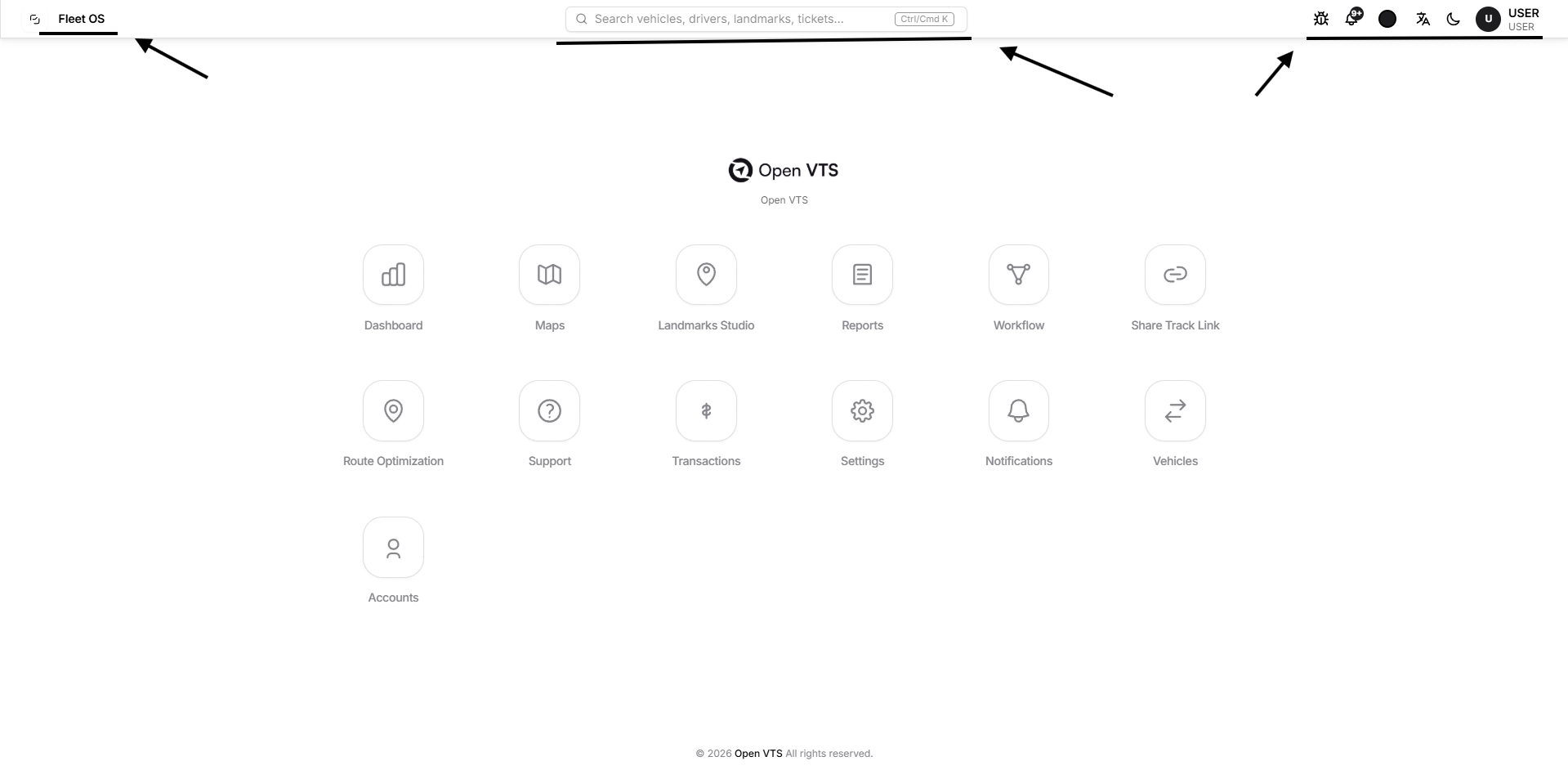
The top bar remains available as the main set of quick controls.
It contains the platform name, global search, bug reporting, notifications, interface preferences, and your User profile.
Application Area
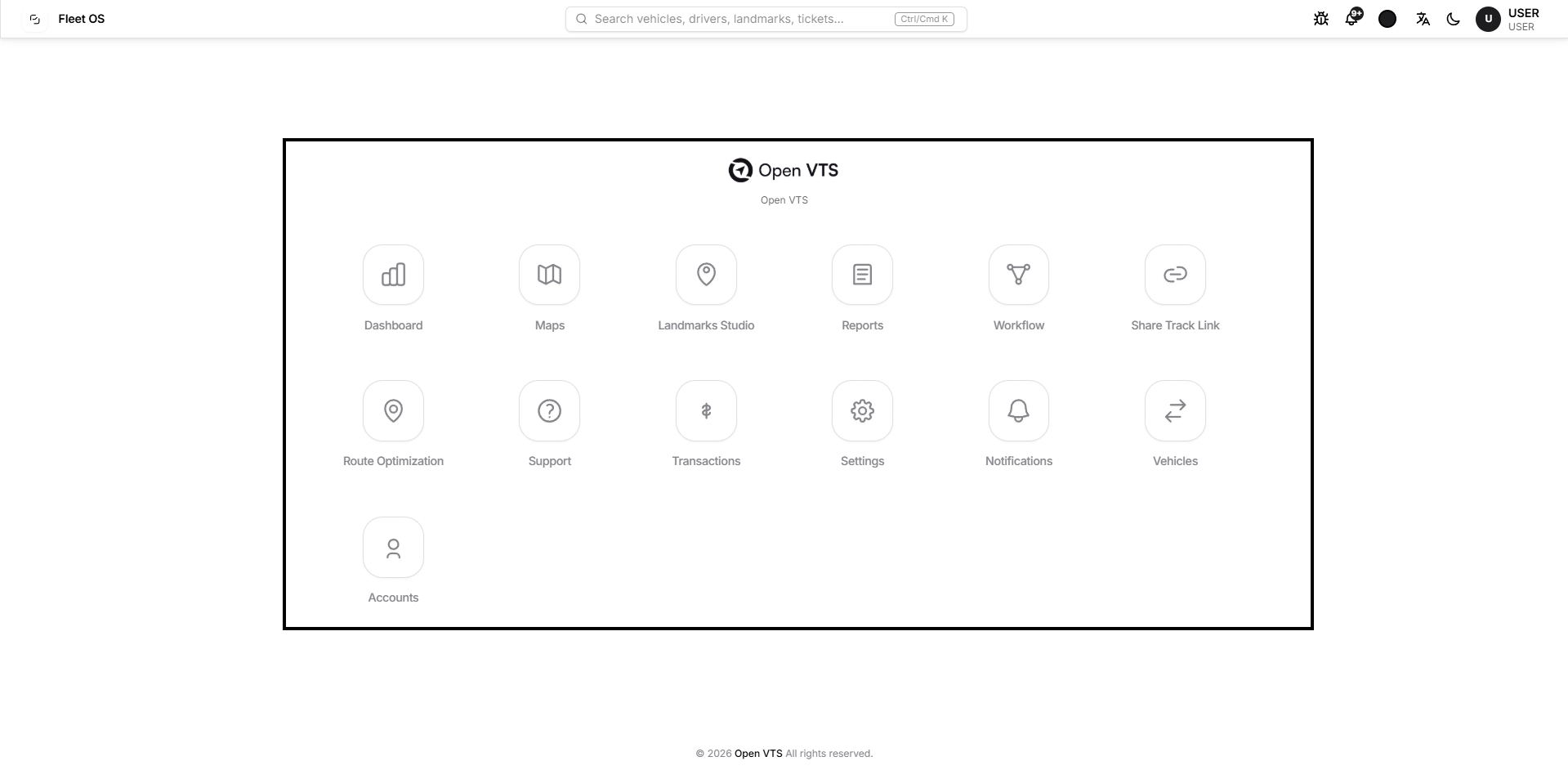
The centre of the Home page displays the applications available to the User.
Select an application icon to open it.
Branding and Footer
The centre branding area shows the configured platform logo and company name.
The footer also displays the configured company name and copyright information. Because Open VTS supports deployment branding, these details can vary depending on how the system has been configured.
Using the Application Launcher
Each icon on the Home page opens a different area of the User Panel.
You do not need to follow a fixed sequence. Open the application that matches the task you want to perform.
Dashboard
Open Dashboard to view and work with dashboard information and available widgets.
Detailed dashboard controls are explained on the separate Dashboard documentation page.
Maps
Open Maps to work with your accessible vehicles on the map and use the available tracking and map tools.
Only vehicles available to your User account can be accessed.
Landmarks Studio
Open Landmarks Studio to work with available geofences, POIs, and routes.
Reports
Open Reports to access the reporting tools available in the User Panel.
Individual report types, filters, results, and exports are explained separately in the Reports documentation.
Workflow
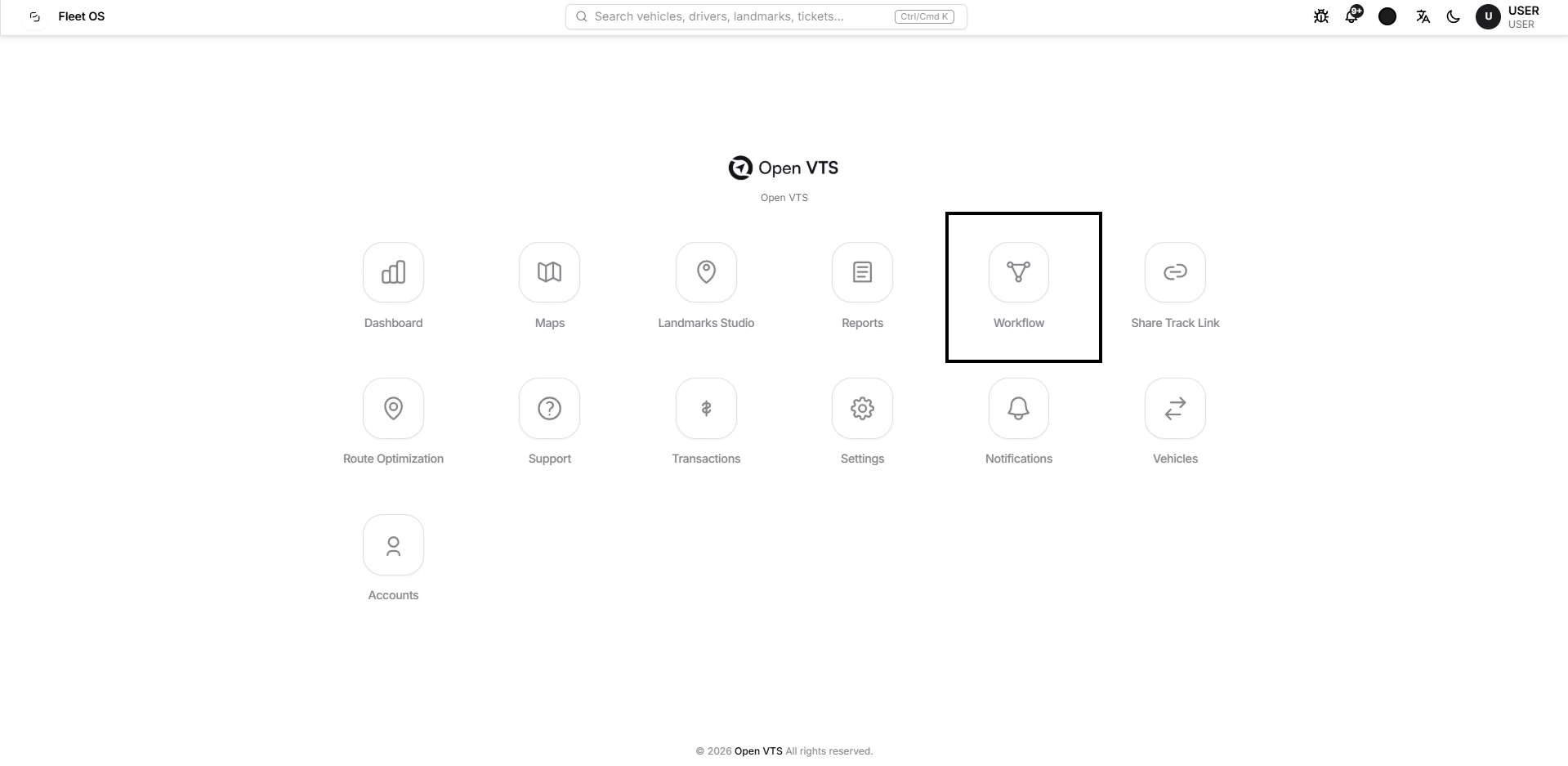
Open Workflow to access the workflow area available in the User Panel.
The workflow builder and its individual nodes and actions are documented separately because they have their own configuration process.
Share Track Link
Open Share Track Link to manage temporary tracking links for permitted vehicles.
Route Optimization
Open Route Optimization to work with locations and route-planning tools available in the platform.
Support
Open Support when you need help from your Administrator.
A User can create and manage support tickets for their Administrator. User tickets are not created directly for the Superadmin.
Transactions
Open Transactions to view transaction information available to your User account.
Settings
Open Settings to manage the User settings available to you, including profile and localization-related preferences.
Notifications
Open Notifications to configure the notification preferences available for your User account and vehicles.
This is different from the notification bell in the top bar. The bell is used to view received notifications, while the Notifications application is used for notification preferences.
Vehicles
Open Vehicles to view the vehicles assigned and available to your User account.
A User cannot use this page to access vehicles outside their permitted scope.
Accounts
Open Accounts to access the account-related areas available to the User, including Drivers and Sub Users.
Each of these applications is covered in detail on its own documentation page.
Top Bar Controls
The top bar provides controls that can be used without opening an application.
Global Search
Use the search field at the top of the page to quickly find information that is available to your User account.
For a User, the global search can return accessible records such as:
- Vehicles
- Vehicles on the map
- Sub Users
- Drivers
- Geofences
- Routes
- POIs
- Support tickets
Selecting a result opens the relevant area of Open VTS.
You can also open search using Ctrl + K on Windows or Command + K on macOS.
The search only returns information that the User is permitted to access.
Report a Bug
Select the bug icon when you encounter a problem with the Open VTS software.
This opens the Report a bug form.
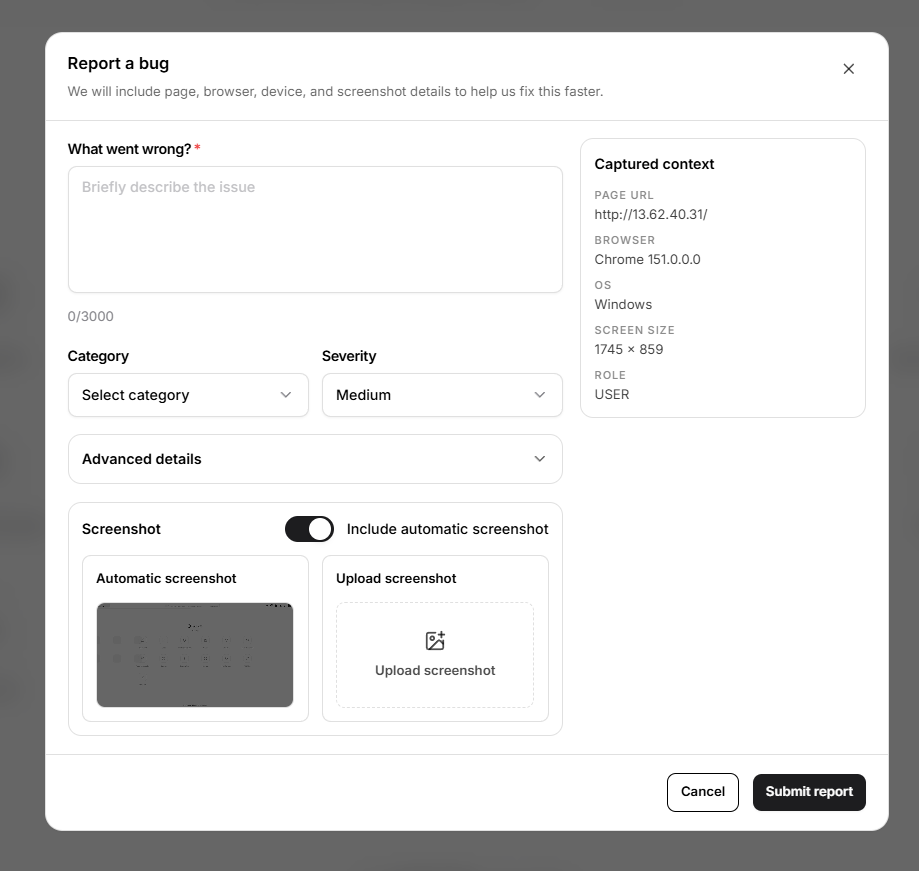
What Went Wrong?
Use What went wrong? to briefly describe the problem you experienced.
Try to explain what you were doing and what did not work as expected.
Category
Use Category to identify the general type of problem.
Available categories include interface, data, map, performance, login/access, crash/error, and other issues.
Severity
Use Severity to indicate how seriously the issue is affecting your work.
The available levels are:
Low, Medium, High, and Critical.
Choose the level that best represents the actual impact of the problem.
Advanced Details
Expand Advanced details when additional information would help explain the problem.
It provides fields for:
- Steps to reproduce the issue
- Expected behaviour
- Actual behaviour
These details are especially useful when the same issue can be reproduced repeatedly.
Screenshot
Open VTS can include an automatic screenshot with the report.
You can turn this option on or off.
You can also use Upload screenshot when you want to attach your own image of the problem.
Captured Context
The form automatically displays technical context that can help investigate the issue, such as the current page, browser, operating system, screen size, and signed-in role.
You normally do not need to enter this information yourself.
When the report is ready, select Submit report.
Select Cancel if you do not want to submit it.
Notifications
The bell icon in the top bar provides quick access to received notifications.
The number displayed beside the bell represents unread notifications. The number can change as new notifications are received or existing notifications are read.
For a User, the notification centre can include User notifications and vehicle-related notifications.
This control is intended for checking received notifications. Use the separate Notifications application from the Home page when you want to configure notification preferences.
Interface Preferences
Several controls on the right side of the top bar allow you to change how Open VTS appears.
Theme Colour
Use the circular colour control to change the interface accent colour.
Changing this affects the visual appearance of supported interface elements; it does not change your vehicle or operational data.
Language
Use the Language control to change the language used by the Open VTS interface.
After a language is selected, the application applies the selected locale to supported interface text.
Light and Dark Mode
Use the appearance control to switch between Light and Dark mode.
Your selected appearance is stored as a User preference.
User Profile Menu
Your name, role, and profile image or initials appear on the right side of the top bar.
Open the User profile area to access account-related actions.
The menu contains the following options:
Profile
Select Profile to open the Settings area where your available profile information can be managed.
Change Password
Select Change password to update the password used for your User account.
You will be asked for your current password, a new password, and confirmation of the new password.
User Policy
Select User Policy to open the policy information available to your User account.
Settings
Select Settings to open the User Settings application.
Logout
Select Logout when you want to end your current User session and return to the authentication screen.
Opening and Closing Applications
Select any application icon from the Home page to open that application.
Open VTS displays the selected application in its own application window with the application name shown in the header.
Use the Close button in the application header to close it and return to the Home page.
Closing an application does not sign you out of Open VTS.
Important Notes
A User works within the access provided by their Administrator. This means that the vehicles, drivers, landmarks, reports, notifications, and other information available to one User may be different from another User.
The Home page may also display deployment-specific branding such as a different company name or logo.
Application icons shown on the Home page represent applications available in the current Open VTS User Panel. Detailed functionality inside each application is documented on its respective documentation page.
Values shown in screenshots, such as User names, notification counts, IP addresses, or test records, are examples from the captured environment and should not be treated as fixed Open VTS defaults.