
Admin Payments
Manage vehicle subscription renewals and review payment activity from one place. The Payments page gives administrators a clear view of revenue, payment status, transaction history, and vehicle renewal records.
Last updated August 19, 2026
Admin Payments
The Payments section helps administrators manage vehicle subscription renewals and keep a record of related payments.
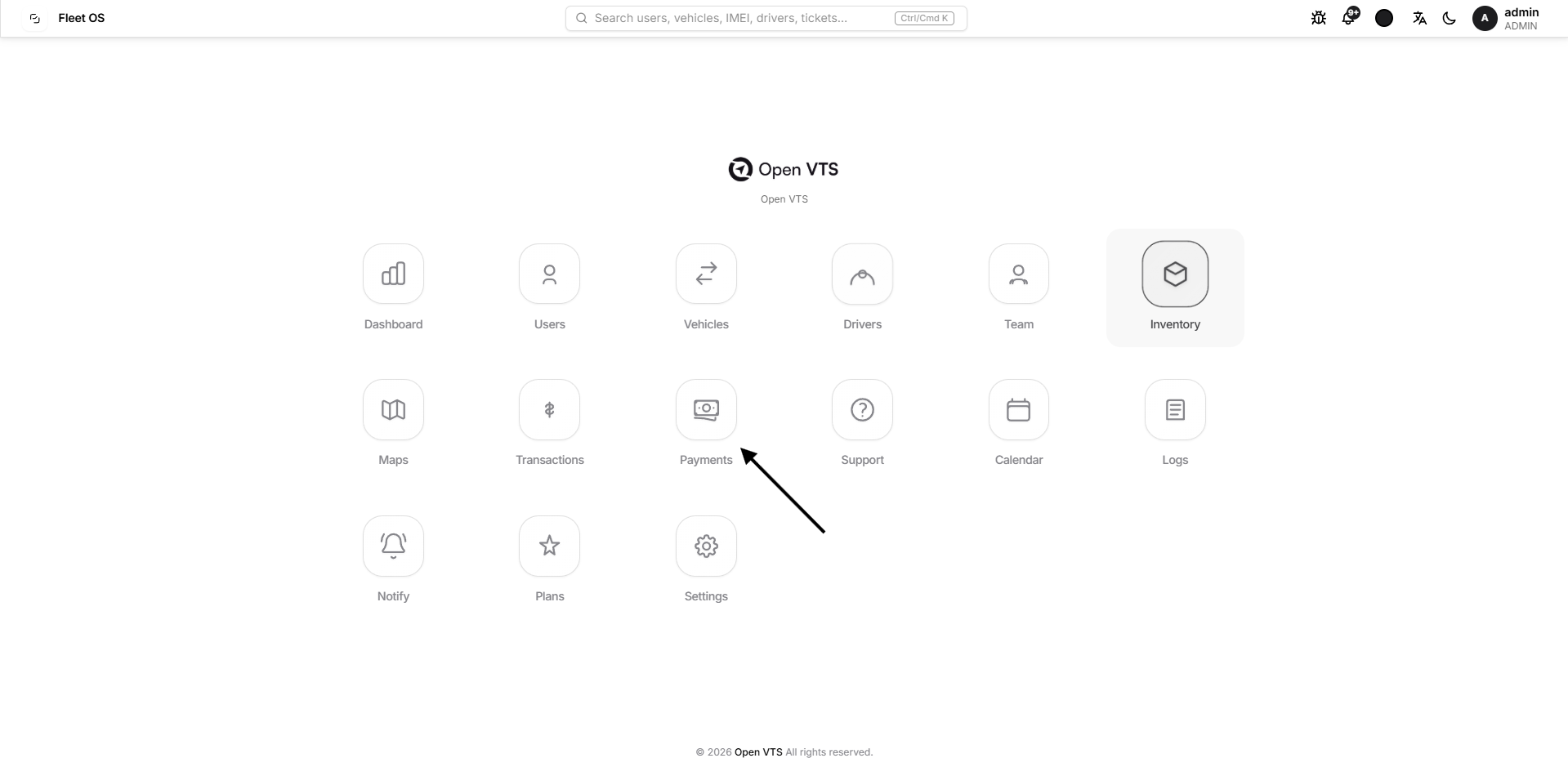
From this page, you can:
- Review payment and revenue statistics.
- Filter payment records by user, status, or date.
- Renew subscriptions for one or multiple vehicles.
- Record the payment mode and reference.
- Review individual payment details.
- Search, export, and organize payment records.
Payments Dashboard
At the top of the page, Open VTS provides a quick financial overview for the selected filters and date range.
Summary Cards
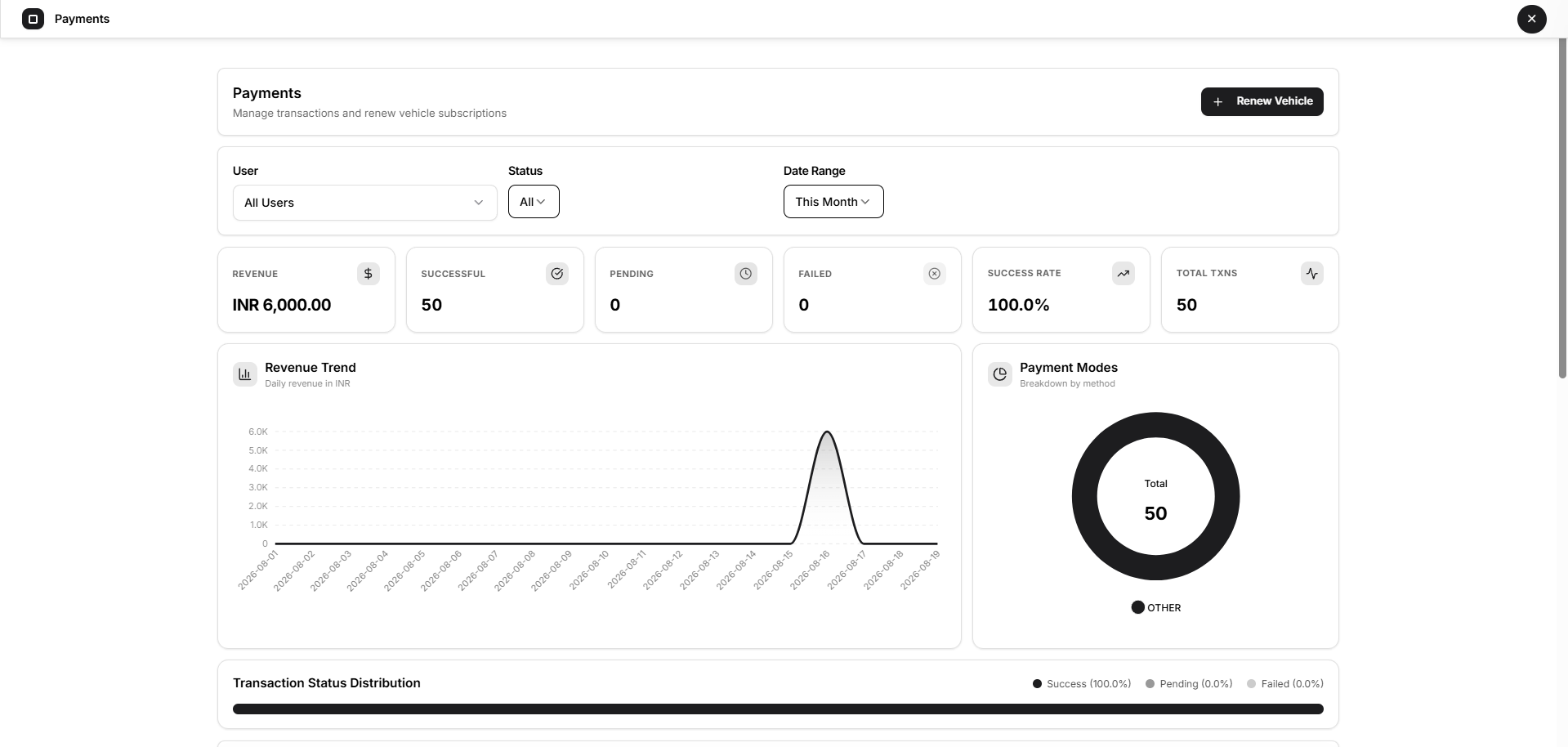
The dashboard displays:
- Revenue — total recorded payment amount.
- Successful — number of successful payments.
- Pending — payments currently pending.
- Failed — unsuccessful payments.
- Success Rate — percentage of successful transactions.
- Total TXNS — total number of recorded transactions.
These values update according to the selected filters.
Filter Payment Data
Use the filters at the top of the page to focus on specific payment records.
User
Select a particular user or choose All Users.
Status
Payment records can be filtered by:
- All
- Successful
- Pending
- Failed
Date Range
Available date options include:
- This Month
- Last 30 Days
- This Year
- Custom
The selected date range also affects the dashboard statistics and charts.
Payment Analytics
The Payments page includes visual summaries to make payment activity easier to understand.
Revenue Trend
Displays revenue over time for the selected period.
Payment Modes
Shows the distribution of recorded payments by payment method.
Transaction Status Distribution
Provides a quick comparison of successful, pending, and failed payment records.
Renew a Vehicle Subscription
Select Renew Vehicle to renew subscriptions and record the associated payment.
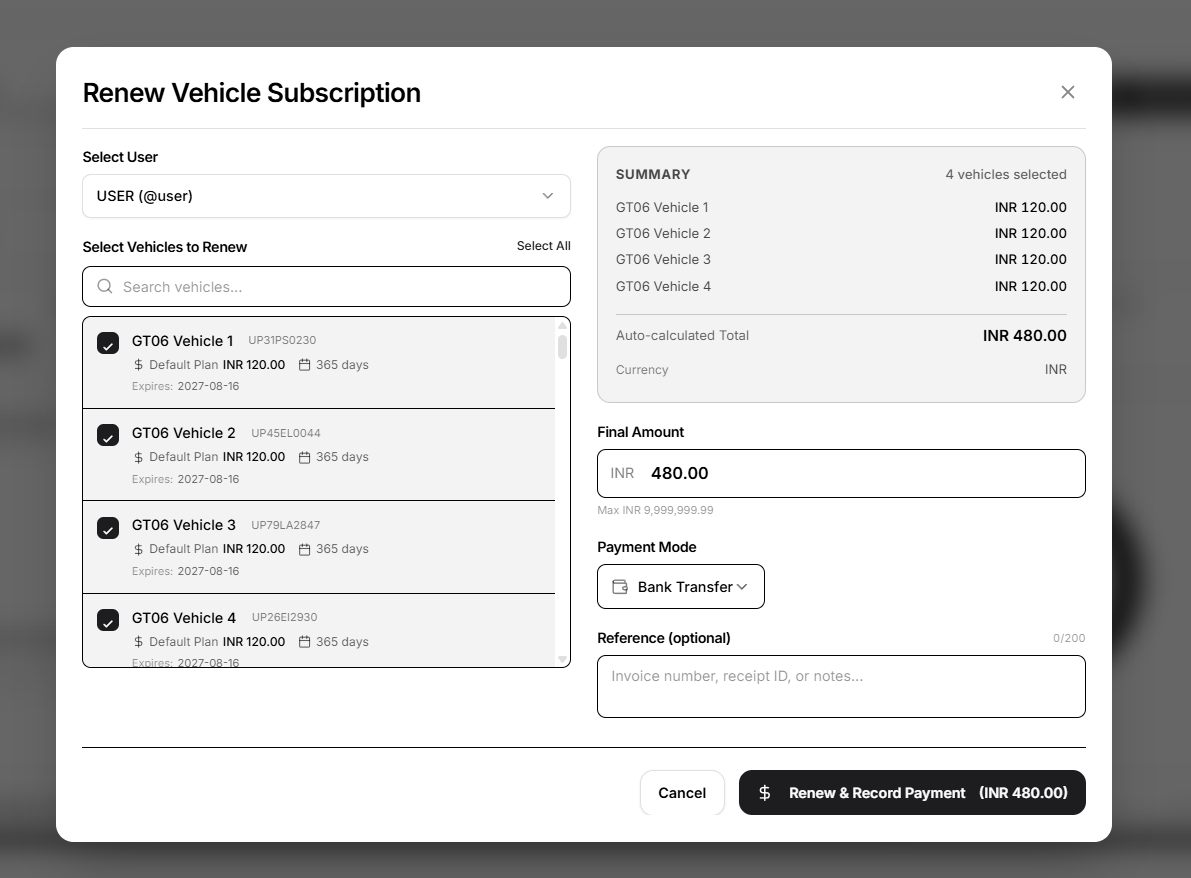
Step 1 — Select a User
Search for and select the user whose vehicles need renewal.
After selecting a user, Open VTS displays the vehicles available for that account.
Step 2 — Select Vehicles
Select one or more vehicles to renew.
Each vehicle displays relevant subscription information such as:
- Vehicle name
- Vehicle identifier
- Current plan
- Renewal amount
- Subscription duration
- Expiry information
You can select vehicles individually or use Select All when required.
Step 3 — Review the Renewal Summary
The summary panel shows the selected vehicles and their individual renewal amounts.
Open VTS automatically calculates the total based on the selected vehicles.
For example:
Vehicle 1 — INR 120.00 Vehicle 2 — INR 120.00 Vehicle 3 — INR 120.00
Auto-calculated Total — INR 360.00
Review the Final Amount before continuing.
Step 4 — Record Payment Information
Select the payment mode used for the renewal.
The available payment methods depend on the options configured in Open VTS.
You can also enter an optional Reference, such as:
- Invoice number
- Receipt ID
- Payment reference
- Internal note
Step 5 — Renew and Record Payment
After reviewing the information, select:
Renew & Record Payment
Open VTS renews the selected vehicle subscriptions and records the payment against the corresponding account.
The amount displayed on the button reflects the final payment amount being recorded.
Payment Records
The lower section of the Payments page contains the payment history.
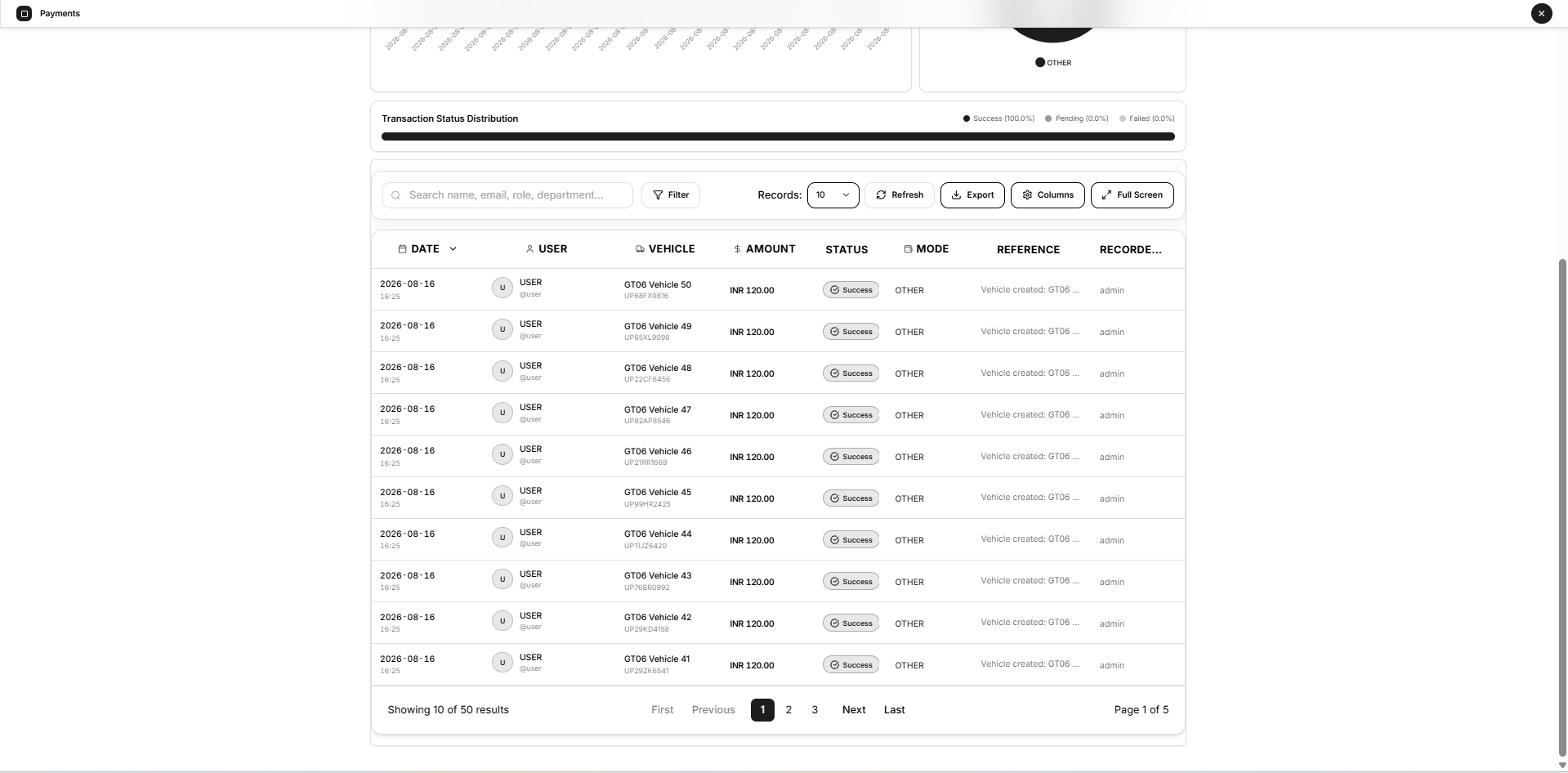
Each record can include:
- Date
- User
- Vehicle
- Amount
- Status
- Mode
- Reference
- Recorded By
This allows administrators to review when a payment was recorded, which vehicle it relates to, and who recorded it.
View Payment Details
Select a payment record to open the Transaction Details panel.
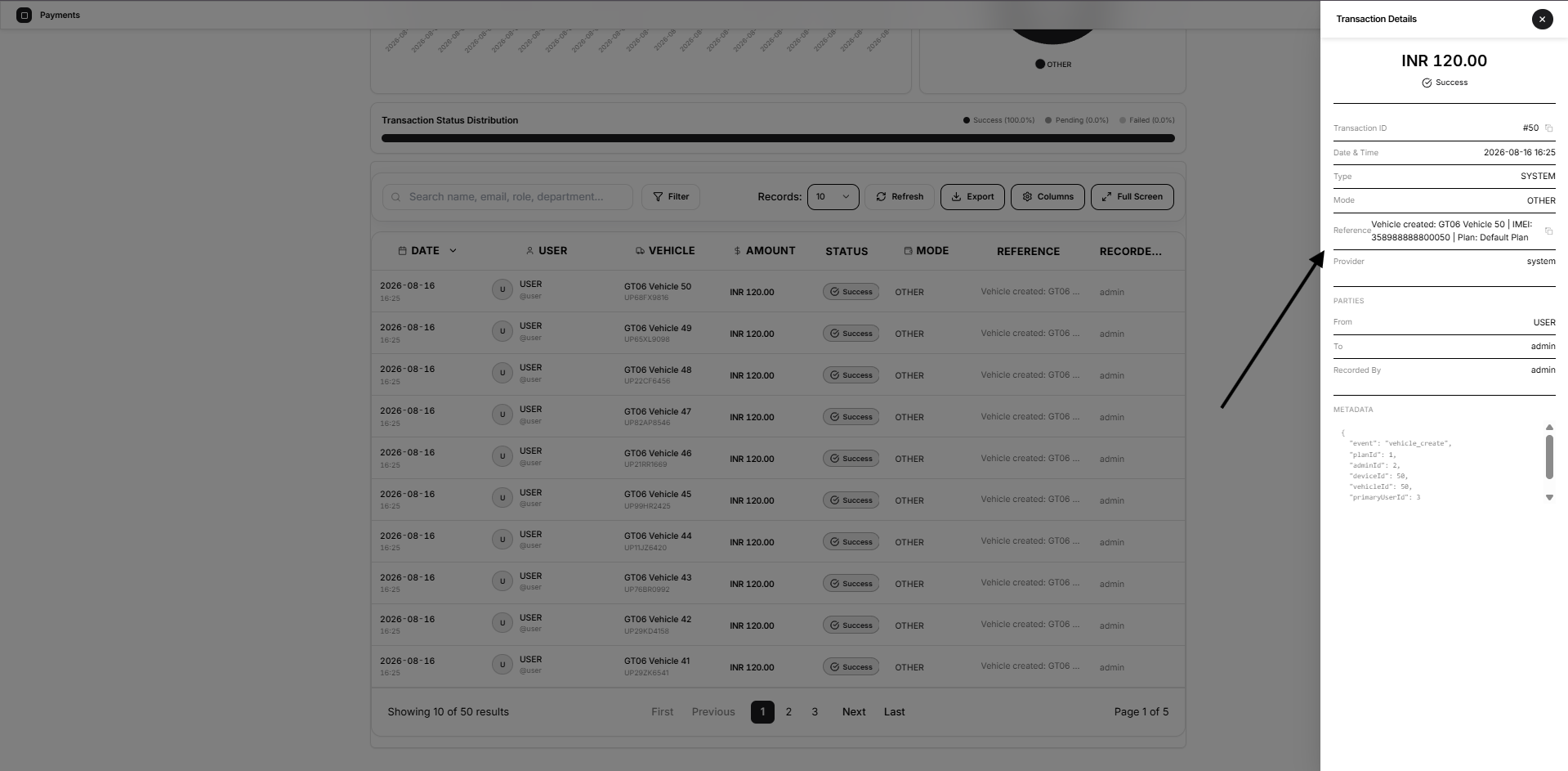
The panel can show:
- Amount
- Payment status
- Transaction ID
- Date & Time
- Type
- Payment Mode
- Reference
- Provider
- From
- To
- Recorded By
- Metadata
The metadata section provides additional system information associated with the payment record.
Search and Manage the Payment List
The payment table includes standard management controls.
Search
Use the search field to quickly locate relevant records.
Filter
Apply additional table filters when required.
Records
Choose how many records appear on each page.
Refresh
Reload the latest payment information.
Export
Export payment data for reporting or external record keeping.
Columns
Control which columns are visible in the table.
Full Screen
Expand the table when reviewing larger numbers of payment records.
Pagination controls are available at the bottom of the table.
Simple Payment Workflow
The normal renewal flow is:
Payments → Renew Vehicle → Select User → Select Vehicles → Review Amount → Select Payment Mode → Add Reference if required → Renew & Record Payment
Once completed, the renewed subscriptions and their payment records become available in the Payments history.
Key Takeaway
The Payments section combines subscription renewal and payment recording into a single workflow. Administrators can renew multiple vehicles at once, keep payment records organized, and monitor revenue and payment status without leaving the page.