
Superadmin Vehicles
View vehicle records across all Administrators, review device and SIM information, identify the assigned User and Administrator, monitor vehicle status and expiry, and export or organize the vehicle directory.
Last updated August 18, 2026
Superadmin Vehicles
The Vehicles module provides a platform-wide directory of vehicle records created across all Administrators in Open VTS.
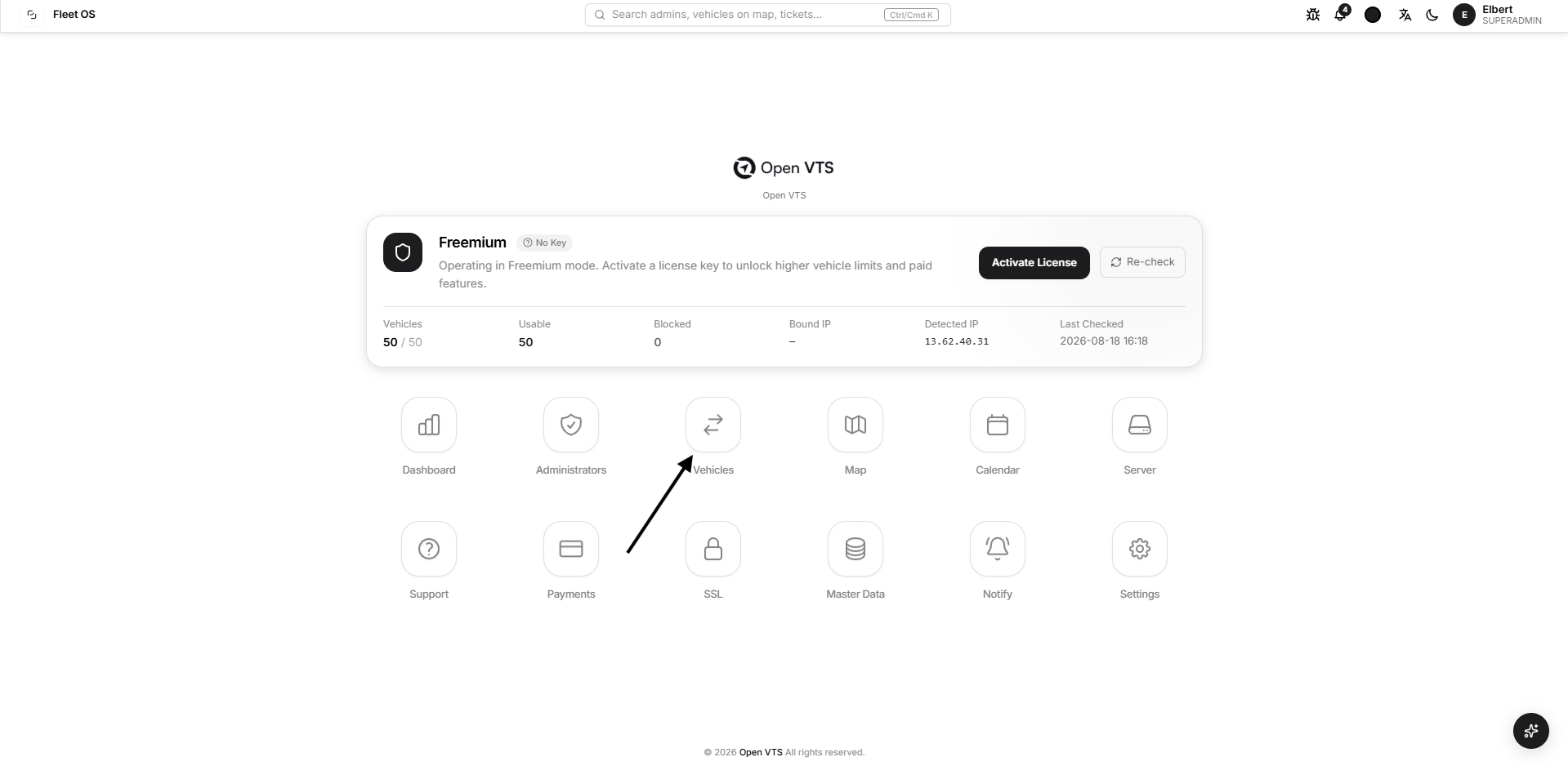
It allows the Superadmin to review:
- Which vehicles exist on the platform
- Which GPS device and SIM card are linked
- Which User is assigned as the primary User
- Which Administrator added the vehicle
- Whether the vehicle record is active or restricted by licensing
- Primary and secondary expiry information
- When the vehicle was created
This page is designed for platform oversight, support, auditing, and expiry review.
Vehicle creation and detailed vehicle configuration are handled from the relevant Admin workspace. The current Superadmin Vehicles page does not include a Create Vehicle action.
All Vehicles
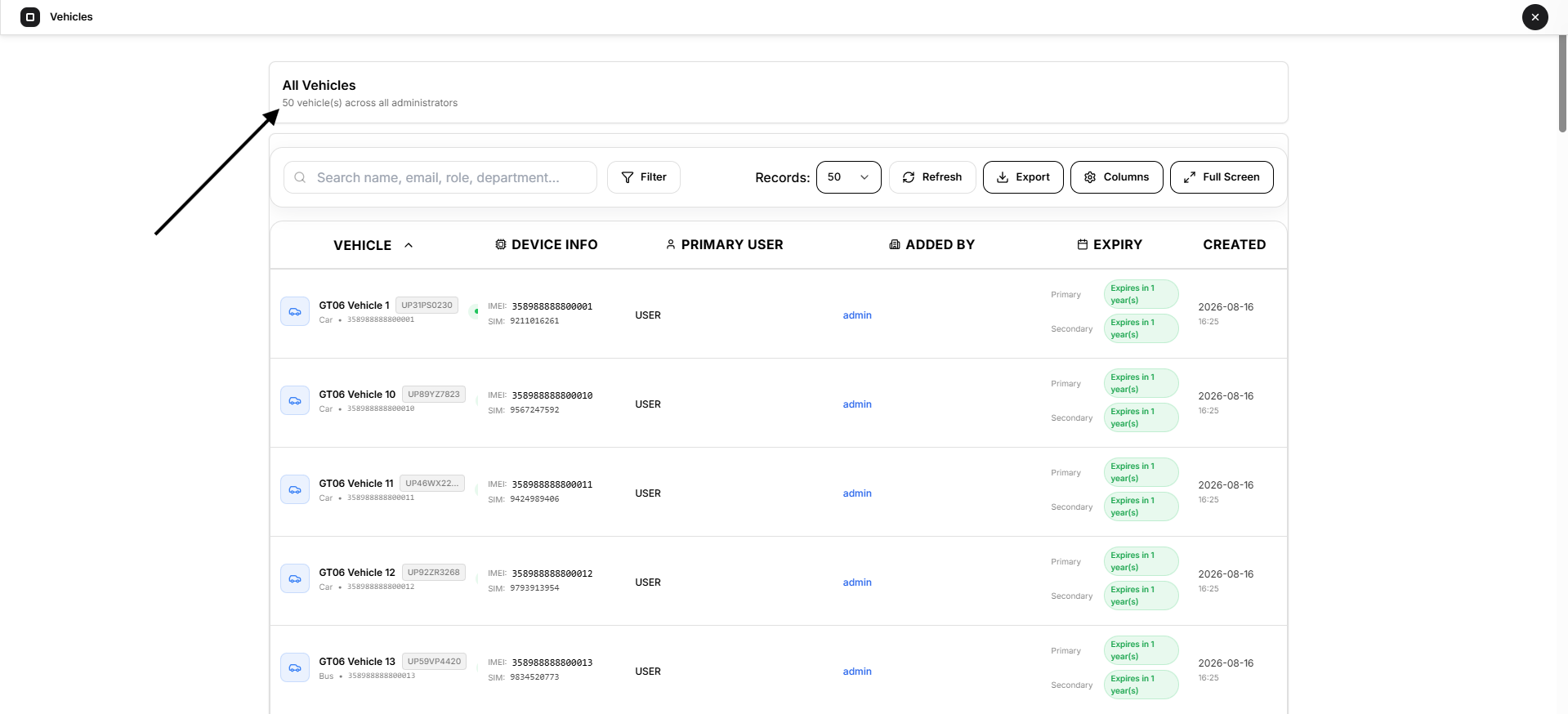
The page heading shows the total number of vehicle records available across all Administrators.
This count represents vehicle records in Open VTS. It does not indicate how many GPS devices are currently connected, running, or sending telemetry.
Use the Superadmin Map or Dashboard Vehicle Status panel for live device conditions.
Vehicle Information
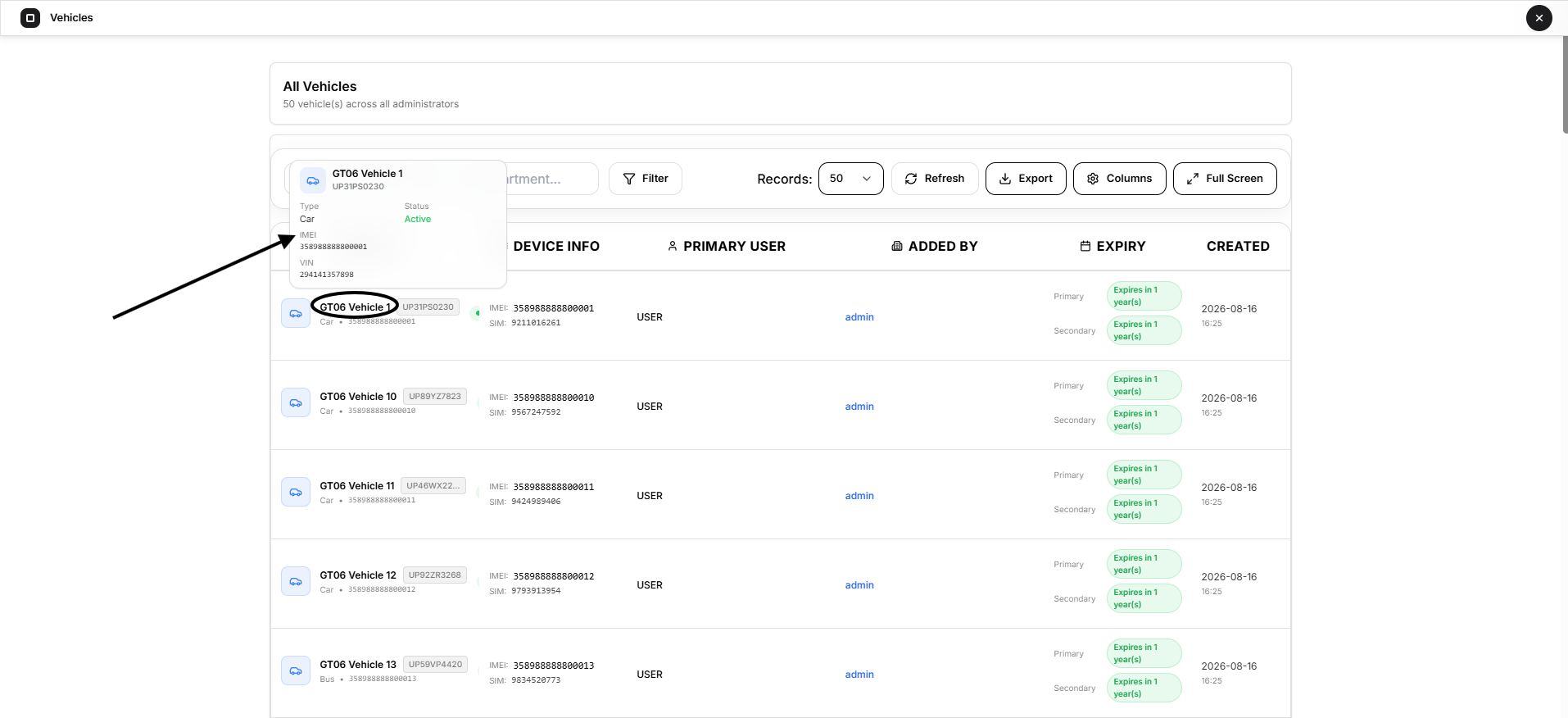
Each row provides a platform-level summary of one vehicle.
Vehicle
The Vehicle column can display:
- Vehicle icon based on its type
- Vehicle name
- Plate number
- Vehicle type
- IMEI
- Active, Inactive, or License Required status
Move the pointer over the vehicle information to review additional details such as:
- Plate number
- Vehicle type
- Status
- IMEI
- VIN
Understanding Vehicle Status
- Active: The vehicle record is currently active.
- Inactive: The vehicle record is disabled.
- License Required: The vehicle is restricted by the current licensing state.
Active does not mean that the GPS device is connected or that the vehicle is moving. It describes the vehicle record’s application status.
Device Info
The Device Info column displays:
- IMEI
- SIM number
The IMEI identifies the GPS device associated with the vehicle. The SIM number identifies the SIM record linked to that device.
A dash appears when the relevant information is not available.
Primary User
The Primary User column shows the User currently assigned as the vehicle’s primary User.
The primary User is the account that normally receives access to the vehicle within its permitted User workspace.
A dash appears when no primary User is assigned.
Added By
The Added By column identifies the Administrator account that added the vehicle.
Select the Administrator name to open that Administrator’s management page.
This is useful when the Superadmin needs to:
- Identify who owns or manages a vehicle record
- Review the associated Administrator
- Investigate an assignment problem
- Provide account-level support
- Review the Administrator’s vehicles, credits, settings, or activity
Expiry
The Expiry column shows two available expiry records:
- Primary
- Secondary
Each expiry is displayed as a relative status, such as:
- Expires today
- Expires tomorrow
- Expires in a number of days
- Expires in a number of months
- Expires in a number of years
- Expired
- Not set
Move the pointer over the expiry information to view the recorded expiry dates and their current status.
The meaning and use of primary and secondary expiry depend on the vehicle’s plan and renewal configuration.
Created
The Created column displays the date and time when the vehicle record was created in Open VTS.
This helps distinguish recently added vehicles from older platform records.
Find Vehicles
Use the search field to locate matching vehicle records.
The current search can match information contained in the vehicle record, including:
- Vehicle name
- Plate number
- VIN
- Vehicle type
- IMEI
- SIM number
- Primary User
- Administrator who added the vehicle
The displayed table updates according to the entered search value.
The text shown inside the generic table search field may mention unrelated account fields; for this page, use it to search vehicle-related information.
Filter Vehicles
Select Filter to narrow the directory using specific vehicle fields.
Available filters include:
- Vehicle Type
- Primary User
- Added By
- Status
- Plate Number
- Device IMEI
The Vehicle Type filter supports selecting more than one type.
The Status filter can be used to show:
- All vehicles
- Active vehicles
- Inactive vehicles
Multiple filters can be applied together.
Change the Number of Records
Use Records to choose how many vehicle rows appear on one page.
When more vehicles exist than the selected page size, use the pagination controls at the bottom of the table to move between pages.
Refresh Vehicle Data
Select Refresh to retrieve the latest vehicle-directory information.
Refresh the page after changes are made from an Administrator workspace when the updated information is not yet visible in the Superadmin directory.
Export the Vehicle Directory
Select Export to download the current vehicle directory.
Available formats are:
- CSV
- XLSX
- JSON
- HTML
The export uses the current:
- Search result
- Filters
- Sorting
- Visible table columns
- Column order
The exported report includes Open VTS branding and is marked for internal use.
Before sharing an exported file, remember that it may contain confidential information such as:
- IMEI numbers
- SIM numbers
- User names
- Administrator names
- Vehicle identifiers
- Expiry information
Customize the Columns
Select Columns to control how the vehicle table is displayed.
Available columns are:
- Vehicle
- Device Info
- Primary User
- Added By
- Expiry
- Created At
Reorder Columns
Drag a column using its handle to move it to a different position.
Hide or Show Columns
Clear the checkbox beside a column to hide it.
Select the checkbox again to restore the column.
Reset the Layout
Select Reset to return the table to its default column order and visibility.
The selected column arrangement is saved in the current browser so it can be reused when the page is opened again.
Sort the Directory
Select a supported column heading to change the sorting order.
The arrow beside the heading indicates the current sort direction.
Selecting the heading again reverses the order.
Full-Screen View
Select Full Screen to expand the vehicle directory and use more of the available display area.
This is useful when:
- Reviewing many records
- Working with all visible columns
- Comparing device and expiry information
- Using the directory on a smaller display
Select Exit Full Screen or use the browser’s standard full-screen exit control to return to the normal layout.
What the Superadmin Can Do From This Page
The Superadmin can use this directory to:
- Review all platform vehicle records
- Search and filter vehicles
- Check active and licensing status
- Review device and SIM associations
- Identify the primary User
- Open the Administrator who added a vehicle
- Review primary and secondary expiry
- Export vehicle information
- Customize the table layout
The Superadmin cannot create or fully configure a vehicle from this directory.
To add or modify a vehicle, open the relevant Administrator workspace and use its Vehicle Management module.
Common Differences to Understand
Active vs Connected
- Active means the vehicle record is enabled.
- Connected means its GPS device currently has an active listener connection.
Vehicle vs Device
- A Vehicle is the fleet asset record.
- A Device is the GPS tracker associated with it.
IMEI vs SIM Number
- IMEI identifies the GPS tracking device.
- SIM Number identifies the SIM card linked to the device.
Primary User vs Added By
- Primary User is the User assigned to access the vehicle.
- Added By is the Administrator that created the record.
Vehicle Expiry vs Device Connectivity
Expiry relates to the vehicle’s plan or renewal configuration. It does not describe the current GPS connection.
Security and Privacy
The Vehicles directory can contain sensitive business and device information.
Before publishing screenshots or sharing exports, hide or replace:
- Vehicle numbers
- Plate numbers
- VINs
- IMEIs
- SIM numbers
- User names
- Administrator names
- Business relationships
- Expiry information
Use demonstration data in public documentation whenever possible.
Next Step
Continue to Superadmin Map to review live and last-known vehicle information across the platform.
To manage a specific vehicle, select its Added By Administrator and open the vehicle from that Administrator’s workspace.