
Notification Preferences
Notification Preferences lets a User decide which vehicle events should generate alerts and how those alerts should be delivered. Preferences can be configured separately for ignition and alarm events, overspeed, duration conditions, geofences, and saved routes.
Last updated August 19, 2026
Notification Preferences
Notification Preferences gives you control over the vehicle events you want Open VTS to monitor for your User account.
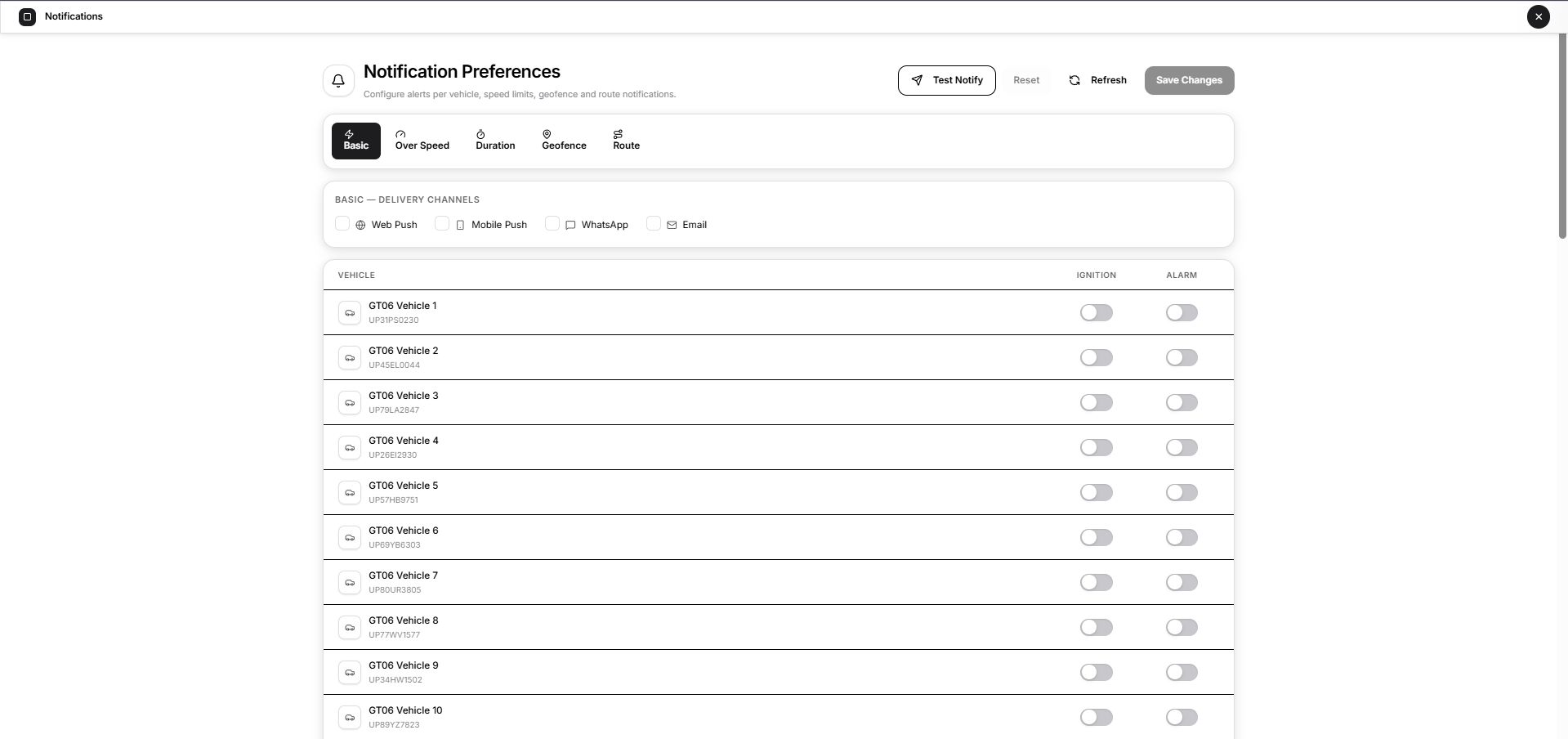
Instead of using one notification setting for everything, Open VTS separates preferences into five categories:
- Basic
- Over Speed
- Duration
- Geofence
- Route
Each category has its own vehicle-level settings and its own Delivery Channels, allowing you to decide both what should trigger a notification and where that notification should be delivered.
Only vehicles assigned to your User account appear on this page.
What You Can Do on This Page
From Notification Preferences, you can:
- Enable ignition notifications for individual vehicles
- Enable alarm notifications
- Set a separate overspeed threshold for each vehicle
- Configure running, stopped, and idle duration alerts
- Enable notifications for specific vehicle and geofence combinations
- Enable route deviation and route-return notifications
- Choose delivery channels separately for each notification category
- Send a test push notification
- Reset unsaved changes
- Refresh saved preferences
- Save your changes
Understanding the Page
The page consists of three main areas.
Page Actions
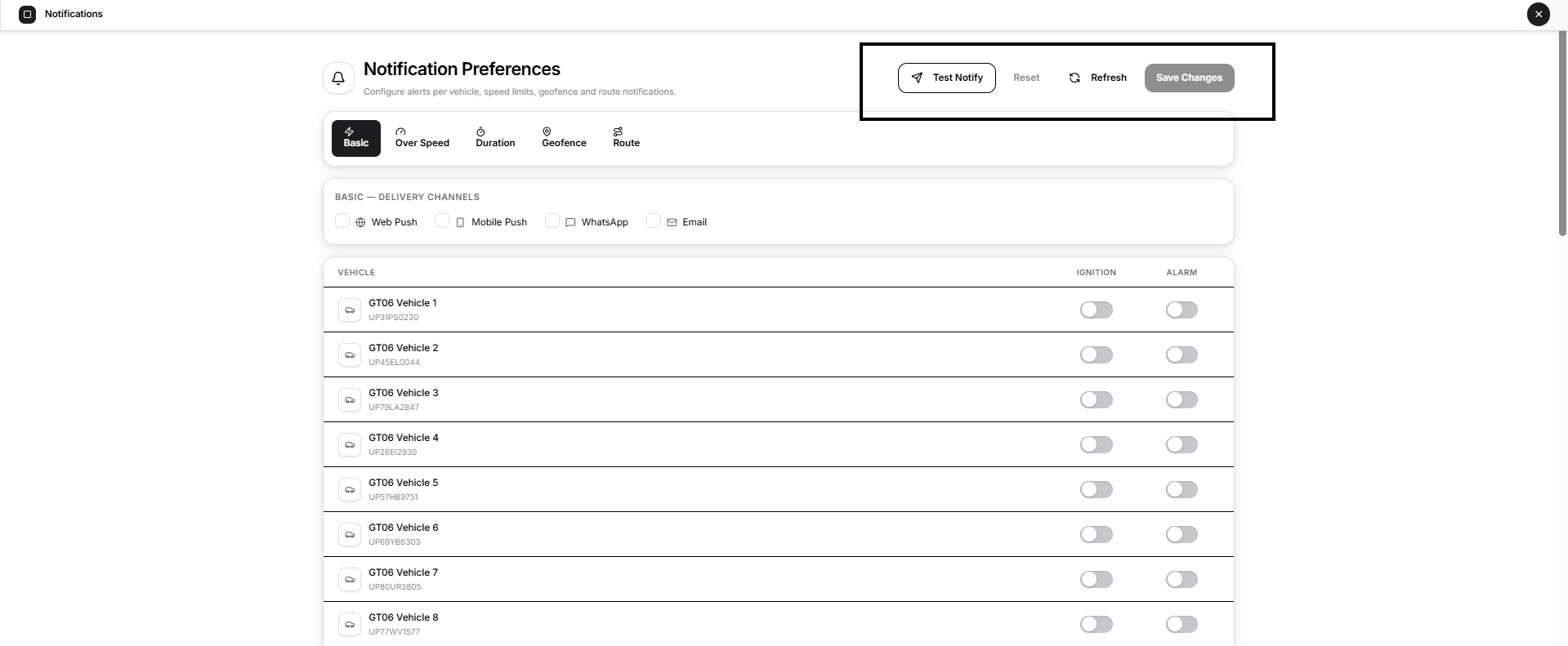
The top-right area contains:
- Test Notify
- Reset
- Refresh
- Save Changes
These controls apply to the Notification Preferences page as a whole.
Notification Tabs
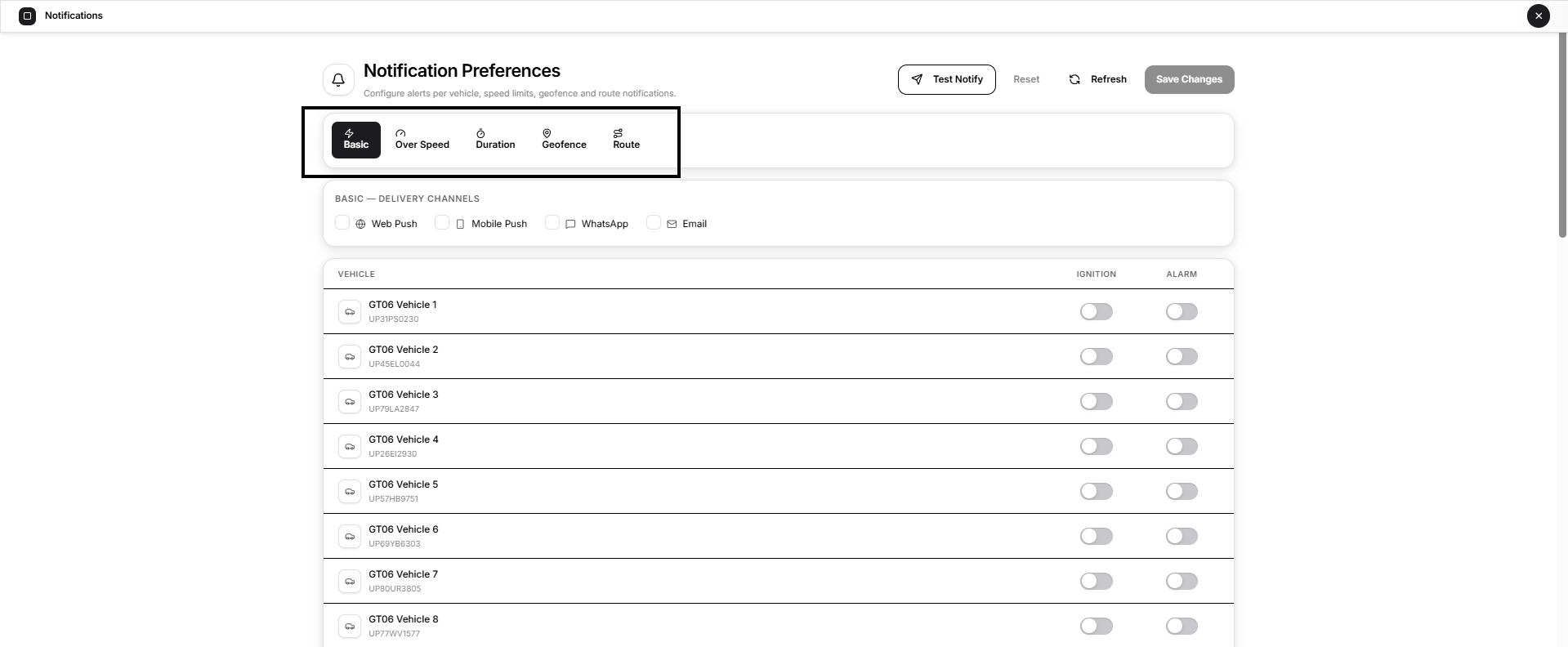
Use the tabs to switch between:
- Basic
- Over Speed
- Duration
- Geofence
- Route
Changes can be made across multiple tabs before selecting Save Changes.
Delivery Channels
Each tab has its own Delivery Channels section.
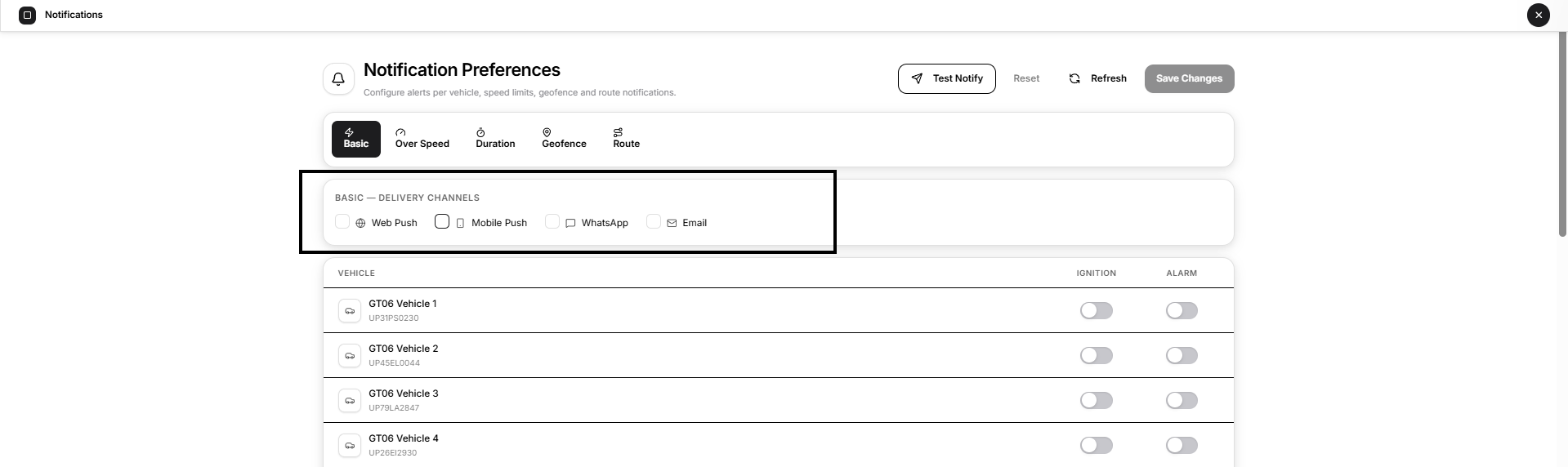
Available channels are:
- Web Push
- Mobile Push
The channels selected in one tab do not automatically apply to the others.
For example, you can choose Web Push for Over Speed while using Email and WhatsApp for Geofence notifications.
Delivery Channels
Delivery channels determine where an enabled notification is sent.
Web Push
Select Web Push to receive supported notifications through the browser.
Browser push delivery requires the notification service to be configured and an active browser push token to be available for your User account.
Mobile Push
Select Mobile Push to deliver supported notifications to a registered mobile application.
Delivery requires an active mobile push token on the User's device.
Select WhatsApp when notifications should be delivered through the configured WhatsApp channel.
The User must have the required verified mobile information, and the WhatsApp notification service must be configured on the platform.
Select Email to send supported notifications to the User's verified email address.
Email delivery also depends on the corresponding notification service being configured.
Delivery channels control how an enabled alert is delivered. They do not enable the vehicle rule itself. If no delivery channel is selected, an enabled event can still be recorded inside Open VTS, but no selected external delivery channel is used.
Basic Notifications
The Basic tab manages common vehicle events.
It contains two controls for each assigned vehicle:
- Ignition
- Alarm
Ignition
Turn on Ignition for a vehicle when you want ignition-related events for that vehicle to generate notifications.
Turn it off when you do not want ignition notifications for that vehicle.
Alarm
Turn on Alarm when you want alarm events reported by that vehicle to generate notifications.
The Basic — Delivery Channels selected above the vehicle list apply to both Ignition and Alarm notifications.
Over Speed Notifications
The Over Speed tab lets you define a speed threshold separately for each vehicle.
Each vehicle row contains:
- Speed Limit (kph)
- Enabled
Configure an Over Speed Alert
To configure an overspeed notification:
- Turn on Enabled for the required vehicle.
- Enter the threshold in Speed Limit (kph).
- Select the required Delivery Channels.
- Select Save Changes.
The speed field becomes available when the alert is enabled.
A valid speed limit of at least 1 kph is required when the overspeed alert is enabled.
The current implementation triggers the overspeed condition when the reported vehicle speed is greater than the configured limit. Reaching the exact configured value does not by itself exceed the threshold.
Duration Notifications
The Duration tab is used when you want to be notified after a vehicle remains in a particular operating state for a configured period.
Open VTS supports three duration conditions:
Over Running
Enable Over Running when you want an alert after the vehicle remains running for a specified period.
Enter the required time in Running Duration.
Over Stay
Enable Over Stay when you want an alert after the vehicle remains stopped for the configured period.
Enter the threshold in Stay Duration.
Over Idle
Enable Over Idle to monitor prolonged vehicle idling.
Enter the threshold in Idle Duration.
Open VTS defines idle for this notification as a condition where ACC/ignition is ON and vehicle speed is 0.
For vehicles whose ignition state is determined only from motion rather than ACC, the interface can indicate that Over Idle requires ACC ignition source.
Duration Values
Duration values are entered in minutes.
When a duration rule is enabled, its corresponding duration field must contain a valid value.
The supported range is:
1 to 10,080 minutes
10,080 minutes is equivalent to seven days.
The Duration — Delivery Channels apply to all three duration notification types.
Geofence Notifications
The Geofence tab lets you decide which saved geofences should generate notifications for each vehicle.
The table is organized as a matrix:
- Vehicles appear in rows
- Saved geofences appear in columns
- Each intersection has an enable/disable switch
For example, enabling a switch where a particular vehicle and geofence meet activates geofence notifications for that combination.
A single switch enables notification handling for both entering and leaving that geofence.
Configure a Geofence Notification
- Open the Geofence tab.
- Select the required Delivery Channels.
- Locate the vehicle.
- Find the required geofence column.
- Turn on the switch at their intersection.
- Select Save Changes.
Only geofences available to the User appear in this matrix.
If no geofences exist, create them first in Landmarks Studio.
Route Notifications
The Route tab controls notifications for vehicles associated with saved routes.
Like Geofence notifications, the Route section uses a vehicle-to-route matrix.
Vehicles appear in rows and saved routes appear as columns.
Each route also shows its configured tolerance where available.
What a Route Notification Monitors
A route alert can be generated when a vehicle:
- leaves the permitted area around a saved route
- returns to the route
One vehicle-to-route switch controls both route-deviation and route-return notifications.
The route tolerance is measured from the saved route line.
Where a route does not have its own tolerance value, the interface uses the platform's 20 m default tolerance.
Configure a Route Notification
- Open the Route tab.
- Choose the required Delivery Channels.
- Locate the vehicle.
- Find the required route.
- Enable the vehicle-to-route switch.
- Select Save Changes.
Saved Routes are created and managed through Landmarks Studio.
Saving and Managing Changes
Unsaved Changes
After you change a channel, toggle, threshold, or duration value, Open VTS marks the page as having Unsaved changes.
Your changes are not stored permanently until you select Save Changes.
Save Changes
Select Save Changes to save the current configuration across all notification tabs.
Open VTS validates required values before saving.
For example:
- An enabled overspeed rule requires a valid speed limit.
- An enabled duration rule requires its corresponding duration.
- Duration values cannot exceed 10,080 minutes.
After a successful save, the page displays the saved state and reloads the latest preferences.
Reset
Select Reset to discard edits made since the current preferences were loaded or last saved.
The page returns to the previously loaded values.
Reset is only available when there are unsaved changes.
Refresh
Select Refresh to reload Notification Preferences from the server.
Use this when you want to retrieve the latest saved configuration.
Because Refresh reloads the saved data, any local changes that have not been saved should be considered disposable before using it.
Test Notify
Select Test Notify when you want to verify that browser push notifications are working for your User account.
The current Test Notify action specifically tests the configured FCM browser push notification path for the signed-in User. It does not send a test Email, WhatsApp, or Mobile Push message.
The test requires:
- the Open VTS notification service to be configured
- an active browser push token for the User
If either requirement is missing, Open VTS displays an appropriate error instead of reporting a successful test.
Typical Configuration Workflow
A practical way to configure notifications is:
- Open Notification Preferences.
- Choose a notification tab.
- Select the desired Delivery Channels.
- Enable the alert for the required vehicle.
- Enter any required speed or duration threshold.
- Repeat for any other tabs or vehicles.
- Review the page for Unsaved changes.
- Select Save Changes.
- Use Test Notify if you want to verify browser push delivery.
Important Notes
Notification preferences are User-specific and apply only to vehicles assigned to that User.
Turning on a delivery channel does not automatically enable every vehicle alert. The corresponding event, vehicle, geofence, or route switch must also be enabled.
Likewise, enabling an alert does not guarantee delivery through every channel. Delivery depends on the channels selected for that notification category and on the required contact information, push tokens, and platform integrations being available.
The Basic delivery-channel selection is shared by Ignition and Alarm events.
The Duration delivery-channel selection is shared by Running, Stop/Stay, and Idle duration events.
Geofence notification switches apply to both entry and exit for the selected vehicle and geofence.
Route notification switches apply to both leaving and returning to the selected saved route.
Geofence and Route tabs depend on landmarks already existing for the User. If no relevant landmarks have been created, their configuration tables cannot provide entries to enable.
The vehicle names, speed values, routes, geofences, and other values visible in documentation screenshots are examples from the captured environment and are not fixed Open VTS defaults.