
Admin Dashboard
Understand the key fleet, user, payment, vehicle-status, growth, and expiry information shown on the Open VTS Admin Dashboard.
Last updated August 19, 2026
Admin Dashboard
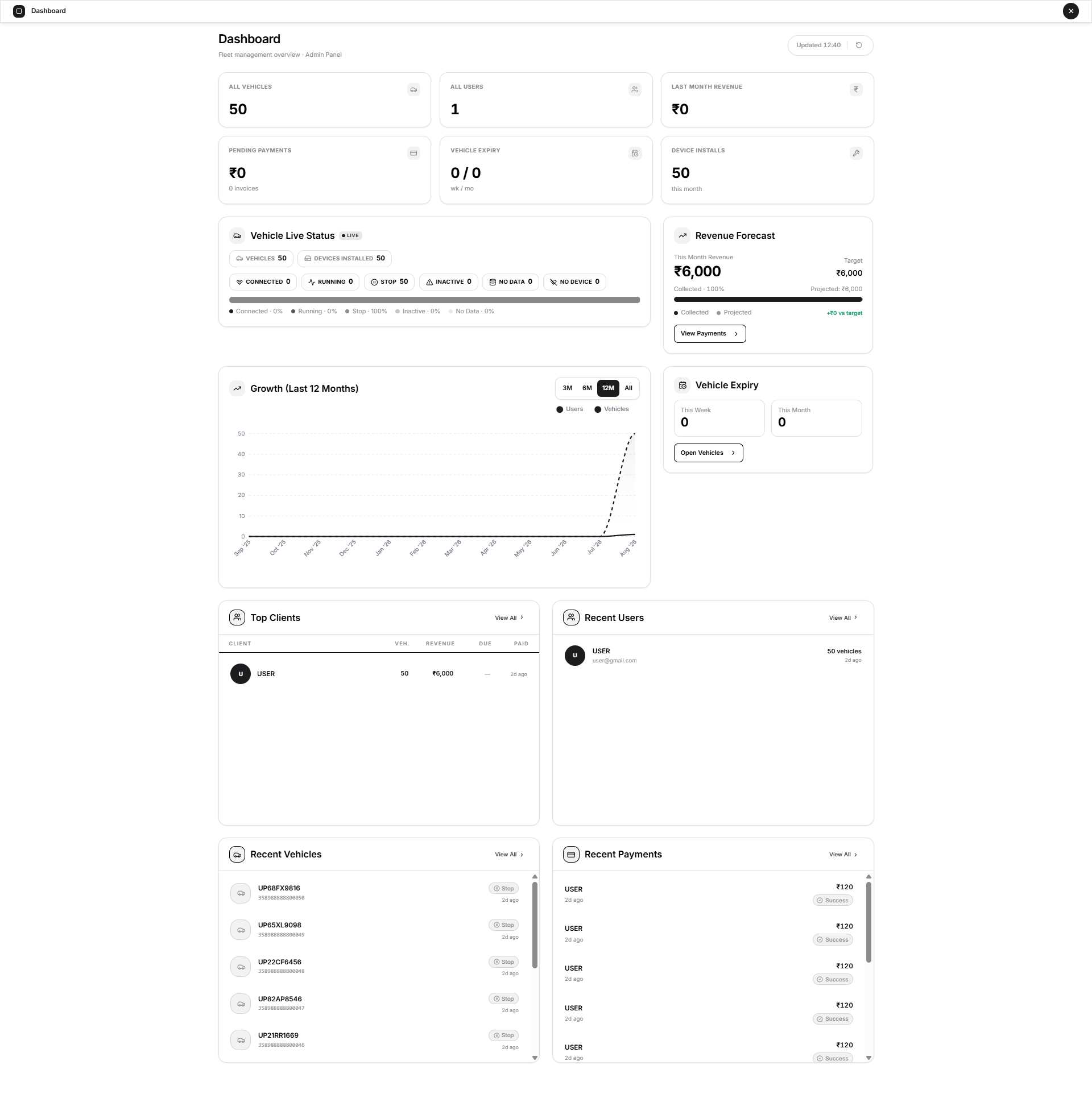
The Dashboard gives the Admin a high-level view of fleet operations, users, payments, vehicle status, growth, and recent activity.
Use it to understand the current condition of the business before opening a detailed workspace such as Vehicles, Users, or Payments.
Purpose of the Dashboard
The Dashboard helps an Admin quickly review:
- Total vehicles and users.
- Revenue and pending payments.
- Vehicle expiry and device-install information.
- Current vehicle connection and movement status.
- User and vehicle growth.
- Recently created users and vehicles.
- Recent payments and top clients.
The Dashboard is primarily an overview page. Most cards and rows display summary information rather than opening individual records.
Required Role
You must be signed in with an Admin account.
All values are limited to the users, vehicles, payments, and other records available within that Admin’s scope.
Page Overview
The Dashboard contains:
- Currency and refresh controls.
- Six summary cards.
- Vehicle Live Status.
- Revenue Forecast.
- Growth chart.
- Vehicle Expiry.
- Top Clients.
- Recent Users.
- Recent Vehicles.
- Recent Payments.
Dashboard Header
Refresh
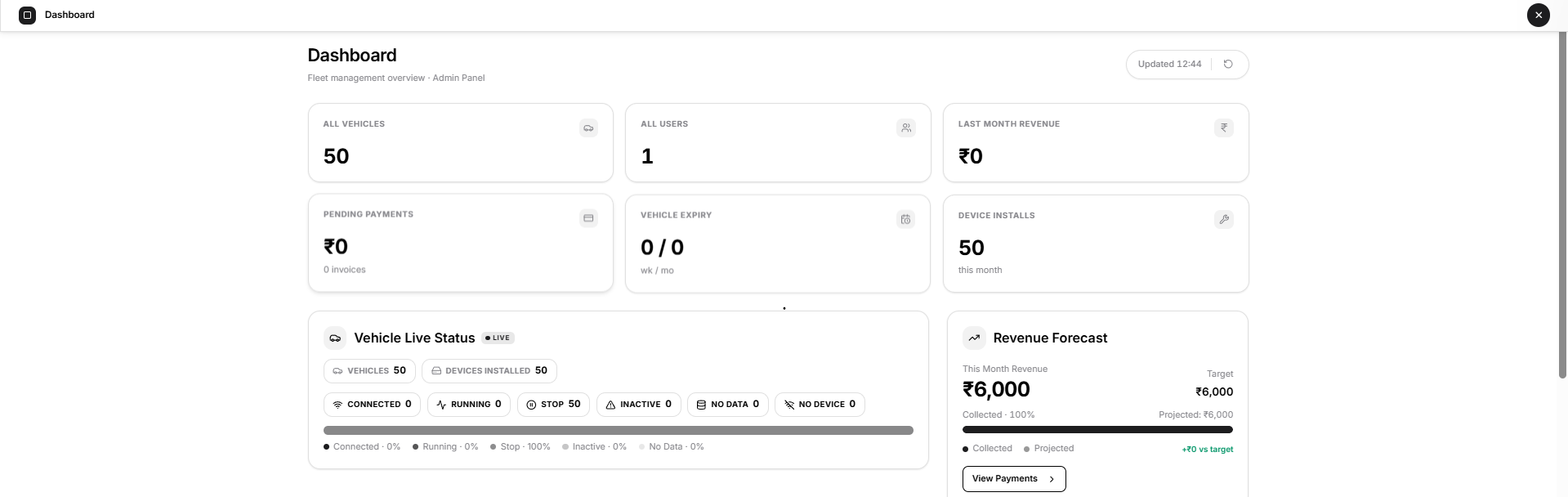
Select the refresh icon beside the updated time to request the latest Dashboard information.
While the page is refreshing:
- The refresh icon rotates.
- The status changes to indicate that data is being refreshed.
- The refresh control remains unavailable until the current request finishes.
Summary Cards
The six cards at the top provide a quick operational summary.
All Vehicles
Shows the total number of non-deleted vehicles created under the Admin.
This includes vehicles with and without installed tracking devices.
All Users
Shows the total number of User accounts managed under the Admin.
The count can include both active and inactive User accounts.
Last Month Revenue
Shows the total value of successful payments received during the previous calendar month.
The amount is displayed in the selected currency.
Pending Payments
Shows:
- The total value of pending payments.
- The number of pending payment records.
Only records using the selected currency are included.
Vehicle Expiry
Shows two values in the following format:
Current week / Current month
The first value represents vehicles whose configured expiry date falls within the current week. The second represents vehicles expiring during the current calendar month.
Device Installs
Shows the number of vehicles created during the current month that already have a tracking device assigned.
The value does not represent all devices currently installed across the fleet.
Vehicle Live Status
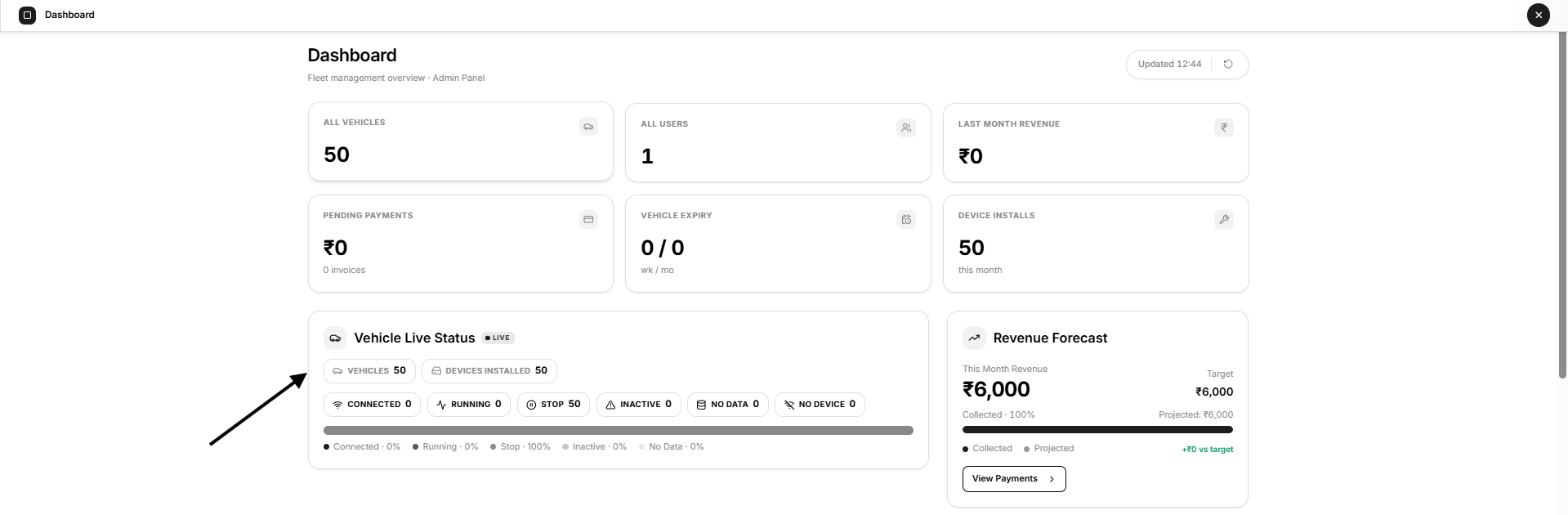
The Vehicle Live Status section provides a current fleet-status overview.
The LIVE indicator shows that the section uses current device connection and telemetry information.
Summary Values
Vehicles
Shows the total number of registered vehicles under the Admin.
Devices Installed
Shows the number of vehicles included in live-status monitoring because a device identifier is available.
The difference between Vehicles and Devices Installed is shown under No Device.
Status Definitions
| Status | Meaning |
|---|---|
| Connected | The tracking device currently has an active connection with Open VTS. |
| Running | The device is connected and the latest speed is at least 1 km/h. |
| Stop | The vehicle is not running. This can include a connected stationary vehicle or a recently disconnected vehicle. |
| Inactive | The device has not been connected for at least 48 hours. |
| No Data | Open VTS does not currently have usable connection or telemetry information for the device. |
| No Device | The vehicle is registered, but no tracking device is available for live-status monitoring. |
The status chips show the current count for each condition.
The bar below the chips provides a visual comparison of device-status values.
Connected is a connection condition and may overlap with operational conditions such as Running or Stop. The displayed percentages are status indicators and are not intended to be added together as one fleet total.
Moving the pointer over a status chip or bar segment highlights the corresponding status.
Revenue Forecast
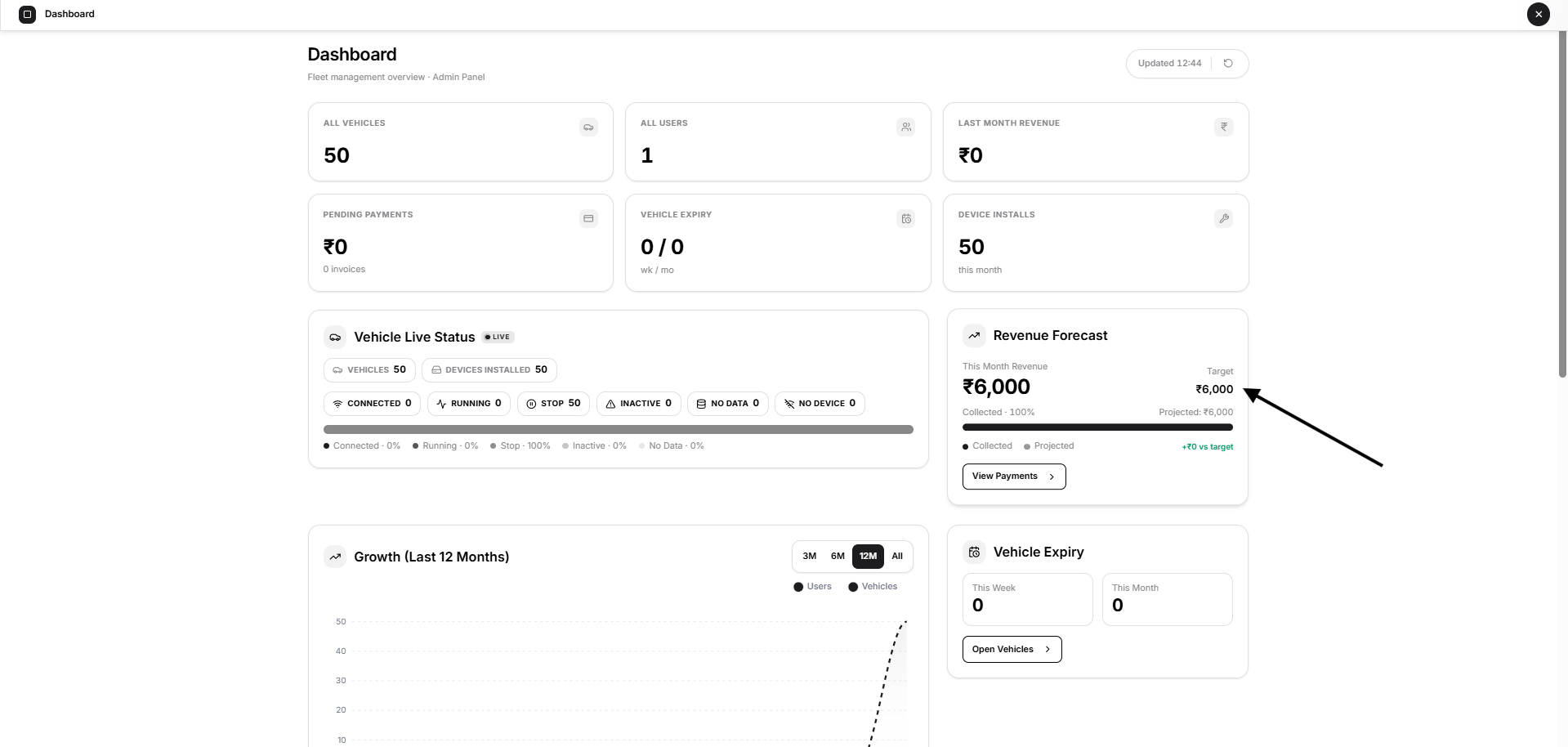
The Revenue Forecast card compares collected revenue with the expected current-month amount.
This Month Revenue
Shows successful payments received during the current calendar month.
Target
Shows the expected current-month revenue based on:
- Revenue already collected during the month.
- Expected revenue from vehicles due for renewal during the month.
Collected
Shows how much of the current forecast target has already been collected.
The progress bar represents this amount as a percentage.
Projected
Shows the expected total revenue for the current month.
The projected marker indicates where the expected amount sits on the progress bar.
Difference Against Target
The value on the right shows the projected amount compared with the current target.
View Payments
Select View Payments to open the Admin Payments workspace.
The button opens Payments but does not automatically select a particular transaction or payment filter.
Growth
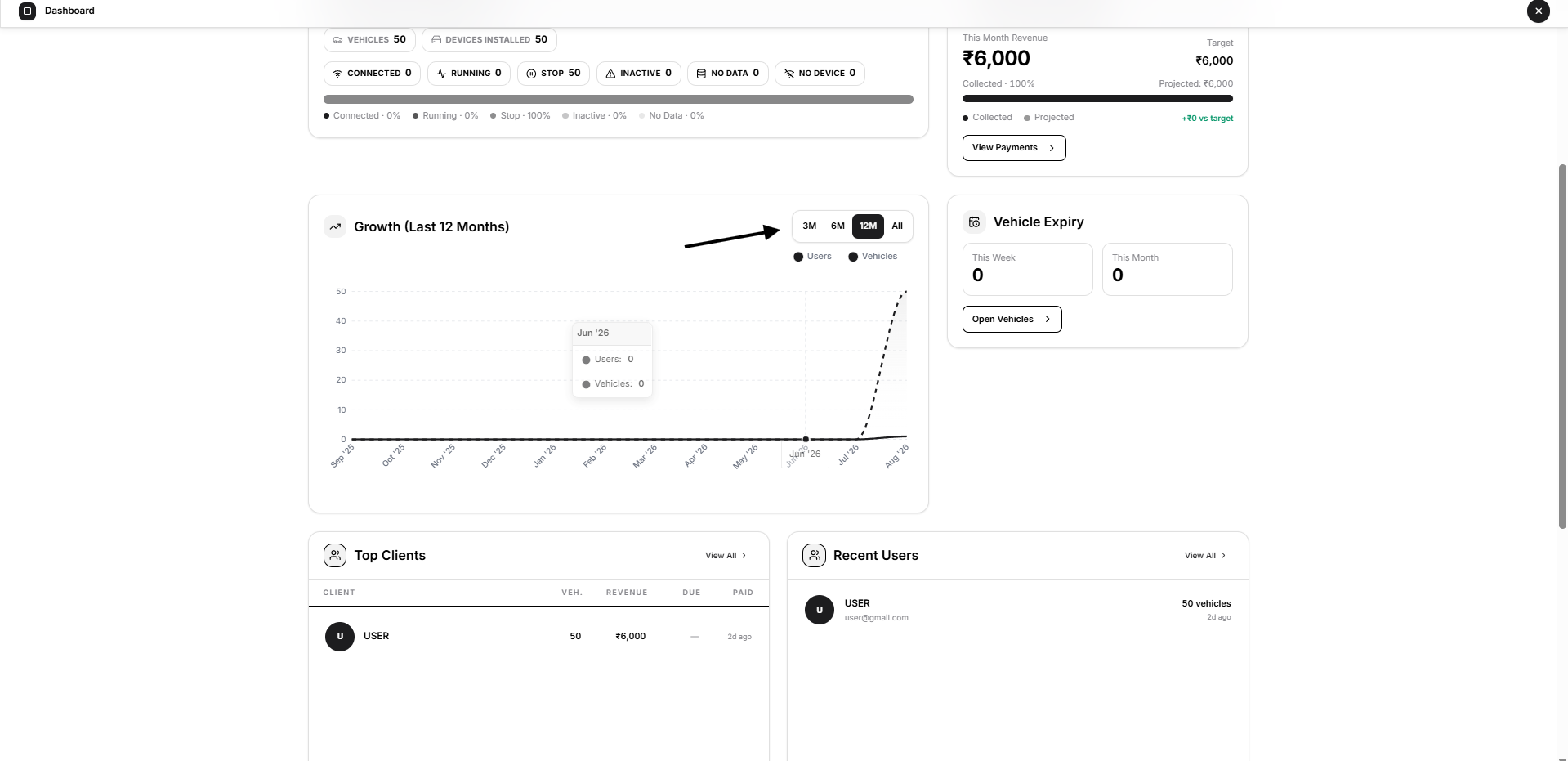
The Growth chart shows the cumulative number of Users and Vehicles over time.
It uses two chart series:
- Users
- Vehicles
A rising line means the total number of records increased during that period.
The chart shows cumulative totals rather than only the number added during each month.
Period Filters
Use the filters in the upper-right corner of the chart:
| Filter | Displayed period |
|---|---|
| 3M | Latest three months from the available chart data |
| 6M | Latest six months |
| 12M | Latest twelve months |
| All | All points currently available in the Dashboard chart data |
Move the pointer over the chart to view the User and Vehicle totals for a particular month.
If no meaningful growth information is available, the chart displays a no-data state.
Vehicle Expiry
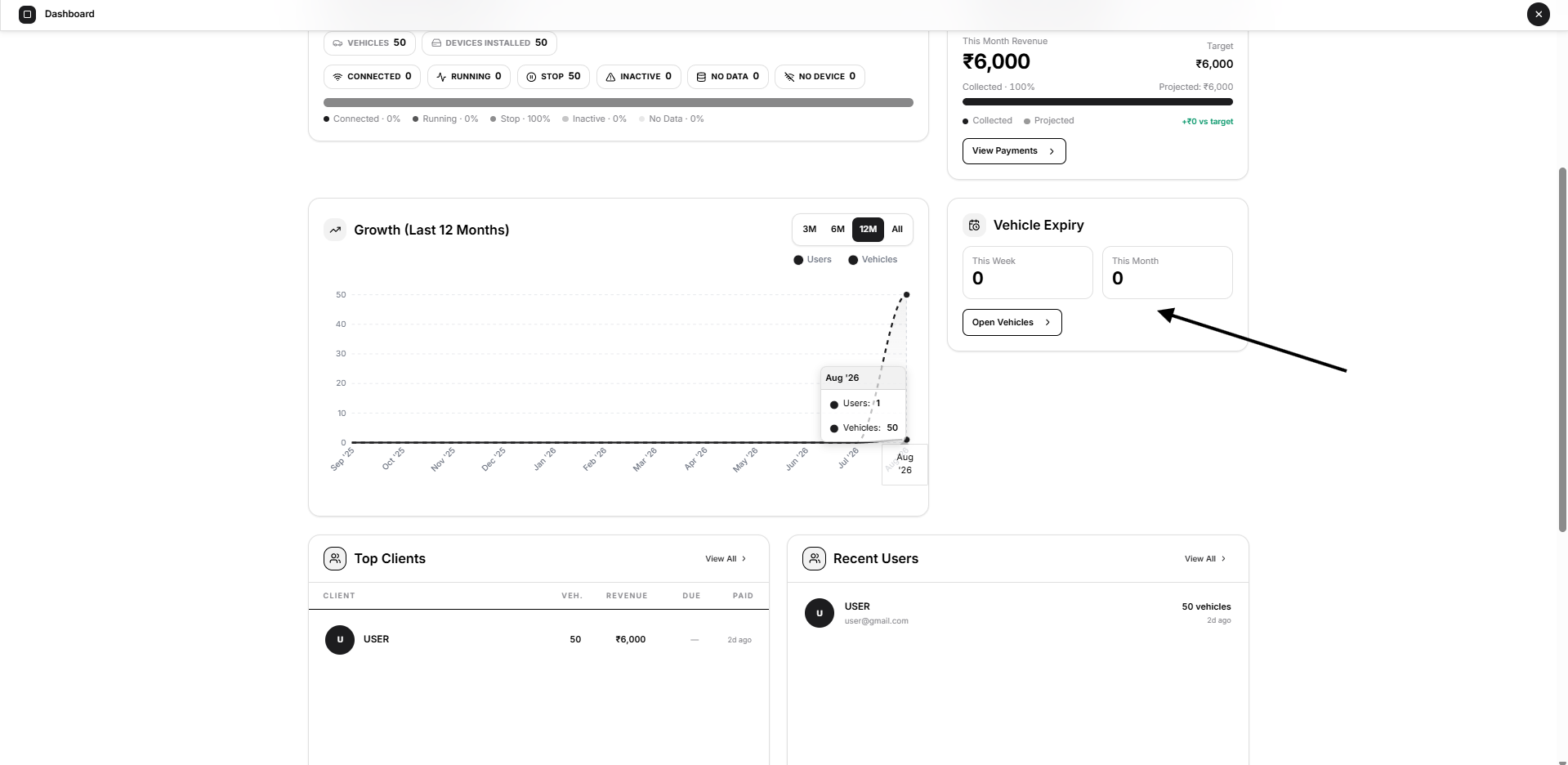
The Vehicle Expiry card provides two expiry totals:
- This Week
- This Month
These values help the Admin identify upcoming vehicle renewals or service-expiry activity.
Open Vehicles
Select Open Vehicles to open the Vehicles workspace.
Opening Vehicles does not automatically apply an expiry filter. Use the available vehicle filters or search controls inside that workspace when required.
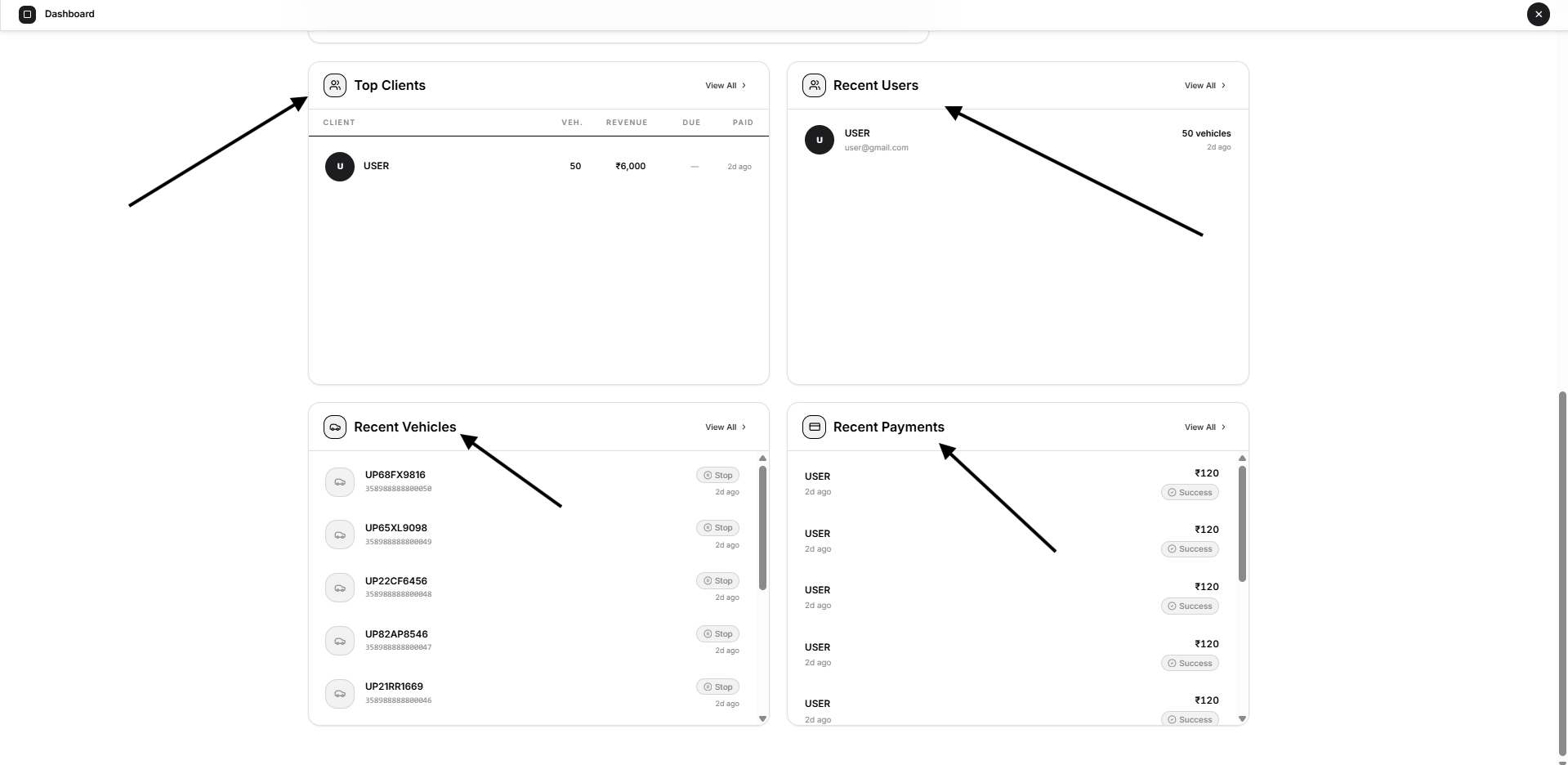
Top Clients
The Top Clients section lists clients ranked by successful payment revenue in the selected currency.
The table contains:
ColumnDescriptionClientUser or client nameVeh.Number of vehicles assigned to the clientRevenueTotal successful payment revenue received from the clientDueTotal currently pending payment amountPaidTime of the client’s latest successful payment
A dash under Due means that no pending amount is currently shown for that client.
Select View All to open the Users workspace.
The rows themselves are informational and do not open the individual user record.
Recent Users
The Recent Users section shows the most recently created User accounts.
Each row displays:
- User name or initials.
- Email address or username.
- Number of vehicles currently assigned to the user.
- User creation date or relative time.
Select View All to open the Users workspace.
The listed vehicle count represents the actual number of vehicles assigned to each user.
Recent Vehicles
The Recent Vehicles section shows the most recently created vehicle records.
Each row can display:
- Vehicle plate number or vehicle name.
- IMEI when a device is available.
- No Device when no tracking device is assigned.
- Current vehicle status.
- Vehicle creation date or relative time.
Recent Vehicle Statuses
| Status | Meaning |
|---|---|
| Running | Device connected and vehicle moving |
| Stop | Vehicle stationary or recently disconnected |
| Inactive | Device not connected for at least 48 hours |
| No Data | No usable live information is available |
| No Device | No tracking device is assigned |
| License Required | The vehicle requires a valid licence for restricted tracking operations |
Select View All to open the Vehicles workspace.
The rows are summary items and do not directly open the vehicle record.
Recent Payments
The Recent Payments section shows the latest payment records for the selected currency.
Each row displays:
- User or payer name.
- Payment date or relative time.
- Payment amount.
- Payment status.
Payment Statuses
| Status | Meaning |
|---|---|
| Success | The payment was completed successfully. |
| Pending | The payment is awaiting completion or confirmation. |
| Failed | The payment did not complete successfully. |
Select View All to open the Payments workspace.
Loading, Empty, and Error States
Loading
When the Dashboard is opened, temporary loading placeholders appear while the summary is retrieved.
Zero Values
A value of 0 can be a valid Dashboard result.
For example:
- No payments were received during the month.
- No vehicles expire during the current week.
- No devices were installed during the month.
- No pending payments currently exist.
A zero value does not automatically indicate an error.
Empty Lists
Sections such as Top Clients, Recent Users, Recent Vehicles, or Recent Payments display a no-data state when no matching records are available.
Growth Without Data
The Growth section displays a no-growth or no-data message when there is not enough meaningful information to draw the chart.
Dashboard Error
If Dashboard information cannot be retrieved, Open VTS displays:
Failed to load dashboard
Select Retry to request the information again.
Recommended Workflow
- Check the Updated time to confirm that the information is recent.
- Review the six summary cards for key totals.
- Check Vehicle Live Status for connectivity or inactivity concerns.
- Review Revenue Forecast and pending payments.
- Check Vehicle Expiry for upcoming renewals.
- Review recent users, vehicles, and payments.
- Use View All, View Payments, or Open Vehicles when detailed work is required.
- Refresh the Dashboard after important operational changes when immediate confirmation is needed.
Important Notes
- The Dashboard is an overview and does not replace the detailed Users, Vehicles, or Payments workspaces.
- Currency selection affects financial information only.
- Counts and financial values are limited to the current Admin’s scope.
- Most Dashboard cards and rows are informational.
- Use the clearly labelled navigation actions to open detailed workspaces.
- Connected vehicle counts may overlap with movement-status counts.
- Recent timestamps can appear as relative values based on the current date and user preferences.
- Dashboard values can change after vehicles connect, payments are processed, users are created, or records are updated.
Final Verification Checklist
Before using the Dashboard for operational review, confirm that:
- The correct Admin account is signed in.
- The selected currency is appropriate.
- The updated time is recent.
- Vehicle and user totals match the Admin’s expected scope.
- Recent Users display the correct assigned vehicle counts.
- Vehicle Live Status shows the expected device and connection totals.
- Payment values use the selected currency.
- View Payments opens Payments.
- Open Vehicles opens Vehicles.
- Each View All action opens the correct workspace.
- Refresh retrieves the latest Dashboard information.
- The upper-right X returns to Admin Home.
Next Step
Continue to the Admin Users documentation to learn how to create, review, manage, and organise User accounts under the Admin.