
Configure SMTP
Configure an outgoing email server in Open VTS to send OTPs, password resets, notifications, support updates, and other system emails.
Last updated August 19, 2026
Configure SMTP
SMTP allows Open VTS to send outgoing system emails, including:
- Login and verification OTPs
- Password-reset emails
- Account and security notifications
- Credit and payment notifications
- Support ticket updates
- Other automated email alerts
This guide uses a Gmail account as the SMTP provider. You can also use another email provider by entering the SMTP details supplied by that provider.
Before You Begin
You need:
- Superadmin access to Open VTS
- A Gmail or Google Workspace account
- Two-Step Verification enabled on the Google account
- A Google App Password
- Internet access from the Open VTS server
Google App Passwords are available only after Two-Step Verification is enabled. Google may not show the App Password option for some work or school accounts, accounts enrolled in Advanced Protection, or accounts configured to use security keys only.
Step 1: Open the SMTP Settings
From the Open VTS homepage, go to:
Settings → SMTP
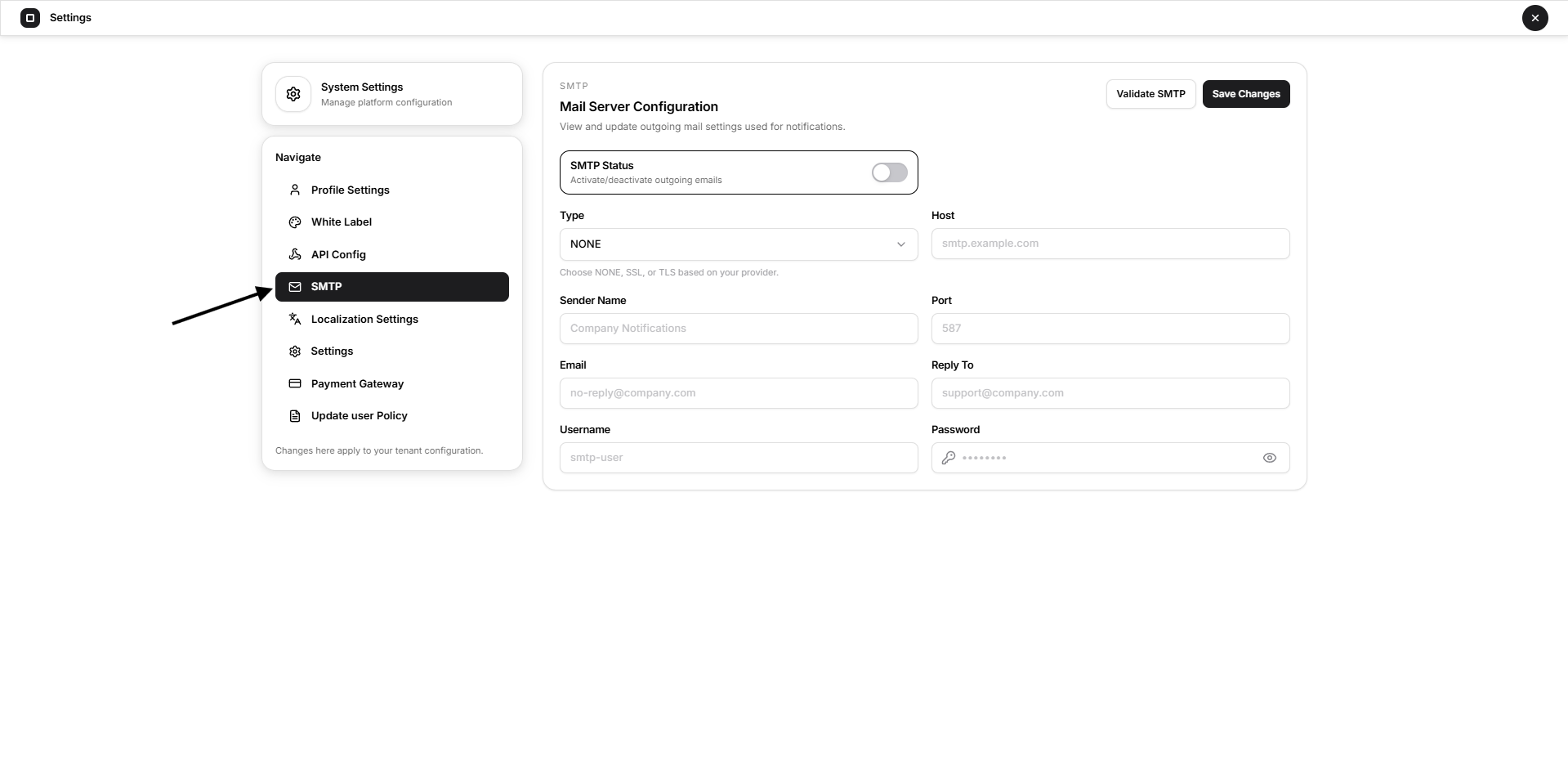
The SMTP page contains the following settings:
- SMTP Status
- Type
- Host
- Sender Name
- Port
- Reply To
- Username
- Password
- Save Changes
- Validate SMTP
Screenshot reference: Add a screenshot showing the complete Open VTS SMTP configuration page.
Step 2: Open Your Google Account
Open Gmail in a new browser tab.
Select your Google profile icon.
Select Manage your Google Account.
Open the Security section.
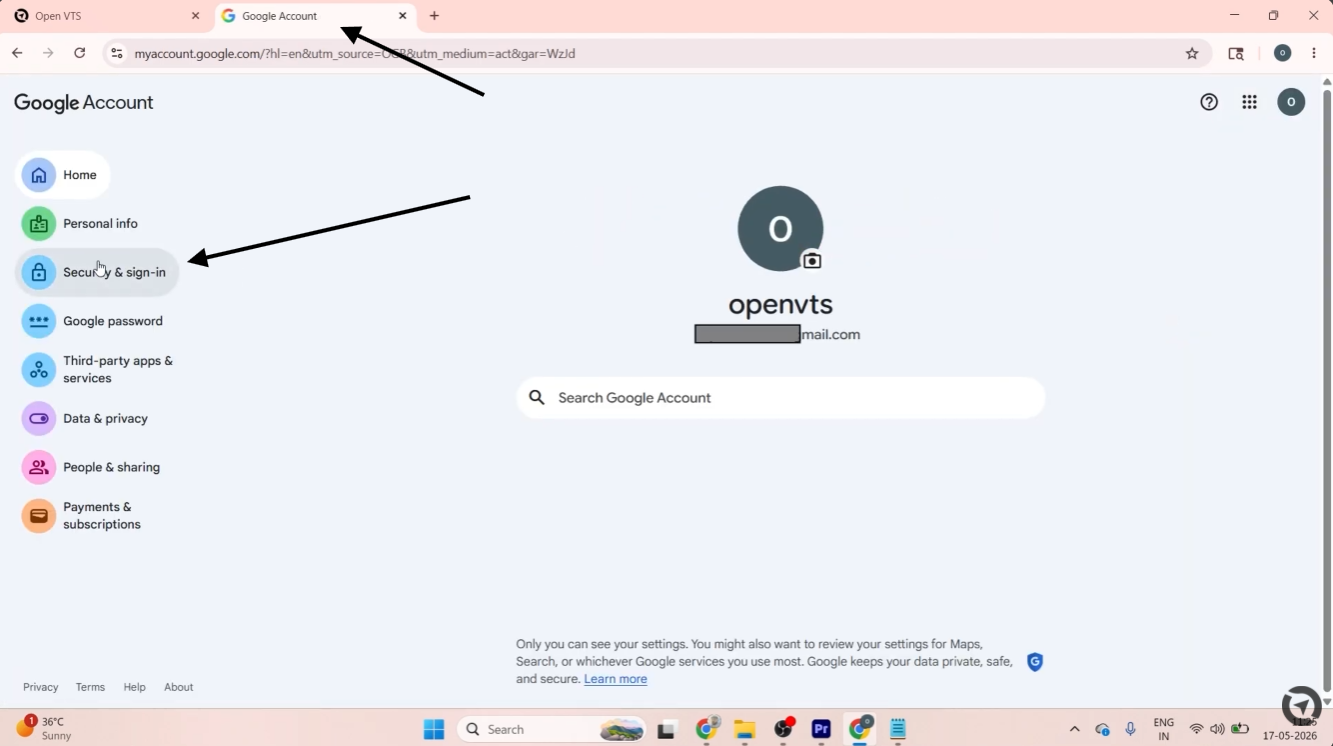
Confirm that Two-Step Verification is enabled.
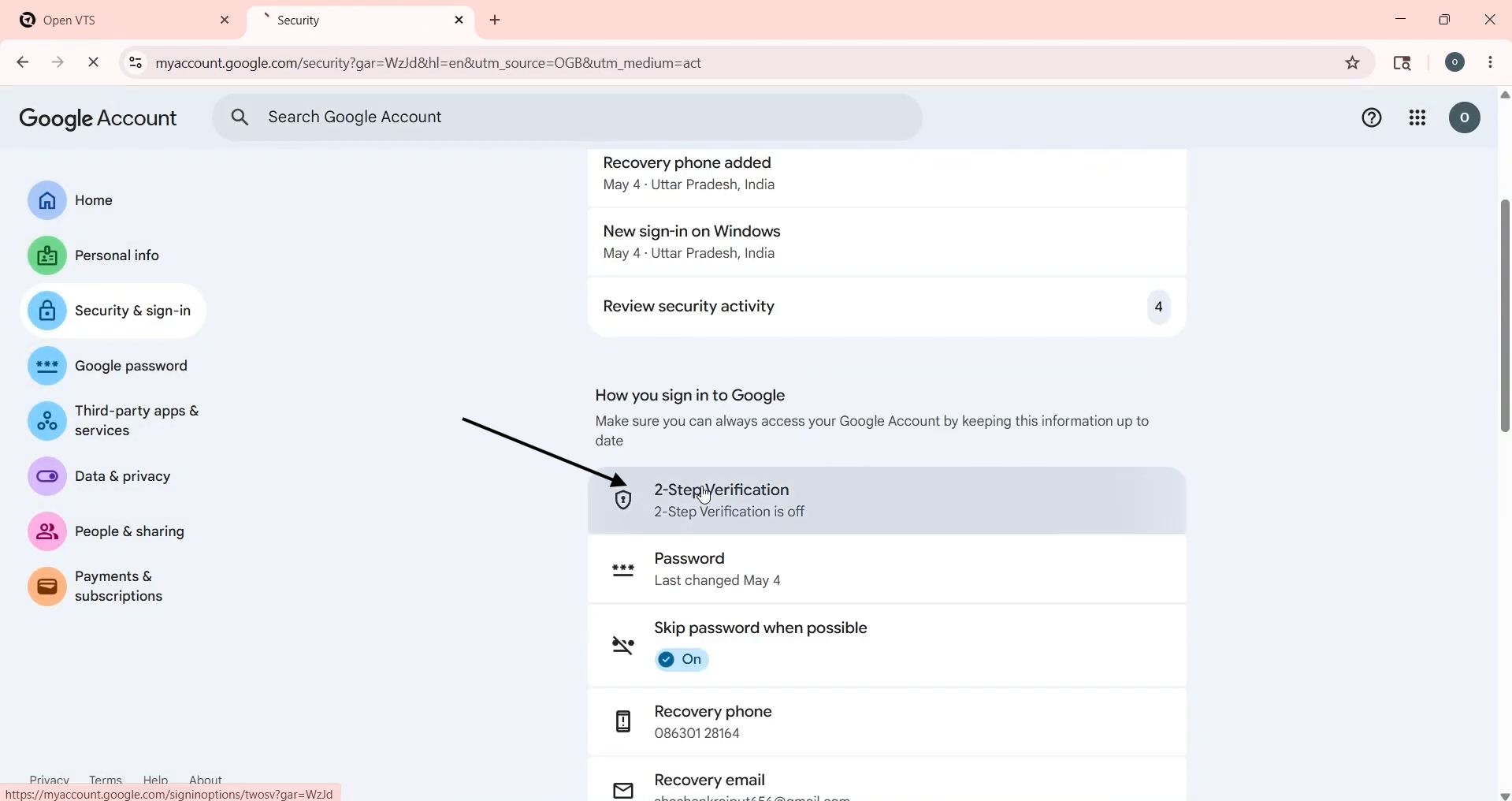
If Two-Step Verification is not active, complete its setup before continuing.
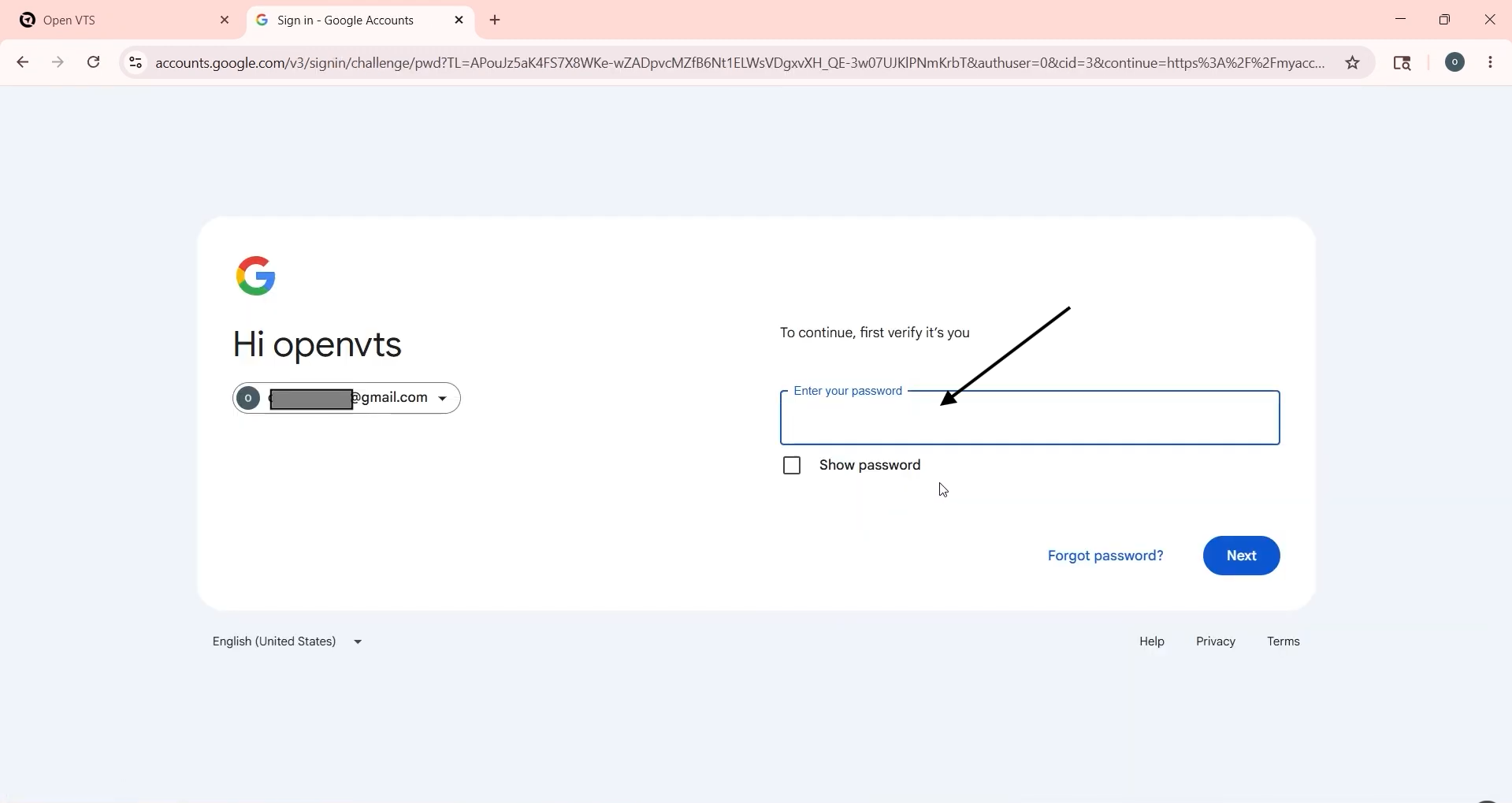
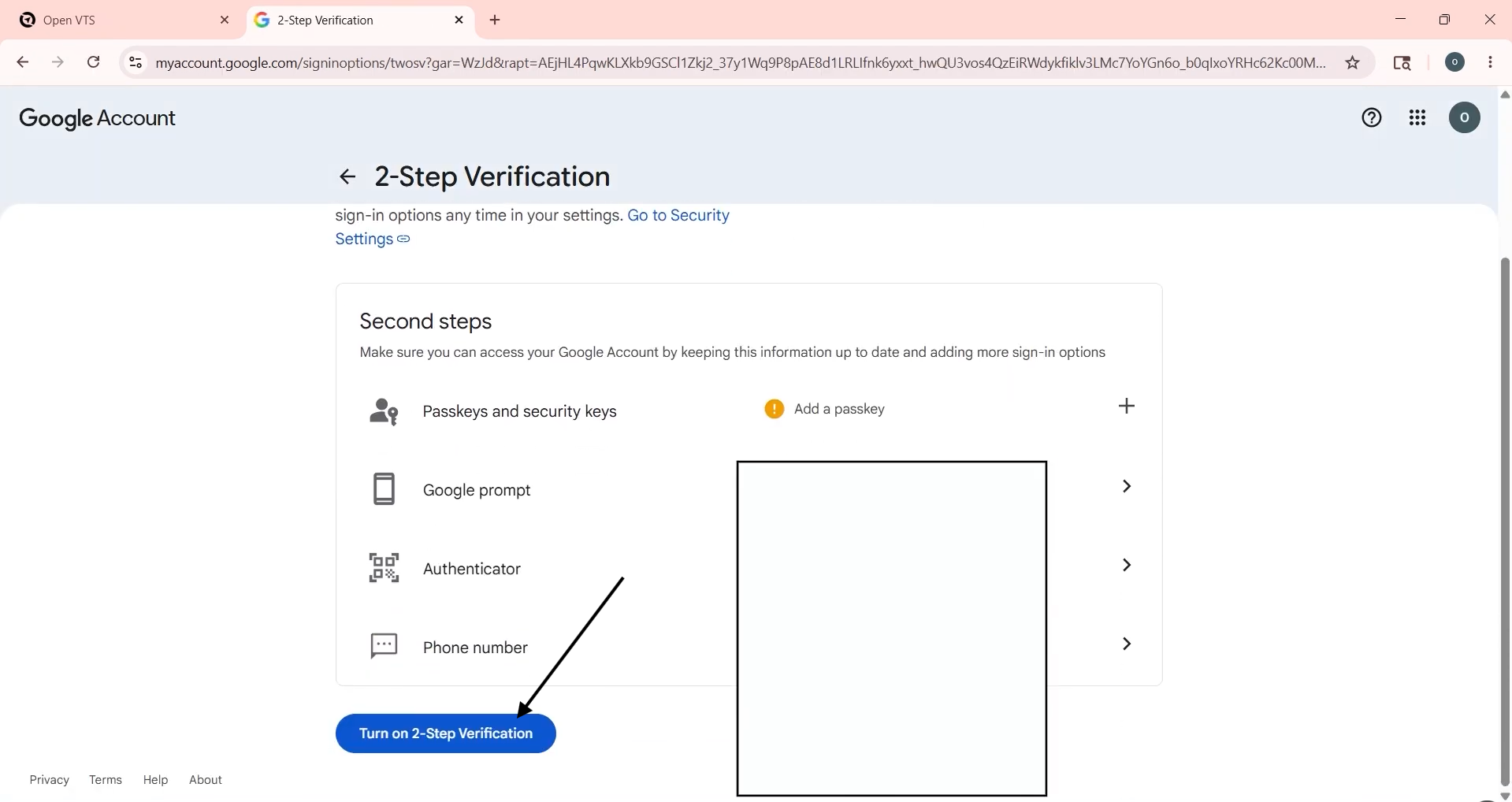
Step 3: Create a Google App Password
Inside Google Account settings:
Use the settings search bar to search for App passwords.
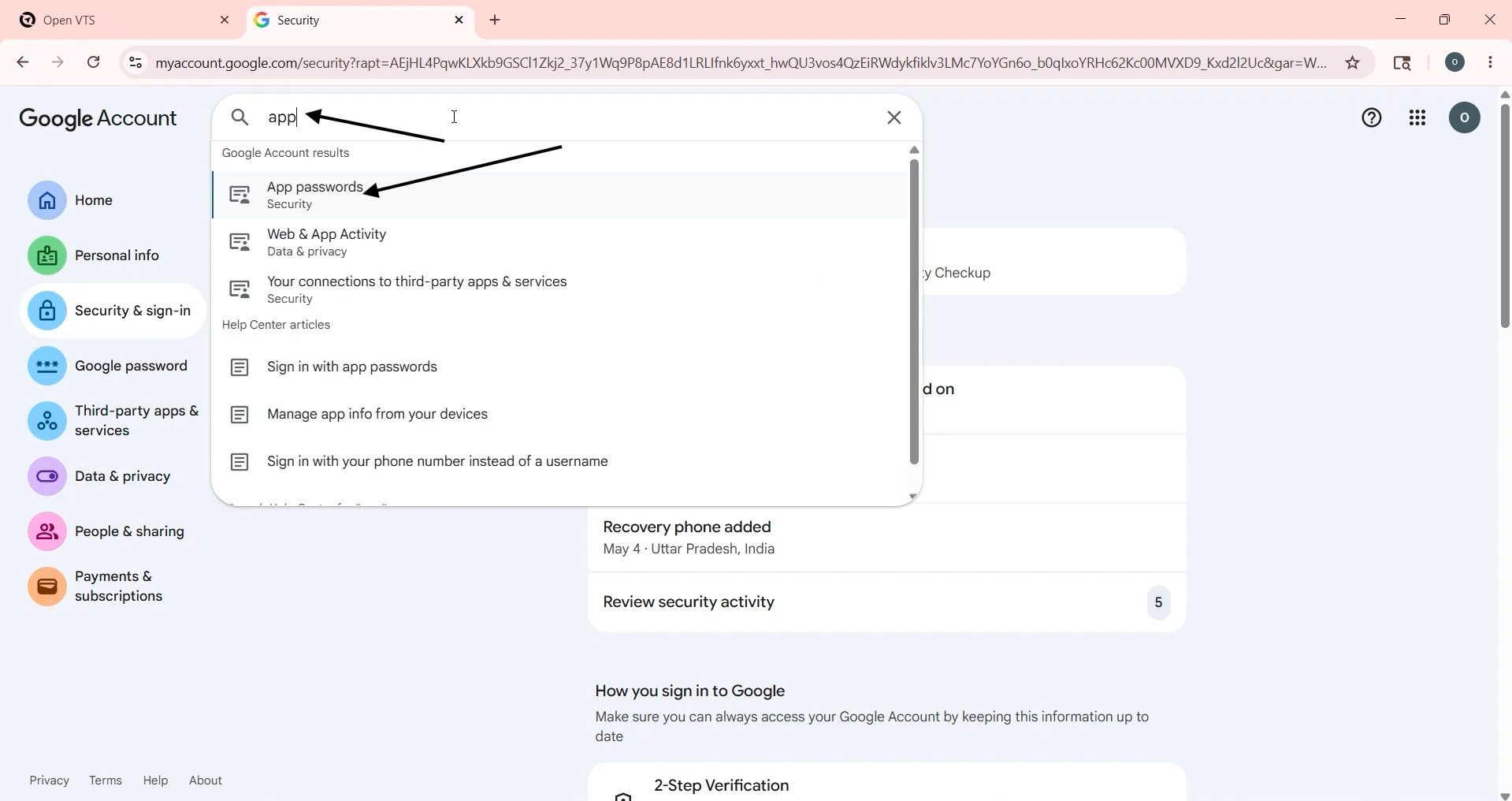
App passwords.
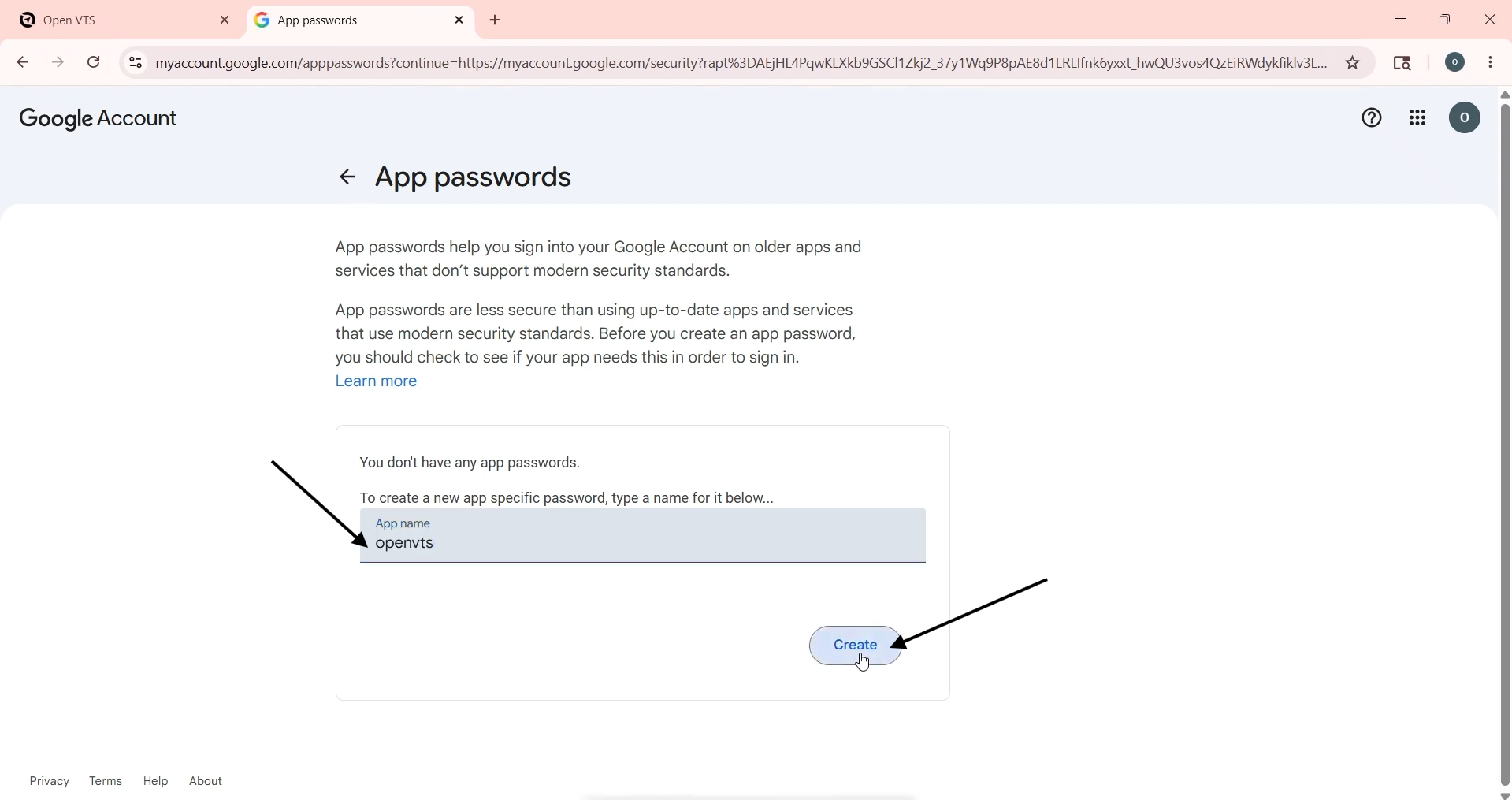
Enter an app name such as:
Open VTS SMTP
Select Create.
Copy the generated App Password.
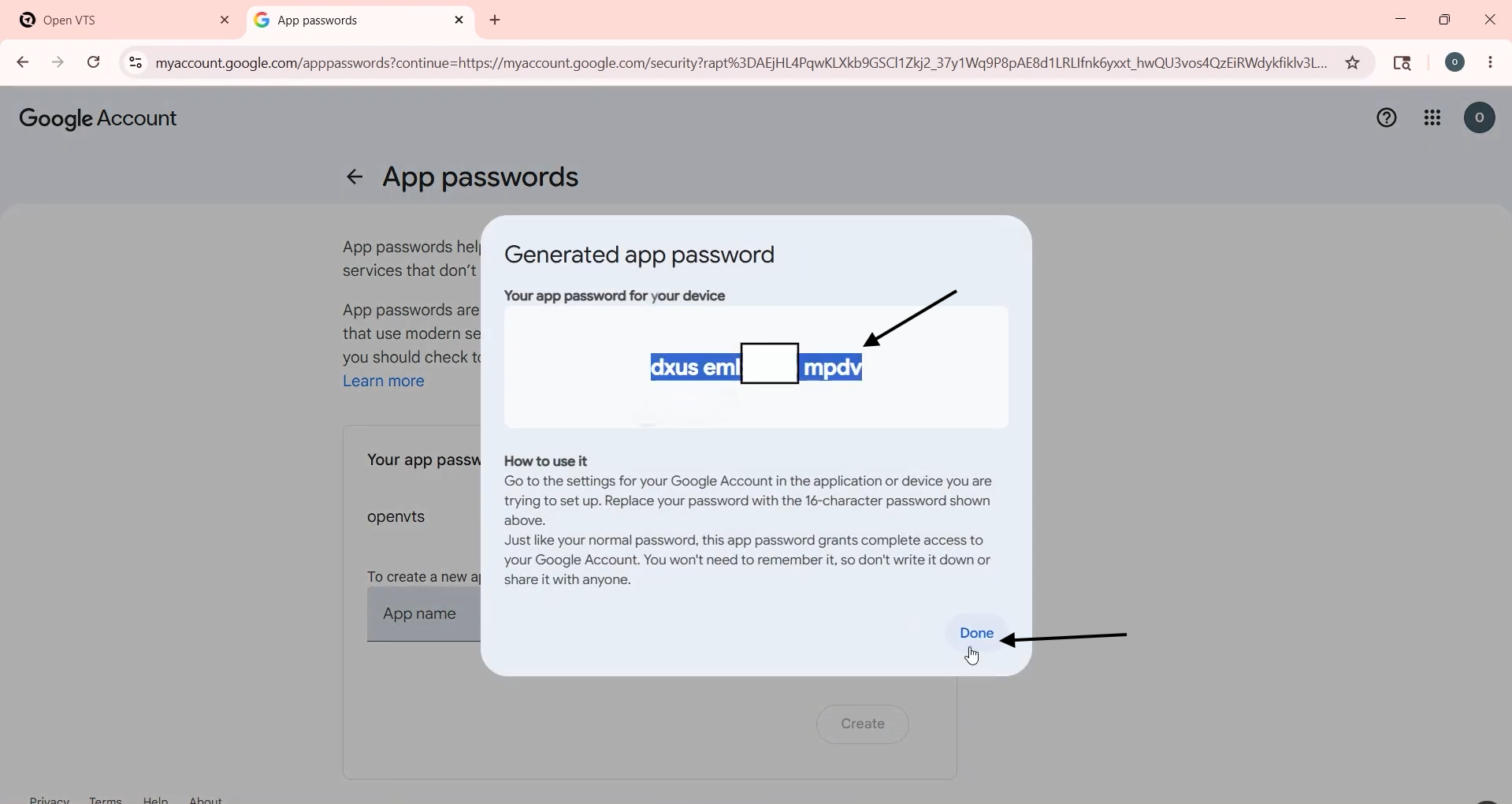
An App Password is a separate 16-digit credential created for applications that cannot use normal Google sign-in. Do not use your regular Gmail password in the Open VTS SMTP configuration.
Save the App Password temporarily in a secure place. If it appears with spaces, enter it in Open VTS as one continuous password.
Step 4: Enter the Gmail SMTP Details
Return to:
Open VTS → Settings → SMTP
Enter the following configuration:
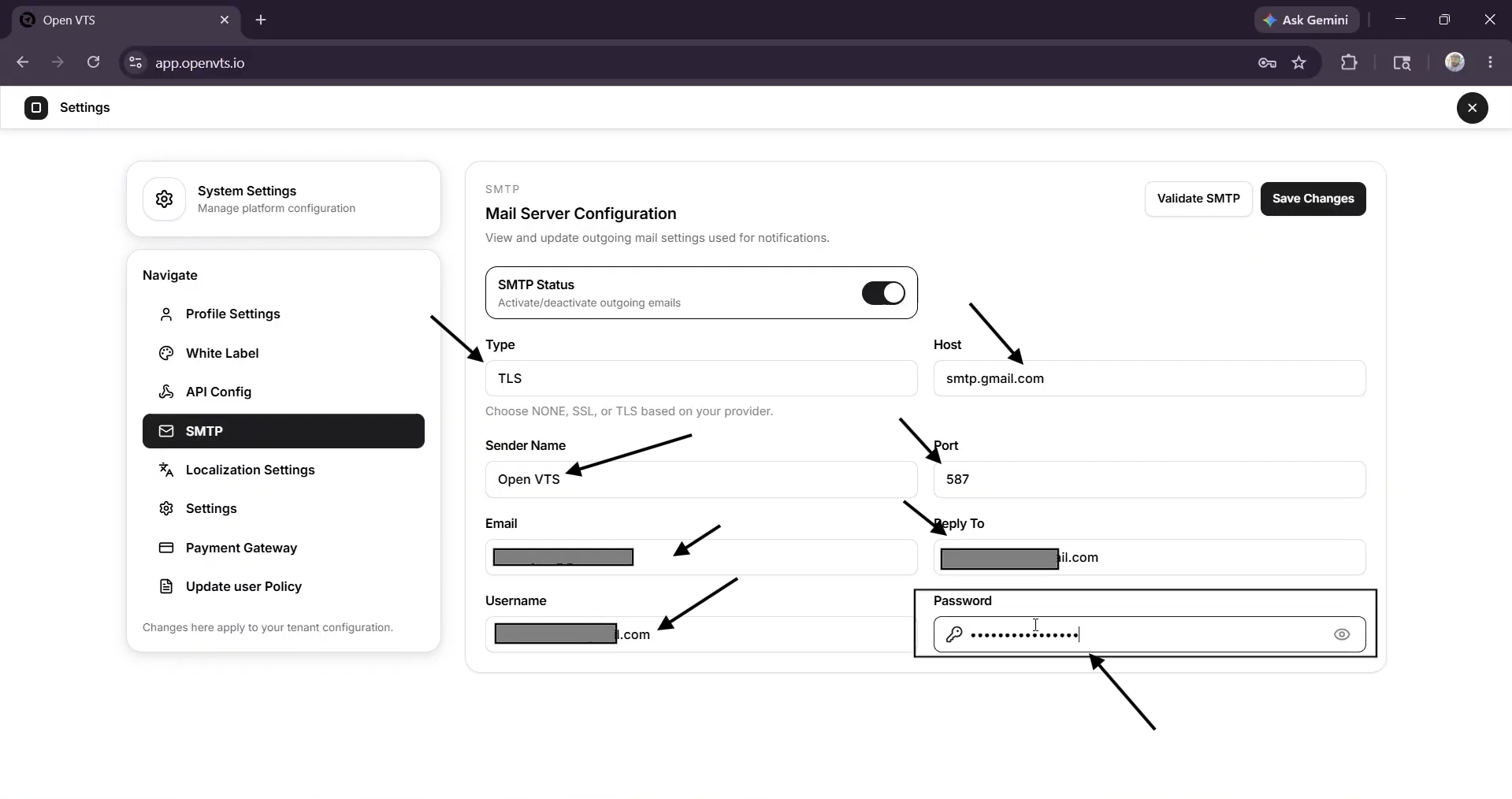
Gmail’s outgoing SMTP server is smtp.gmail.com. Google supports authenticated TLS/STARTTLS connections on port 587; SSL connections can use port 465. For this Open VTS setup, select TLS and use port 587.
Example Configuration
SMTP Status: Active Type: TLS Host: smtp.gmail.com Sender Name: Open VTS Notifications Port: 587 Email: notifications@example.com Reply To: support@example.com Username: notifications@example.com Password: Google App Password
Understanding the Fields
SMTP Status Activates or deactivates outgoing email delivery. Keep it enabled after the configuration has been completed.
Type Selects the connection security used by the SMTP provider. For this Gmail configuration, select TLS.
Host The SMTP server address. For Gmail, enter smtp.gmail.com.
Sender Name The name recipients will see in their inbox, such as your company name or platform name.
Email The email address that will be used to send Open VTS messages.
Reply To The address where user replies should be received. You may use the same Gmail address or an official support address.
Username For Gmail, enter the complete Gmail or Google Workspace email address.
Password Enter the Google App Password, not the normal Google account password.
Screenshot reference: Add a screenshot showing the completed SMTP form. Hide or blur the password before using the screenshot in public documentation.
Step 5: Save the SMTP Configuration
After entering all the details:
- Confirm that SMTP Status is active.
- Recheck the email address, host, port, username, and password.
- Select Save Changes.
Open VTS will save the outgoing email configuration.
Screenshot reference: Add a screenshot showing the completed SMTP configuration and the Save Changes button.
Step 6: Validate SMTP
After saving the configuration, select Validate SMTP.
A validation window will open.
- Enter an email address where you can receive the test message.
- Select Send.
- Wait for the confirmation message.
- Open the test recipient’s inbox.
- Confirm that the Open VTS SMTP test email was received.
A successful test confirms that Open VTS can connect to the SMTP server and send outgoing emails.
Screenshot reference: Add screenshots showing:
- The Validate SMTP window
- The test email address entered
- The successful email-sent confirmation
- The received test email in the inbox
Troubleshooting
App Password Is Not Available
Confirm that Two-Step Verification is enabled.
The option may not appear when:
- The account belongs to a managed organization that blocks App Passwords
- Advanced Protection is enabled
- Two-Step Verification is configured only with security keys
Contact the Google Workspace administrator when using a managed business account.
Username or Password Is Incorrect
Confirm that:
- The username is the complete Gmail address
- The password is the generated App Password
- The normal Gmail account password has not been entered
- No unwanted spaces were added to the password
- The App Password has not been revoked
Google revokes existing App Passwords when the main Google Account password is changed. Create a new App Password and update Open VTS when this happens.
SMTP Connection Fails
Verify the following configuration:
Type: TLS Host: smtp.gmail.com Port: 587
Also confirm that the Open VTS server can access the internet and that its firewall or hosting provider does not block outbound SMTP traffic.
Test Email Is Not Received
Check:
- Spam or junk folders
- The test recipient address
- SMTP Status is active
- The Gmail account’s Sent folder
- The Open VTS validation result
- The App Password and username
- Restrictions applied by the Google Workspace administrator
Emails Are Sent From the Wrong Address
Confirm that the Email and Username fields contain the intended sending account. The Sender Name changes the displayed name, but it does not replace the authenticated email address.
Security Recommendations
- Never use the main Google Account password in Open VTS.
- Never publish the App Password in screenshots or documentation.
- Use a dedicated business email account for system notifications.
- Limit access to the Superadmin SMTP configuration.
- Revoke and replace the App Password immediately if it is exposed.
- Use an official support address in the Reply To field.
- Validate the configuration after changing the Google Account password or SMTP provider.
Configuration Checklist
Confirm that:
- Two-Step Verification is enabled
- A Google App Password has been created
- SMTP Status is active
- Type is set to TLS
- Host is smtp.gmail.com
- Port is 587
- Email and username contain the Gmail address
- Password contains the Google App Password
- Reply To contains the correct support address
- Save Changes has been selected
- Validate SMTP sends a successful test email