
Superadmin Calendar
Review User creation, vehicle creation, and upcoming primary vehicle expiry records through a date-based calendar, then open individual records for detailed information.
Last updated August 18, 2026
Superadmin Calendar
The Superadmin Calendar provides a date-based view of important platform records.
It helps the Superadmin understand when:
- User accounts were created
- Vehicle records were created
- Active vehicles are scheduled to reach their primary expiry date
Select any date to review the related records in the right-side details panel. Individual User or vehicle entries can then be opened to view more information.
The Calendar is a read-only activity and expiry view. It does not create appointments, reminders, tasks, or schedules.
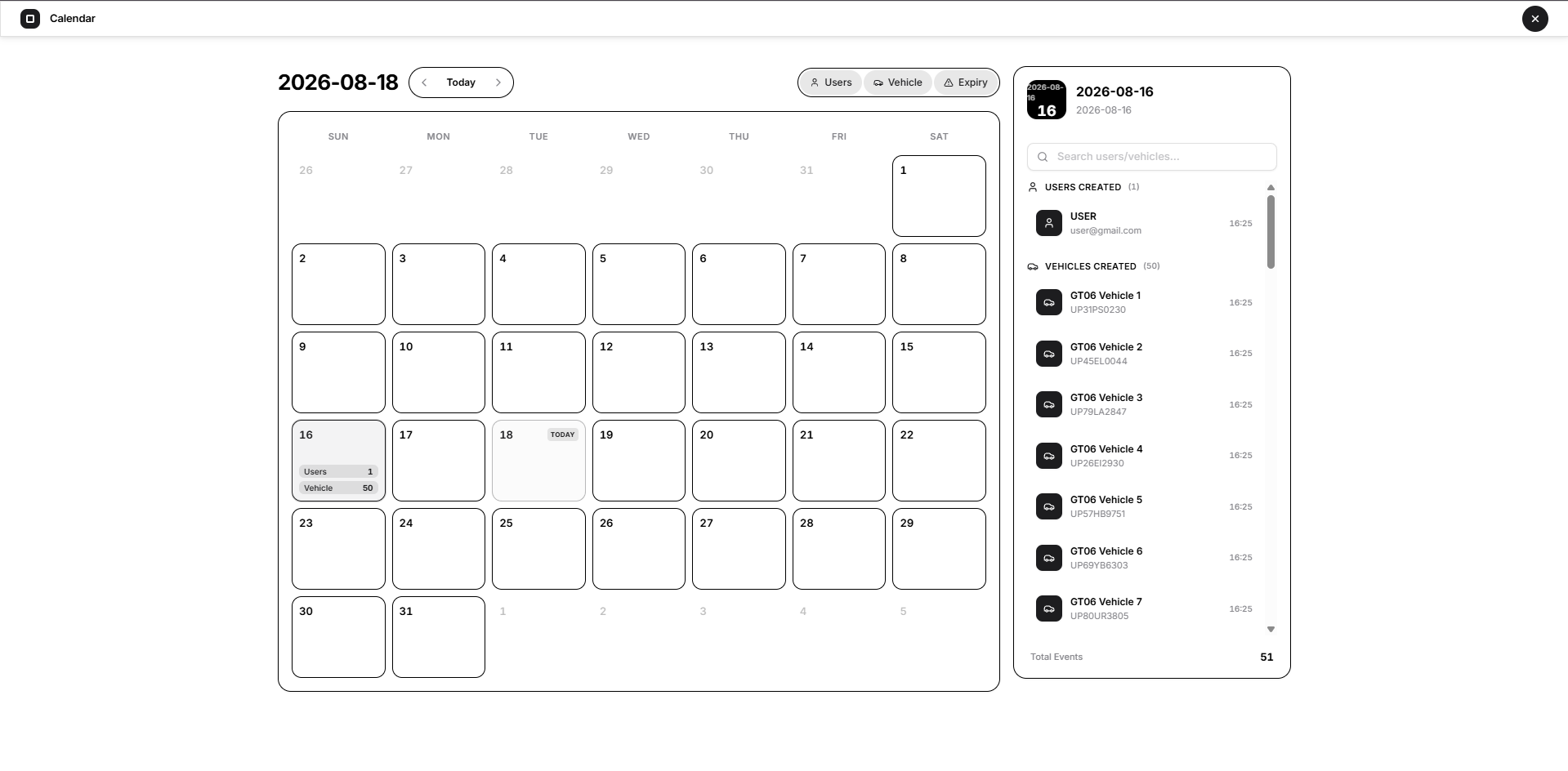
Understanding the Calendar Layout
The Calendar page contains four main areas:
- Calendar period and navigation
- Event-type filters
- Monthly calendar grid
- Selected-day details panel
The page initially opens on the current month and selects the current date.
Calendar Navigation
The current calendar period appears above the calendar grid.
Use the navigation controls beside it to move through the calendar.
Previous
Select the left arrow to move to the previous month.
Today
Select Today to:
- Return to the current month
- Select the current date
- Load the current day’s records
Next
Select the right arrow to move to the next month.
Moving between months loads the event counts for the newly displayed month.
Event Filters
The filters above the calendar determine which record types appear.
The available filters are:
- Users
- Vehicle
- Expiry
All three filters are enabled when the page first opens.
Select a filter to disable or enable that record type.
Disabling a filter removes its:
- Count from calendar dates
- Records from the selected-day panel
- Contribution to the Total Events count
The filters can be used independently.
When all filters are disabled, Open VTS asks the user to enable at least one event type before displaying calendar records.
Users
The Users filter displays User accounts created on each date.
This category covers accounts created with the User login type. It does not represent Administrator creation.
A date containing newly created Users displays a count such as:
Users 1
Vehicle
The Vehicle filter displays active vehicle records created on each date.
A date containing newly added vehicles displays a count such as:
Vehicle 5
The Calendar currently includes vehicles that remain active in Open VTS. An inactive vehicle may not appear in the creation count even when it was originally created on that date.
Expiry
The Expiry filter displays active vehicles whose primary expiry date falls on that date.
The Calendar uses the vehicle’s primary expiry for the expiry event.
The secondary expiry can be viewed inside the vehicle details, but it is not used to place the vehicle on the Calendar.
A date containing expiring vehicles displays a count such as:
Expiry 3
Calendar Grid
The main calendar is arranged from Sunday through Saturday.
Each date cell can contain:
- Day number
- Today label
- Users count
- Vehicle count
- Expiry count
Only counts for enabled filters are displayed.
Dates belonging to the previous or next month can appear in a muted style around the current month. These dates are not selectable from the current month grid.
Today Indicator
The current date displays a Today badge.
The Today badge identifies the actual current day even when another date is selected.
The selected date and the current date are separate states:
- Today indicates the current calendar date.
- The selected date determines which records appear in the right-side panel.
Select a Date
Select a date inside the current month to review its records.
The selected date receives a highlighted state, and its information appears in the right-side panel.
The panel header displays:
- Selected day
- Complete selected date
Selecting another date automatically:
- Loads that day’s records
- Clears the previous search query
- Updates the Total Events count
Selected-Day Details
The right-side panel groups records according to their event type.
Available groups are:
- Users Created
- Vehicles Created
- Vehicle Expiry
Only groups that contain matching records and have their filters enabled are displayed.
Users Created
The Users Created section lists User accounts created on the selected date.
Each entry shows:
- User name
- Email address
- Creation time
Select a User entry to open the User Details window.
User Details
The User Details window provides more information about the selected User.
It can display:
- Name
- Phone
- Username
- Status
- Created At
- Added By
Status
Status indicates whether the User account is currently:
- Active
- Inactive
Added By
When available, Added By identifies the parent account that created or manages the User.
Vehicles Created
The Vehicles Created section lists active vehicle records created on the selected date.
Each entry shows:
- Vehicle name
- Plate number, when available
- Vehicle ID when a plate number is unavailable
- Creation time
Select a vehicle entry to open the Vehicle Details window.
Vehicle Expiry
The Vehicle Expiry section lists active vehicles whose primary expiry occurs on the selected date.
Each entry shows:
- Vehicle name
- Plate number, when available
- Vehicle ID when a plate number is unavailable
Expiry is date-based, so the entry does not require a creation-time value.
Select an expiry entry to open Vehicle Details (Expiring).
Vehicle Details
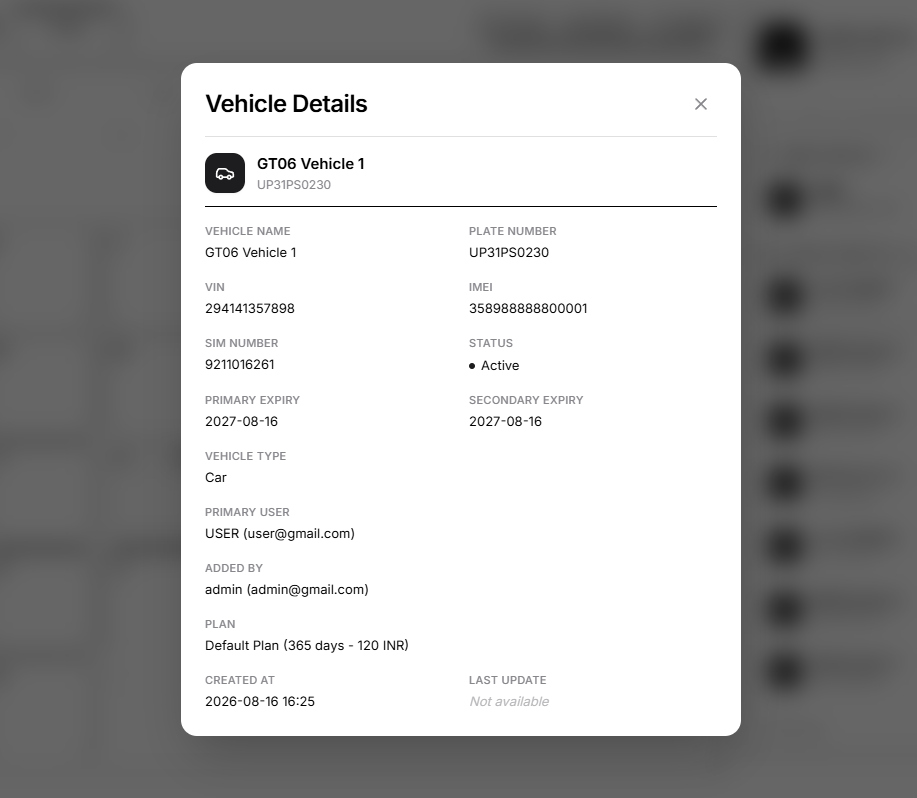
The same detailed vehicle record is available from both:
- Vehicles Created
- Vehicle Expiry
The window can display:
- Vehicle Name
- Plate Number
- VIN
- IMEI
- SIM Number
- Status
- Primary Expiry
- Secondary Expiry
- Vehicle Type
- Primary User
- Added By
- Plan
- Created At
- Last Update
Primary Expiry
Shows the expiry date used for the vehicle’s Calendar expiry event.
Secondary Expiry
Shows the additional expiry date stored for the vehicle, when available.
The secondary expiry is included for reference but is not currently used to create a Calendar event.
Plan
When a plan is assigned, the Calendar detail window can show:
- Plan name
- Duration in days
- Price
- Currency
Last Update
Shows the latest stored update time available in the vehicle record.
A missing value is displayed as Not available.
Search the Selected Day
When the selected date contains records, a search field appears in the right-side panel.
Use Search users/vehicles to filter the selected day’s entries.
The search applies only to records on the selected date.
User Search
User entries can be matched using:
- Name
- User ID
Vehicle Search
Vehicle creation and expiry entries can be matched using:
- Vehicle name
- Plate number
- Vehicle ID
The search does not search the entire platform or other calendar dates.
Clear the search field to restore all records for the selected day.
Total Events
The bottom of the right-side panel shows the number of records currently displayed.
Without a search query, it displays:
Total Events
When a search is active, it displays:
Matching Items
The result can appear in a format such as:
2 / 6
This means two records match the search out of six total records available for the selected date and active filters.
Record Ordering
User and vehicle creation records are returned in creation-time order.
Vehicle expiry records are ordered by primary expiry date.
The right-side panel groups the records by type rather than combining all categories into one mixed list.
Empty States
The Calendar provides different messages depending on the current state.
No Events
Appears when the selected day contains no records for the enabled filters.
Enable Filters
Appears when all event filters are disabled.
No Matches
Appears when the selected day has records, but none match the search query.
Not Available
Appears when an optional field is missing from a User or vehicle record.
Loading and Error States
While monthly counts or selected-day records are loading, Open VTS displays temporary loading placeholders.
If Calendar data cannot be loaded, an error state appears with a Retry action.
Select Retry to request the Calendar data again.
A separate retry option is also available when an individual User or vehicle detail request fails.
What the Calendar Includes
The current Superadmin Calendar includes:
- User accounts created
- Active vehicles created
- Active vehicle primary expiry dates
- Selected-day search
- User details
- Vehicle details
- Monthly navigation
- Event filters
What the Calendar Does Not Include
The Calendar does not currently display:
- Administrator creation
- Payments
- Support tickets
- Device alerts
- Map events
- Vehicle secondary expiry as a separate event
- Maintenance appointments
- Driver schedules
- Tasks or reminders
- Custom manually created events
Alerts and vehicle tracking events are available from the Superadmin Map, not from this Calendar.
Practical Uses
The Superadmin can use the Calendar to:
- Review platform growth by date
- Confirm when User accounts were created
- Confirm when vehicles were added
- Identify upcoming vehicle expiry dates
- Review the account responsible for a User
- Review the Administrator or User who added a vehicle
- Check vehicle plan and expiry information
- Investigate records from a specific business day
Example Workflow
To review activity from a specific date:
- Open Calendar.
- Move to the required month.
- Enable the relevant filters.
- Select the required date.
- Review the grouped records in the right-side panel.
- Search for a specific User or vehicle when needed.
- Select a record to open its complete details.
- Close the detail window to return to the selected day.
Important Differences
Calendar vs Activity Logs
- Calendar organizes selected record types by date.
- Activity Logs show actions performed within the platform.
Calendar Expiry vs Vehicle Status
- Expiry indicates the vehicle’s configured primary expiry date.
- Vehicle Status indicates whether the vehicle record is active or inactive.
- Map Status indicates operational tracking states such as Running or Stopped.
Vehicle Created vs Vehicle Expiry
- Vehicle Created uses the vehicle record’s creation date.
- Vehicle Expiry uses its primary expiry date.
Today vs Selected Date
- Today identifies the current date.
- Selected Date controls the right-side details panel.
Security and Privacy
The Calendar can expose account, vehicle, and device information.
Before publishing screenshots or recordings, hide or replace:
- User names
- Email addresses
- Phone numbers
- Usernames
- Vehicle names
- Plate numbers
- VINs
- IMEIs
- SIM numbers
- Company relationships
- Plan and pricing information
Use demonstration records in public documentation whenever possible.
Next Step
Superadmin Calendar
The Superadmin Calendar provides a date-based view of important platform records.
It helps the Superadmin understand when:
- User accounts were created
- Vehicle records were created
- Active vehicles are scheduled to reach their primary expiry date
Select any date to review the related records in the right-side details panel. Individual User or vehicle entries can then be opened to view more information.
The Calendar is a read-only activity and expiry view. It does not create appointments, reminders, tasks, or schedules.
Understanding the Calendar Layout
The Calendar page contains four main areas:
- Calendar period and navigation
- Event-type filters
- Monthly calendar grid
- Selected-day details panel
The page initially opens on the current month and selects the current date.
Calendar Navigation
The current calendar period appears above the calendar grid.
Use the navigation controls beside it to move through the calendar.
Previous
Select the left arrow to move to the previous month.
Today
Select Today to:
- Return to the current month
- Select the current date
- Load the current day’s records
Next
Select the right arrow to move to the next month.
Moving between months loads the event counts for the newly displayed month.
Event Filters
The filters above the calendar determine which record types appear.
The available filters are:
- Users
- Vehicle
- Expiry
All three filters are enabled when the page first opens.
Select a filter to disable or enable that record type.
Disabling a filter removes its:
- Count from calendar dates
- Records from the selected-day panel
- Contribution to the Total Events count
The filters can be used independently.
When all filters are disabled, Open VTS asks the user to enable at least one event type before displaying calendar records.
Users
The Users filter displays User accounts created on each date.
This category covers accounts created with the User login type. It does not represent Administrator creation.
A date containing newly created Users displays a count such as:
Users 1
Vehicle
The Vehicle filter displays active vehicle records created on each date.
A date containing newly added vehicles displays a count such as:
Vehicle 5
The Calendar currently includes vehicles that remain active in Open VTS. An inactive vehicle may not appear in the creation count even when it was originally created on that date.
Expiry
The Expiry filter displays active vehicles whose primary expiry date falls on that date.
The Calendar uses the vehicle’s primary expiry for the expiry event.
The secondary expiry can be viewed inside the vehicle details, but it is not used to place the vehicle on the Calendar.
A date containing expiring vehicles displays a count such as:
Expiry 3
Calendar Grid
The main calendar is arranged from Sunday through Saturday.
Each date cell can contain:
- Day number
- Today label
- Users count
- Vehicle count
- Expiry count
Only counts for enabled filters are displayed.
Dates belonging to the previous or next month can appear in a muted style around the current month. These dates are not selectable from the current month grid.
Today Indicator
The current date displays a Today badge.
The Today badge identifies the actual current day even when another date is selected.
The selected date and the current date are separate states:
- Today indicates the current calendar date.
- The selected date determines which records appear in the right-side panel.
Select a Date
Select a date inside the current month to review its records.
The selected date receives a highlighted state, and its information appears in the right-side panel.
The panel header displays:
- Selected day
- Complete selected date
Selecting another date automatically:
- Loads that day’s records
- Clears the previous search query
- Updates the Total Events count
Selected-Day Details
The right-side panel groups records according to their event type.
Available groups are:
- Users Created
- Vehicles Created
- Vehicle Expiry
Only groups that contain matching records and have their filters enabled are displayed.
Users Created
The Users Created section lists User accounts created on the selected date.
Each entry shows:
- User name
- Email address
- Creation time
Select a User entry to open the User Details window.
User Details
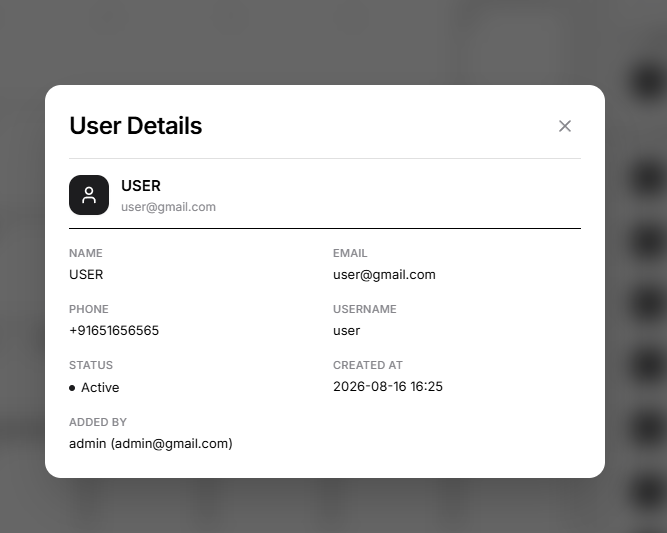
The User Details window provides more information about the selected User.
It can display:
- Name
- Phone
- Username
- Status
- Created At
- Added By
Status
Status indicates whether the User account is currently:
- Active
- Inactive
Added By
When available, Added By identifies the parent account that created or manages the User.
Vehicles Created
The Vehicles Created section lists active vehicle records created on the selected date.
Each entry shows:
- Vehicle name
- Plate number, when available
- Vehicle ID when a plate number is unavailable
- Creation time
Select a vehicle entry to open the Vehicle Details window.
Vehicle Expiry
The Vehicle Expiry section lists active vehicles whose primary expiry occurs on the selected date.
Each entry shows:
- Vehicle name
- Plate number, when available
- Vehicle ID when a plate number is unavailable