
Team Management
Create and manage team-member accounts that help operate your Open VTS administration environment. Add members, manage account status, update login details, and maintain team access from one place.
Last updated August 19, 2026
Team Management
The Team section gives an Admin a dedicated workspace for managing the people who help operate the platform.
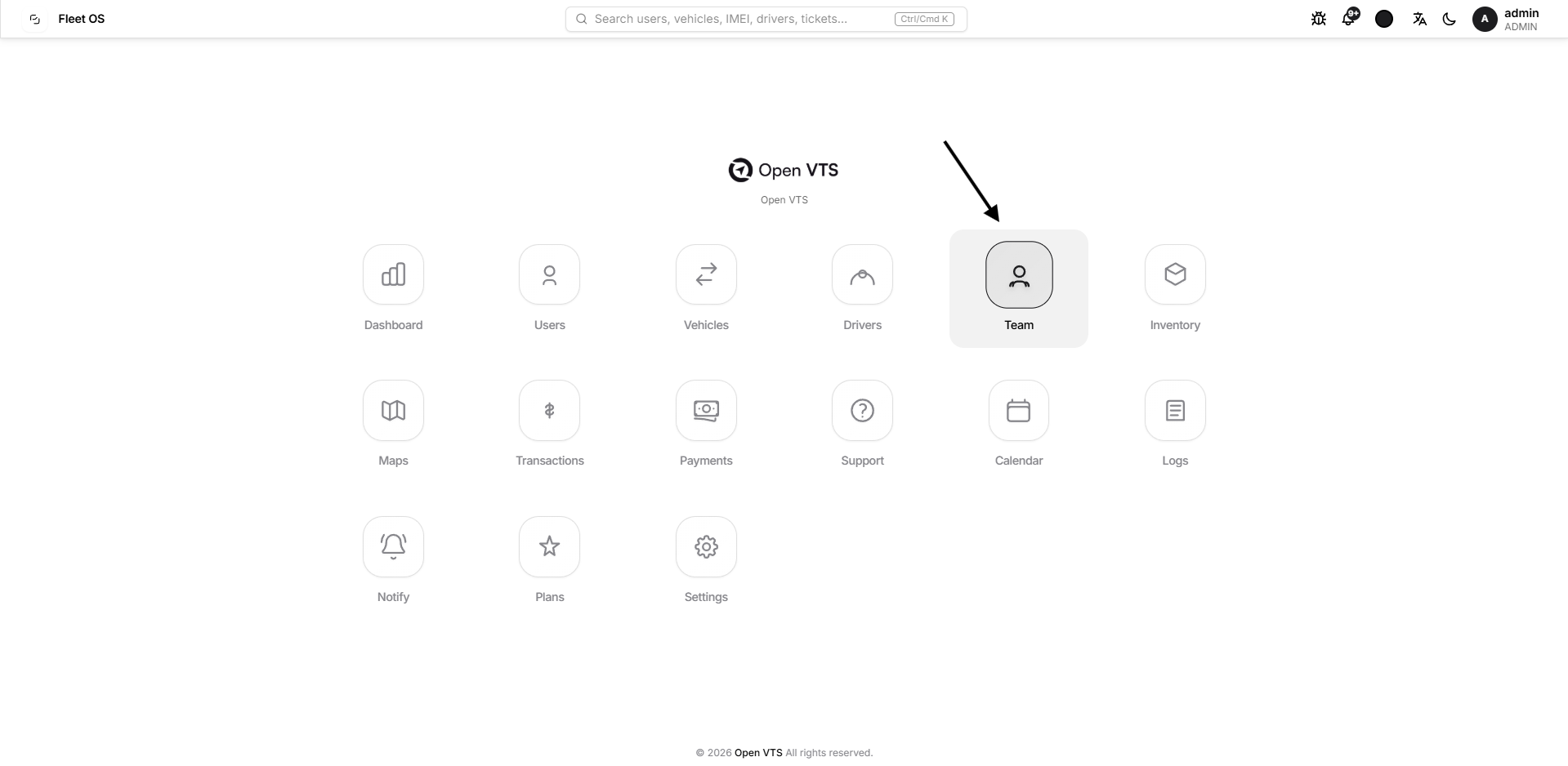
Instead of sharing an Admin account between multiple people, individual team-member accounts can be created with their own name, username, email, mobile number, and password. Each account can then be independently activated, deactivated, updated, or removed.
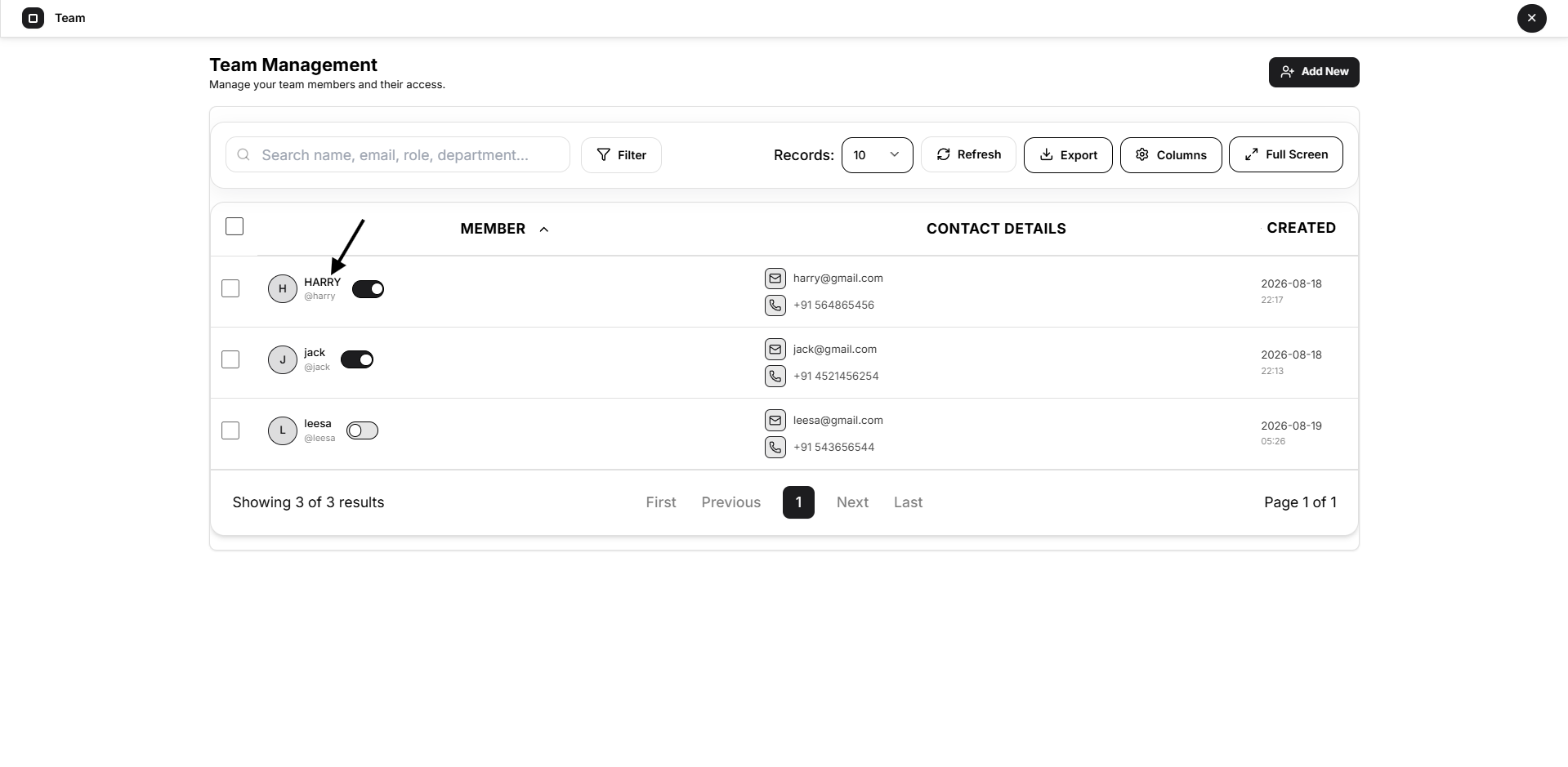
The main Team Management page provides a complete view of team members along with their contact information, account status, and creation date.
Team Management Page
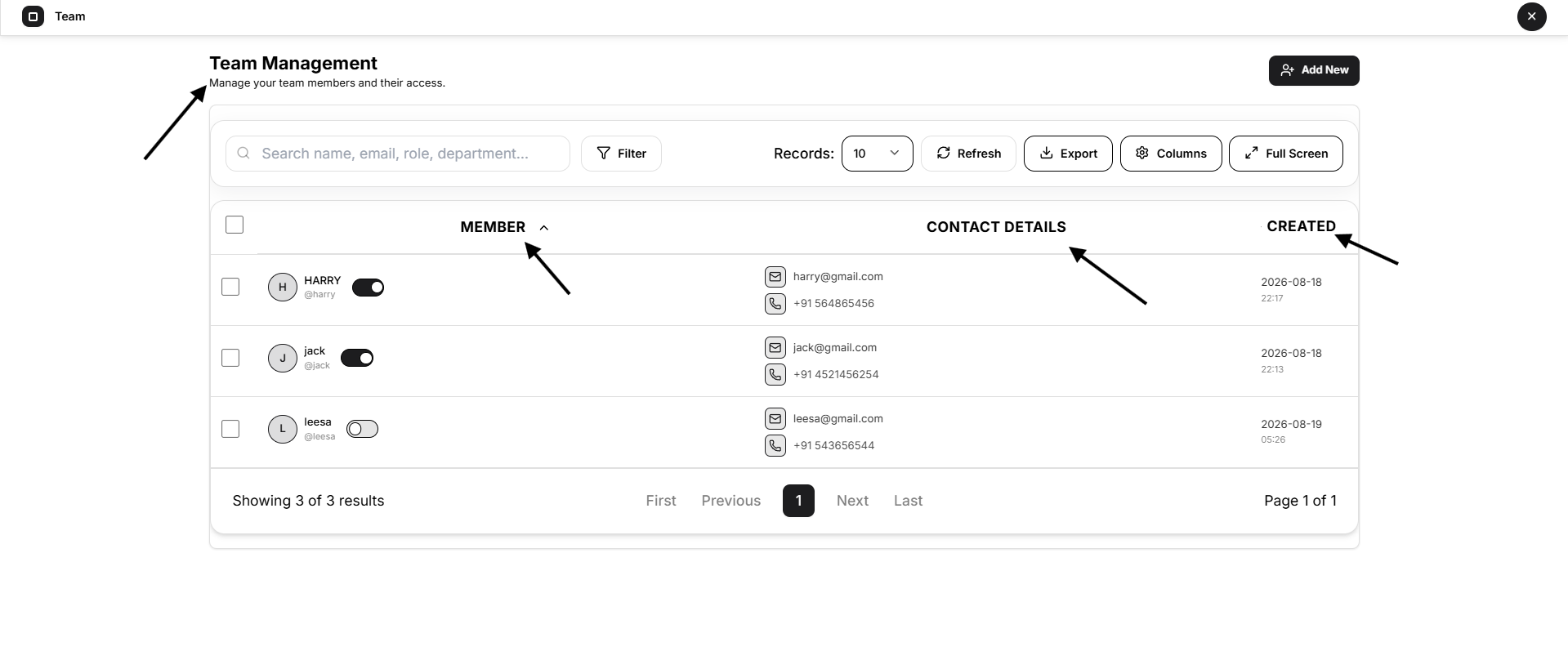
The Team Management page displays all team members in a structured table.
| Column | Description |
|---|---|
| Member | Displays the member's name, username, profile initials, and account status control. |
| Contact Details | Shows the member's registered email address and mobile number. |
| Created | Shows when the team-member account was created. |
Select a team member's name to open their dedicated profile and manage the account in greater detail.
Search and Filter Team Members
Use the Search field to quickly locate a team member from the list.
The Filter panel provides a Status filter with:
All — displays every team member. True — displays active members. False — displays inactive members.
Select Apply to apply the filter, or use Clear all to remove the selected filter.
Table Controls
The controls above the team table make it easier to work with larger teams.
Records
Choose how many team members are displayed per page.
Available options are 10, 20, 30, 50, or 100 records.
Refresh
Select Refresh to reload the latest team-member information.
Export
The team list can be exported in several formats:
CSV, XLSX, JSON, PDF, and HTML.
This is useful when team information needs to be reviewed, archived, or used outside Open VTS.
Columns
Select Columns to customize the table.
You can show or hide Member, Contact Details, and Created columns and drag columns to change their display order. Select Reset to return to the default configuration.
Full Screen
Select Full Screen to expand the Team Management table for a larger working area.
Add a New Team Member
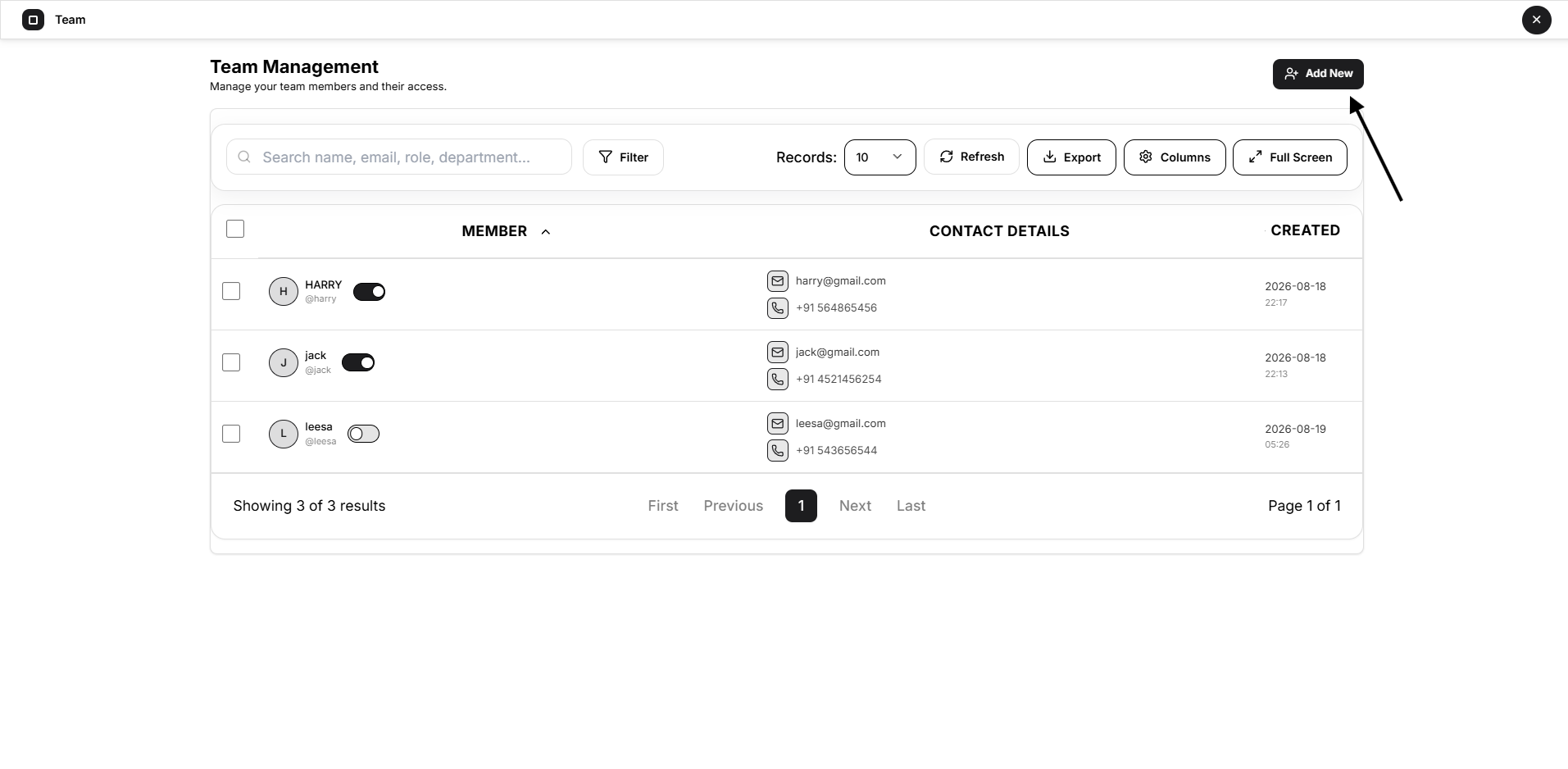
Select Add New from the upper-right corner of the Team Management page.
The Add New Team Member window opens.
| Field | Description |
|---|---|
| Full Name* | Enter the team member's name. |
| Email* | Enter the member's email address. |
| Code | Select the appropriate mobile country code. |
| Mobile | Enter the member's mobile number. |
| Username* | Create the username the member will use for their account. |
| Password* | Create the initial password for the account. |
Fields marked with an asterisk (*) are required.
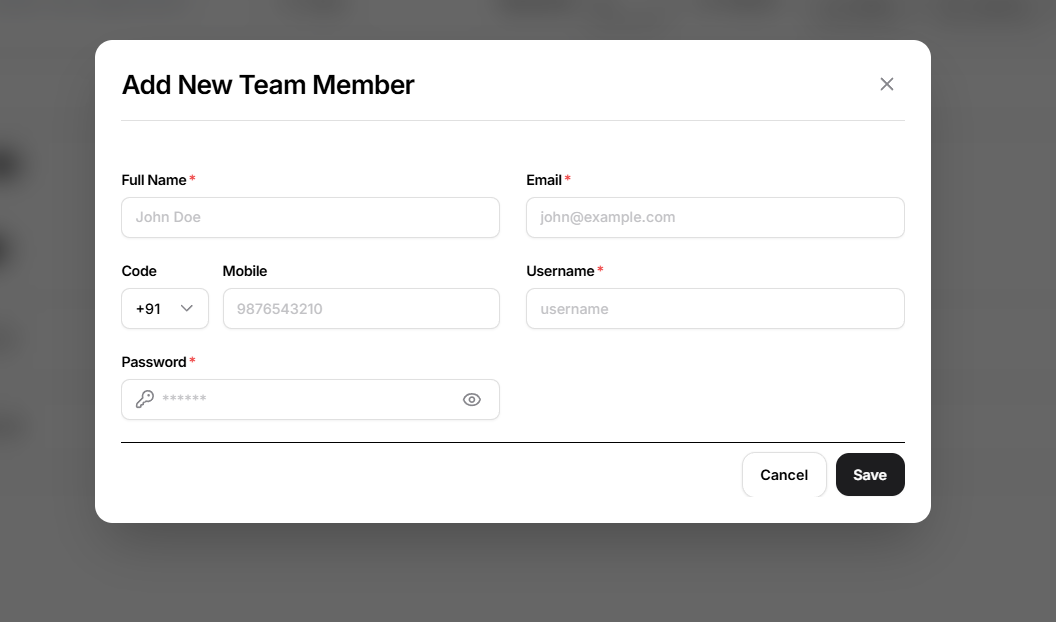
Select Save to create the team member. The new account is then added to the Team Management list.
Activate or Deactivate a Team Member
Every team member has an account status.
An Active account is enabled in the system, while an Inactive account is disabled.
You can change the status directly from the Team Management list using the switch beside the member or from the member's profile using Set Active / Set Inactive.
This allows an Admin to temporarily disable an account without deleting the member's record.
Manage Multiple Team Members
Select the checkboxes beside multiple members to activate the bulk-action toolbar.
The available actions are:
Active to activate the selected accounts, Inactive to deactivate them, Delete to remove the selected members, and Clear selection to cancel the current selection.
Bulk actions are especially useful when managing larger teams.
Team Member Profile
Select a team member from the list to open the Team Member Overview.
The profile provides a focused view of the selected account and displays the member's:
InformationDescriptionName & UsernameIdentifies the team-member account.StatusShows whether the account is Active or Inactive.EmailDisplays the registered email address.MobileDisplays the registered contact number.UpdatedShows when the account was last updated.CreatedShows when the team-member account was created.
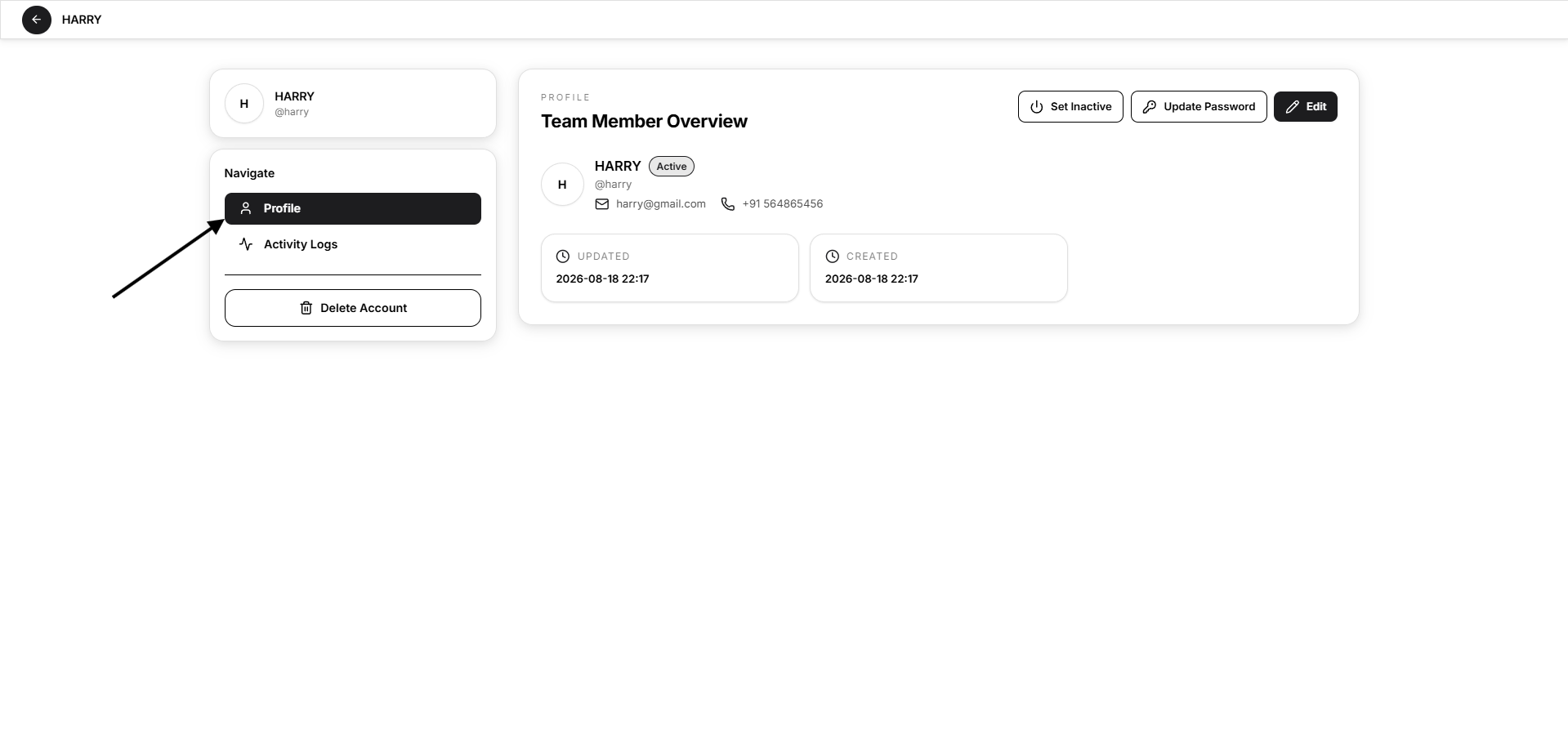
From this page, the Admin can manage the member without returning to the main Team list.
Edit a Team Member
Select Edit from the Team Member Overview.
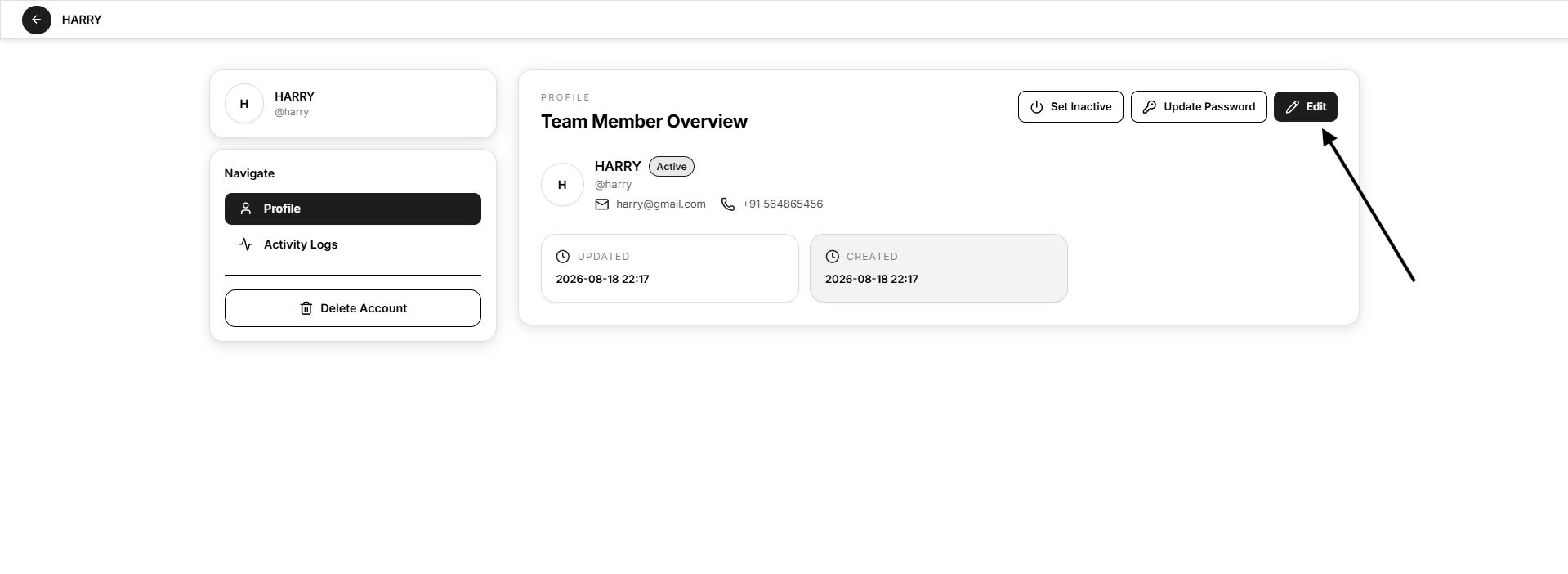
The Edit Team Member window allows you to update:
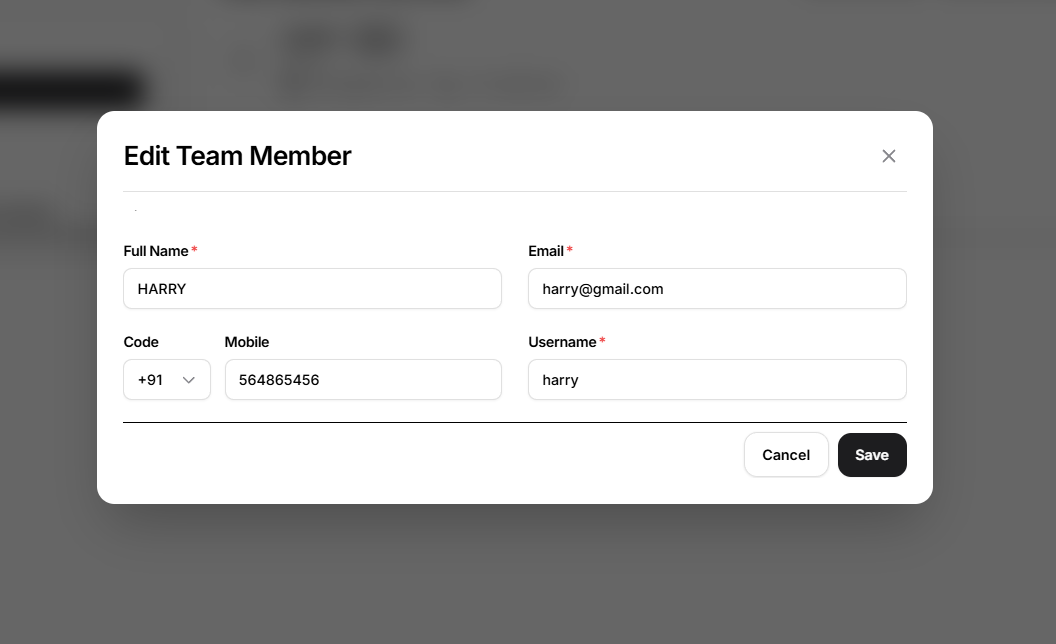
Select Save to apply the changes or Cancel to close the window without saving.
Update a Team Member's Password
Select Update Password from the Team Member Overview.
Enter the password in both:
New Password and Confirm Password.
The two entries must match. Select Save to update the member's password.
This allows the Admin to issue a new password whenever account credentials need to be changed.
Delete a Team Member
Select Delete Account when a team-member account is no longer required.
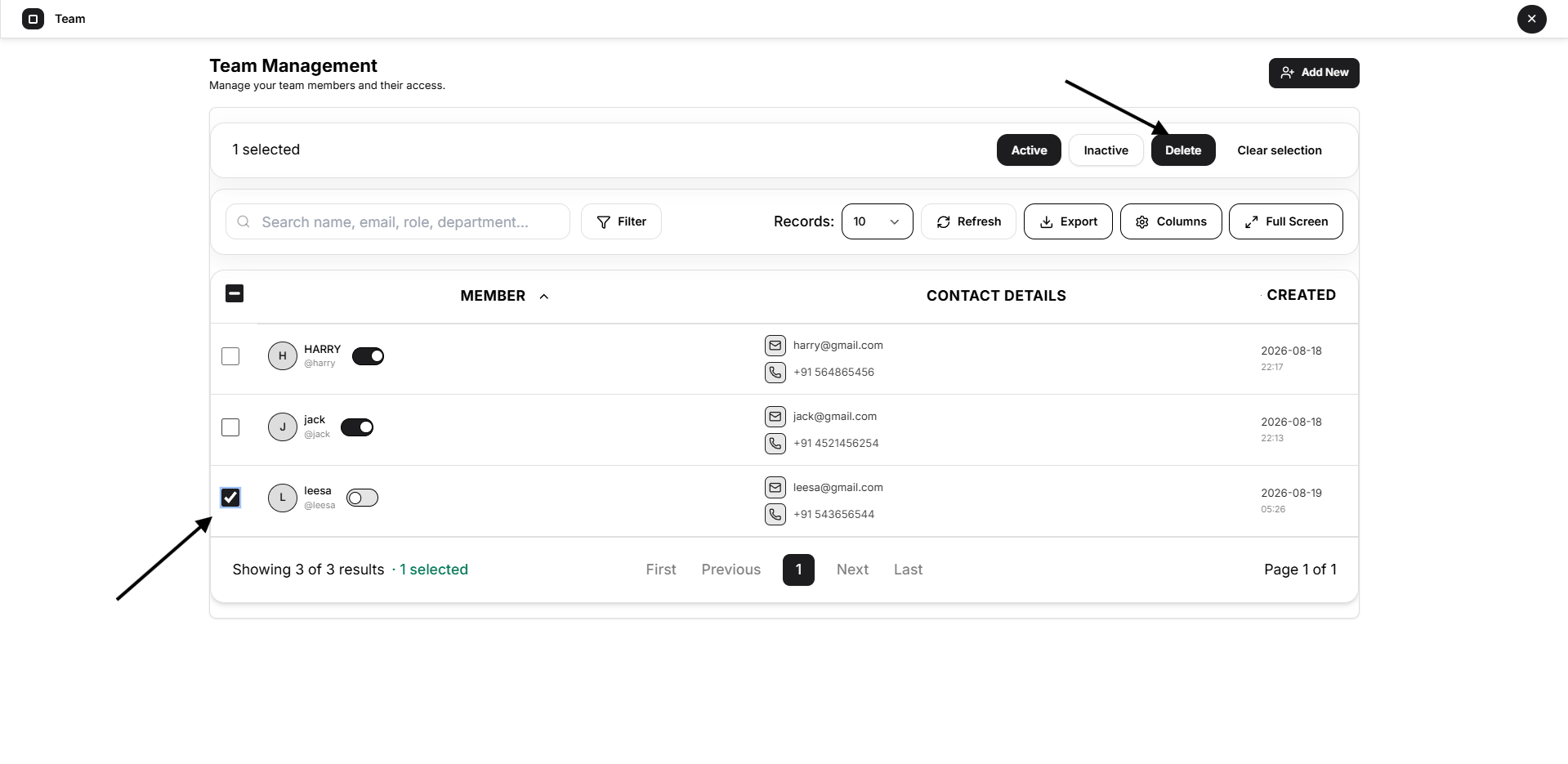
Deleting a member removes the account from Team Management, so use this option only when the account should no longer be retained.
If access only needs to be stopped temporarily, use Set Inactive instead of deleting the account.
Recommended Team Management Workflow
- Create the member using Add New and provide individual login information.
- Keep the account Active while the member requires access.
- Use Search, Filter, Records, Columns, and Export as the team grows.
- Open the Team Member Overview whenever account details need to be reviewed or changed.
- Use Edit for profile changes and Update Password for credential changes.
- Set Inactive when access should be suspended temporarily.
- Use Delete Account only when the team-member account is no longer required.
Why Use Team Accounts?
Team Management helps keep administration organized as more people become involved in day-to-day operations.
Creating a separate account for each team member gives every person their own identity within Open VTS and allows the Admin to independently control account status and credentials without sharing the primary Admin login.
For growing operations, this creates a cleaner and more manageable way to bring staff into Open VTS while keeping administrative account management centralized.