How to Install a GPS Tracking Server on Windows, Linux & VPSIntroduction
You can run your own GPS tracking server without developing software from scratch. This guide uses Open VTS and Amazon Web Services (AWS) to explain Windows and Linux server setup, software installation, first-time registration, GT06 device configuration, and live tracking. The process also applies to compatible VPS or dedicated servers from other providers.
This is a complete end-to-end process. You need nothing beyond this to run your own GPS tracking software. Once you master it, you will be fully equipped to operate your GPS tracking business independently.
Why Do You Need a Server for Self-Hosted GPS Tracking Software?
A GPS tracker calculates its position using satellite signals, then normally transmits location data through a cellular network. Your server receives the messages, stores vehicle history, and displays positions on a live map. Without a reachable receiver, the tracker cannot deliver remote updates to your dashboard.

Self-hosting means your organization operates the application and data storage. The server can be a cloud virtual machine, Dedicated server or suitably configured physical computer. A VPS is a rented virtual server, not a separate operating system.
Before You Begin: Server Requirements and Network Access
For an initial Open VTS evaluation, the published baseline is 2 vCPU, 4 GB RAM, 100 GB SSD storage, a 64-bit operating system, and a static public IPv4 address. For small production use, the Windows guide suggests 4 vCPU and 8 GB RAM. These are starting estimates, not guaranteed capacities.
You also need administrator access, a browser, and a tracker with a working data-enabled SIM. For remote access, allow only the necessary inbound ports: 80/443 for the web interface, 3389 for Windows Remote Desktop or 22 for Linux SSH, and the listener port used by your GPS device. Restrict administrator ports to trusted IP addresses. Never publicly expose PostgreSQL, Redis, or other internal services. Add a domain and HTTPS before normal production use. Reserve room for telemetry storage growth: frequent updates from even a modest fleet can accumulate substantial history. Arrange backups before connecting real customers, and remember that a cloud server incurs hosting and data-transfer charges even when the Open VTS software license is free.
How to Create a Windows GPS Tracking Server on AWS
AWS EC2 provides cloud-based Windows virtual machines:

Watch tutorial to create windows server
- 1Sign in to AWS. Open the AWS Management Console, search for EC2, and select Launch instances.
- 2Name the instance. Use a clear name, such as Open-VTS-Windows, for easy identification.
- 3Choose Windows Server. Select a supported 64-bit Windows Server Base image. The Open VTS guide lists Windows Server 2019, 2022, and 2025. Open VTS uses PostgreSQL, not Microsoft SQL Server.
- 4Select hardware and storage. Choose sufficient CPU and RAM, plus at least 100 GB SSD storage.
- 5Create a key pair. Select an RSA key and download the .pem private-key file. Save it securely to decrypt the initial Administrator password.
- 6Configure the security group. Allow web ports 80 and 443, RDP port 3389 from your trusted IP, and your required GPS listener port. For GT06, the example is 7510. Avoid opening unnecessary ports.
- 7Launch and assign a fixed IP. After launch, allocate and associate an Elastic IP. Save it for browser and tracker configuration.
The AWS security group is only one firewall layer. If GPS data cannot reach the server later, confirm the Windows firewall also permits the configured listener transport and port. Keep the private key and administrator password restricted to authorized staff. See the Open VTS Windows AWS guide for screenshots.
How to Install Open VTS on a Windows Server
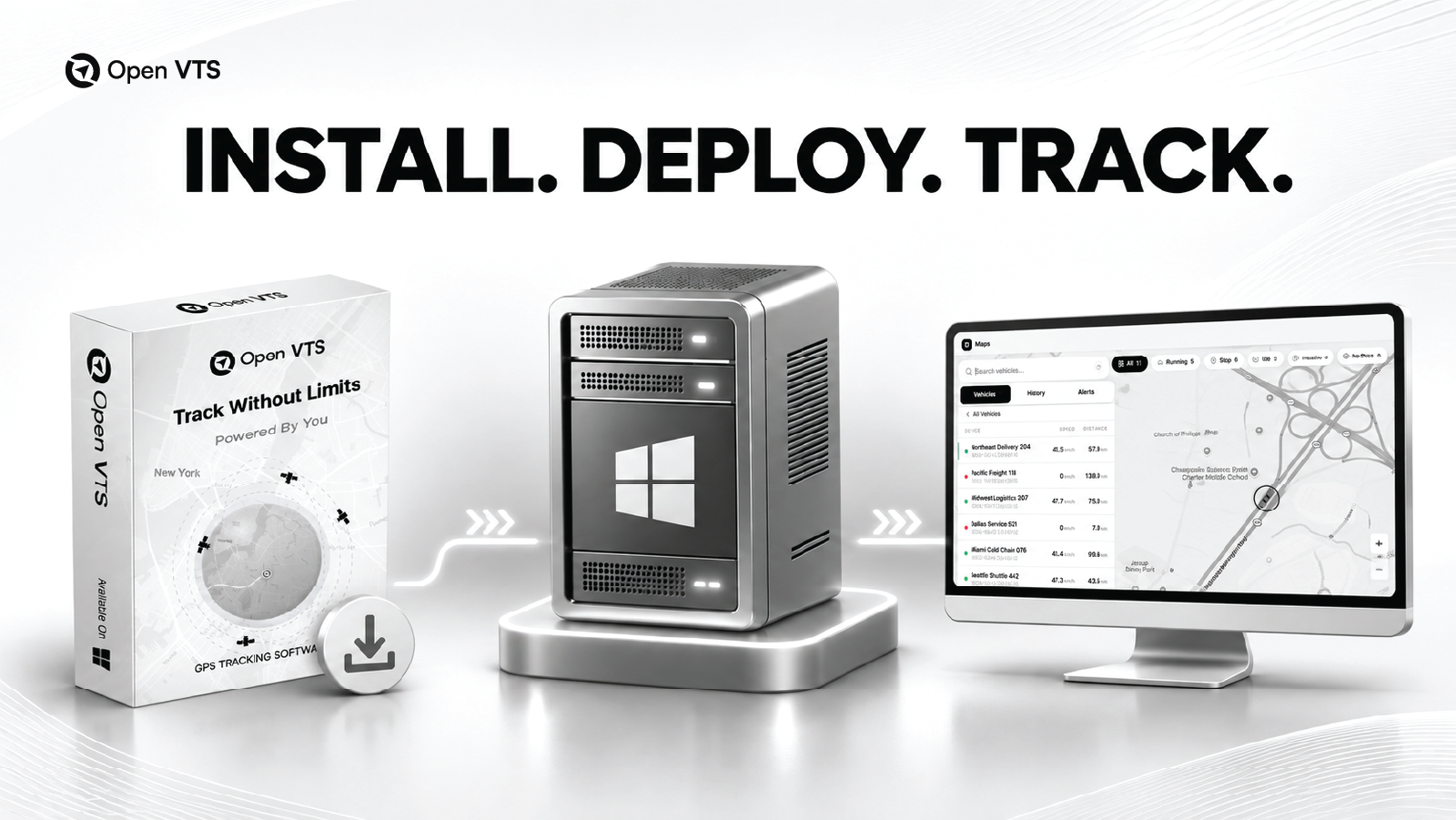
Watch tutorial to install Open VTS on windows server
With Remote Desktop connected, installation is largely guided by the Open VTS Setup Manager rather than manual database and backend configuration.
- 1Open a browser inside Windows Server. Install a supported browser if necessary.
- 2Visit the official Open VTS download page, choose the Windows package, save the ZIP archive, and extract it.
- 3Open the extracted folder and run the supplied installer with administrator permission. Verify the official download before accepting any security prompt.
- 4Follow the installation screens: Next, Install, accept the agreement, and finish the setup. Do not restart the machine while installation is running.
- 5Right-click the Open VTS desktop icon and choose Run as administrator to launch the Setup Manager.
- 6Select Install Node Dependency and allow the manager to configure the required components. The package handles Node.js, PostgreSQL, TimescaleDB, PostGIS, Redis, Nginx, databases, and application services.
- 7Launch Frontend Instance, then Backend Instance, then Listener Instance, waiting for a successful running status at each stage.
Use the HTTP IP address only for initial setup; configure domain-based HTTPS for production. If a service fails, review Setup Manager status. A successful installation should leave the frontend, backend, and GPS listener running together. Do not begin tracker configuration while any required service remains stopped, because the web interface can appear healthy even when the listener cannot accept device connections.
How to Create a Linux GPS Tracking Server on AWS or a VPS

Linux uses SSH rather than Remote Desktop. These steps also apply to compatible Ubuntu VPS providers.
- 1In AWS EC2, select Launch instance and name the machine Open-VTS-Linux.
- 2Select a compatible 64-bit Ubuntu Server LTS image. Confirm the exact release is supported by the current Open VTS installer.
- 3Choose a starting instance of approximately 2 vCPU, 4 GB RAM, and 100 GB SSD for a small evaluation deployment. Increase resources for production workloads.
- 4Create an RSA .pem SSH key pair and store the private file securely. Restrict SSH port 22 to your IP; allow web ports 80/443 and the required listener port.
- 5Launch the machine, confirm its status, and copy its public IPv4 address. Use a static IP for trackers.
- 6Open PowerShell, Terminal, or another SSH client on your computer. Connect using your key and server address:
ssh -i "path/to/your-key.pem" ubuntu@YOUR_SERVER_IPIf SSH rejects key permissions, restrict access to the private file and reconnect. On Linux or macOS, chmod 400 /path/to/key.pem is a common fix. On Windows, consult the official Open VTS Linux guide for its PowerShell file-permission procedure. Do not upload your private key to unrelated online troubleshooting sites.
See guide to create linux server and to install Open VTS on linux
How to Install Open VTS on Linux
First update the server packages from the SSH terminal:
sudo apt update
sudo apt upgrade -y
Then visit the official Open VTS Linux download instructions and review the installation script before running it with administrator privileges. The current documented one-command installer is:

curl -fsSL https://openvts.io/downloads/openvts-install-linux.sh | sudo bashThis executes a remote script as root; verify its source and use only on infrastructure you control. Once setup finishes, check the platform services and diagnose the installation:
sudo openvts status
sudo openvts doctor
Resolve reported errors before onboarding devices. The official download page also documents sudo openvts restart and sudo openvts logs for service management and troubleshooting. Run the health checks again following any service restart. Before using a production domain, create the appropriate DNS record pointing to the server IP and arrange a valid TLS certificate. Keep SSH access limited to authorized administrators.
Open http://YOUR_SERVER_IP in your browser. The first-registration screen should appear. Create the Superadmin account, sign in, and confirm the dashboard works. As with Windows, configure your domain and HTTPS for production; an accessible login page alone does not prove the tracking listener is ready.
How to Connect a GT06 GPS Tracker to Open VTS
To receive vehicle locations, create a user, register the device and SIM, and link a vehicle.

Step 1 — Create a user. From the appropriate Open VTS Admin workspace, open Users, select Create User, enter the account details, and save. This user will receive access to the relevant vehicle.
Step 2 — Add the IMEI and SIM. Open Inventory under the Admin account. Choose Add New → Device Only, enter the device's IMEI and select the correct GT06 device type. Then choose Add New → Sim Only, enter the SIM number and optional provider identifiers. Alternatively, Add New → Device & Sim creates and links both together.
Step 3 — Assign the SIM. Open the device's inventory record, select the correct SIM number, and save. Check the IMEI matches your tracker.
Step 4 — Add the vehicle. Open Vehicles → Add Vehicle. Select the primary user, enter the vehicle name and optional plate or VIN, select its type and the registered device IMEI, complete any required plan information, and save. Check the assigned user.
Step 5 — Configure the GT06 device. Ensure the powered tracker has SMS and mobile data. The Open VTS supported-device directory identifies port 7510 for GT06-compatible devices. For compatible firmware, send these SMS commands one at a time:
-PARAM#
-APN,AIRTELGPRS.COM#
-Server,0,YOUR_SERVER_IP,7510,0#
-Gmt,e,0,00#
-STATUS#
Replace YOUR_SERVER_IP with your server's actual static public IP. AIRTELGPRS.COM is an example APN, not a universal setting; use the APN supplied by your SIM provider. These SMS formats, including the timezone command, are model- and firmware-dependent. Confirm your tracker manual or generated device profile before sending them. Check each SMS reply.
For another tracker model, use the free Open VTS GPS Tracker Command Generator to select its manufacturer, model, APN, server IP, and listener port. The tool prepares commands but does not send them; syntax varies by device.
Start Live Tracking and Verify the First Position
Ensure the device is powered, has cellular service, and can acquire a GPS fix. After it reports, sign in with an authorized user account. Open the Open VTS live tracking map and select the vehicle. Confirm that its position, last update time, and other supported telemetry appear. If authorized, move the vehicle briefly and check map updates and journey history.

A network connection alone does not prove a valid GPS fix. Verify both.
Common Installation and Device Connection Problems
If the website does not load, check service status and ports 80/443 in both cloud and server firewalls. For Linux, run sudo openvts status and sudo openvts doctor. For Windows, check the Setup Manager services.
If the device stays offline, check power, SIM, data plan, APN, IP, protocol, and port 7510. Ensure the listener is running and the device port is reachable. If SMS works but tracking does not, a successful command reply does not establish an active data connection. Review the listener logs and verify that incoming device traffic matches the IMEI registered in inventory. Check the port on the Supported Devices page rather than guessing from a similarly named model. If the device connects but shows no coordinates, check its GPS fix, reported IMEI, and firmware compatibility. Keep unused ports closed.
Conclusion
Installing a GPS tracking server does not have to mean assembling databases, network listeners, and web applications manually. On Windows, Open VTS provides a guided Setup Manager; on Linux, it offers an official installation script and service commands. In either case, a successful setup ends with a compatible physical tracker reporting real positions—not merely a working login screen. Start with one authorized vehicle, verify the complete workflow, secure your deployment, and expand after testing. Download Open VTS to try its self-hosted GPS tracking software, currently offered with a free tier for up to 50 vehicles.