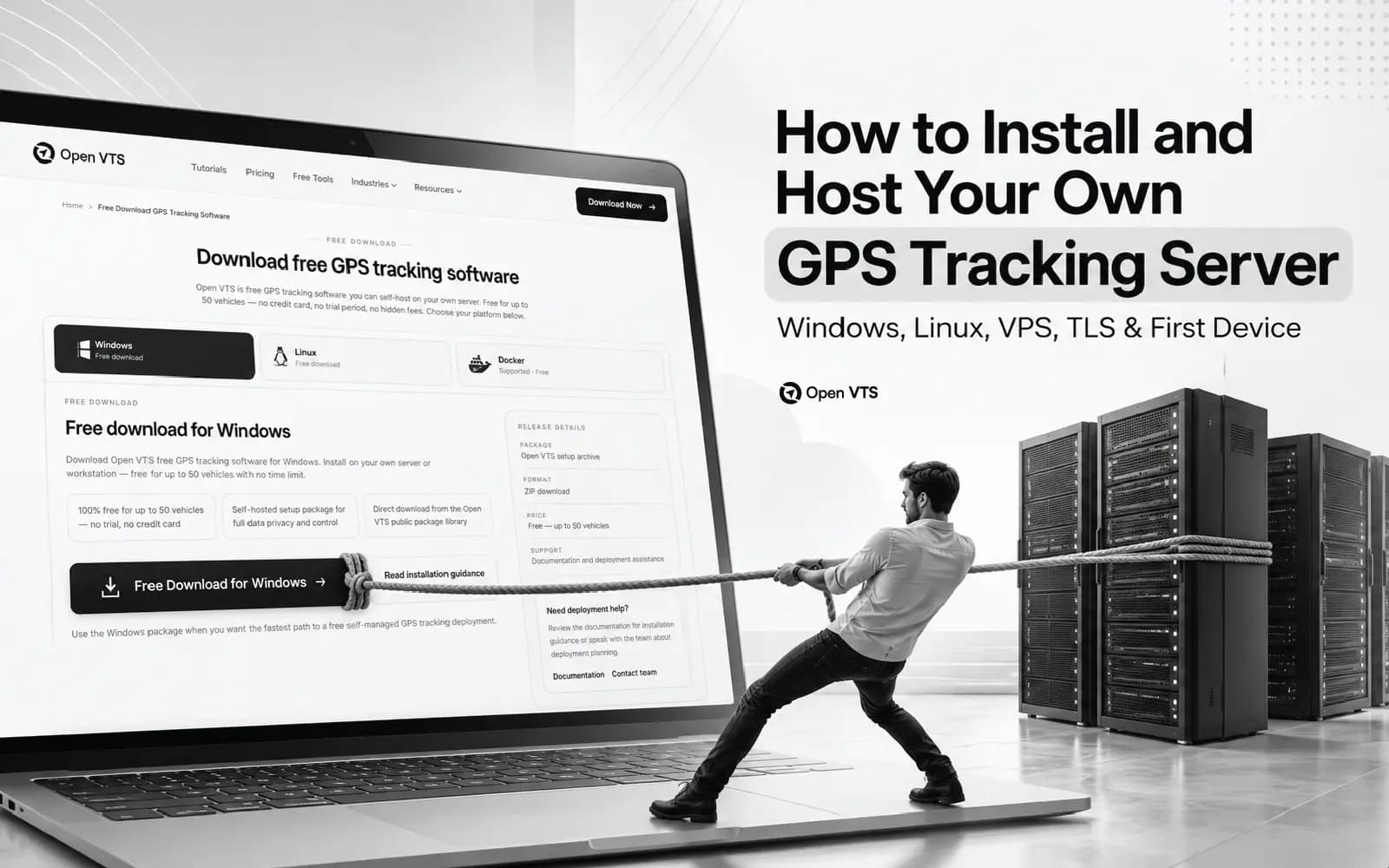
A GPS tracker can be powered on, accept an SMS command, and still remain offline in your tracking software. That is because sending a command is only one part of the connection.
This guide walks you through one complete setup with Open VTS. You do not need to know programming or GPS packet formats. You need a compatible tracker, a suitable SIM card, access to an Open VTS server, and a few settings that belong to your device and your server.
The goal: see the correct vehicle on your Open VTS map, confirm a recent position, and see a second fresh report. That is what makes a first connection successful.
How a GPS tracker connects to a server
A GPS tracker uses satellite signals to determine its position. It usually uses a SIM card and the mobile network to send that position to your tracking server. Open VTS receives the message through a listener that understands the device's protocol, matches its identifier, and shows the result to an authorized user.
Satellite position → GPS tracker → Mobile data → Open VTS listener → Vehicle on your map.
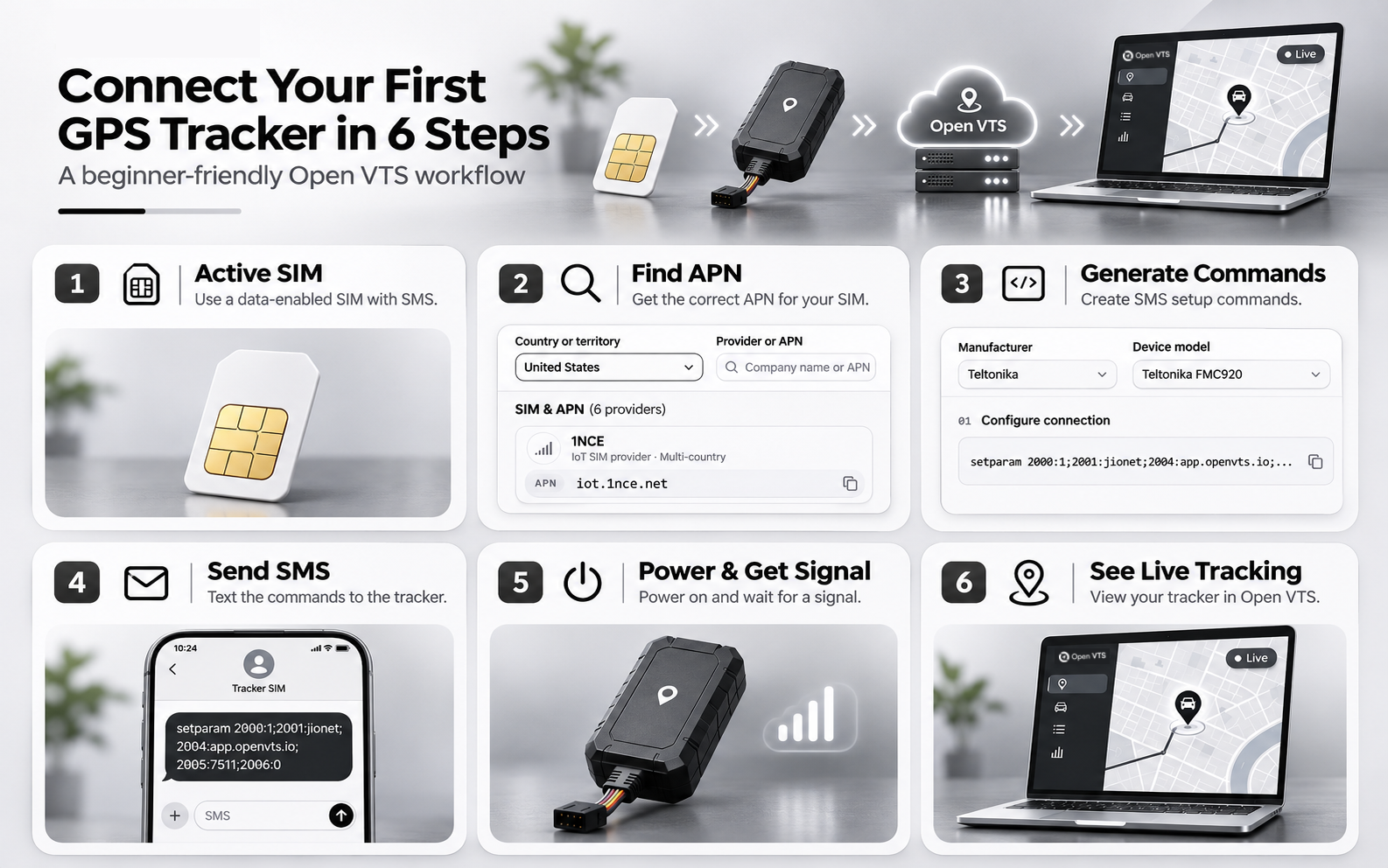
Three small terms make the rest of this guide much easier:
| Term | Plain-English meaning |
|---|---|
| APN | The mobile-data setting supplied by your SIM provider. It connects the tracker to the carrier's data network. |
| Server host + port | The destination where the tracker sends its data. The host identifies your server; the port identifies its matching GPS listener. |
| IMEI / device ID | The identity Open VTS uses to recognize which tracker is reporting. It must match the identifier sent by that device. |
The web page you use to log in is not necessarily the address and port your tracker should use. Your APN is also not your Open VTS server address.
Before you begin: the five things you need
- A compatible GPS tracker. Find its manufacturer and exact model, and the IMEI or unique ID on its label or in its configuration software.
- A suitable SIM card. It needs active mobile data; it needs SMS only if this tracker is configured through SMS. Confirm cellular coverage and compatibility with your device's network bands.
- Power for the tracker. Charge a battery device or use the manufacturer's wiring instructions for a hardwired unit. Never guess vehicle wiring or fuse ratings.
- An installed Open VTS server and Admin access. If you are starting without a server, follow the official download and installation guides first.
- Your actual server details. Ask the person managing your deployment for the reachable hostname/IP, protocol-specific port, and TCP/UDP transport.
Keep one tracker beside you during this guide. Configuring many devices at once makes it harder to identify which setting caused a problem.
Step 1 — Find your tracker model and the correct protocol
Check the label on the device or its box. Write down the exact manufacturer, model and IMEI. For example, “Teltonika FMC920” is more helpful than “Teltonika,” and “Concox GT06N” is more helpful than “GT06.”
Open the Open VTS Supported Devices directory. Search for the model and check the protocol and port listed for it. A protocol is simply the language your tracker speaks when it sends reports.
The Open VTS catalogue commonly lists GT06 on port 7510 and Teltonika on port 7511. Those are useful examples, not universal settings. Your installation must actually be running the appropriate listener at the port you use. Similar-looking devices may also use different firmware and command formats.
You are ready for Step 2 when: you know the device's correct identity and have a supported or verified protocol/port mapping.
Step 2 — Activate the SIM and find its APN
A tracker needs more than satellite reception. It usually needs mobile internet to deliver its location to Open VTS.
- 1Confirm the SIM is activated and has a suitable data plan. For an SMS-configured tracker, confirm the SIM can receive SMS messages.
- 2Follow the tracker manual when inserting the SIM. Some trackers must be powered off first; others require a SIM PIN to be disabled.
- 3Open the free Open VTS APN Finder.
- 4Choose your country, your provider, and — importantly — the correct SIM subscription/profile.
- 5Note the APN and any username, password or roaming instructions supplied for that plan.
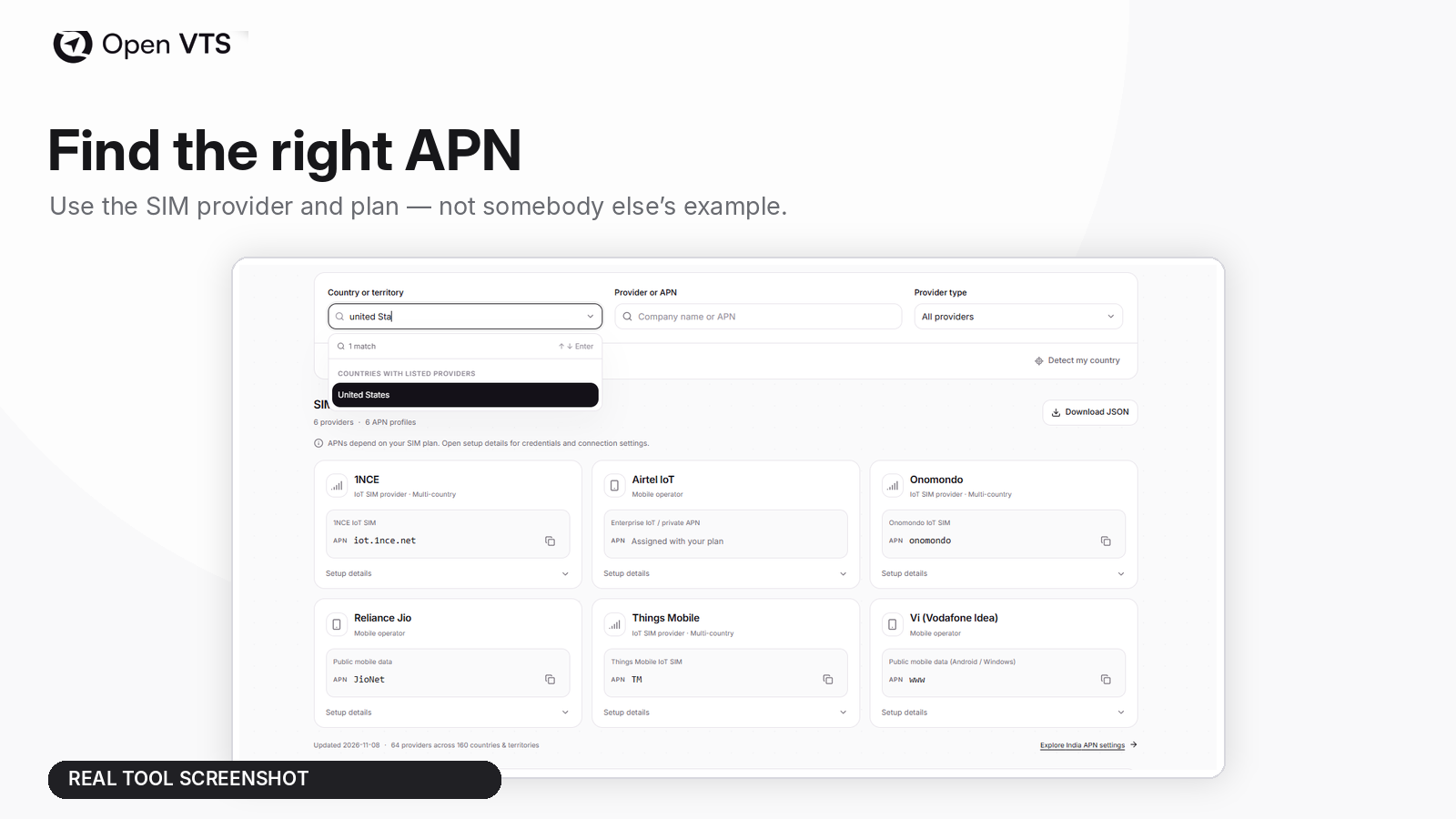
Example: the same telecom company may offer a public mobile-data APN and a different private IoT/M2M APN. Use the one assigned to your SIM plan, not a value copied from an unrelated article or screenshot. If your provider uses a private APN, ask the provider for the exact configuration.
An SMS working does not prove that mobile data works. Equally, a data-only IoT SIM may be usable for tracking but not accept SMS configuration.
You are ready for Step 3 when: your SIM is supported by the tracker and you have its actual APN settings.
Step 3 — Confirm Open VTS can receive tracker data
Your Open VTS website and the incoming GPS listener serve two different purposes. Opening the dashboard in a browser proves the website works; it does not prove that a tracker can reach its listener.
Ask your server administrator to confirm:
- Host: a public IP address or hostname that leads to your Open VTS installation.
- Port: the listener port matching your device protocol.
- Service: the Open VTS listener is running.
- Firewall: the required device port is reachable through the host and cloud network firewalls.
For example, tracking.example.com and 7510 illustrate a host and a GT06-family port. They are not settings for your device. Enter your deployment's actual values. Do not include https:// or a web login path in a tracker field expecting only a server hostname.
Only open the ports your own devices require, and keep database and administrative services appropriately restricted. The Open VTS protocol and port guide explains the matching process.
You are ready for Step 4 when: the correct listener is running on a reachable address and port.
Step 4 — Add the device and vehicle in Open VTS
Now tell Open VTS which tracker belongs to which vehicle. Even when packets reach a server, a missing or mismatched device record can stop them from appearing under the intended vehicle.
In the Open VTS Admin workspace, open:
Vehicles → Add Vehicle
Follow the on-screen form:
- 1Choose the primary user who will own or manage the vehicle. Create that user if needed.
- 2Enter a recognizable vehicle name; add plate number and VIN when available.
- 3Choose the correct vehicle type.
- 4Select the tracker IMEI/device identifier from inventory, or add a new IMEI if your workspace permits it.
- 5Choose the relevant plan and select Save Vehicle.
These are the fields described in the official Open VTS Admin Vehicle Management guide. The interface and available options depend on your role and deployment.
Before going further, reopen the vehicle and check that its IMEI and primary user are correct. The reported device identifier must match the registered identifier exactly. Avoid creating duplicate IMEI records.
You are ready for Step 5 when: you can see the new vehicle in the correct Admin account with its intended device selected.
Step 5 — Generate the correct configuration commands
The tracker still does not know which server to contact. You must configure it using the method supported by its manufacturer: SMS, a manufacturer desktop tool, USB/Bluetooth, or another authorized method.
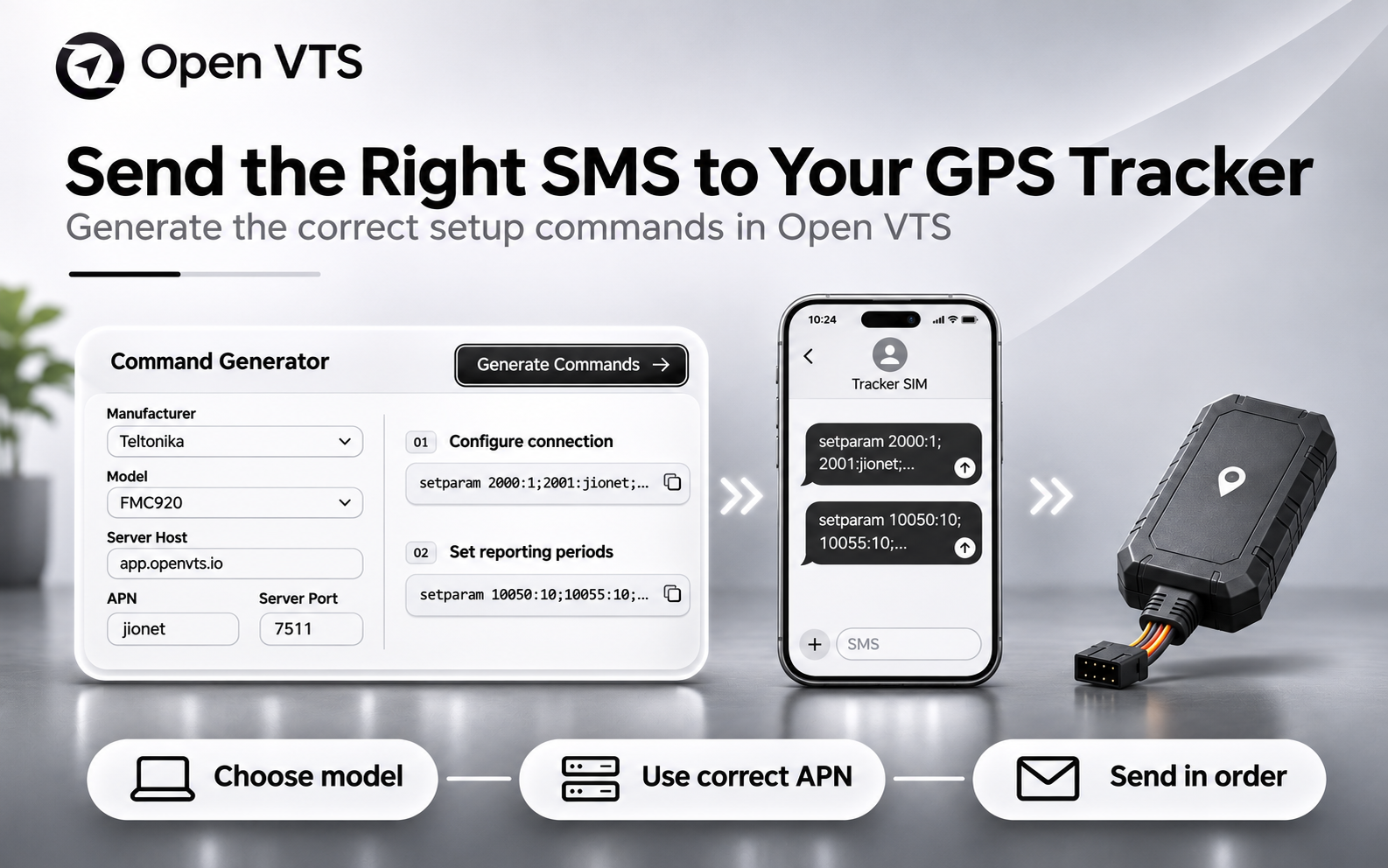
For supported SMS models, open the free Open VTS GPS Tracker Command Generator:
- 1Select the exact manufacturer and model.
- 2Enter the APN from Step 2 and any required credentials.
- 3Enter your real Open VTS host and listener port from Step 3.
- 4Select appropriate reporting settings, if supported. Start with the device manufacturer's recommended intervals or your operation's requirements.
- 5Press Generate commands, then review the Main commands and any instructions shown for that model.
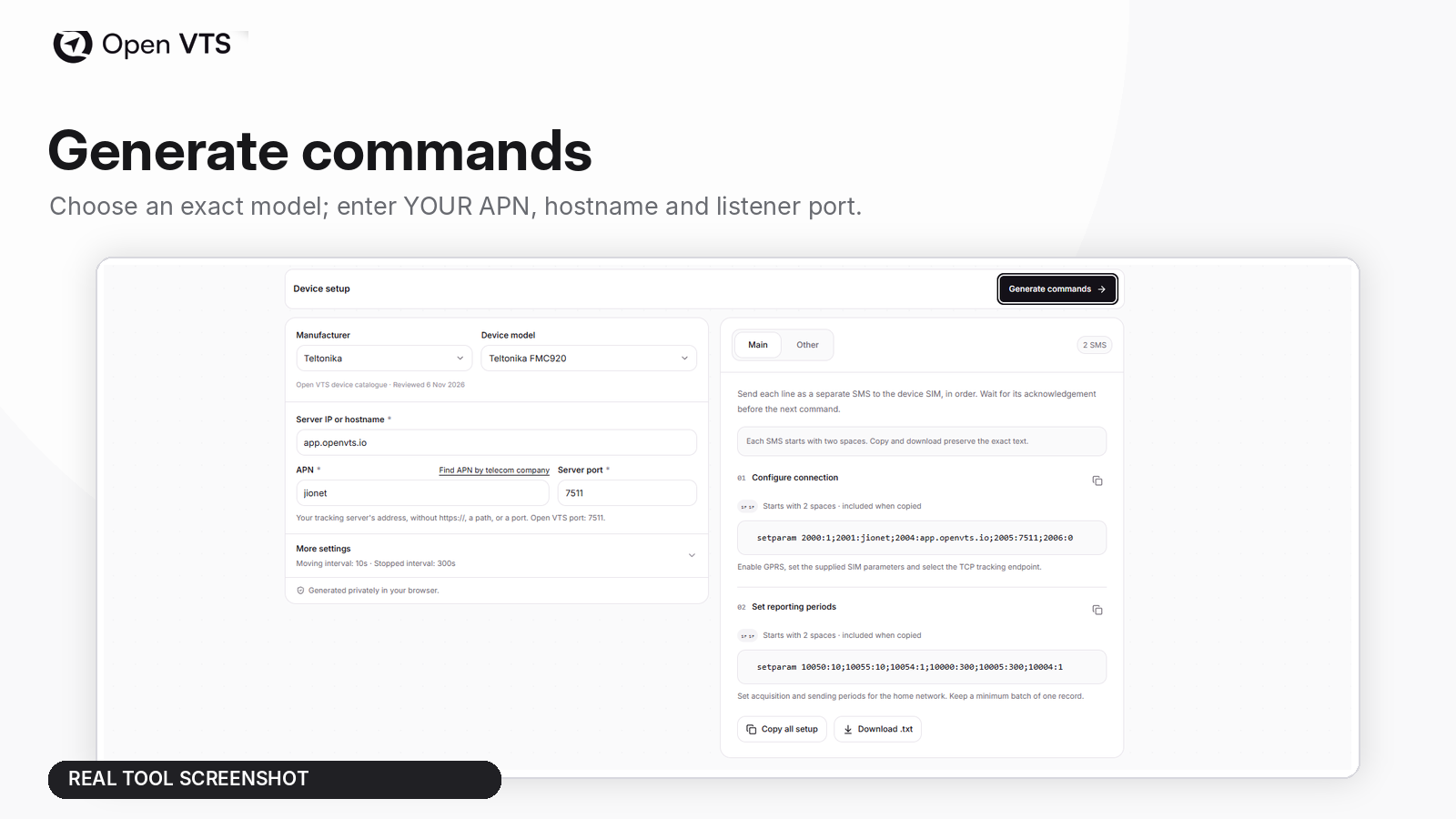
The image shows a real Open VTS example. Its APN, hostname, listener port, and generated SMS are not instructions to copy into your device. They must match your own model, SIM plan and server.
If the generator says Manual required, or it offers a command profile from a different model of the same manufacturer, check the source model and firmware notes before using it. Do not assume that two models accept identical commands. Some devices require manufacturer software rather than SMS.
You are ready for Step 6 when: you have the documented configuration for your exact hardware and it contains your own APN and server information.
Step 6 — Send the setup SMS (or configure through the manufacturer's tool)
If your tracker supports SMS setup, the recipient is the phone number of the SIM inside the GPS tracker. It is not your Open VTS account phone number.
The process is straightforward:
- 1Open Messages on your phone and address it to the tracker SIM.
- 2Copy the first complete command from the generator. Preserve spaces, punctuation and any required authentication prefix.
- 3Send it as one separate SMS. Wait for the reply or readback the manual specifies.
- 4Send the next generated command separately and in the order shown. For example, some models use one message for connection settings and another for reporting intervals.
- 5Keep a copy of the commands and replies so you can troubleshoot later.
Important: receiving a message such as “OK” means the tracker may have accepted its settings; it does not prove the tracker has mobile data, reached the server, or obtained a valid GPS position.
If your model uses USB or manufacturer software, enter the same APN, hostname and port through that tool and apply its documented save/restart procedure. Do not send a random SMS to a device that has no verified SMS command profile.
You are ready for Step 7 when: the device has received or saved the correct settings using its supported method.
Step 7 — Confirm the first live location in Open VTS
Give the tracker a suitable view of the sky. A device may connect to the cellular network before it can calculate a valid position, especially indoors or near a metal roof.
Open Open VTS and select the new vehicle from the live tracking view. Check four things:
- 1Correct vehicle: you are seeing the name and tracker you registered.
- 2Recent time: the latest location/report timestamp is fresh for the configured reporting behavior.
- 3Plausible location: the map position matches where your tracker really is.
- 4Another update: wait for at least one additional new report. A stationary device may report less often or remain at the same coordinates; that is normal if its timestamps are fresh.
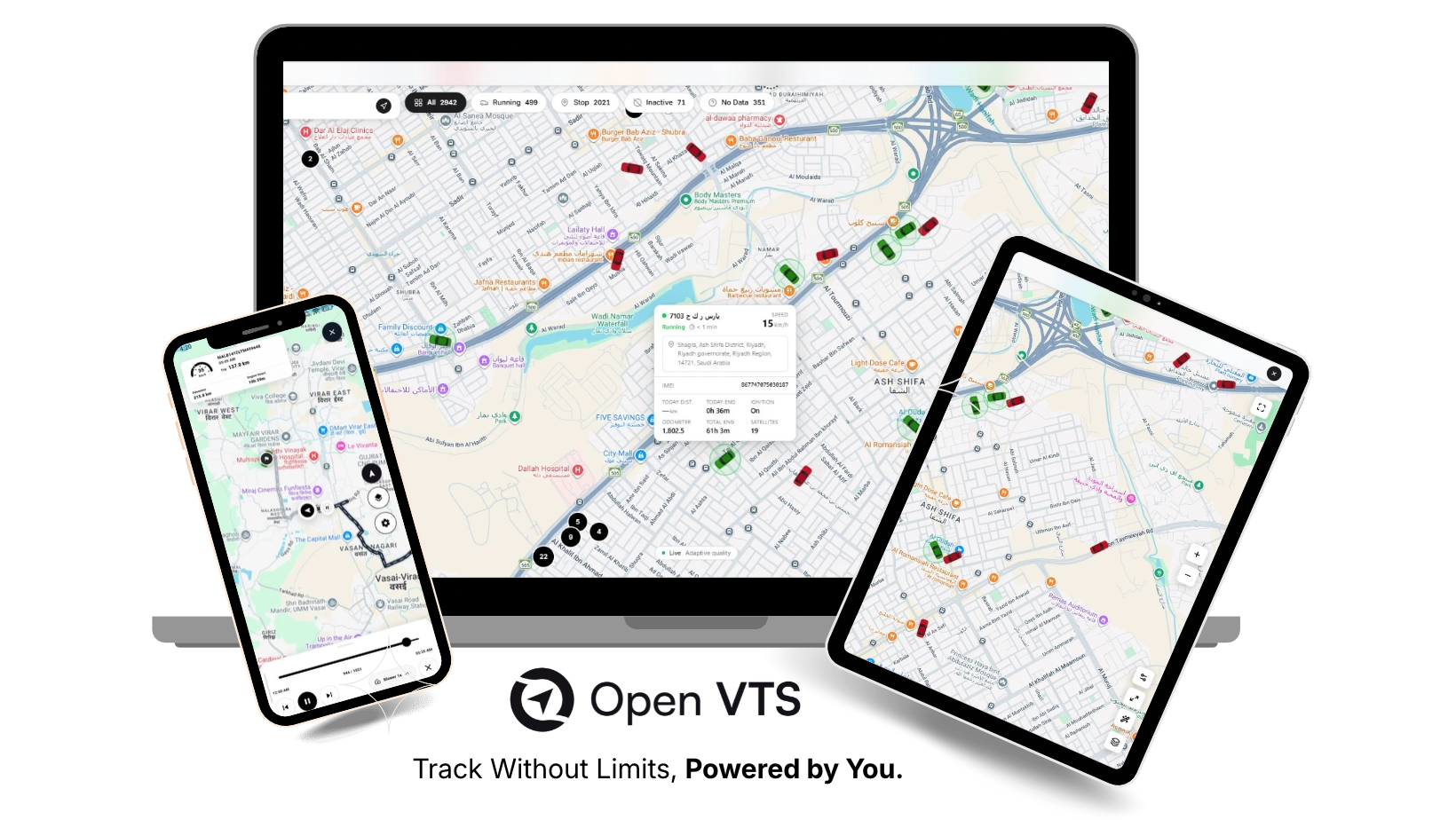
For an extra check, perform a brief, safe, authorized movement test and review the vehicle's history. Do not confuse a previously stored position with a live report, especially after a device reconnects and uploads buffered data.
Congratulations — your first tracker is working when the correct vehicle shows valid, fresh data and updates again.
Tracker still offline? Start with the symptom
| What you observe | Most likely next check |
|---|---|
| No power or lights | Correct supply, charge, fuse, wiring and ground according to the manual. |
| No SMS reply | Tracker SIM number, SMS service, network signal, command syntax and authorization. |
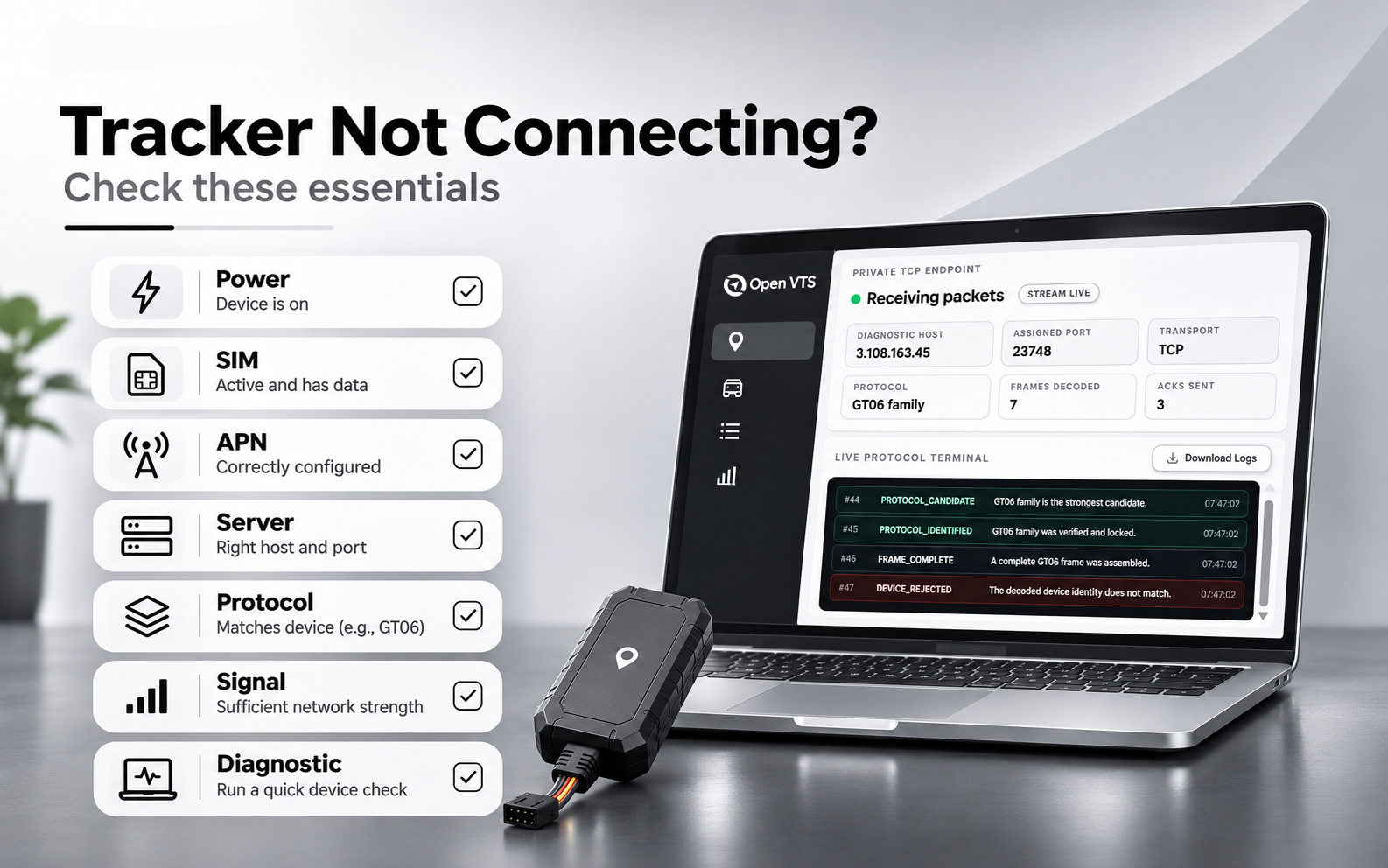
| SMS accepted, but no data | Data plan, APN, hostname, protocol port, TCP/UDP mode and firewall. |
| Packets arrive, but the device is rejected | MEI/device ID mismatch, duplicate record, incorrect vehicle/customer association. |
| Protocol not recognized | Exact model, firmware, listener family and protocol documentation. |
| Device connected, but location is missing | GPS/GNSS sky view, antenna, valid fix and reporting settings. |
| Map position is old | Report timestamp, stationary interval, coverage gaps and stored/history data. |
| Admin can see it, User cannot | Primary user, vehicle assignment and access permissions. |
| GPS Device not reported | at few countries you should to whitelist IP by Sim Provider |
A quick final checklist
- I know my exact tracker model and device ID.
- I have a compatible, active SIM and its correct APN.
- My Open VTS listener is running on the correct public host, port and transport.
- The vehicle exists in the correct Admin account with the matching IMEI.
- I used my device's documented setup method and verified its settings.
- I see a plausible, recent position in Open VTS.
- A second fresh report arrived, and the right user can view the vehicle.
Frequently asked questions
Can I connect any GPS tracker to Open VTS?
Not automatically. The model must use a supported protocol, have the necessary cellular connectivity, and be configured to communicate with your Open VTS listener. Check the Supported Devices directory before buying or connecting hardware.
Do I always need to send an SMS?
No. Some trackers use USB, Bluetooth, manufacturer configuration software, or a management portal. SMS is one common configuration method, not a universal one.
Does an SMS “OK” reply mean my tracker is online?
No. It only indicates that the tracker may have recognized the command. You must still verify incoming packets, the registered device identity and fresh GPS data in Open VTS.
Why is my GPS tracker online but not moving on the map?
The vehicle may actually be stationary, the device may use a slower stationary reporting interval, or the latest position may be old. Check the report timestamp before assuming something is wrong.
What is the difference between APN and server IP?
The APN is a setting from your mobile carrier. The server IP/hostname is the address of your tracking receiver. Both must be correct, but they do different jobs.
What if the device sends packets but is rejected?
Compare the exact reported IMEI/device ID with the one registered and assigned in Open VTS. Check account and device ownership before changing unrelated settings.
Your next step
Start with one device, complete every checkpoint, and save the working settings. Once you can bring up one tracker reliably, you have a repeatable method for onboarding the next ten or hundred devices without guessing.
Use the Open VTS Command Generator when your model has a documented profile, and keep the Supported Devices directory available throughout setup.
Open VTS — Track Without Limits, Powered by You.